
My OPSWAT Central Management can be easily integrated with an existing Centrify & VMware UAG SSO workflow to ensure that a device complies with the organization's My OPSWAT Central Management policy before it is granted access to VMware UAG. This ensures that the device is not only authenticated by Centrify, but is also tested for risks and vulnerabilities (such as infections or unpatched versions of operating systems) before it accesses an organization's services.
To get started with implementing My OPSWAT Central Management integration to enforce device compliance check before granting a device to access VMware UAG with Centrify Single Sign On (SSO) service, you need to set up SSO between Centrify and VMware UAG.
You can learn more details for each step here.
Step 1. Enable Access Control on your My OPSWAT Central Management account
Login to My OPSWAT Central Management console.
Navigate to Secure Access and then Protected Apps.
Check on the box Enable Secure Access .
Click SAVE.
Step 2. Add protected applications with IdP Method
Download Centrify IdP certificate. This allows My OPSWAT Central Management to verify users signing though a trusted IdP, Centrify. Each identity provider has a unique X.509 certificate. Download the Centrify X509 certificate by following these steps:
Login to Centrify as Administrator
Navigate to Apps, then select the VMware UAG application
Go to Trust > Identity Provider Configuration > Signing Certificate
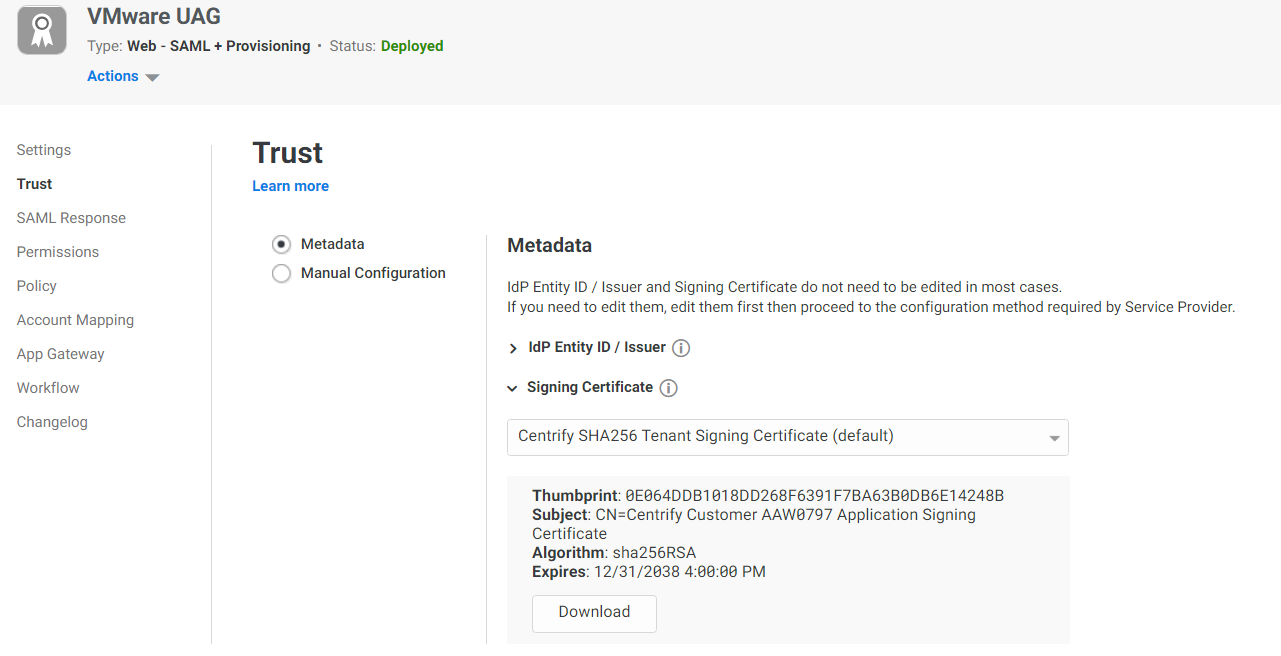
Click on Download Certificate to download the Centrify certificate.
Collect Single Sign On URL:
Go to Trust > Identity Provider Configuration. Then click on Manual Configuration
Copy Single Sign On URL field
Add the Centrify Identity Provider. If you already have Centrify IdP settings on your My OPSWAT Central Management account, go to step 6 to add VMware UAG application.
Login to the My OPSWAT Central Management console.
Navigate to Secure Access and then Protected Apps.
Click Add a Protected Application and select IdP Method.
Fill in required fields for the Identity Provider:
Identity Provider: Centrify
IdP__Name: an IdP name, for example: Centrify
IdP__Certificate: upload Centrify certificate you downloaded**.**
Click Continue.
Add VMware UAG application by expanding the Centrify IdP settings you have just added.
Application_:_ application name, for example: UAG
IdP__Login URL: login UAG Portal URL, for example: https://<UAG port domain:port>/portal_Application_
ACS URL: URL which you have from Step 2.4
Access Mode: pick an access mode you prefer. See details on the Add Protected Applications with IdP Method
Click Save.
After saving your changes successfully, click the Setup Instructions button of the VMware UAG application you have just added and then copy the URL My OPSWAT Central Management generated there.
Download the OPSWAT Certificate as you will need this for later.
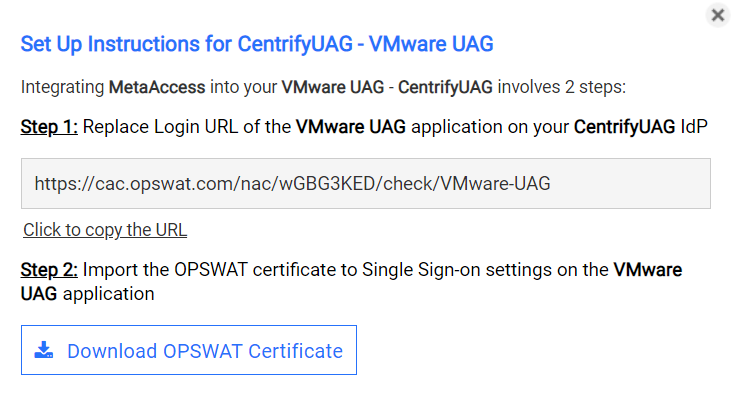
Note: you can add VMware UAG application when you add Centrify IdP settings.
Step 3. Configure Access Rules
On My OPSWAT Central Management console, navigate to Secure Access and then Rules
Click "ADD NEW RULE" to add a new rule for this application OR you can update existing access rules to add this application
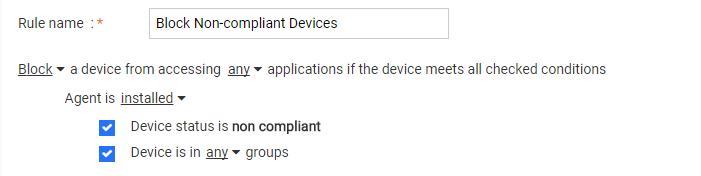
With a new access rule, you need to specify how you would like to block/allow access a device from the application
Rule name: a rule name, for example Block non-compliant devices
Action: Block or Allow
Configure conditions to do the action. Details at Configure Access Rules
Click ADD RULE
Step 4. Update Applications settings on Identity Provider
Login to Centrify as administrator
Switch to Admin portal
Navigate to Apps
Select VMware UAG application
Go to Trust > Service Provider Configuration, select Manual Configuration
Replace Assertion Consumer Service (ACS) URL with the URL My OPSWAT Central Management generated for your app.
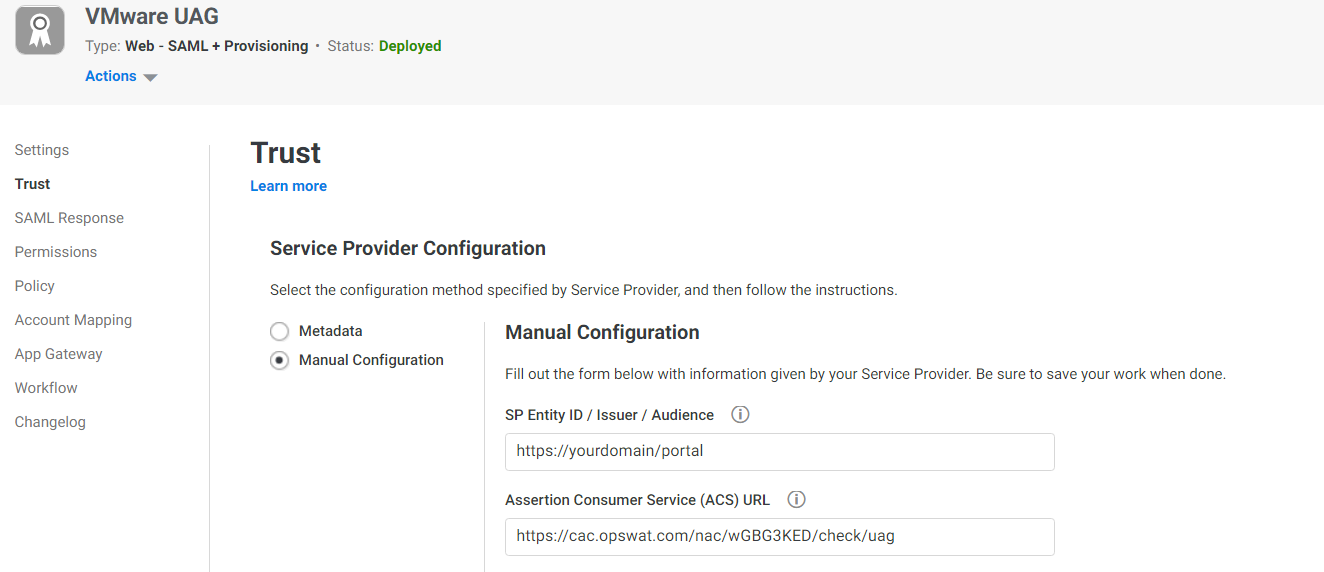
Click Save
Step 5. Configure SSO settings on VMware UAG
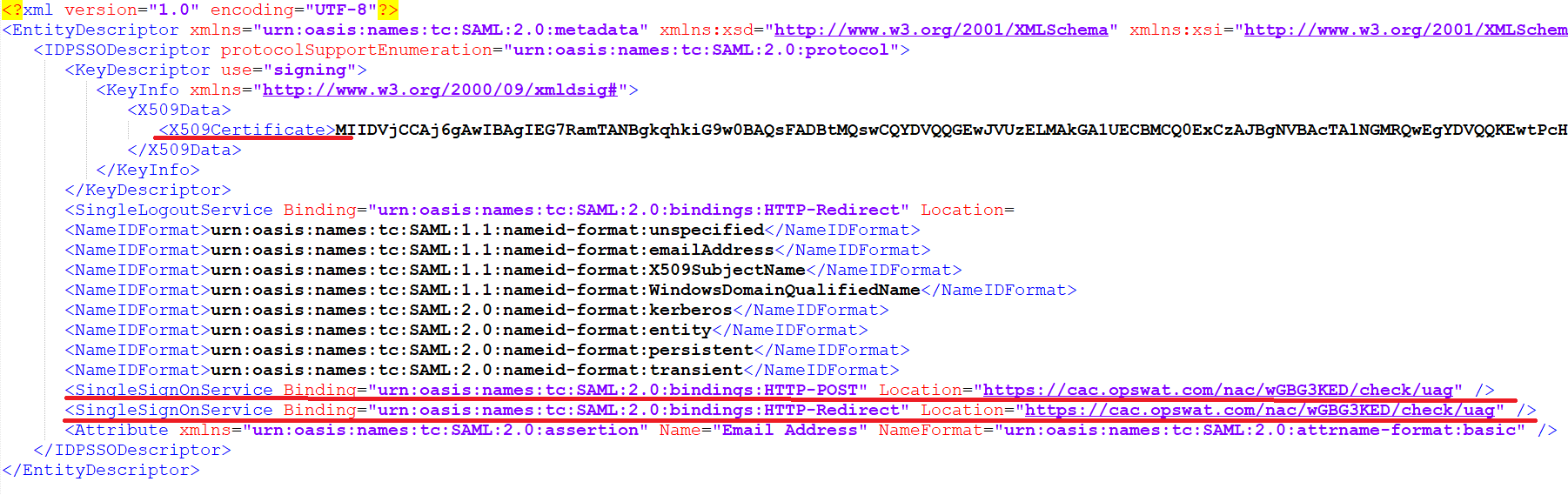
Using the certificate you downloaded earlier, edit the IDP metadata file you used to configured SSO on VMware UAG with Centrify in the past
Replace X509Certificate with the certificate downloaded in step 5.1
Replace SingleSignOnService.Location with the link you get in step 2.5
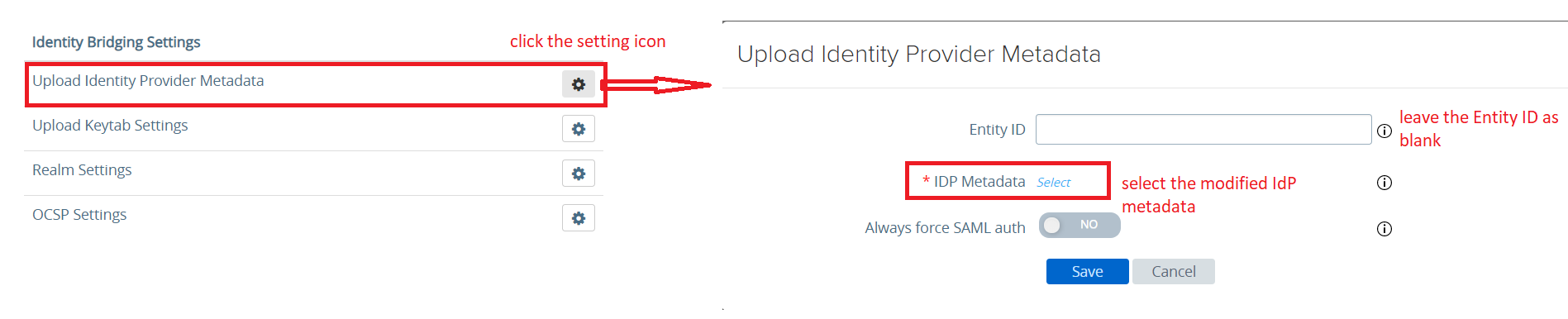
Login to VMware UAG admin console
Navigate to Identity Bridging Settings > Upload Identity Provider Metadata and upload the IdP metadata file you modified.
Then click Save.
Step 6: Test your integration
Follow guideline at Test Your Integration to verify if it works as your expectation.