
My OPSWAT Central Management can be easily integrated with ADFS Proxy to ensure that a device is compliant with the organization's security policy before it is granted access to a virtual desktop. This ensures that the device is not only authenticated by the IdP, but also tested for risks and vulnerabilities such as threats or unpatched versions of operating systems, BEFORE it access an organization's cloud services.
To get started integrating My OPSWAT Central Management to enforce device posture check before granting a device to access VDI with ADFS Proxy, you set up SSO between ADFS and VDI manually. You need the following requirements
A domain.
An Active Directory instance.
Add your domain to Azure AD.
Install Windows PowerShell for Azure Active Directory here.
Install ADFS server.
Using Azure AD Connect to enable Single Sign-On for your domain.
Configuring, installing ADFS server and enabling SSO are beyond the scope of this tutorial. This tutorial uses screenshots from Server 2016, but similar steps should be possible on other versions.
Now it's the time you can integrate My OPSWAT Central Management with your ADFS by following below steps. You can learn more details for each step here at Configuration.
Step 1. Enable Secure Access on your My OPSWAT Central Management account
Login to the My OPSWAT Central Management console.
Navigate to Access Control and then Configurations
Check on the box "Enable Secure Access" and configure a port for the cross-domain API. Note that you must select a port which no applications on endpoints is running.
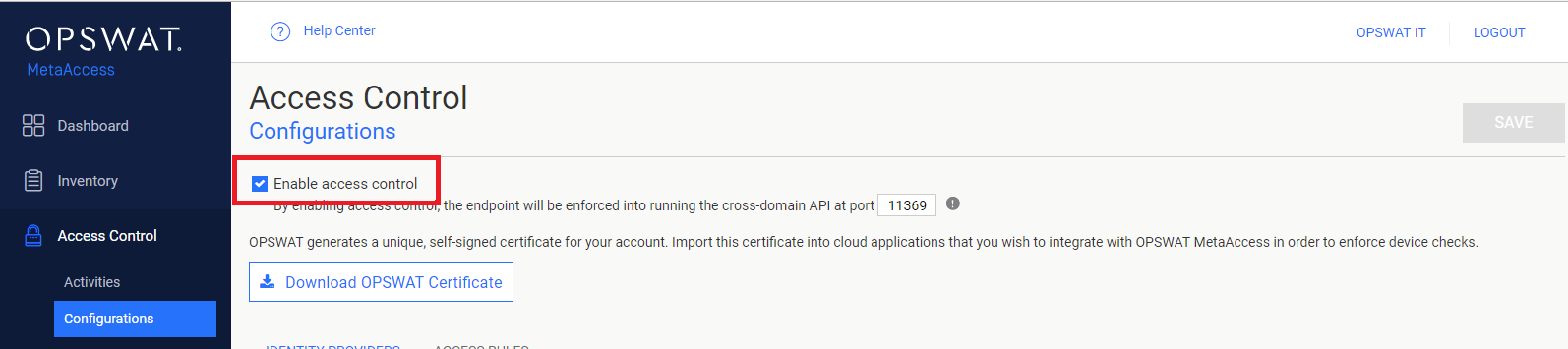
Click SAVE.
Step 2. Add protected applications with IdP Method
The next step is importing an ADFS Signing certificate to My OPSWAT Central Management. This allows My OPSWAT Central Management to verify users signing though a trusted IdP. Each identity provider has a unique X.509 certificate. Download the ADFS Signing certificate by following these steps:
Login to Windows Server
Open Server Manager
Click Tools
Click AD FS Management
Expand Service
Click Certificates
Double-click on the "Token-signing" being used to sign your responses
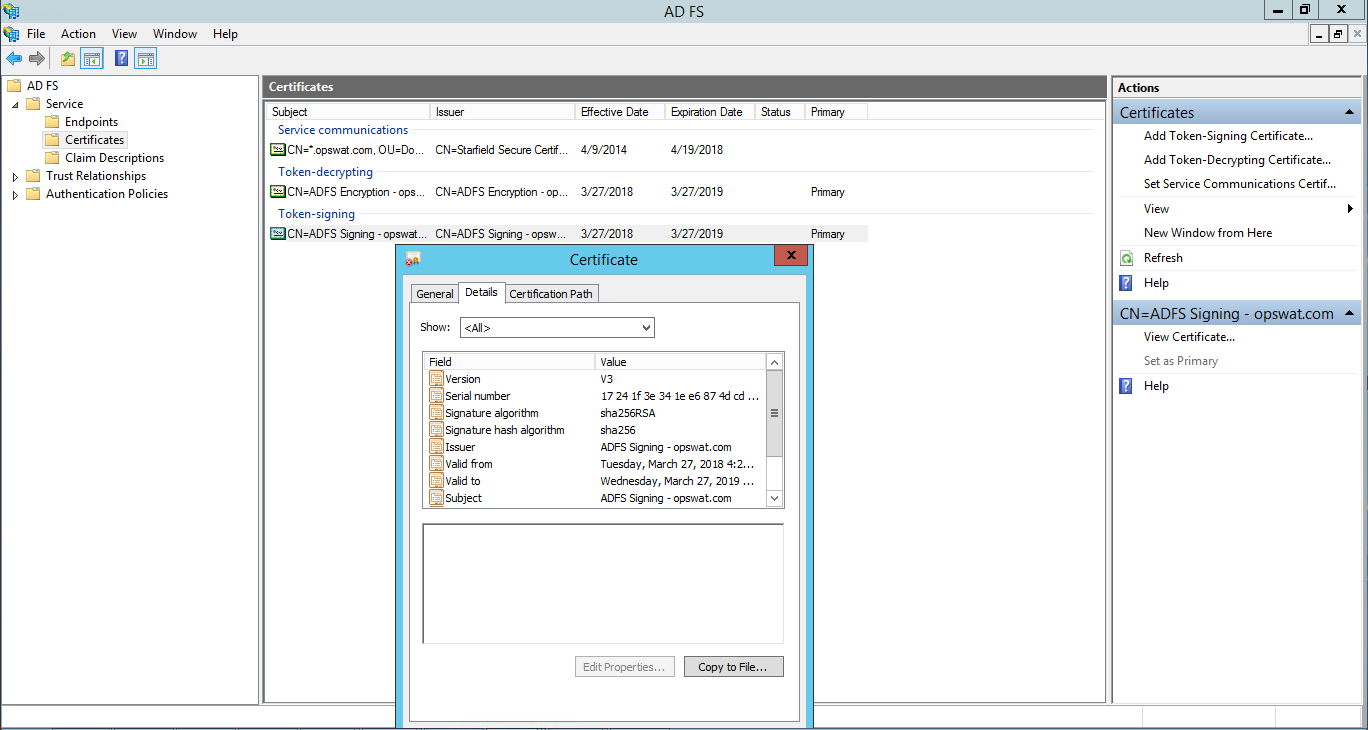
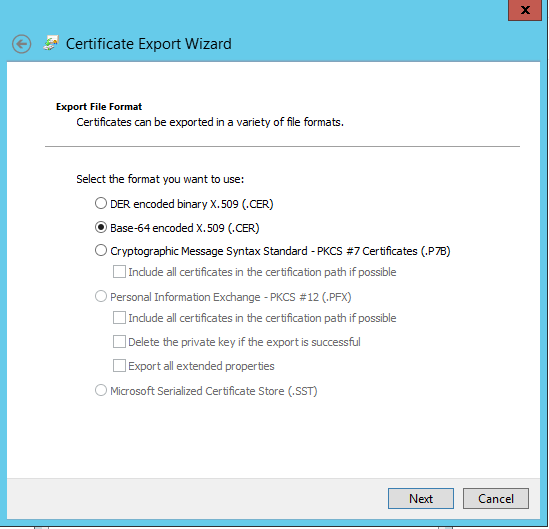
8. Click Copy to File to download the certificate. That should open another box, showing the certificate export wizard. Click Next and you will be asked which format to export the certificate in. Choose Base-64 encoded X.509
Collect Idp Login URL In this case, Idp Login URL is https://login.microsoftonline.com/login.srf
Add the ADFS Identity Provider. If you already have ADFS IdP settings on your My OPSWAT Central Management account, go to next step to add an application.
Login to the My OPSWAT Central Management console.
Navigate to Access Control and then Configurations
On the Identity Providers tab, click "Add New Identity Provider" to add your IdP
Fill in required fields for the Identity Provider
IdP Name: an IdP name, for example: ADFS
IdP Certificate: upload ADFS certificate you downloaded in Step 2.1
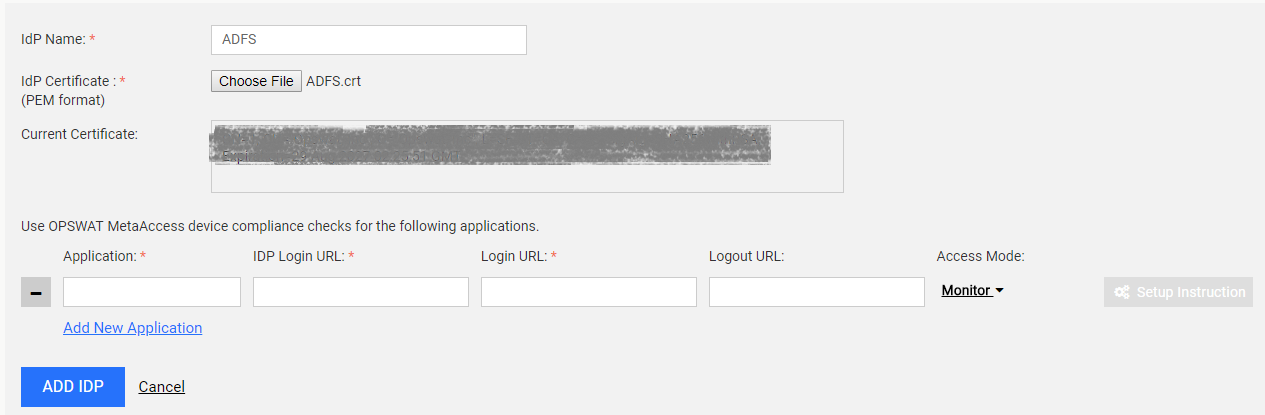
5. Click Add IDP
6. Click SAVE
Add the application:
Expand the ADFS IdP settings you have just added in Step 2.3 above.
Click Add New Application
Enter required field
Application: application name, for example: vdi
IDP Login URL: application login URL which you have from Step 2.2
Login URL: https://login.microsoftonline.com/login.srf
Logout URL: https://login.microsoftonline.com/logout.srf
Access Mode: pick an access mode you prefer. See details on the access modes at Add Protected Applications with IdP Method.

4. Click SAVE
After saving your changes successfully, click the Setup Instructions button of the VDI application you have just added and then copy the URL My OPSWAT Central Management generated there. This URL is used to replace VDI login URL on ADFS.
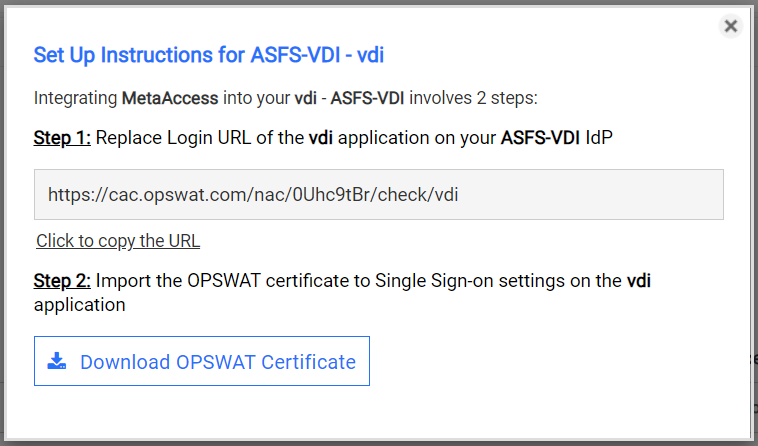
Note: you can add VDI application (step 2.4) when you add ADFS IdP settings.
Step 3. Configure Access Rules
On My OPSWAT Central Management console, navigate to Access Control and then Settings
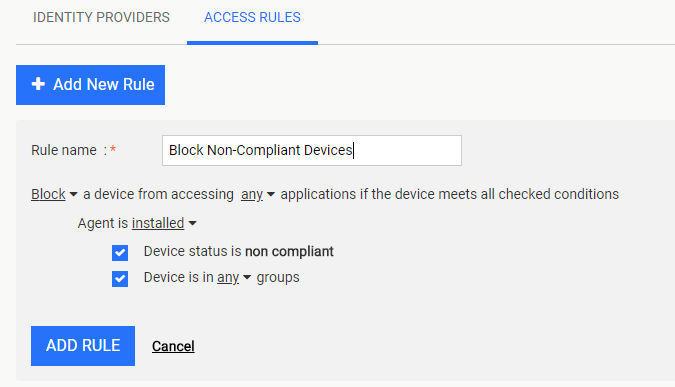
On Access Rules tab, click "ADD NEW RULE" to add a new rule for this application OR you can update existing access rules to add this application
With a new access rule, you need to specify how you would like to block/allow access a device from the application
Rule name: a rule name, for example Block non-compliant devices
Action: Block or Allow
Configure conditions to do the action. Details at Configure Access Rules
Click ADD RULE
Step 4. Create new Relying Party Trust For VDI in ADFS Server
Login to Windows Server
Open Server Manager
Click Tools
Click AD FS Management
Expand Trust Relationships
Click Relying Party Trusts
Follow this tutorial to create new Relying Party Trust
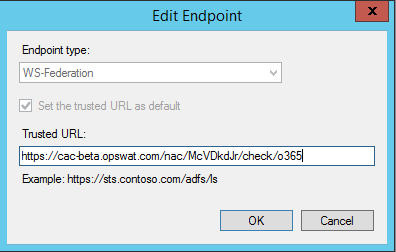
Change the default Endpoint with the URL in step 2.5
Step 5. Edit SSO settings on Office 365
After install and configure ADFS server, it will enable SSO for your domain, but you need to replace SigningCertificate in SSO setting to work with My OPSWAT Central Management.
Login to Azure Active Directory via Windows PowerShell
Login to a computer installed Windows PowerShell for Azure Active Directory
Start PowerShell and run Connect-MsolService cmdlet and enter your administrator credentials for your Azure AD domain when prompted
Backup current SSO settings
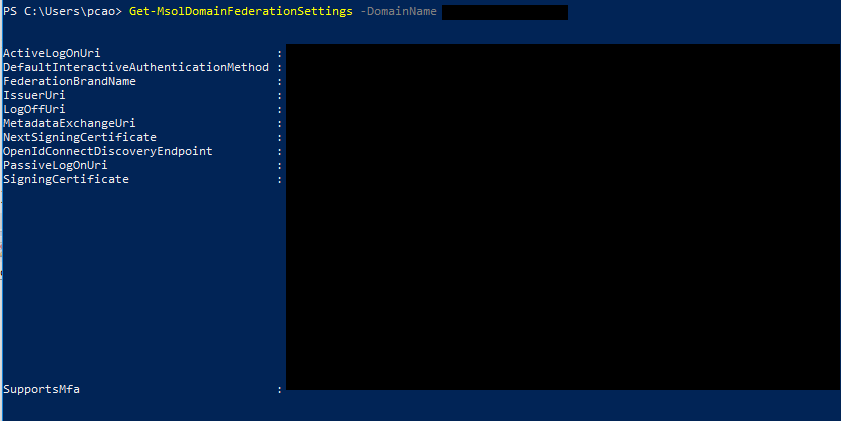
Run Get-MsolDomainFederationSettings -DomainName <your domain> cmdlet to get current SSO setting
Get these information
FederationBrandName
IssuerUri
LogOffUri
PassiveLogOnUri
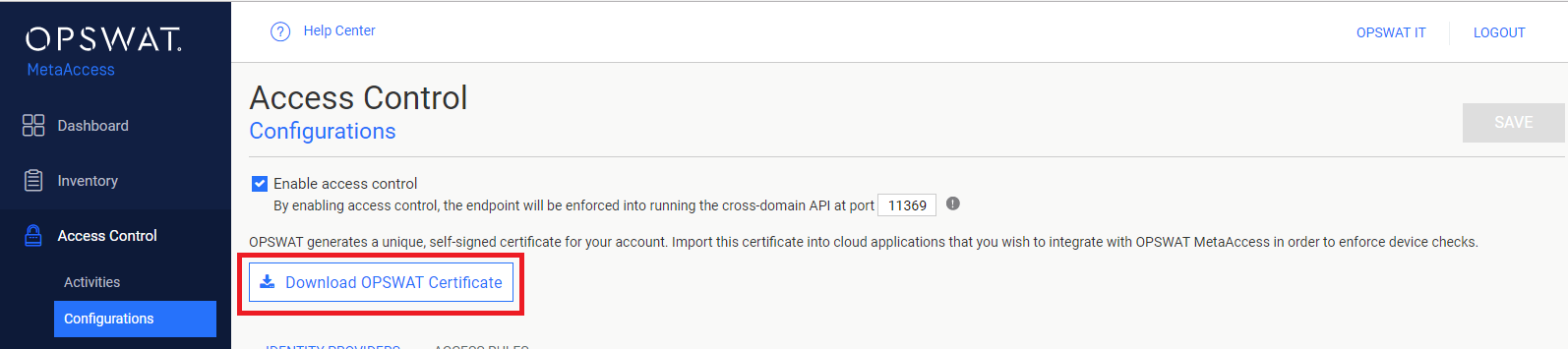
Click Download OPSWAT certificate to download a self-signed certificate My OPSWAT Central Management generated for your account
Update existing current setting
Run following cmdlet
2. Run Set-MsolDomainAuthentication cmdlet
Note: enter the certificate on a single line without break line
3. Run following cmdlet to verify configuration
Note: It can take some time for Azure AD to apply new configuration
Step 6: Test your integration
Follow guideline at Test Your Integration to verify if it works as your expectation.