
In order to integrate Harbor with MetaDefender Software Supply Chain, add a Harbor inventory connection.
Before you begin, make sure you have:
Your Harbor URL (DNS name or IP address)
Recommended: A Harbor robot account and robot secret
Alternatively: A Harbor username and password
From the left side menu, navigate to Inventory and choose Harbor.
Give your connection a name so you can easily identify it later.
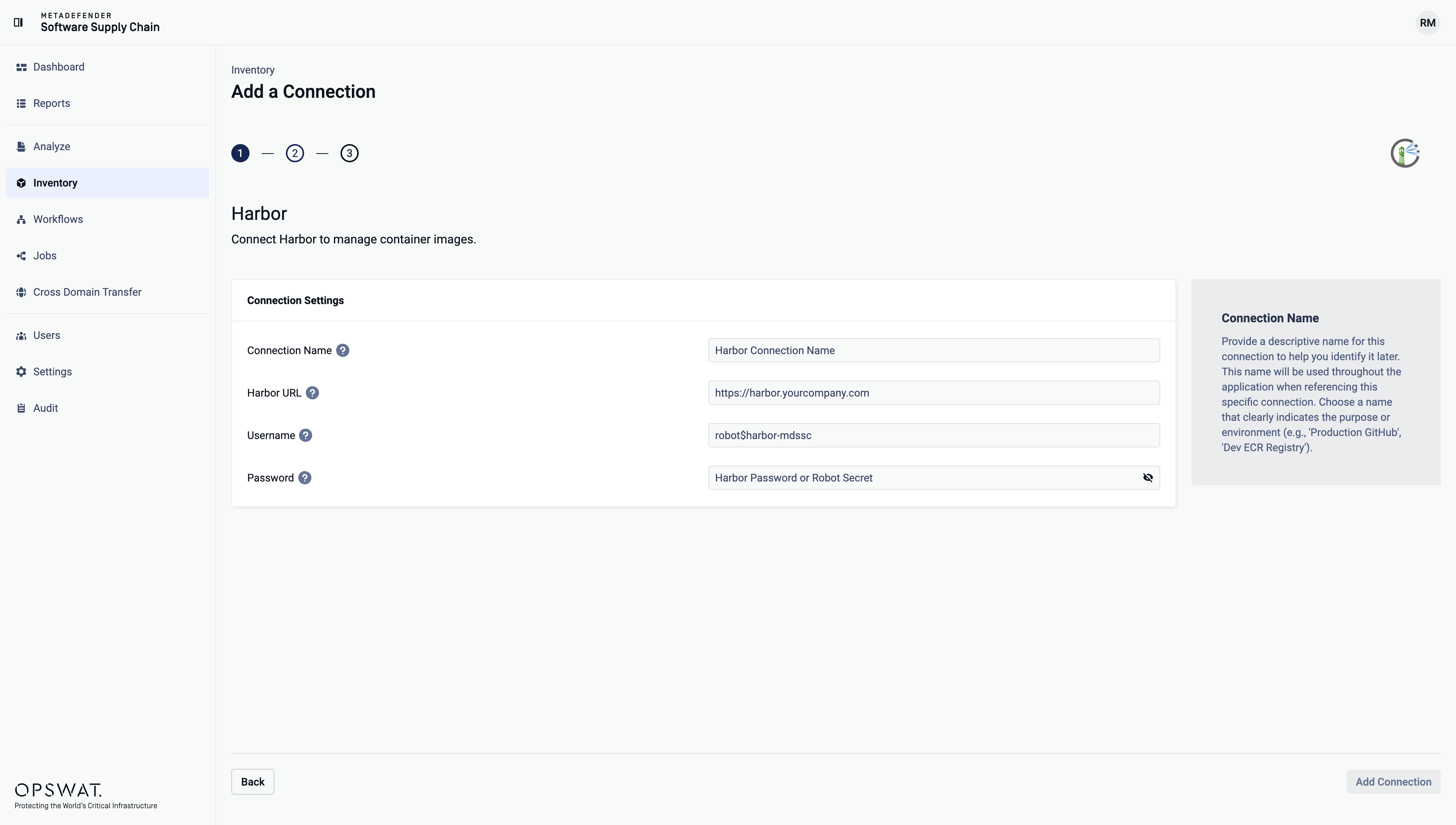
In Harbor DNS / IP, enter the Harbor URL you use to access the UI (for example,
https://harbor.example.com).In Harbor Username, enter either your Harbor username or the full robot account name (for example,
robot$harbor-mdssc).In Password or Robot Secret, enter your Harbor password (basic auth) or the robot secret (robot account).
Where can I find the Harbor registry URL (DNS/IP)?
Use the URL you sign in to for Harbor, for example: https://harbor.example.com.
If your Harbor is reachable by IP, you can use the instance IP address instead.
Include https:// when available (recommended).
Where can I find the Harbor username?
For a user account: use the username shown in Harbor under your account/profile settings.
For a robot account: use the full robot name Harbor displays (for example:
robot$harbor-mdssc).
Where can I find the Harbor password or robot secret?
You have two ways of authentication for Harbor:
Basic authentication (username + password)
Robot account (robot name + robot secret)
Log in to Harbor:
Open your Harbor URL in a browser and sign in as an administrator.
Open the Robot Accounts page:
In the left-hand menu, go to Administration -> Robot Accounts.
Create a new robot account:
Click New Robot Account.
Provide a name (for example,
harbor-mdssc), an expiration time, and an optional description.Under System permissions, grant:
project: list
Under Project permissions, select only the projects you want to be visible in the MetaDefender Software Supply Chain console.
Click Reset all project permissions, then grant:
artifact: list, readproject: readrepository: list, read, pulltag: list
Click Finish.
Copy the secret:
After creation, Harbor displays the robot secret once. Copy it immediately and store it securely.
In MetaDefender Software Supply Chain:
Harbor Username: enter the full robot name shown by Harbor (for example,
robot$harbor-mdssc)Password or Robot Secret: paste the robot secret