
User type: Organization users
Role: View only on Hardware Inventory - Organization Hardware
If your organization has at least one hardware, your Organization Hardware tab provides a centralized list of all hardware assets associated with your organization. To access this tab
Select Hardware Inventory in the left navigation.
Click the Organization Hardware tab.
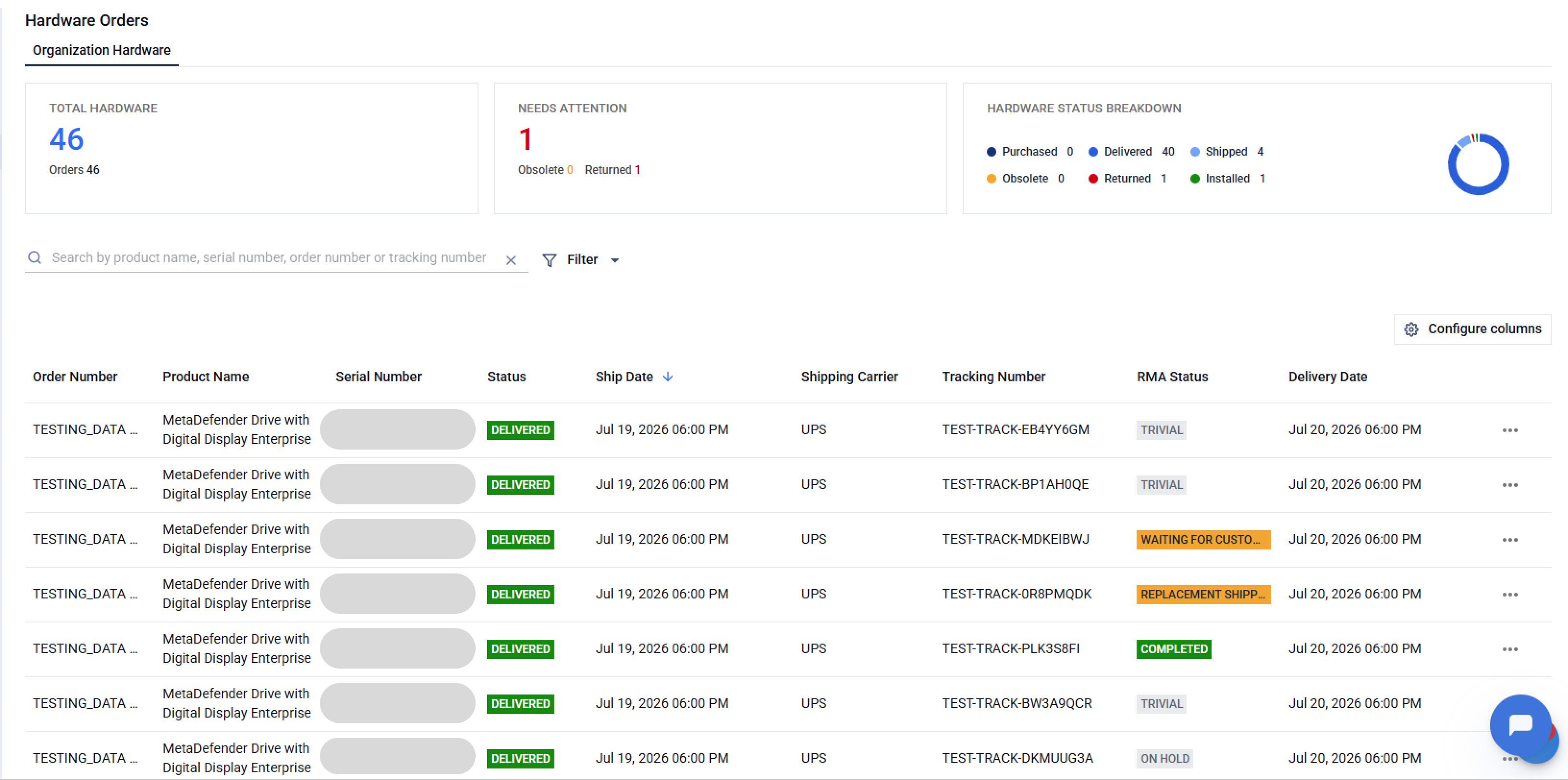
Overview
The top of the tab summarizes your hardware at a glance. Select any figure to filter the list below to the matching items.
Total Orders: the number of hardware orders your organization has purchased.
Total hardware: the number of hardware assets your organization has purchased.
Needs Attention: the number of hardware assets that are Obsolete or Returned.
Status summary: a chart showing a count of your hardware assets by status.
View and manage your hardware list
The hardware list shows each asset with its order number, product name, serial number, status, ship date, shipping carrier, tracking number, shipping information, and delivery date. You can:
Sort by Delivery Date, Ship Date, or Status. The default sort is by Status.
Filter by Status, RMA Status, Ship Date, Delivery Date, or Shipping Carrier.
Search by Product Name, Serial Number, Order Number, or Tracking Number.
Three-dot menu
Submit RMA Request - opens the RMA Request form with that device's serial number, product, order, dates, account, and warranty details pre-filled.
View RMA Request - appears when the device already has an RMA request, and opens the linked support case so you can check status and add comments.
Note: You may submit another RMA request for the same hardware only if the status of the existing RMA request is CLOSED.
Email notifications
Automated email notifications are sent to the Ship To Contact whenever the order package status changes.
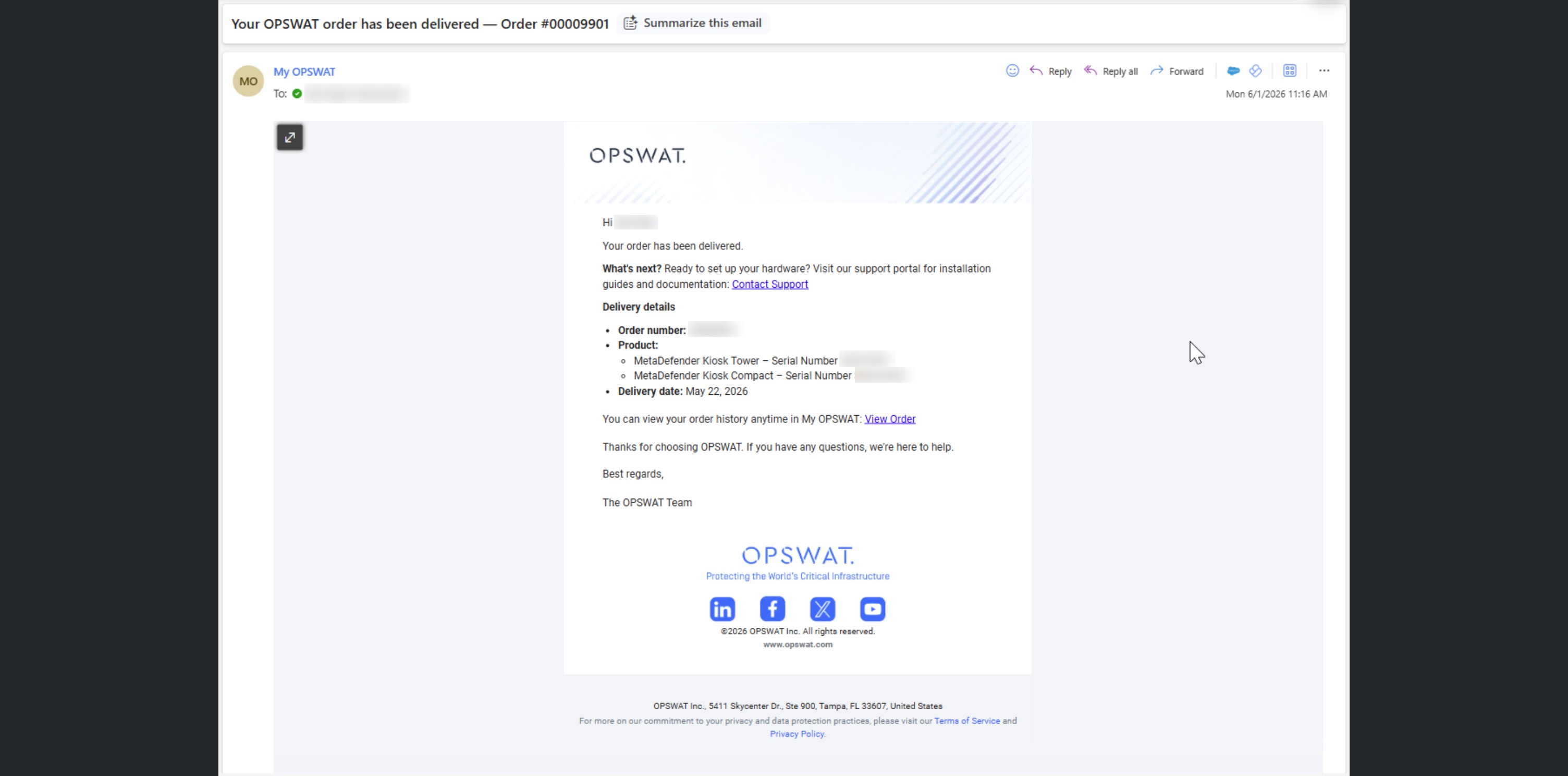
Each notification includes a direct link back to My OPSWAT Portal so you can open the order and see the full details.
Please contact OPSWAT Support if you find any missing hardware assets.