
File filters decide which discovered files a workflow sends for scanning. Use them to keep MetaDefender Core/MetaDefender Cluster/MetaDefender Cloud capacity for the files you care about: skip logs, backups or VM images, scan only recent files, or ignore files above a certain size. A file is scanned only when it passes every filter you set. Files a filter rejects are recorded as Skipped by filter, with the reason, and are not scanned.
There are three filters you can set on each workflow:
Filter | Skips a file when |
|---|---|
File types | its extension is not in the list you selected |
Size | it is smaller than the minimum, or equal to or larger than the maximum |
Last modified | it was last modified outside the date range you set |
A fourth check, for empty files, depends on how your deployment is configured. See Empty files.
The file type filter looks only at the file name. It compares the text after the last dot with your list and never inspects the file's content. A file renamed from report.exe to report.pdf is treated as a PDF, and a file without an extension always passes the file type filter.
Use the file type filter to reduce scanning load, not as a security control. True file type detection happens later, in MetaDefender Core/MetaDefender Cluster/MetaDefender Cloud, for the files that are scanned.
Before you start
Filters are part of the workflow, so they apply to every storage and scan that uses that workflow.
Changes apply from the next scan. A scan that is already running keeps the filters it started with.
You need permission to edit the scan configuration. Without it, the File filters panel opens read-only.
Set up filters
Go to Workflows and open the workflow.
In the workflow diagram, select the File filters node. On standard workflows it sits between File discovery and Scan pool; on Discovery only workflows it comes before the discovered files step.
Set any combination of file types, size and last modified, as described below. Leave a filter empty to apply no restriction for it.
Select Save.
The node shows Active when at least one filter is set, and Inactive when none is.
File types
Choose All file types to apply no file type restriction, or Only selected file types to scan only the types you pick:
Tick a category to select all of its extensions, or expand it to pick single extensions.
Use Search file types to find an extension or a category by name.
If an extension is not listed, add it under Other extensions. Enter it without the dot, for example
bak. Extensions can use lowercase letters, numbers and the characters_ - + ~ $, up to 32 characters. Uppercase input is converted to lowercase.
When you choose Only selected file types, select at least one type.
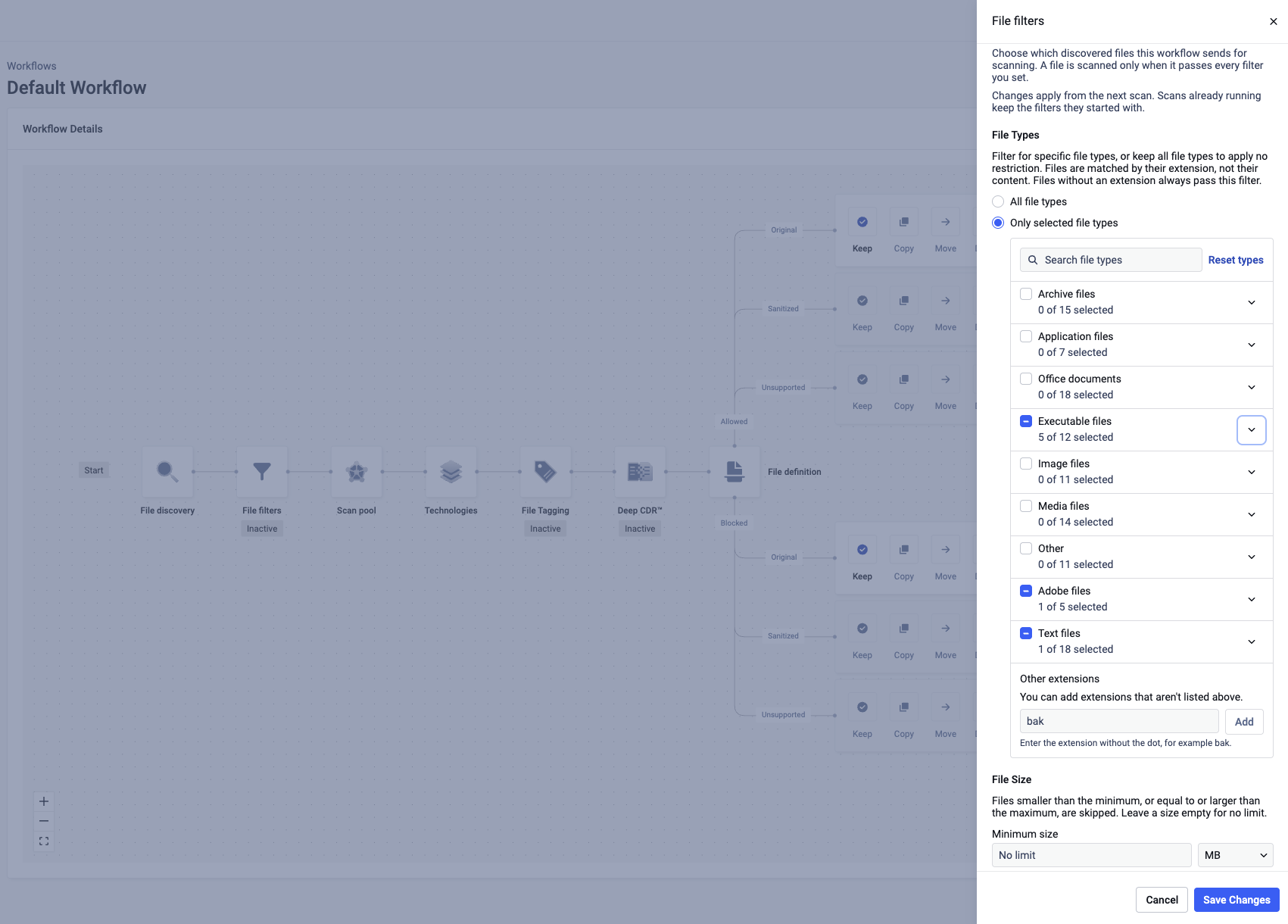
See How file names are matched for how a file's extension is read, and Supported file types for the extensions in each category.
Size
Set a Minimum size, a Maximum size, or both. Sizes use decimal units (1 KB = 1,000 bytes, 1 MB = 1,000,000 bytes) up to 100 TB.
A file exactly at the minimum size is scanned.
A file exactly at the maximum size is skipped.
The maximum must be larger than the minimum.
For example, a minimum of 1 KB and a maximum of 2 KB scans files from 1,000 bytes up to 1,999 bytes.
Last modified
Set Include files modified after, Include files modified before, or both.
Dates use your browser's time zone. A date means midnight at the start of that day: "after 1 January 2025" includes files modified from 00:00 on 1 January 2025, and "before 1 January 2026" stops at 00:00 on 1 January 2026.
A file modified exactly at either boundary is skipped.
Dates in the future can't be selected, and the "before" date must be later than the "after" date.
Last-modified times come from the storage. File-system storages such as SMB and NFS keep the original modification time. Most object storages (Amazon S3, Azure Blob and similar) set it to the time the object was uploaded, so a date filter on those storages works on upload time.
Empty files
Your deployment can be configured to skip zero-byte files (setting DISCOVERY_SERVICE_IGNORE_EMPTY_OBJECTS=1). It is off by default, in which case empty files are treated like any other file. This setting applies to all workflows and is not part of the File filters panel.
When a file fails more than one filter
The filters are checked in this order, and the first one that fails is the reason recorded for the file:
Empty file (only when your deployment skips empty files)
Size
Last modified
File type
For example, a 500-byte .xyz file from 2020, checked against a 1 KB minimum size, a date range in 2025 and a PDF-only file type list, is reported as skipped for its size.
How file names are matched
The file type filter takes the text after the last dot in the file name and compares it with your list, ignoring case.
File name | Matched as | Notes |
|---|---|---|
|
| Case doesn't matter |
|
| Only the last part counts |
|
| Select |
|
| |
| no extension | Always passes the file type filter |
| no extension | A name that only starts with a dot has no extension |
Files without an extension always pass the file type filter. They are still subject to the size and last-modified filters.
Because only the last part of the name counts, an entry can't contain a dot: tar.gz would never match a file.
Supported file types
The categories offer the extensions below. Any other extension can be added under Other extensions.
Category | Extensions |
|---|---|
Archive files (36) | 7z, ace, alz, arj, asar, asice, asics, blz, bz2, cab, egg, gz, gzip, iso, jar, lz, lz4, lzh, lzma, mar, pck, rar, tar, taz, tgz, tse, tsec, tsez, vsix, war, wsp, xz, yz1, z, zip, zstd |
Application files (10) | air, cpl, dll, drv, jnlp, lnk, ocx, sys, url, vsto |
Office documents (76) | abw, cell, doc, docm, docx, dot, dotm, dotx, fodt, hwp, hwpx, hwt, jhd, jtd, jtdc, mpp, odf, odg, odp, ods, odt, one, otg, otp, ots, ott, oxps, pbix, pot, potm, potx, ppam, pps, ppsm, ppsx, ppt, pptm, pptx, pub, rtf, scrivx, show, sldm, sldx, stc, sti, story, stw, sxc, sxd, sxg, sxi, sxw, twbx, vdx, vsd, vsdm, vsdx, vssm, vssx, vstm, vstx, vsx, vtx, xbd, xct, xdw, xlam, xls, xlsb, xlsm, xlsx, xlt, xltm, xltx, xps |
Executable files (16) | apk, appx, bat, cmd, com, exe, msi, msix, php, pl, ps1, py, scr, sh, vbs, wsf |
Image files (30) | apng, avif, bmp, cur, dcm, emf, emz, gif, heic, heif, ico, jp2, jpeg, jpf, jpg, jpg2, jpm, jpx, mng, nef, png, svg, tga, tif, tiff, tiff64, wdp, webp, wmf, wsq |
Media files (37) | 3gp, aac, acm, aiff, asf, avc, avi, bw64, bwf, caf, fla, flv, hevc, jpgm, m4a, m4v, mj2, mjp2, mkv, mov, mp3, mp4, mpc, mpd, mpeg, mts, mxf, ogg, opus, paf, rf64, swf, w64, wav, webm, wma, wmv |
Other (73) | 3dml, 3ds, 3mf, aem, aff4, b3dm, base64, bfo, cap, cer, crl, crt, dae, dbf, der, dmp, drc, dwf, dwfx, dwg, dws, dwt, dxf, eak, easm, edi, eml, es3, esz, et3, etv, gpkg, ifc, jt, jwc, jww, key, lyrx, mbx, mdzip, msg, oft, ova, ovf, p12, p21, pcap, pcapng, pem, pfx, ppk, prn, pst, qcow2, ribc, ribcd, rvm, scdoc, sfc, shp, shx, spf, stp, tnef, trc, u3d, utib, vhd, vhdx, vmdk, x3p, yenc, zir |
Adobe files (8) | ai, ait, eps, fdf, idml, indd, pdf, psd |
Text files (92) | 1st, aiml, apml, apt, asc, aspx, atom, bml, cfg, classpath, cnf, conf, config, css, csv, dat, dtd, err, faq, ficml, gml, gpx, har, hta, htm, html, ics, inf, ini, jrxml, json, jsp, jspf, jspx, kml, loc, log, lxfml, mathml, me, mht, mml, musicxml, mxl, note, now, plain, plist, pom, prm, project, psmdcp, rdf, rdl, rdlc, rdlx, readme, rels, resx, rng, rss, sdl, sgml, sln, smil, tab, tbm, tds, text, tmp, tsv, ttml, twb, txt, unx, vcf, vcs, vml, vtxt, x3dv, xaml, xht, xhtml, xml, xsd, xsl, xslt, xspf, xul, yaml, yml, zei |
See what was skipped
Skipped files stay in the scan report:
Open the scan's report and go to the file list.
Filter the status by Skipped by filter.
Open a file to see why it was skipped, for example "This file was skipped because its size is outside the range allowed by a scan filter."
Skipped by filter is different from Skipped (cached scan), which lists files that were not scanned again because an earlier result for the same file was reused.
Configure filters through the API
Filters are the filters object of a workflow. Every field is optional; a field you leave out means no restriction.
Field | Type | Meaning |
|---|---|---|
| array of strings | Only scan files with these extensions. Leave out, or send |
| integer (bytes) | Skip files smaller than this. Default |
| integer (bytes) | Skip files of this size or larger. Default |
| ISO 8601 date-time, UTC | Skip files modified at or before this time. |
| ISO 8601 date-time, UTC | Skip files modified at or after this time. |
Get the catalog the UI offers:
Set the filters on an existing workflow. The workflow ID goes in the body, and the request replaces the whole filters object, so include every filter you want to keep:
The same filters object can be sent when creating a workflow with POST /api/Workflow, and it is included in settings export and import.
Dates sent through the API are used exactly as given, in UTC. The UI instead sends midnight in the browser's time zone, so the same calendar date can mean a different moment for users in different time zones.
Rules and errors
Extensions are cleaned up before they are checked: spaces around them and a leading dot are removed, they are lowercased, and duplicates are dropped. " .PDF " is stored as pdf.
Request | Result |
|---|---|
An extension with a dot, a space or another character outside |
|
More extensions than the configured maximum (500 by default, set by |
|
|
|
Nothing is saved when a request is rejected.
Limits
Limit | Value |
|---|---|
Extension length | 1 to 32 characters |
Characters in an extension |
|
Extensions per workflow | 500 by default (configurable) |
Maximum size | 100 TB |
Dates | Not in the future |