
If the device you are trying to scan is encrypted, a prompt to unlock the device is displayed. See the Overview for a list of encrypted USB drives that are supported. If the drive is BitLocker-encrypted, the same prompt accepts either the drive's password or its BitLocker recovery key — you don't need to choose between them ahead of time. For any other type of encrypted drive, the prompt continues to ask for a password only.
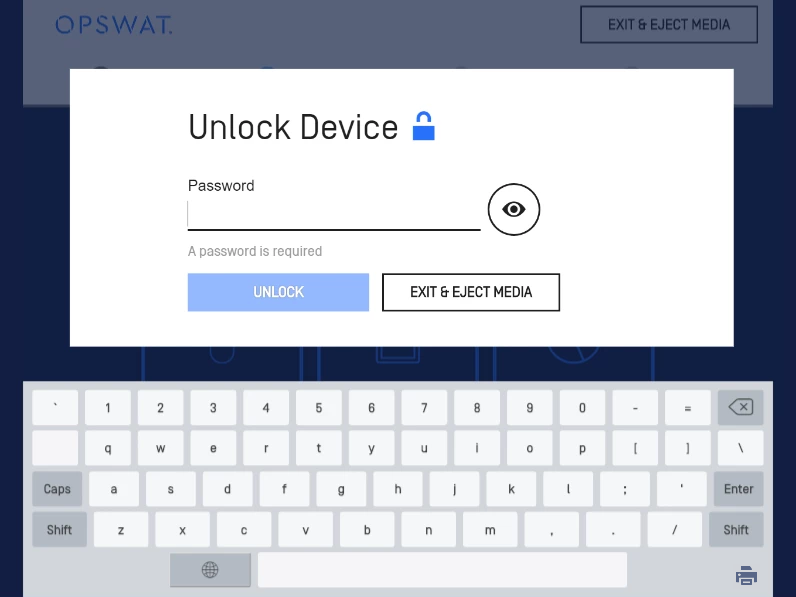
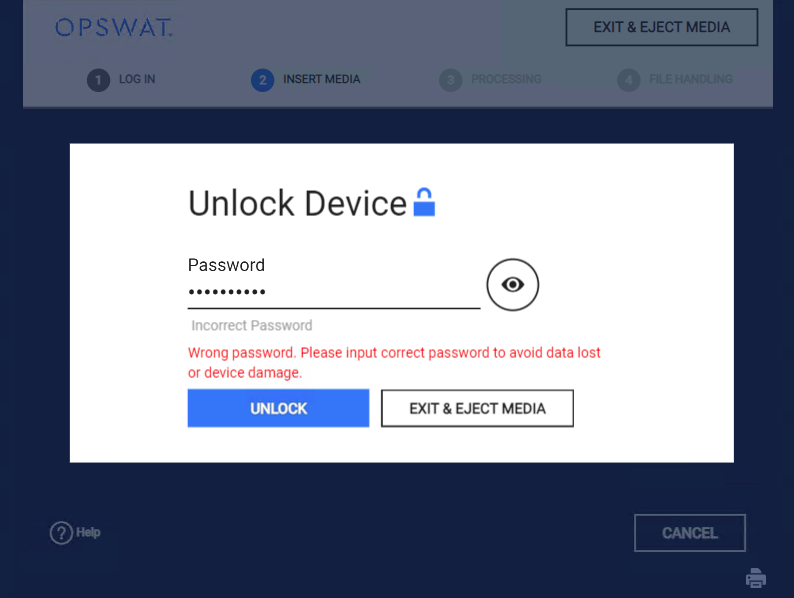
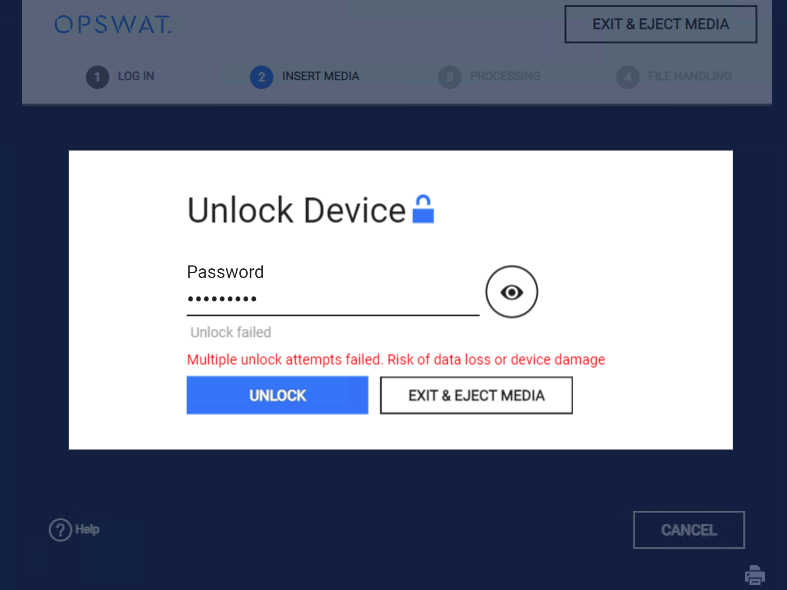
Kiosk allows users to retry to unlock the device in case of wrong password or other failure. The number of retry times is not limited. Carefully input the correct password to avoid data loss or device damage.
Using a BitLocker recovery key
A BitLocker recovery key is a 48-digit number, usually shown in eight groups of six digits separated by hyphens (for example, 123456-654321-098765-234567-345678-456789-567890-678901). It's generated automatically when a drive is encrypted with BitLocker and works as an alternative to the drive's password — either one unlocks the drive.
To unlock a BitLocker-encrypted drive with a recovery key:
Insert the encrypted drive into the Kiosk.
When the Unlock Device prompt appears, enter the full 48-digit recovery key into the password field.
Confirm to unlock. The drive unlocks the same way it would with the correct password, and scanning or copying continues normally.
This option only applies to BitLocker-encrypted drives. If you're unlocking a different type of encrypted USB drive, only the password is accepted.