
Starting in MetaDefender Kiosk 4.8.2, you can route Kiosk's outbound network traffic through an HTTP proxy server directly from the Web Management Console — no need to set Windows environment variables on the underlying operating system. This is intended for environments where all outbound internet access must go through a corporate proxy. Once enabled, it applies to product activation, connections to MetaDefender Core and Managed File Transfer (MFT), Central Management enrollment and policy sync, single sign-on, email delivery, syslog forwarding, and Kiosk upgrade-package downloads.
Prerequisites
MetaDefender Kiosk 4.8.2 or later.
Administrator access to the Web Management Console.
The IP address or hostname and TCP port of a reachable HTTP proxy server. (HTTPS, SOCKS4, and SOCKS5 proxies aren't supported from this page.)
If your proxy requires authentication, a username and password for an account it will accept.
(Optional) A list of internal destinations — such as an in-network MetaDefender Core or MFT server — that should bypass the proxy.
Enabling the Proxy
Sign in to the Web Management Console as an administrator.
In the left navigation, select Settings > Network.
On the Network page, select the Proxy tab.
Turn on Use proxy connection.
In Server, enter the proxy's IP address or hostname (for example,
proxy.example.comor10.0.0.5).In Port, enter the proxy's TCP port (for example,
8080).Click Save Updates.
If Use proxy connection is on but the server or port is missing, saving fails with a validation error — both fields are required once the proxy is turned on.
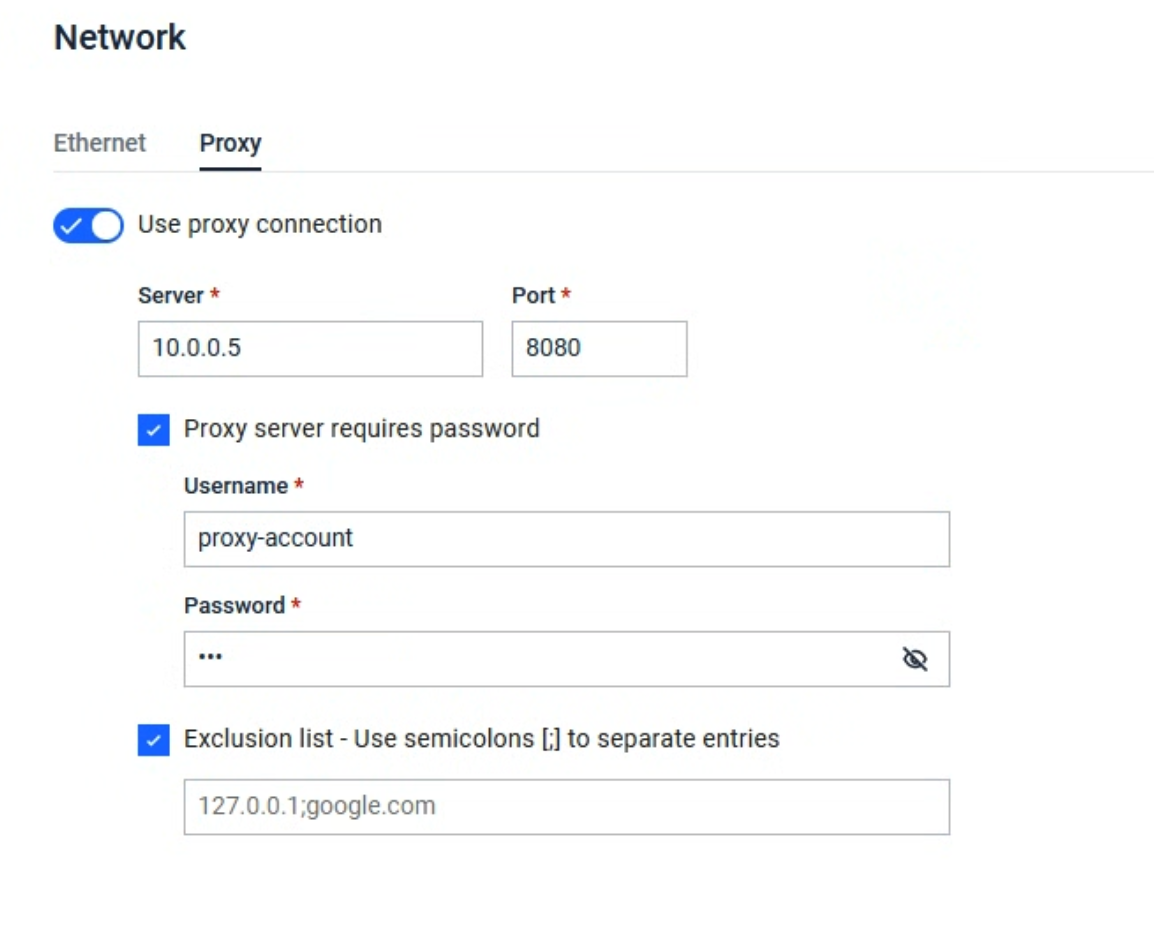
Adding Proxy Authentication
If your proxy requires a username and password:
With Use proxy connection already on, select the checkbox Proxy server requires password.
Enter the Username and Password for the proxy account.
Click Save Updates.
Both fields are required once this checkbox is selected. Kiosk doesn't validate the credentials themselves when you save — if either is wrong, you'll see it the next time Kiosk tries to connect through the proxy.
If the Kiosk license can't renew because the configured proxy credentials are rejected, you can still open Settings > Network > Proxy to correct them or turn the proxy off — this page stays reachable even when the license has expired.
Bypassing Specific Destinations
Use the exclusion list to send selected destinations directly, without going through the proxy — useful for an in-network MetaDefender Core, MFT server, or private SSO endpoint.
With Use proxy connection already on, select the checkbox Exclusion list.
Enter a semicolon-separated list of exact hostnames or IP addresses to bypass — for example:
core.local;192.168.10.20;mft.internal.Click Save Updates.
Each entry must match exactly — wildcards (like *.example.com) and IP ranges aren't supported. localhost and 127.0.0.1 are always bypassed automatically, so you don't need to add them.
Settings Reference
Setting | Description | Default |
|---|---|---|
Use proxy connection | Master toggle. When off, the other proxy fields are ignored. | Off |
Server | The proxy's IP address or hostname. Required when the proxy is on. | — |
Port | The proxy's TCP port. Required when the proxy is on. | — |
Proxy server requires password | When selected, Username and Password are both required. | Off |
Username / Password | Credentials sent to the proxy. | — |
Exclusion list | When selected, at least one valid entry is required. Entries are semicolon-separated exact hostnames or IP addresses. | Off |
Example: Kiosk and MetaDefender Core on the Same Private Network
A common setup: Kiosk and a co-located MetaDefender Core sit on a private network, and a corporate proxy is required for all internet-bound traffic.
Turn on Use proxy connection and enter the corporate proxy's server and port (plus credentials, if required).
Add the Core server's hostname or IP address to the exclusion list, so Core traffic stays on the private network instead of routing through the proxy.
Click Save Updates. Kiosk now reaches activation, Central Management, email, and SSO through the proxy, while continuing to reach the local Core directly.
Central Management
If a Kiosk device is enrolled in MetaDefender Central Management, the proxy settings shown on this page can be pushed from CM policy. Local edits to a CM-managed proxy configuration behave the same as edits to any other CM-managed setting.
Notes and Limitations
Only HTTP proxies are supported from this page — there's no option for HTTPS, SOCKS4, or SOCKS5.
The exclusion list only matches exact hostnames and IP addresses; wildcard and CIDR-range entries aren't honored.
The proxy, authentication, and exclusion list are one configuration — you can't route different destinations (for example, Core vs. Central Management) through different proxies.