
The Kiosk system protection functionality will check file integrity in the unlocked partitions of encrypted peripheral media devices before decryption. The encrypted devices containing unauthorized data will be spotted and require approval before being added to the data whitelisting and usable with the Kiosk system
Enabling the feature
Step 1. Navigate to the Configuration Page
Log in to the Web Management Console with your administrative credentials.
Go to Settings → System Hardening.
Step 2. Enable Encrypted Drive Verification
Locate the option for Encrypted Drive Verification within the configuration settings.
Enable this feature by toggling the switch.
Click on Save Updates to apply the new settings.

How it works on KIOSK UI
When a user connects an encrypted USB device for scanning or data copying, the application will verify if the device has been authorized by an administrator:
If approved, a dialog box will request the user to input the password to unlock the encrypted device.
If not approved, a dialog box will notify the user that approval is required for the device.
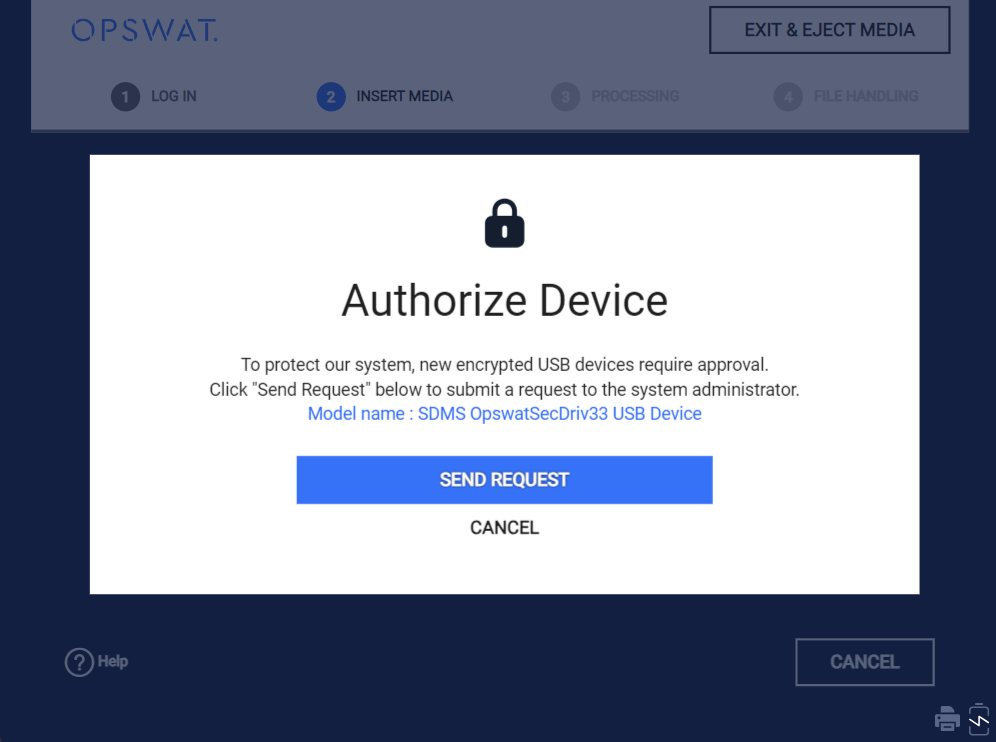
Upon clicking the "Send Request" button, a notification will be sent to the administrator when they log in to the WebMC, indicating a new device approval request.
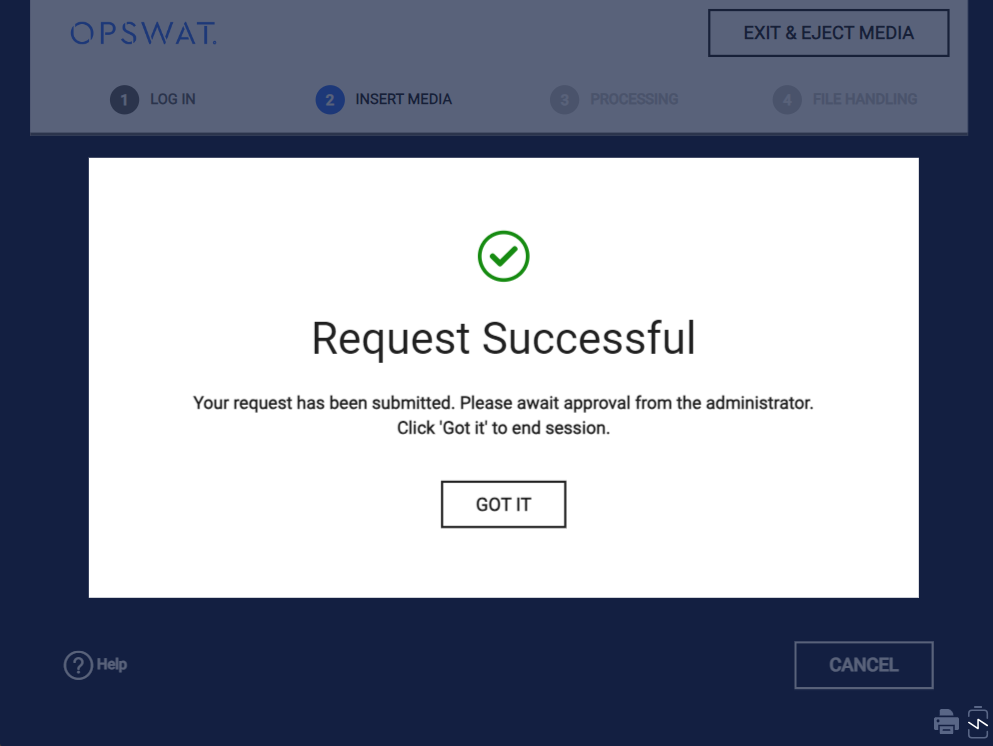
Approval Process
Notification of Pending Requests
Upon login, the administrator will be presented with a notification showing the count of pending device approval requests.
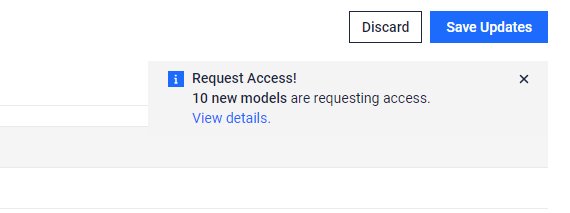
Reviewing Device Requests
Administrators can access the Web Management Console to review pending device approval requests. Open Settings → System Hardening and select the Pending Request tab to view the list of requests from users.
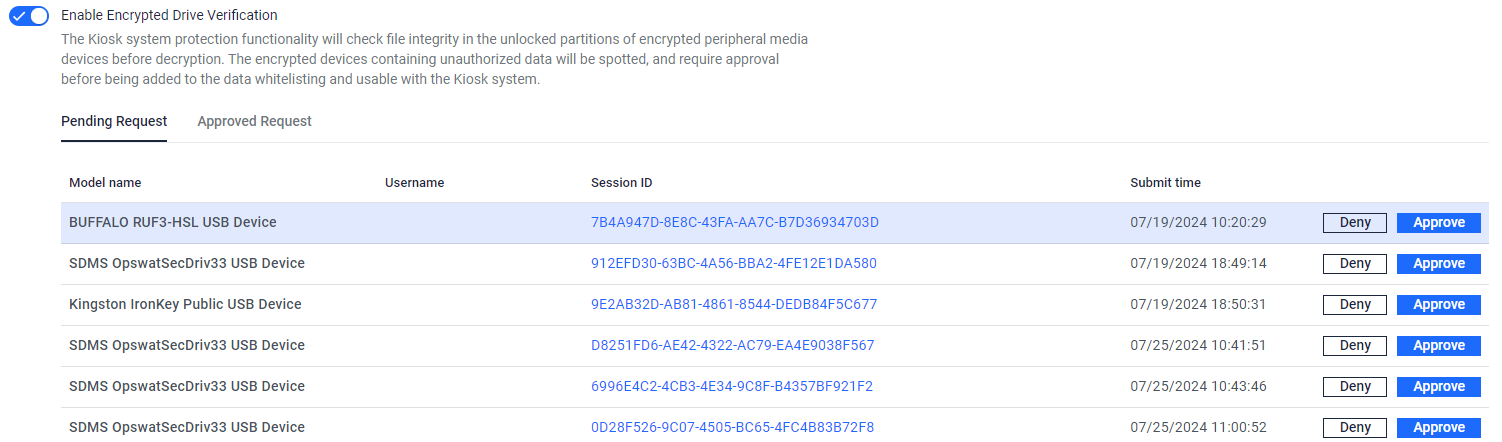
Administrators can access detailed information about each request, including a list of files stored on the unlocker partition of the device.
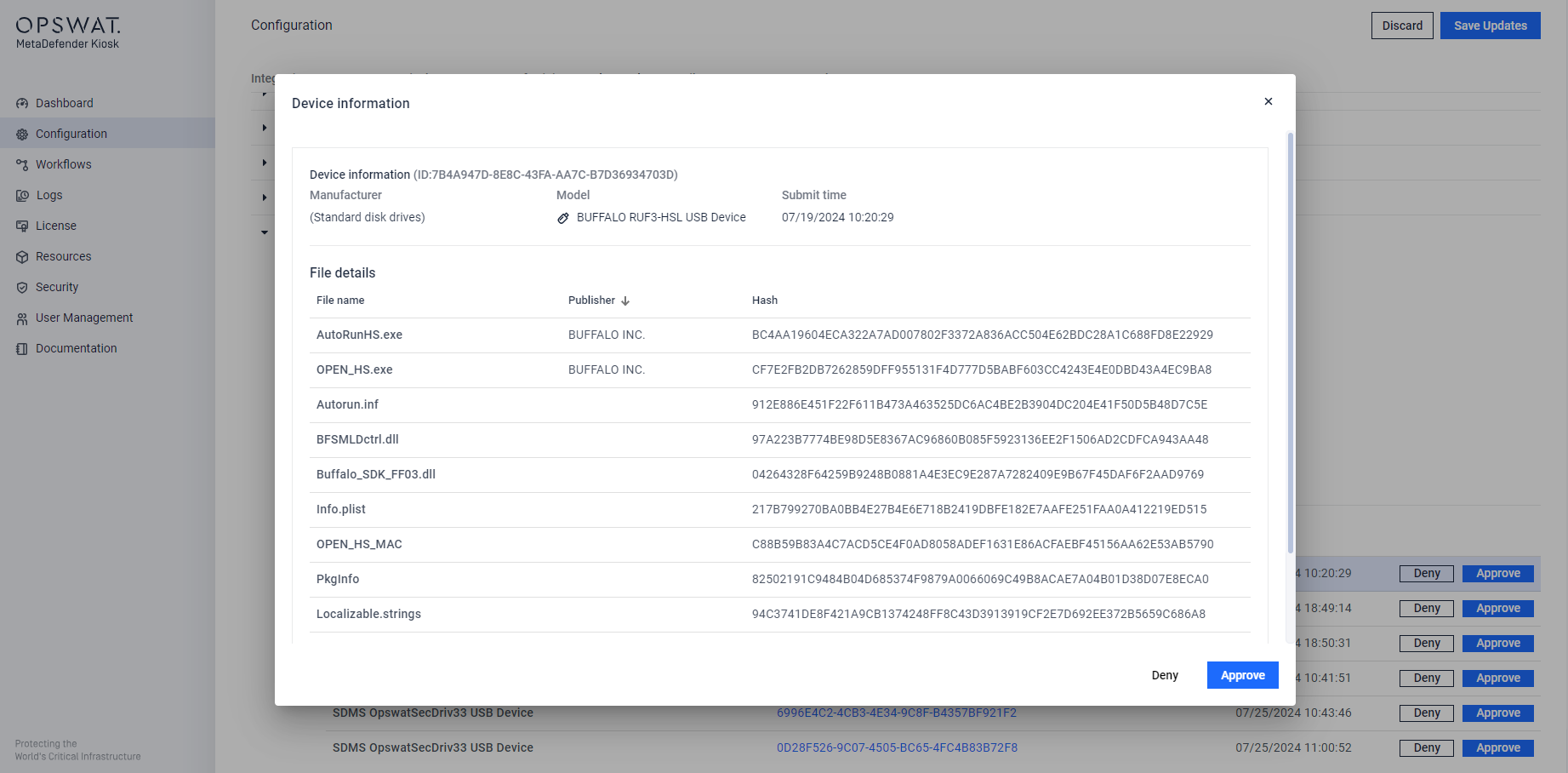
Approving or Denying Requests
Upon reviewing the device details, the administrator can choose to approve or reject the request. If approved, the device will be included in the list of validated devices and the request will move to the Approved Request tab.
The admin must click on Save Updates to finish the approval process.
Approval applies to one drive at a time
Approval is granted to the specific drive that was submitted for review — not to that drive's brand or model. If you have multiple encrypted USB drives of the same make and model, including drives that came from the same batch or run identical firmware, each one must be submitted and approved individually.
This means a drive can prompt for approval even if a different drive of the identical model has already been approved. This is expected: the Kiosk evaluates each physical drive on its own, so approving one unit does not clear every other unit of that model for use.
Notes and limitations
This feature is supported with mass configuration on OPSWAT Central Management (OCM) with Set Setting:
The approved requests will be applied to all instance.
Only the request from reference KIOSK instance are shown on Set Setting for approval.
Approval is specific to each physical drive, not to a drive model or firmware version. If your organization uses multiple identical encrypted drives, plan to submit and approve each one separately.
This feature has not been supported on My OPSWAT yet.