
Overview
The Rescan feature in MetaDefender for Salesforce allows administrators to re-evaluate previously scanned files based on specific scan statuses and sandbox verdicts. This is especially useful when you want to reprocess files that may have failed to scan, were skipped, or encountered temporary scan issues due to system or configuration limitations.
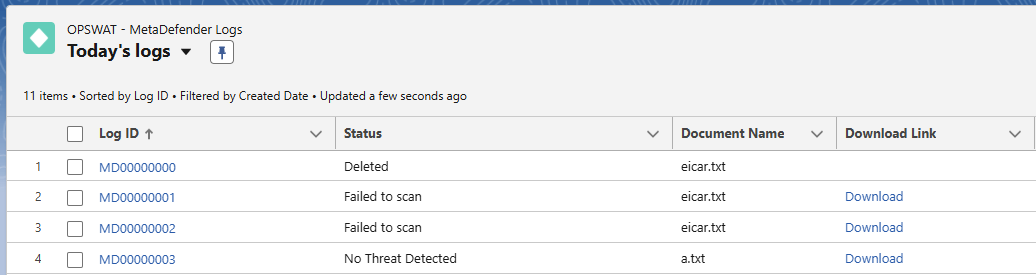
Accessing the Rescan Option
Navigate to OPSWAT Settings → Scan Evaluation Rules.
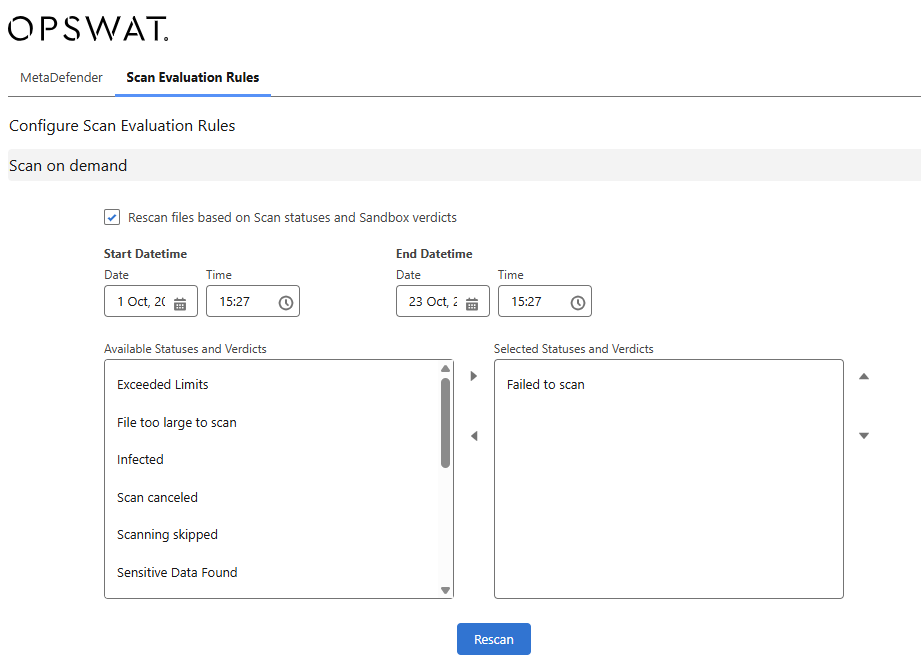
Under the Scan on Demand section, select Rescan files based on Scan statuses and Sandbox verdicts.
Date and Time Range: You can define a specific time range for the rescan operation
Status and Verdict Selection: From the Available Statuses and Verdicts list, choose the scan results you want to include in the rescan operation. Move the desired statuses to the Selected Statuses and Verdicts column.
Common statuses include:Failed to scan
Scan canceled
Exceeded limits
File too large to scan
Infected
Scanning skipped
Sensitive Data Found
For example, selecting “Failed to scan” will rescan all files that previously failed to complete a scan during the specified timeframe.
Rescan Execution: After configuring the criteria, click the Rescan button to initiate the process.
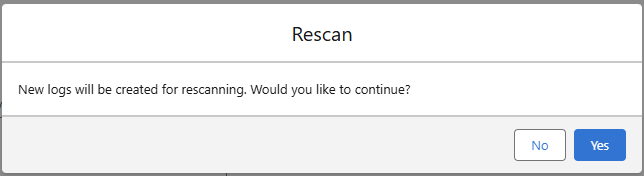
Click Yes to continue the rescan process (new logs will be created).
MetaDefender for Salesforce will queue the selected files for rescanning based on the chosen statuses and time range.

✅ Note: Once the rescan process is successfully triggered, a notification will appear stating “Successfully sent for rescan!” confirming that the request has been accepted.
The Rescan functionality provides administrators with a convenient way to maintain file integrity and ensure that all attachments and uploads in Salesforce are accurately scanned and evaluated by scanning services.
Support:
If Further Assistance is required, please proceed to log a support case or chatting with our support engineer.