
This article applies to all MetaDefender Endpoint releases subsequent to version 7.6.452.0 deployed on Windows systems.
As of version 7.6.452.0 , the MetaDefender Endpoint offers user interface (UI) rebranding options, including customizable language displays, interface tabs, logos and text.
To customize your MetaDefender Endpoint UI text, please follow the instructions below.
Download MetaDefender Endpoint’s default rebranding package Here, then extract it.
Open the file named config.json, located inside the brand folder.
Then, change the value of the parameter: custom_ui.enabled from 0 to 1.
The default value of 0 represents the setting to not apply custom text on the OPSWAT Client UI.
To customize the MetaDefender Endpoint UI text, open the file named OPSWATUI_langs.po inside the brand\translations folder.
Each segment of text on the MetaDefender Endpoint UI is presented as a group of three lines of text inside the OPSWATUI_langs.po file, as illustrated in the screenshot below.
The first two lines, with the msgctxt and msgid prefixes, should not be modified.
Your UI text will be customized in the third line, prefixed with msgstr.
If you don’t modify the third line of text, the MetaDefender Endpoint will use the default text from the second line, prefixed with msgid.
For example, the text in the sample below has been modified, so the MetaDefender Endpoint will utilize the text in the third line instead of the text in the second line.
Once you have completed the above step for all the required UI text segments, you will need to use Qt External to generate Qt langs objects. This is how you will customize the Client UI to display text in your chosen language.
To do so, follow the steps below.
Download the Qt Linguist package Here, then extract it.
Open a Command Prompt, then navigate to the folder where you extracted the Qt Linguist package.
Then enter the command: \brand\translations\OPSWATUI_langs.po as illustrated in the screenshot below.
The command above is issued to generate an object file entitled OPSWATUI_langs.qm in the \translations folder. This name and location is non-optional, as illustrated in the screenshot below.

You will now need to re-compress the primary Brand folder, which was extracted in Step 1.
This is the folder containing the config.json file from Step 2, as well as the \translations folder containing OPSWATUI_langs.qm file from Step 5.
Ensure that none of the above are nested in any additional folders.
Now, upload the rebranding package to your account via the OPSWAT Central Management Console by following the steps below.
If you are using MetaDefender IT-OT Access to manage your account, please contact OPSWAT support for assistance by following the instructions at the end of this article.
Log into the Central Management Console.
Open the Settings>Global Settings>Device Agent tab, then access the Agent section.
Upload the modified, compressed branding package using the setting entitled Make MetaDefender Endpoint user interface available to end-users, as illustrated in the screenshot below.
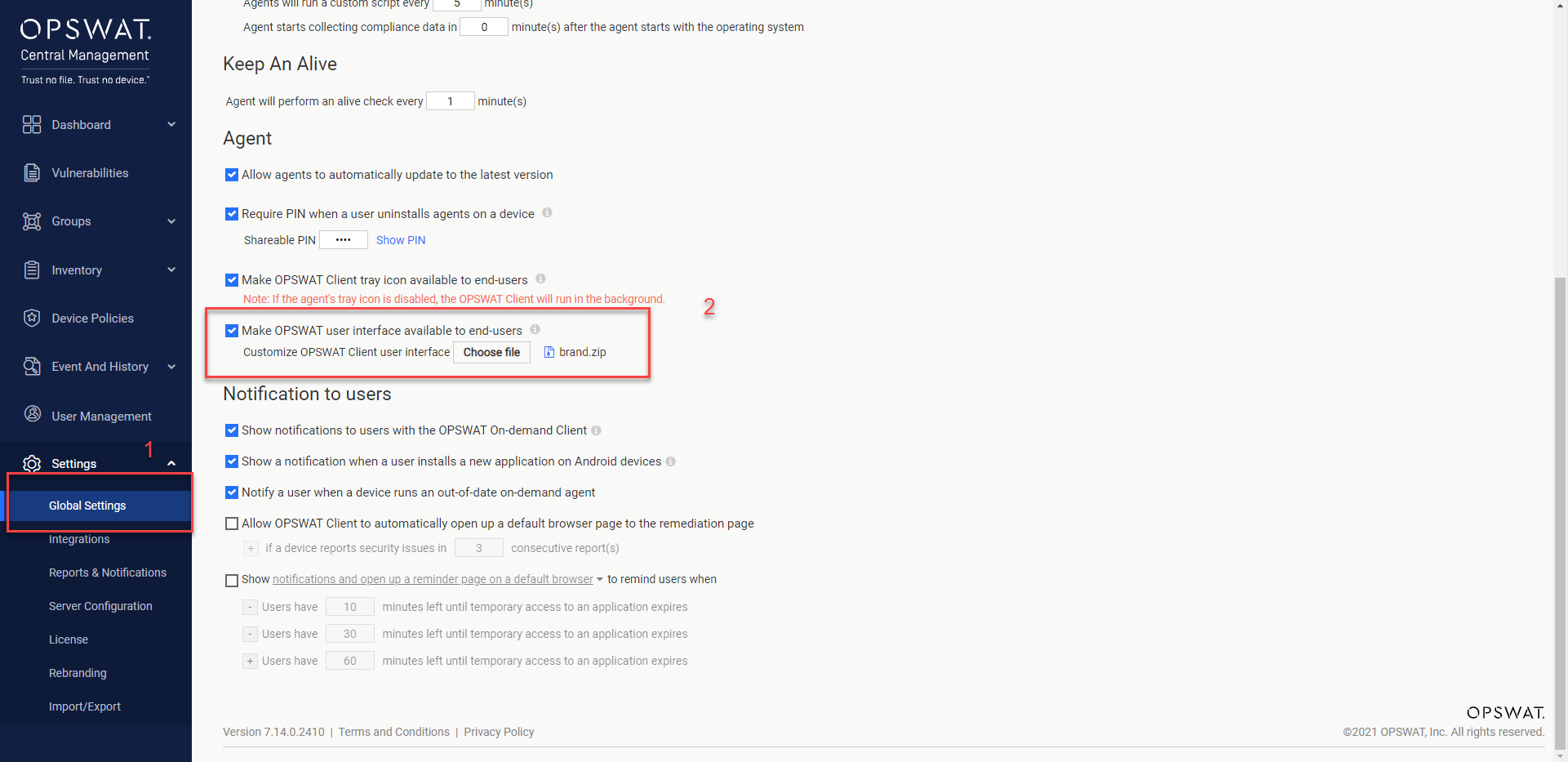
Finally, click Save and confirm your PIN to verify your changes.
After following the steps above, wait for a few minutes for the system to implement your customizations before opening the MetaDefender Endpoint UI to view the changes.
For Upload Steps Via MetaDefender IT-OT Access, or if you have followed the steps above but are Unable To Implement Text Customizations On The MetaDefender Endpoint UI, please open a Support Case with the OPSWAT team via phone, online chat or form, or feel free to ask the community on our OPSWAT Expert Forum.