
You can set up the Centralized Scanning Profile of a MetaDefender Drive from OPSWAT Central Management (OCM). The profile assigns an approver to the drive. The approver adds the drive to a 2-FA authenticator app and provides the 6-digit code to operators who need to unlock restricted actions.
This page covers enrolling the profile. To remove it, see Centralized Scanning Profile - Unenrolling from OPSWAT Central Management.
Before you begin
A MetaDefender Drive that is enrolled in OPSWAT Central Management.
The name of the approver.
A 2-FA authenticator app on the approver's phone.
Enroll the Centralized Profile
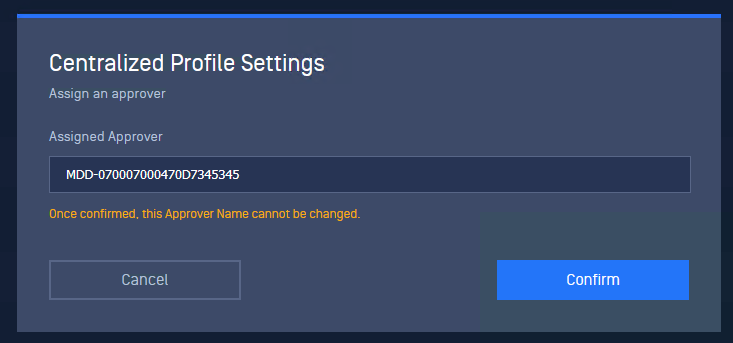
In OPSWAT Central Management, open the drive's settings and open Centralized Profile Settings.
In Assigned Approver, enter the approver's name. The field is filled in with
MDD-followed by the drive's serial number. You can keep it or replace it.Note: Once confirmed, this Approver Name cannot be changed.
Select Confirm. Select Cancel to leave without enrolling.
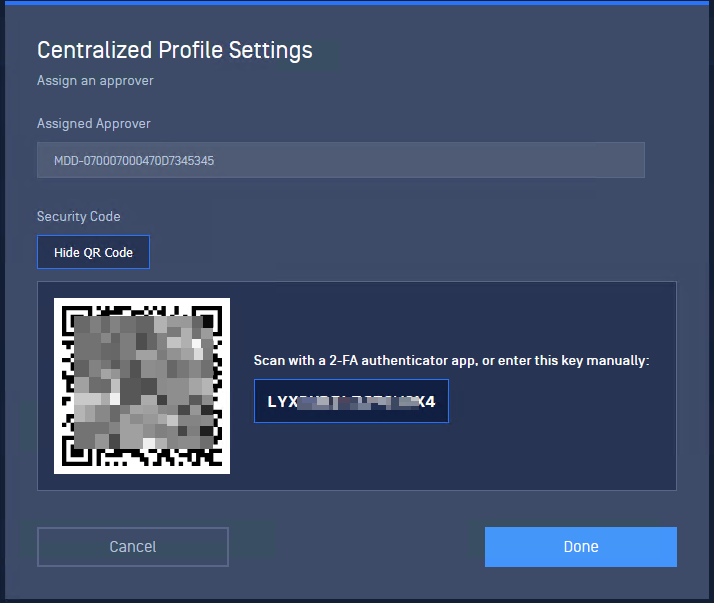
Click Done to finish. Cancel to leave.
After enrollment
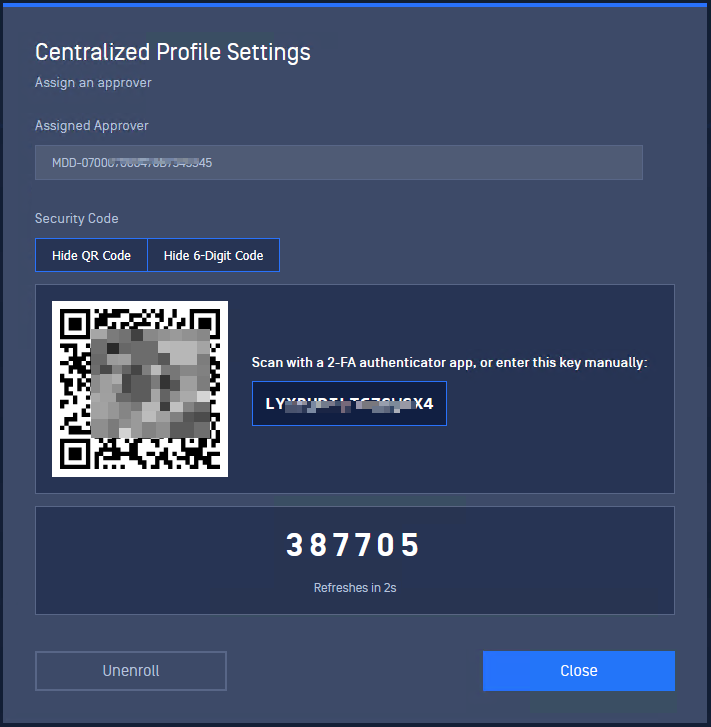
Once the profile is enrolled, Centralized Profile Settings shows the assigned approver and the Security Code buttons:
Item | What it does |
|---|---|
Assigned Approver | The approver's name. It cannot be changed. |
Show QR Code | Shows the QR code and the key for the authenticator app. |
Show 6-Digit Code | Shows the current 6-digit code. |
Unenroll | Removes the profile. See Unenrolling from OPSWAT Central Management. |
Close | Closes the dialog. |
Add the drive to an authenticator app
Select Show QR Code.
On the approver's phone, open the 2-FA authenticator app and scan the QR code. If you cannot scan, enter the key shown next to the QR code manually.
Select Hide QR Code when you are done.
Show the 6-digit code
Select Show 6-Digit Code to see the current code without opening the authenticator app. The code refreshes automatically, and the dialog shows how many seconds are left. Select Hide 6-Digit Code to hide it.
You can show the QR code and the 6-digit code at the same time.
Give the code to the operator who is asking to unlock the drive. See Centralized Scanning Profile - Unlock in MetaDefender Drive.
Related pages
Centralized Scanning Profile - Provisioning from Drive Toolkit
Centralized Scanning Profile - Provisioning from Smart Touch