
This guide describes how to use the Support Package in OPSWAT MetaDefender OT Security from Settings.
Purpose
The Support Package lets administrators create diagnostic bundles that may include diagnostics and logs for the components they select. You can then download those packages and share them with support when troubleshooting.
Exact contents depend on your choices in the export dialog. Lightweight and Advanced differ in how you scope data in time and whether the bundle can include a database export (Advanced).
Open the page
Sign in as a user with access to Settings.
Open Settings.
Open the Support Package tab (alongside tabs such as Component, Network & Discovery, Backup, and others).
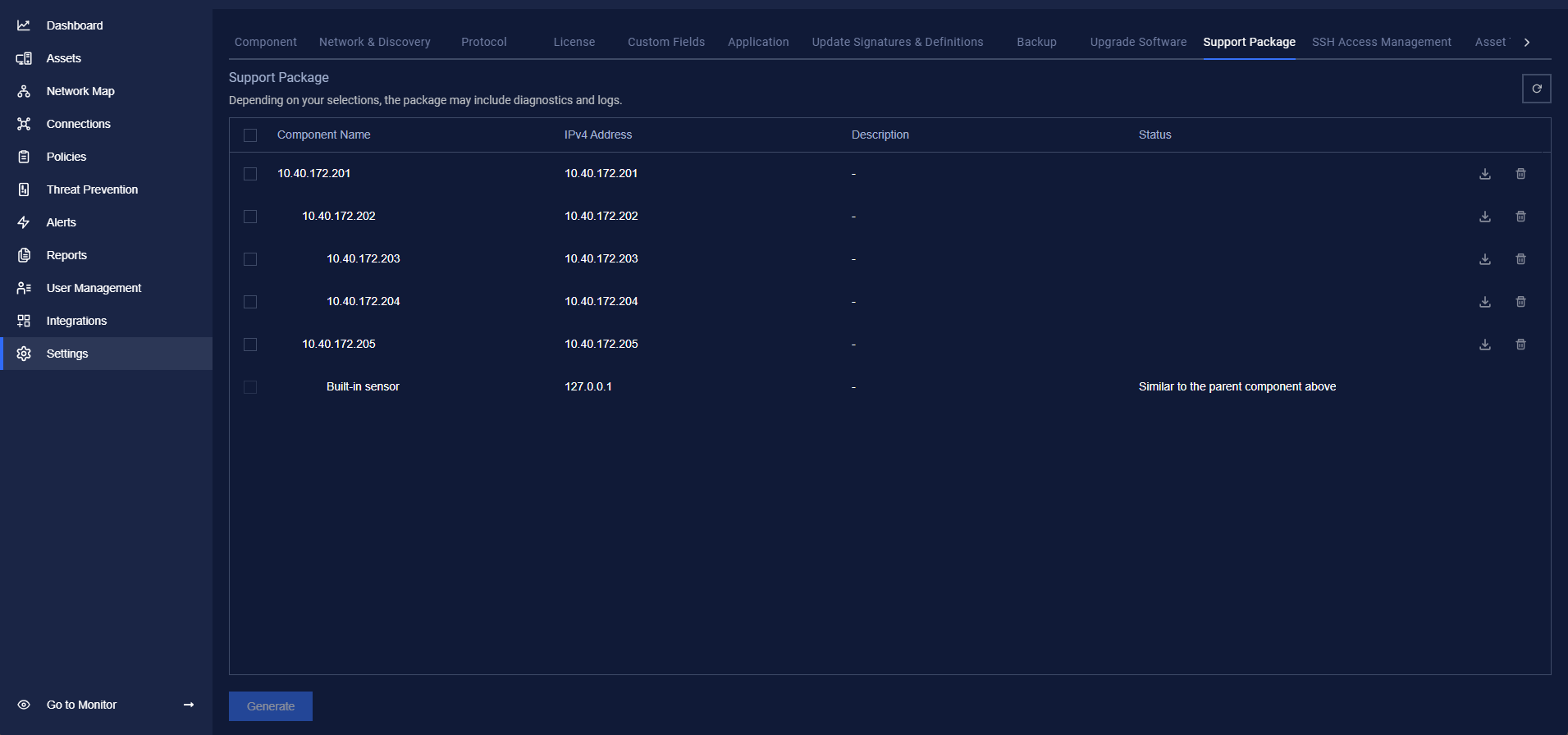
What you see on the page
Title and short description explaining that the package may include diagnostics and logs based on your selections.
Refresh (circular arrow): Use this to reload the list and statuses if the table looks out of date.
A table of components with roughly these columns:
Selection checkboxes — pick which components to include when you click Generate. You can also use the header checkbox to select all eligible rows when available.
Component — name or identifier (some rows are indented under a parent node).
IPv4 address — network address for the component.
Description — optional notes (may show “—” if none).
Status — current state of support package generation for that row (for example, while processing or when finished).
Actions — Download and Delete for a generated package when those actions are available.
At the bottom of the area, you use Generate to start creating packages for the selected components.
Generate a support package
Select one or more components with the row checkboxes (only rows that allow selection can be included).
Click Generate.
In the Export support package dialog, set your options:
Confirm generation in the dialog (the primary action is labeled like Generate/save).
Password protection is not required for normal use—skip it unless you have a reason to lock the download.
After the generation starts, watch the Status column for progress. Wait until a row is no longer stuck in a Processing-type state before starting another generate for the same component, if the product shows that state.
Built-in sensor and parent components
Some rows (for example, Built-in sensor) may not be generated on their own. The Status column can explain that behavior with text such as Similar to the parent component above. In that case, generating or downloading for the parent component is what applies; treat the child row as informational.
When the generation is finished
When the package is ready, the status should indicate completion (for example, Completed). Then:
Download — saves the support package file to your computer. If you chose password protection, you need that password to open the archive.
Delete — removes the generated package for that row when you no longer need it on the system.
If Download or Delete are disabled, refresh the table or wait until the status shows that the operation is allowed.
Practical tips
Refresh the table if statuses or actions look wrong after a long operation.
Use Lightweight when the last 3 days are enough; switch to Advanced when you need a different time window, flexible filtering, or database export for deeper analysis.
For Advanced, pick a range that covers the incident, but avoid unnecessarily wide exports unless support asks for them (especially when DB export is included).
When you do use password protection, store the password safely and send it through a different channel than the package file (for example, phone or secure note, not only the same email as the attachment).
If Further Assistance is required, please proceed to log a support case or chatting with our support engineer.