About this task
Starting from version 4.0.0, MetaDefender OT Security supports installation via an ISO file.
Use this procedure to deploy MetaDefender OT Security ISO on vCenter using the Host Client.
Before you begin
Please complete the Notes for deployment of MD OT Security | Firewall Allow-listed Configurations
Obtain the latest ISO from https://my.opswat.com/home/metaDefender-ot-security
Procedure
Log in to the Host Client at https://<ESXI_HOST>/UI.
In this URL, <ESXI_HOST> is the IP address or FQDN of the ESXi host where you want to deploy your virtual machine.
Right-click the ESXi host and select Create/Register VM.
The Host Client displays the New Virtual Machine window.
On the Select creation type page, select Create a new virtual machine. → Click Next
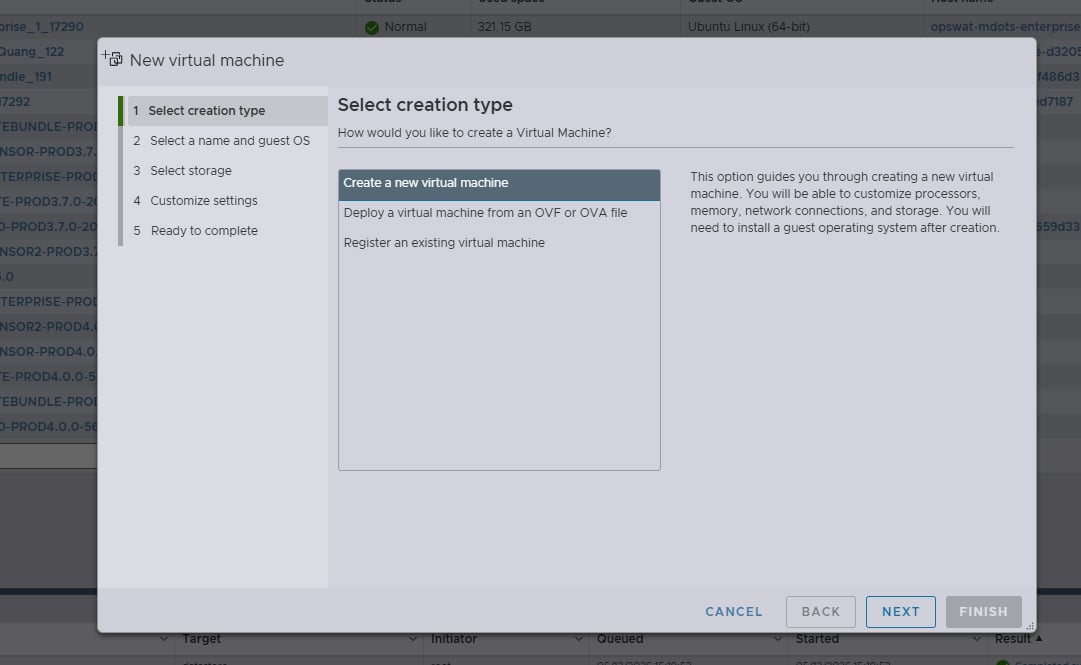
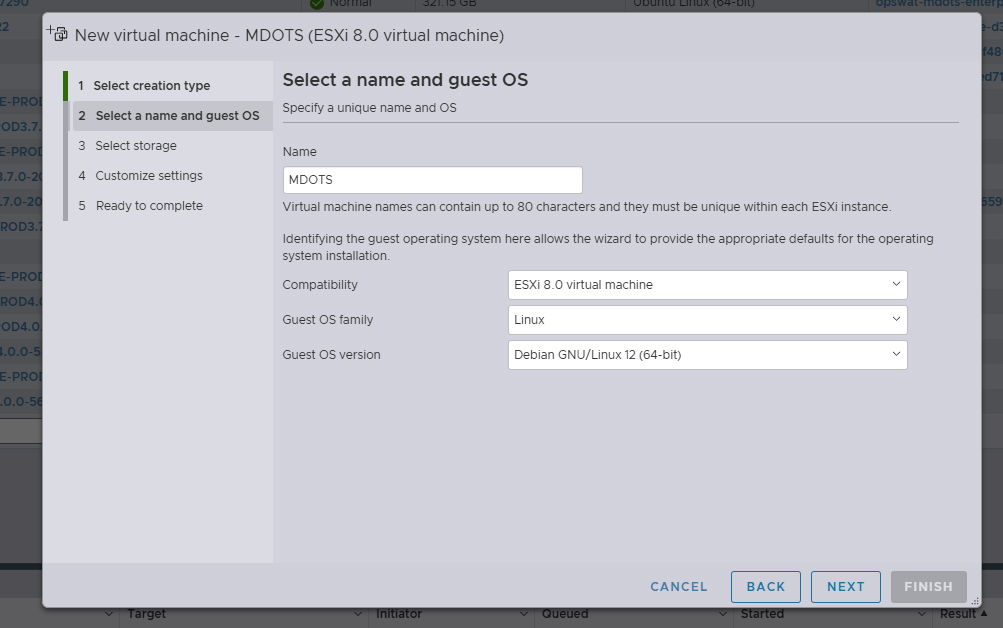
On the Select a name and guest OS, do the following:
In Name, type a name for the virtual machine.
In Compatibility, keep as default, example: ESXI 8.0 virtual machine
In the Guest OS family, select Linux.
In the Guest OS version, select Debian GNU/Linux 12 (64-bit)
Click Next.
On the Select storage page, select an appropriate data storage for your virtual machine and click Next.
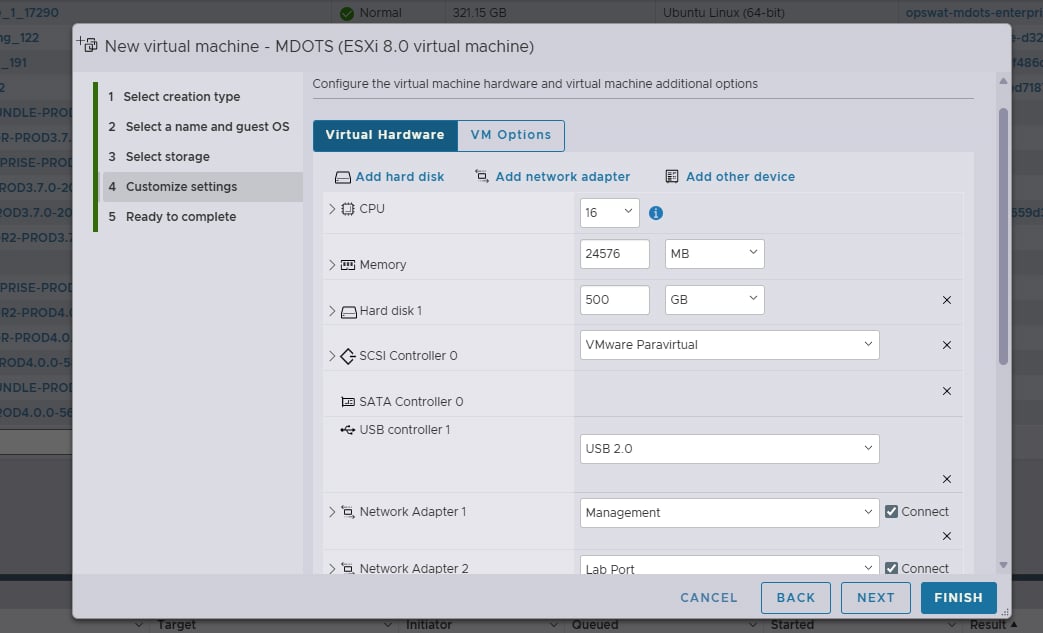
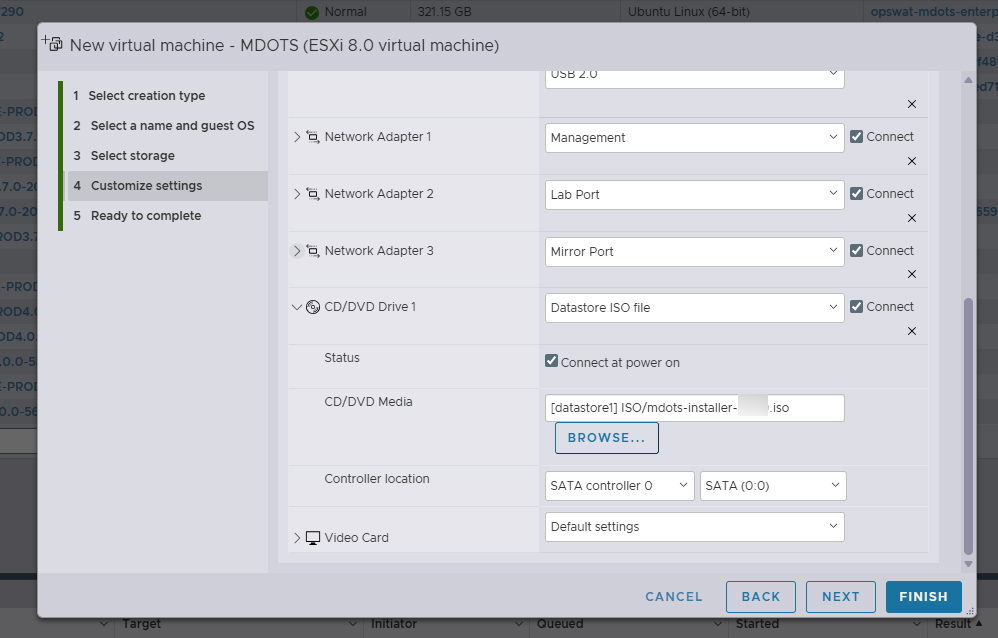
On the Customize settings page, do the following: Configure Virtual Hardware tab (CPU, Memory, Disk, NIC, CD/DVD)
In CPU/Memory/Hard disk: follow the requirements for each component Requirements for deploying MetaDefender OT Security
In Network Adapter: the default is 1 NIC, click Add network adapter and select a mapping suitable for each component (Follow the requirement - Requirements for deploying MetaDefender OT Security )
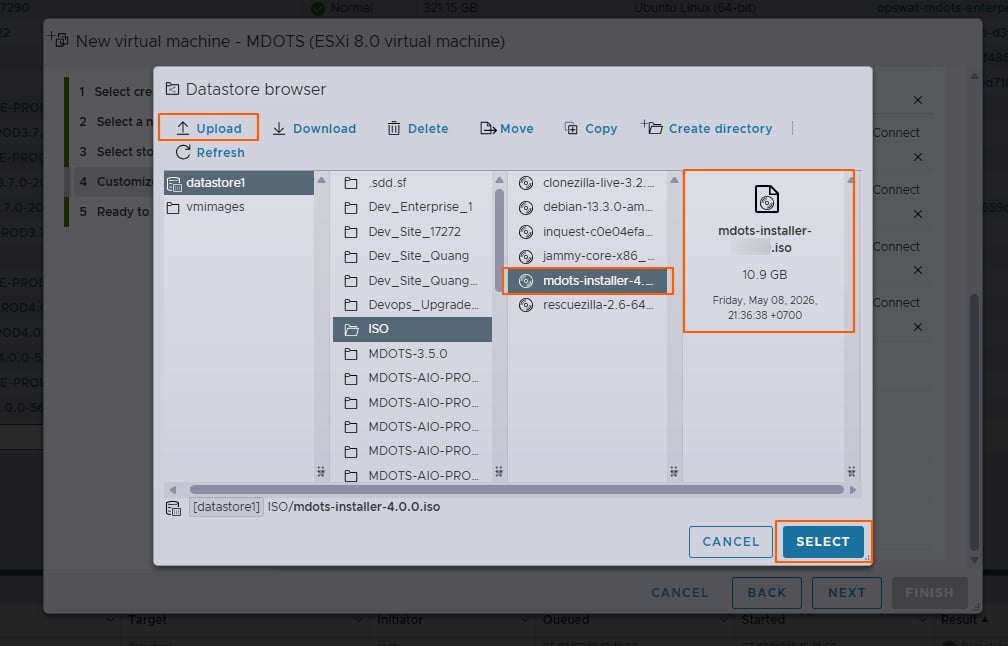
In CD/DVD Drive 1, select the Datastore ISO file, then upload the ISO file just downloaded, and click Select
At the VM Options tab, in Boot Options, select EFI
Click Next .
On the Ready to Complete page, review the virtual machine settings and click Finish
Power on the VM, then wait until importing completed.
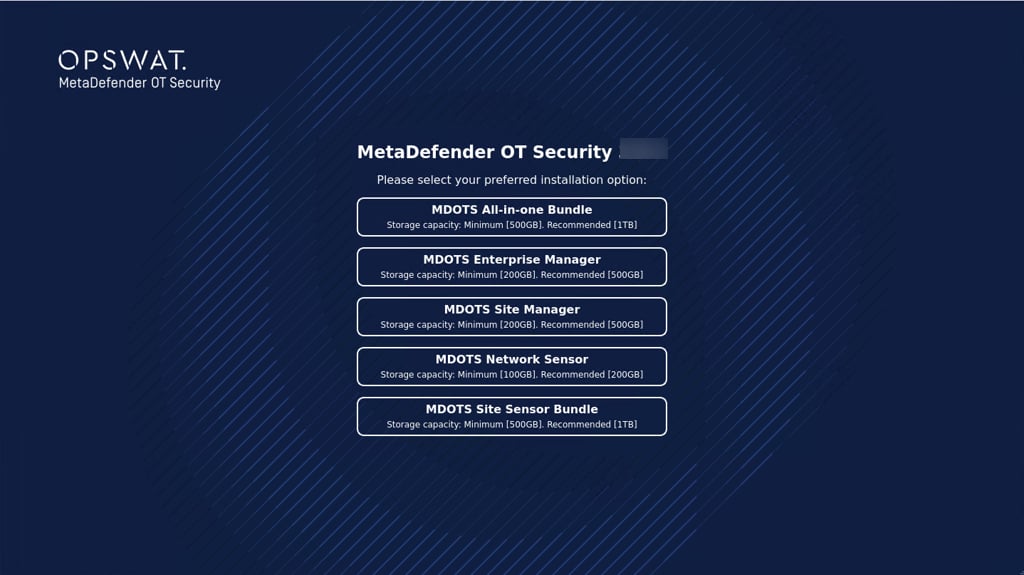
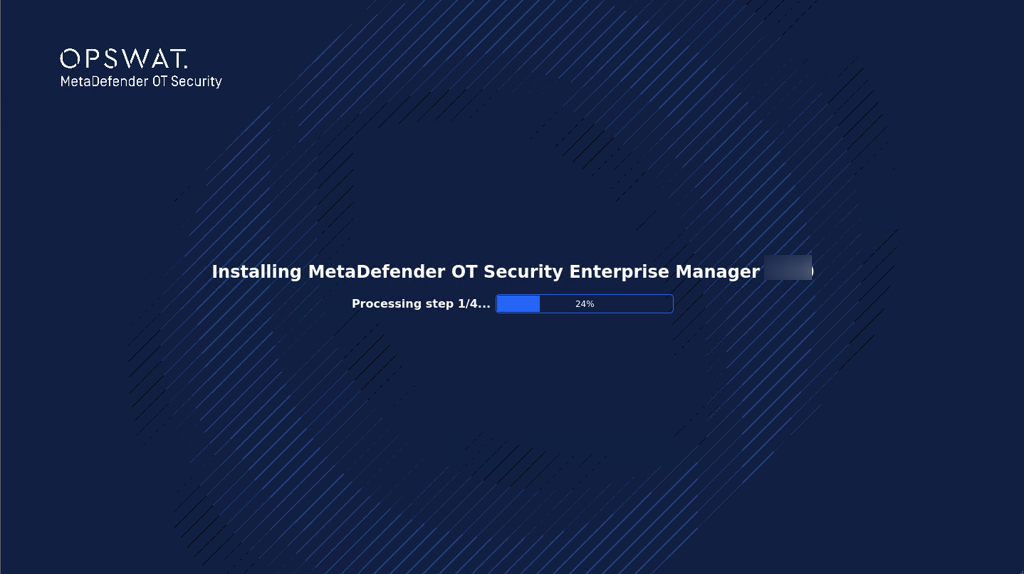
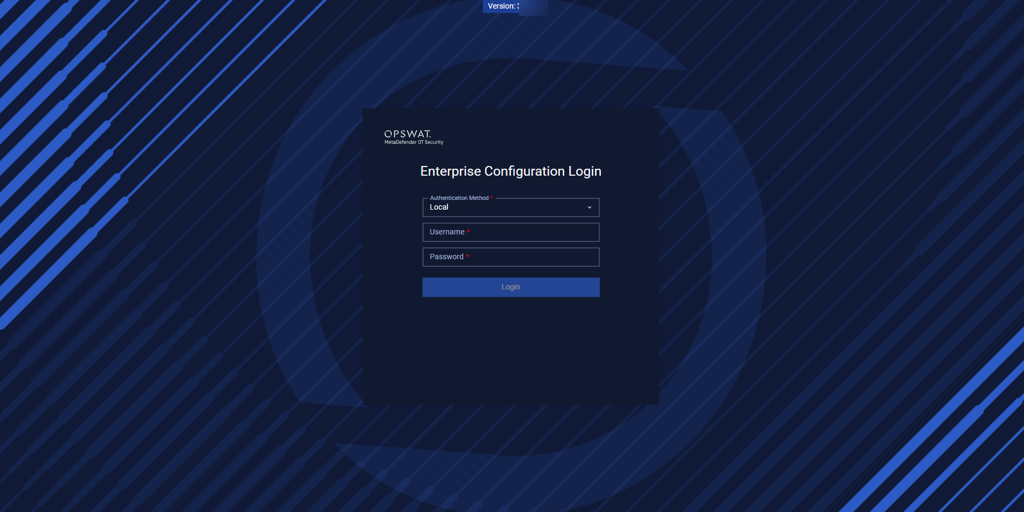
Select the component, then wait until the virtual machine is deployed.