
Set up a reusable deployment configuration, then stage its rollout into rings in the steps that follow.
Please Note
Ring deployment only support Window patches. Non-Window devices will be automatically excluded.
Driver & Firmware Updates is supported on Dell and Lenovo Windows devices only.
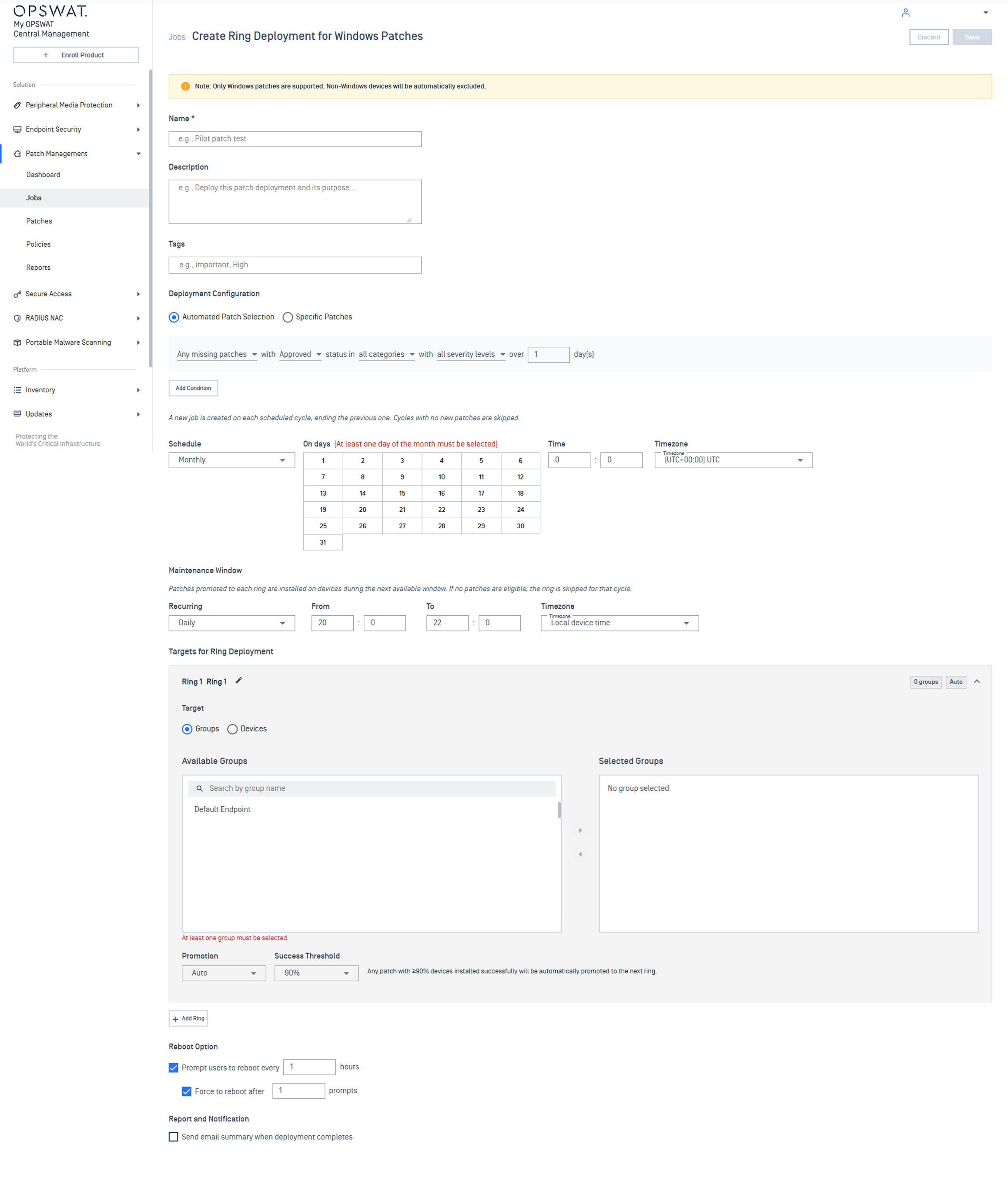
Create Ring Deployment
In the left navigation, select Patch Management > Jobs
Select Create Deployment, then choose Ring from the dropdown
In the dialog, choose what to deploy:
For Windows Patches
For Application Patches
For Driver & Firmware Updates
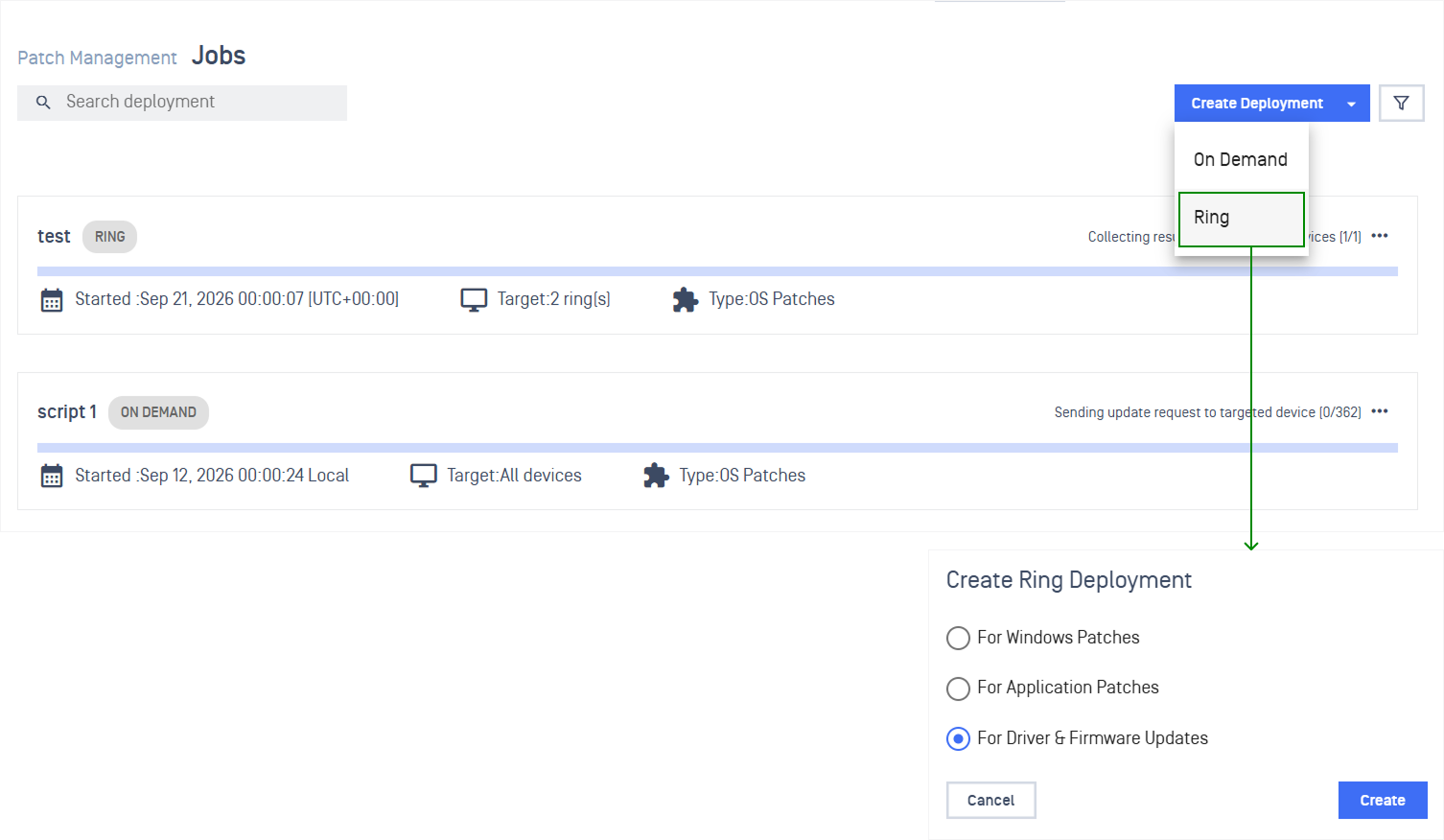
Configure Ring Deployment
Configuration | Details |
|---|---|
Name and describe the deployment | Enter a Name, a short Description, and any Tags you want to filter by later 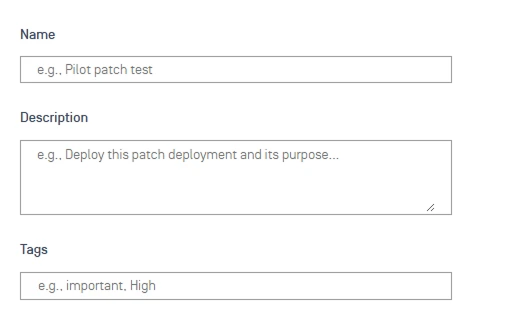 |
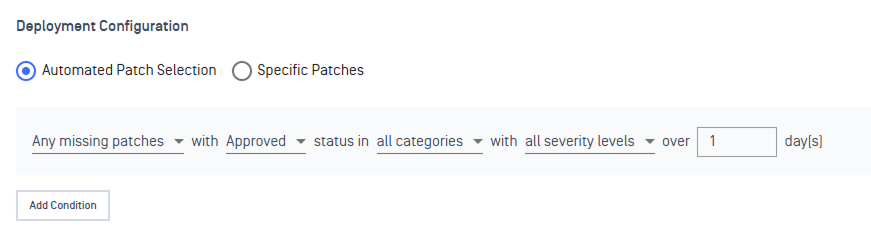
Choose what gets installed | Use condition-based selection to automatically include updates that match criteria, or pick Specific Patches / Specific Applications manually
 |
Set how often the deployment runs | Set the Date and Start time. Add an End time if you want it to stop automatically. Refer to Ring Schedule to understand how it works 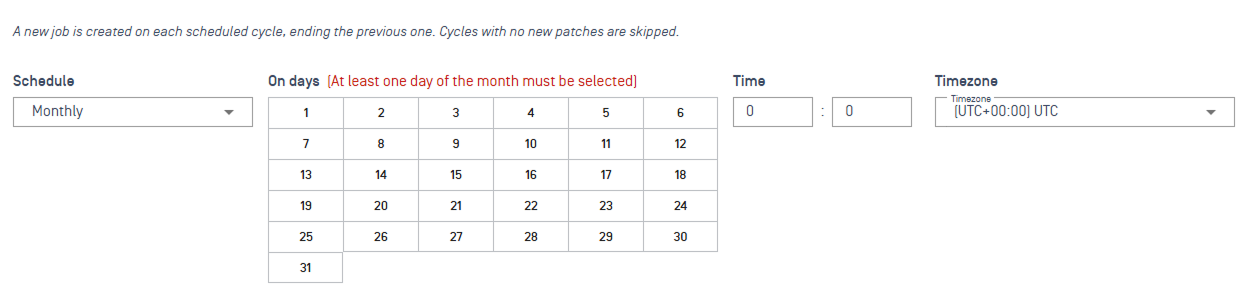
|
Control when deployments can occur | Configure a Maintenance Window to limit deployments to approved times. Refer to Maintenance Window to understand how it works  |
Stage your rollout across rings | Configure deployment rings under Targets for Ring Deployment. Refer to Targets for Ring Deployment to understand how they work
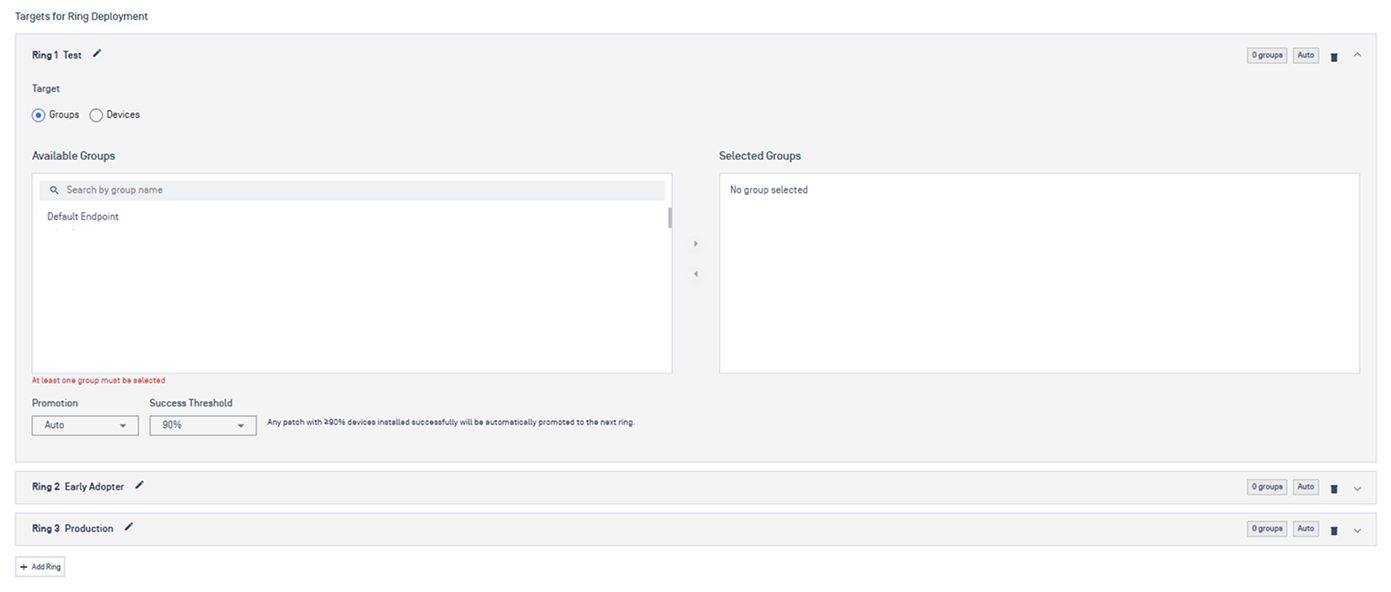 |
Control restart and user notifications | Configure Reboot Options (Windows) or Update Notification (Application) to reduce user disruption  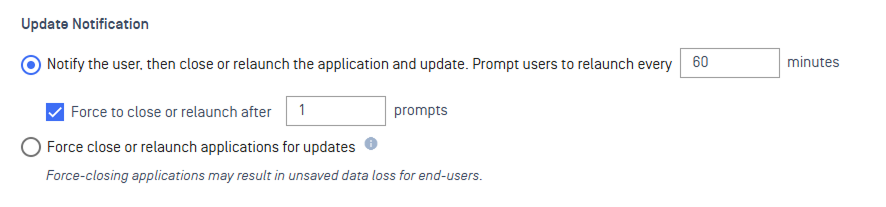 |
Get notified when it's done | Add one or more email addresses under Report to receive a summary 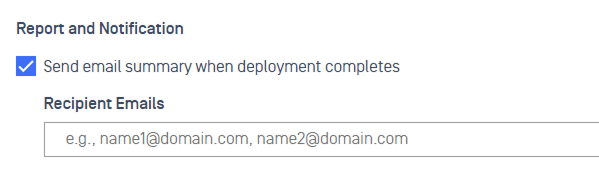 |
Next Steps
Track a specific deployment in Monitor Deployment
Configure point-in-time patch reports with Custom Patch Reports
Set real-time alerts for key patch events under Patch Notification
Define SLA timeframes to maintain compliance visibility via Patch SLA