
Syslog Proxy enables My OPSWAT Central Management On-Premise to collect syslog messages from devices and OPSWAT product instances and forward them to your SIEM through a centralized configuration.
Note Syslog proxy is available for My OPSWAT Central Management On-Premises version 10.8.26110 or later.
On This Page
How Syslog Proxy Works
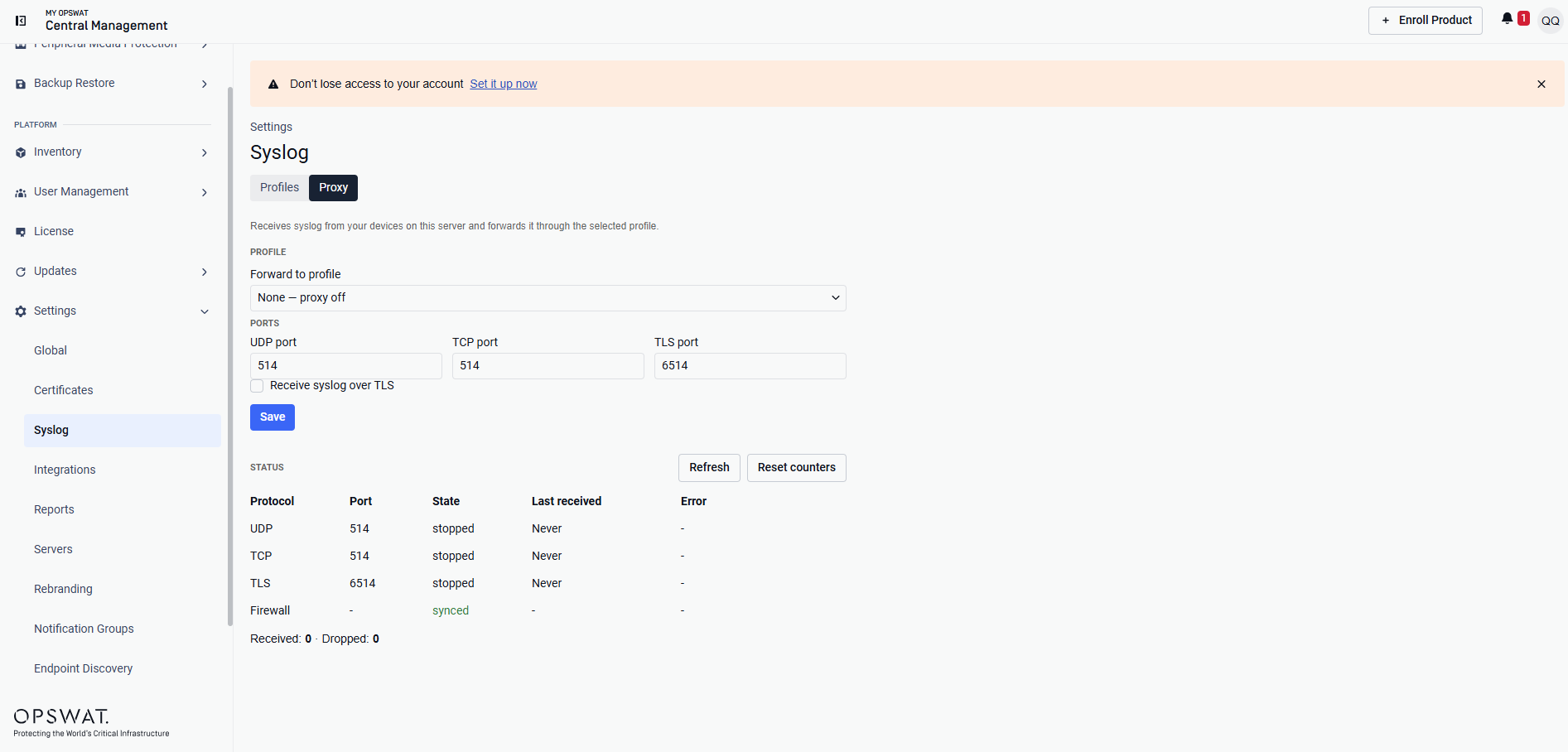
Configure syslog proxy under Settings → Syslog → Proxy.
A single proxy configuration applies to the entire My OPSWAT Central Management deployment. It defines the listening ports, TLS settings, and syslog profile used to forward messages.
Syslog Proxy works alongside existing per-instance log forwarding. Product instances that already send logs through the My OPSWAT Central Management API using an individually assigned syslog profile continue to operate without changes.
Before You Begin
Requirement | Details |
|---|---|
Deployment | My OPSWAT Central Management On-Premises: Linux, Windows, or AWS High Availability (HA) deployments |
User role permission | Syslog Profiles permission:
|
An enabled syslog profile | The proxy forwards through a profile you create on the Profiles tab. Create the profile and run Test Connection on it first. See Syslog Profile for detailed instruction. |
TLS files (TLS only) | Three files in PEM or DER format:
|
Turn On Syslog Proxy
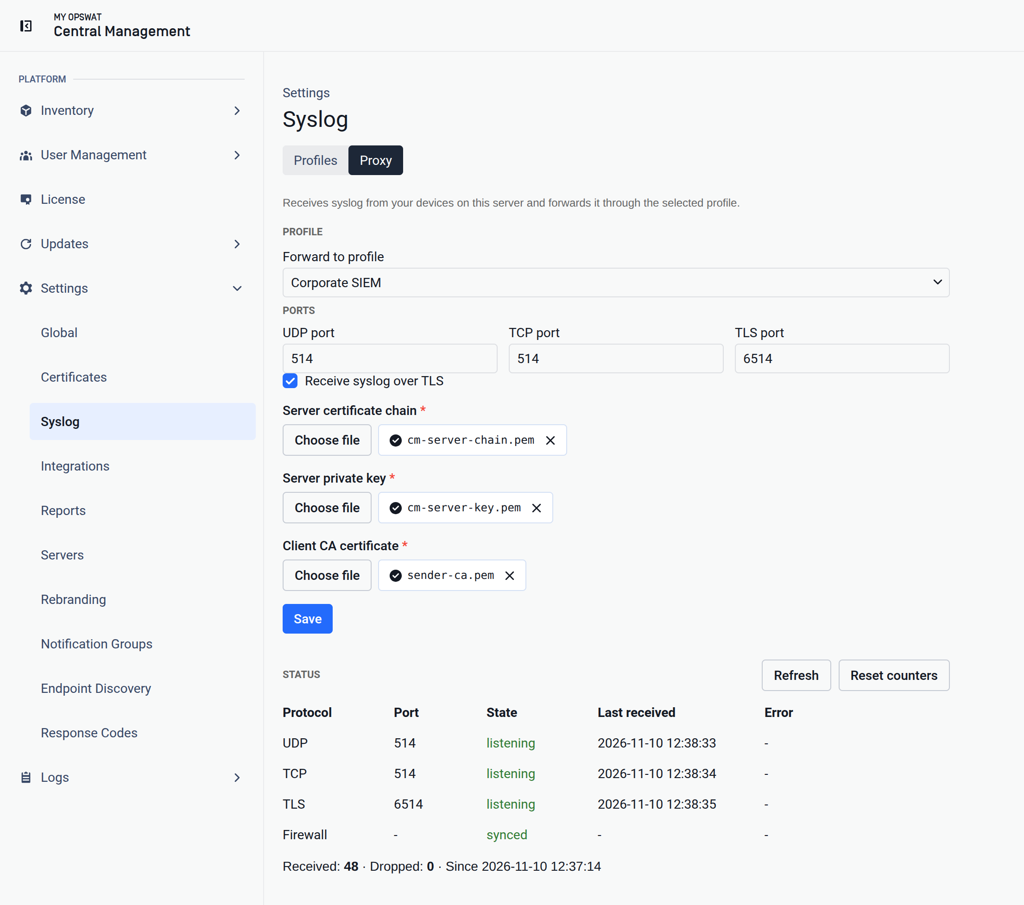
Go to Settings → Syslog and select the Proxy tab
Under Forward to profile, select the syslog profile to use. Only enabled profiles are available
Under Ports, keep the defaults or enter your own:
UDP port: 514
TCP port: 514
TLS port: 6514
(Optional) To receive syslog over TLS, select Receive syslog over TLS and upload the three TLS files. See Set Up TLS for more details.
Click Save and enter your PIN if prompted. A Syslog proxy settings saved confirmation appears
Under Status, click Refresh to verify that:
Each enabled protocol shows listening
The Firewall status shows synced if the host uses a managed firewall
Configure your senders to send syslog to My OPSWAT Central Management host on these ports
My OPSWAT Central Management opens the proxy ports in the host firewall for you:
Linux: a firewall service named
mocm-syslog-proxyWindows: Windows Firewall rules named OPSWAT MOCM Syslog Proxy UDP, TCP and TLS
Note You need to manually configure any other firewalls between your syslog senders and My OPSWAT Central Management to allow traffic through the configured ports.
Set Up TLS
Syslog Proxy uses mutual TLS to secure syslog communication. Senders must verify the My OPSWAT Central Management server certificate, while My OPSWAT Central Management accepts only senders with a valid client certificate signed by the configured Client CA. A sender without a valid client certificate is rejected.
Upload TLS files
On the Proxy tab, select Receive syslog over TLS
Upload the Server certificate chain (
.pem,.crt,.cer, or.der). The certificate's name, or its IP address if senders connect by IP, must match the address senders connect toUpload the Server private key (
.pem,.key, or.der). It must match the server certificateUpload the Client CA certificate (
.pem,.crt,.cer, or.der). The file must contain exactly one certificateSelect Save
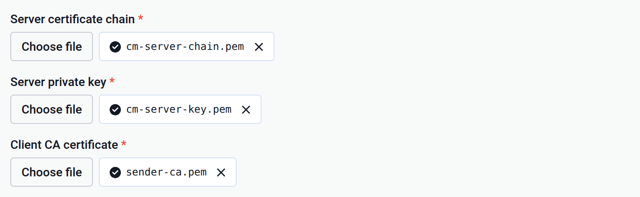
Previously uploaded TLS files are retained unless you upload replacements. Clearing Receive syslog over TLS closes the TLS port but preserves the uploaded files.
Configure senders
On each sender:
Configure the client certificate and private key
Trust the CA that signed the My OPSWAT Central Management server certificate
Use TLS 1.2 or later
Example syslog sender configuration:
Note With x509/name, the sender checks that the My OPSWAT Central Management certificate contains the name or IP address it connects to. If the certificate does not contain a matching name or IP address, verification fails and the connection is rejected.
Verify That Logs Are Arriving
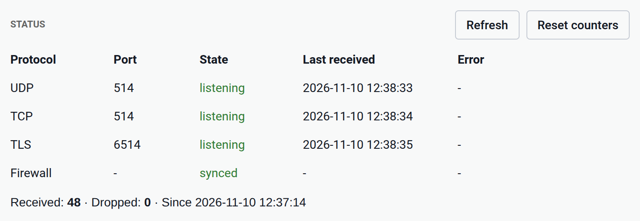
The Status section on the Proxy tab displays the current listener status, message activity, and errors. Click Refresh to view the latest information.
Column | What it shows |
|---|---|
Protocol | UDP, TCP, or TLS. A Firewall row appears if My OPSWAT Central Management manages the host firewall |
Port | The port used by each listener |
State |
|
Last received | When the listener last received a message, or Never if no messages have been received. |
Error | The reason a listener failed to start or the firewall update failed, such as a port already in use |
Below the status table, the following counters provide an overview of syslog message activity:
Counter | What it shows |
|---|---|
Received | Messages received across all listeners |
Dropped | Messages received but not forwarded, such as when the proxy is disabled or the configured destination cannot accept them. Messages excluded by the syslog profile's filtering rules are not counted as dropped |
Since | When the counters were last reset |
Replicas | Available in AWS High Availability (HA) deployments only. Shows the number of My OPSWAT Central Management nodes included in the status |
Note The counters and Last received value reset when the syslog service restarts.
Reset the Counters
To reset the Syslog Proxy counters:
In the Status section, select Reset counters
Confirm the reset
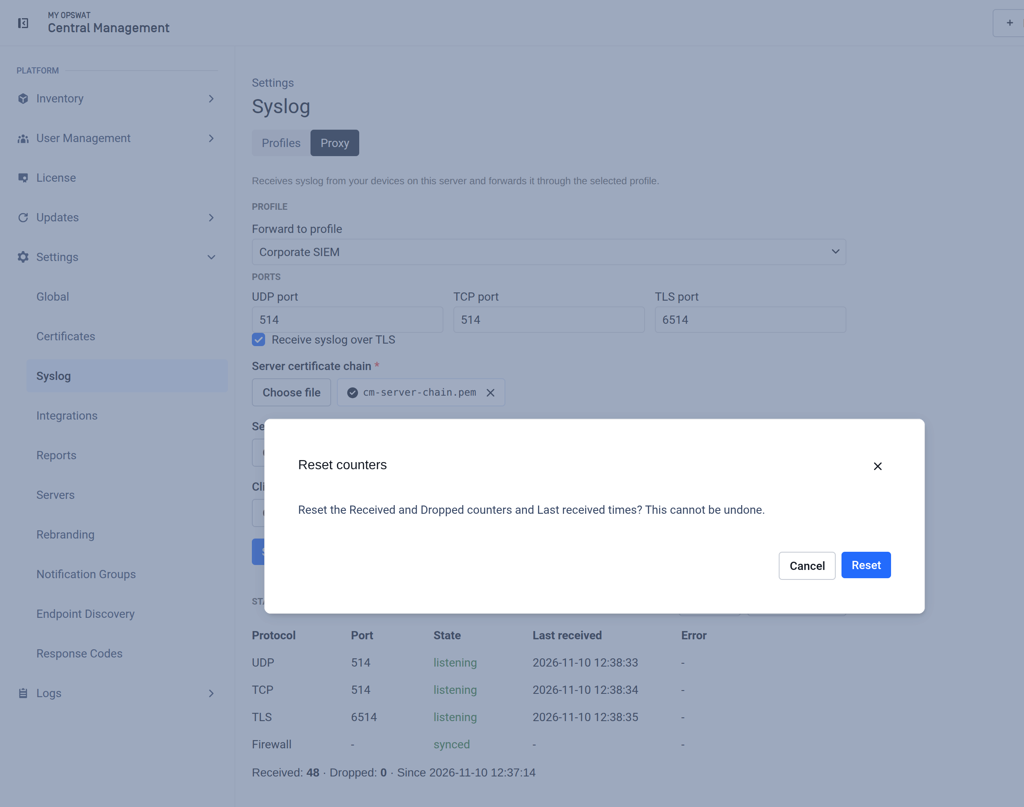
After the reset:
Received, Dropped, and every Last received value reset across all nodes, including AWS HA deployments
Since displays the time of the reset
Reset values persist after the syslog service restarts
Tip Reset the counters before a test so the counts show only the test messages. Resetting requires Write permission but does not ask for your PIN.
Turn Off Syslog Proxy
To disable Syslog Proxy:
On the Proxy tab, select None — proxy off in Forward to profile
Select Save

All proxy ports close, both in My OPSWAT Central Management and in the host firewall.
The proxy also stops when the selected profile is disabled on the Profiles tab: the ports close, open TCP and TLS connections end, and the ports close in the host firewall. The profile appears as (disabled — not forwarding) on the Proxy tab. Enable the profile again to reopen the ports.
You cannot delete a syslog profile while it is assigned to Syslog Proxy. Before deleting the profile, select another profile or None — proxy off under Forward to profile, then save your changes.
What Your SIEM Receives
My OPSWAT Central Management accepts syslog messages in RFC 5424 and RFC 3164 formats and forwards them to your SIEM using the format and filtering rules defined in the selected syslog profile. Each forwarded message retains its original timestamp, hostname, severity, and message text.
My OPSWAT Central Management adds an origin@61422 block with:
Field | Value |
|---|---|
| The IP address the message came from |
|
|
| Your account identifier |
If the sender did not include a host name, My OPSWAT Central Management uses the sender's IP address
RFC 3164 has no structured data, so the block is added to the message text instead
Configuration Reference
Setting | What it does | Values | Default | Notes |
|---|---|---|---|---|
Forward to profile | The single profile every received message is forwarded through | Any enabled profile, or None — proxy off | None | The proxy listens only while this profile exists and is enabled |
UDP port | Port for syslog over UDP | 1–65535 | 514 | One message per datagram |
TCP port | Port for syslog over plain TCP | 1–65535 | 514 | Must differ from the TLS port. Can match the UDP port |
TLS port | Port for syslog over TLS | 1–65535 | 6514 | Used only when TLS is on |
Receive syslog over TLS | Turns the TLS port on | Checkbox | Off | Requires all three TLS files |
Server certificate chain | The certificate My OPSWAT Central Management presents to senders | PEM or DER | — | Required when TLS is on |
Server private key | The key for the server certificate | PEM or DER | — | Required when TLS is on. Must match the certificate. Never displayed after upload |
Client CA certificate | The CA that must sign sender certificates | PEM or DER, exactly one certificate | — | Required when TLS is on |
Note On the AWS HA install, ports are set during installation. They appear read-only with the message These ports are set when Central Management is installed, and the installation (not My OPSWAT Central Management) opens them in the network.
Known Limits
Limit | Value |
|---|---|
Maximum message size | 64 KiB. Longer messages are skipped; the rest of the stream continues |
Open TCP and TLS connections | 512 |
Idle TCP or TLS connection | Closed after 5 minutes without a message |
TLS handshake | Must complete within 10 seconds |
TCP and TLS framing | Octet counting (RFC 6587) or one message per line |
A profile with a udp:// destination has its own, smaller limit on each forwarded message. See the Syslog Profile guideline for details.
Security and Reliability
Warning
The UDP and TCP ports are open to anyone who can reach them. Restrict who can access to these ports in your network firewall, or use TLS, which accepts only senders with a client certificate signed by your CA.
One profile for all senders: To route different logs to different destinations, use the profile's filter, or forward from each instance through the API instead.
UDP has no delivery guarantee: Messages lost on the way to My OPSWAT Central Management are not reported. Use TCP or TLS when you need to know.
Changes are recorded: Saving proxy settings and resetting counters are recorded in the Admin Events log.
Refused TLS senders are logged: A sender refused during the TLS handshake (for example, one without a client certificate) is logged as a warning with its IP address in the syslog service log, at most once every 5 minutes per sender.
Troubleshooting
Issue | Cause | Resolution |
|---|---|---|
The Proxy tab is missing | The install is not on-premises, or your role has Syslog Profiles set to Hide (Syslog is also missing from the Settings menu) | The proxy is available only on on-premises installs. For permissions, ask an account administrator for Read or Write access to Syslog Profiles. |
You cannot save, or Reset counters is missing | Your role has Read access only | Ask for Write access to Syslog Profiles. |
A listener shows error | Usually another program on the host already uses the port, such as a local syslog daemon on 514 | Check the Error column. Free the port or choose another one. |
The Firewall row shows error | My OPSWAT Central Management could not update the host firewall | Check the Error column and confirm the firewall service is running. Until it is fixed, open the ports manually. |
Last received stays at Never | Nothing is reaching that port | Check the sender's target host, port, and protocol, and any firewall in between. For TLS, confirm the sender presents a client certificate. |
A TLS sender keeps retrying and nothing arrives | The sender has no client certificate, or it is not signed by the uploaded Client CA certificate | Configure a valid client certificate on the sender. The syslog service log shows |
A TLS sender rejects the My OPSWAT Central Management certificate | The sender does not trust the CA that signed the server certificate, or the certificate does not contain the name or IP address the sender connects to | Add the CA to the sender's trust store, or issue a server certificate with the correct name or IP address. |
Received rises but your SIEM has nothing | The profile cannot reach the SIEM, or its filter excludes the messages | On the Profiles tab, run Test Connection and check Last error. Then review the profile's filter. |
Dropped is rising | Messages reach My OPSWAT Central Management but not your SIEM | Confirm the profile is enabled and its destination is working. |
Save fails: "The selected syslog profile no longer exists" | The profile was deleted while you were editing | Select another profile. |
Save fails: "The settings were changed by someone else" | Another user saved changes first | Reload the page and make your change again. |
"The stored private key cannot be read" | The stored server private key is unreadable | Upload the server private key again, or clear Receive syslog over TLS. |