
User type: Both Personal and Organization users
The Security tab in the My OPSWAT Portal allows you to manage your account's security settings, including updating your password, setting up Multi-Factor Authentication (MFA), and configuring a PIN for sensitive actions.
To access this feature, go to your username in the top right corner and navigate to My Information > Security.
Password
Keep your account secure by updating your password regularly. As part of our security policy, passwords must be changed every 180 days.
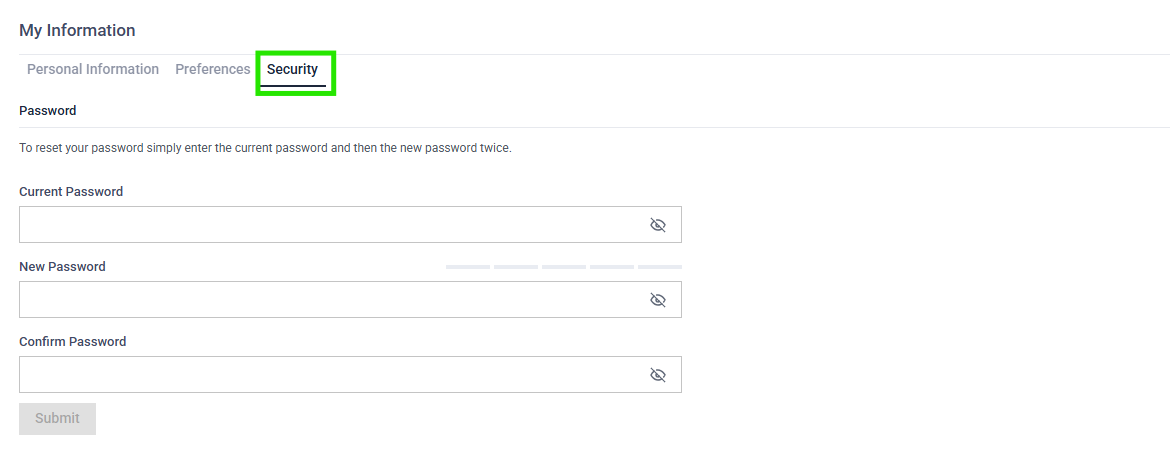
Password Expiration Notifications
You will receive a notification 7 days before expiration in the following locations:
Overview page
My Information > Security page
Once your password expires, you will be unable to perform any actions until you update it. To change your password, navigate to My Information > Security and follow the prompts.
Multi-Factor Authentication
Starting June 17th, 2026, Multi-Factor Authentication (MFA) will be required for all users, except those who sign in through your organization’s own identity provider (IdP).
Users who do not sign in through your organization’s own IdP will be required to use MFA when accessing OPSWAT Cloud products (My OPSWAT Portal, MetaDefender Cloud, MetaDefender Cloud Email Security, Filescan.IO, My OPSWAT Central Management, OPSWAT Academy).
From My Information > Security, you can set up MFA and manage your MFA recovery options
For detailed instructions, see: Set up Multi-Factor Authentication
Change your default MFA method
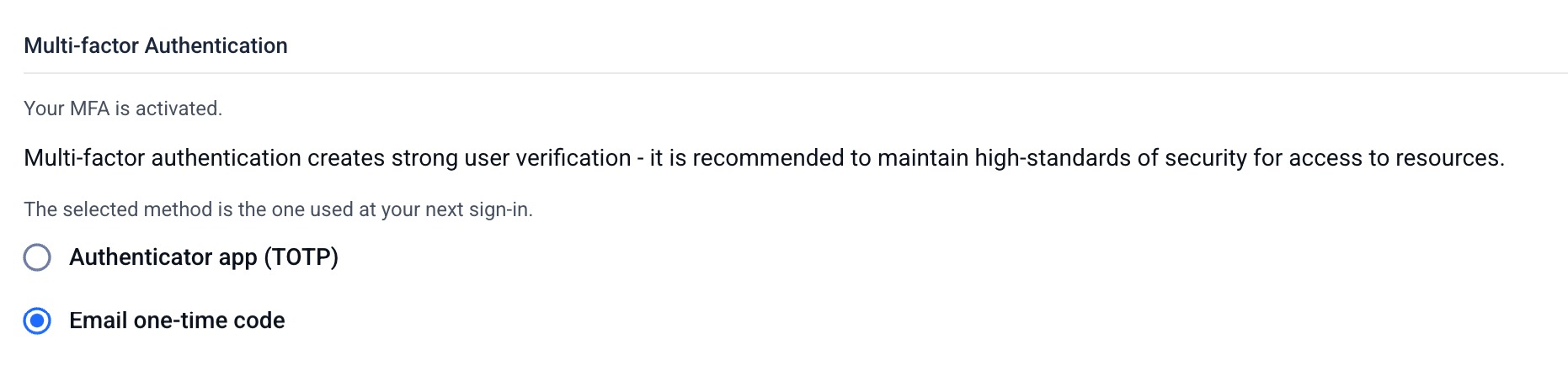
Go to My Information > Security.
Under Multi-factor Authentication method, select Authenticator app (TOTP) or Email one-time code.
The method you select is used at your next sign-in. If you switch to the authenticator app and have not set it up yet, you are guided through setting it up the next time you sign in.
Disable MFA
Because MFA is required for all applicable My OPSWAT Portal users, you cannot disable MFA. If MFA is disabled during account recovery, you must set it up again the next time you sign in.
Organization-Level MFA Settings
Beginning June 17, 2026, Multi-Factor Authentication (MFA) will be mandatory for all users, except for those who authenticate using their organization's own Identity Provider (IdP). Therefore, organization-level MFA settings will no longer be available.
PIN Setup
The Security tab also allows users to set up a PIN: Click the Setup PIN button to confirm changes to sensitive functions. This adds an additional layer of security in-product.