
User type: Both Personal and Organization users
This guide is designed to help you understand how to use the Academy feature to track your progress, and make the most of your learning experience. Whether you are new to Academy or looking for answers to common questions, this guide will walk you through each part of the module.
About Academy page
The Academy page is your central hub for all Academy training activities. Here, you can:
Discover recommended learning tracks and courses
Track your progress and achievements
Explore available courses and Cloud-based CIP Labs
View your learning rank and activities
The feature is tailored for different user types, such as partners, enterprise customers, students, and more, ensuring a personalized learning journey.
1. Overview
The Overview page makes it easy to act immediately — resume where you left off or start your next recommended course.
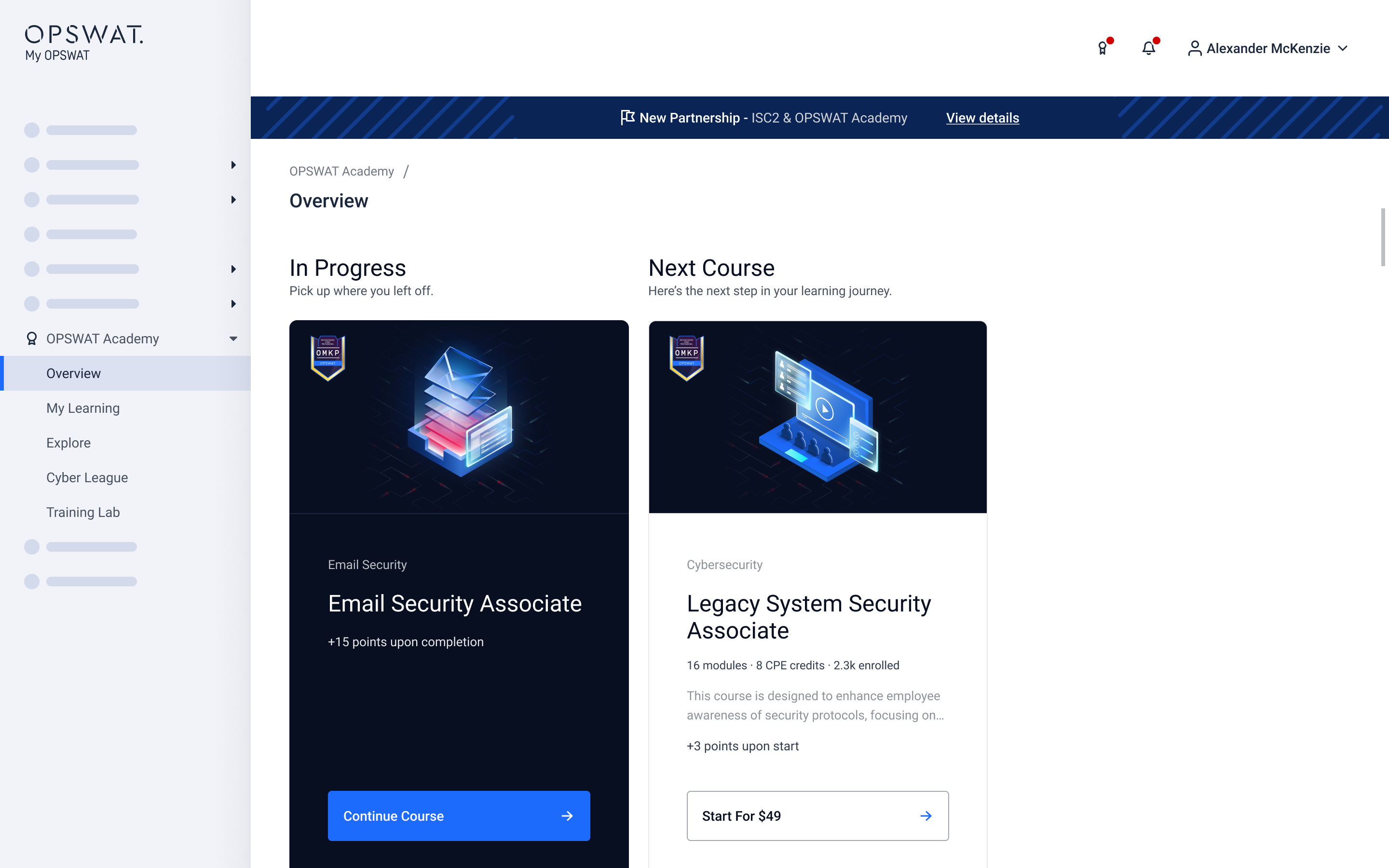
When you open the Academy module, you’ll see an overview of your learning status:
In Progress: Shows your most recently started course. If you have no courses in progress, this section is hidden.
Next Course: Recommends what to learn next, based on your progress and user type. If you haven’t started any courses, you’ll see suggestions to “Start Your First Course” and “Next Course.”
Submitting an OPSWAT Academy support case
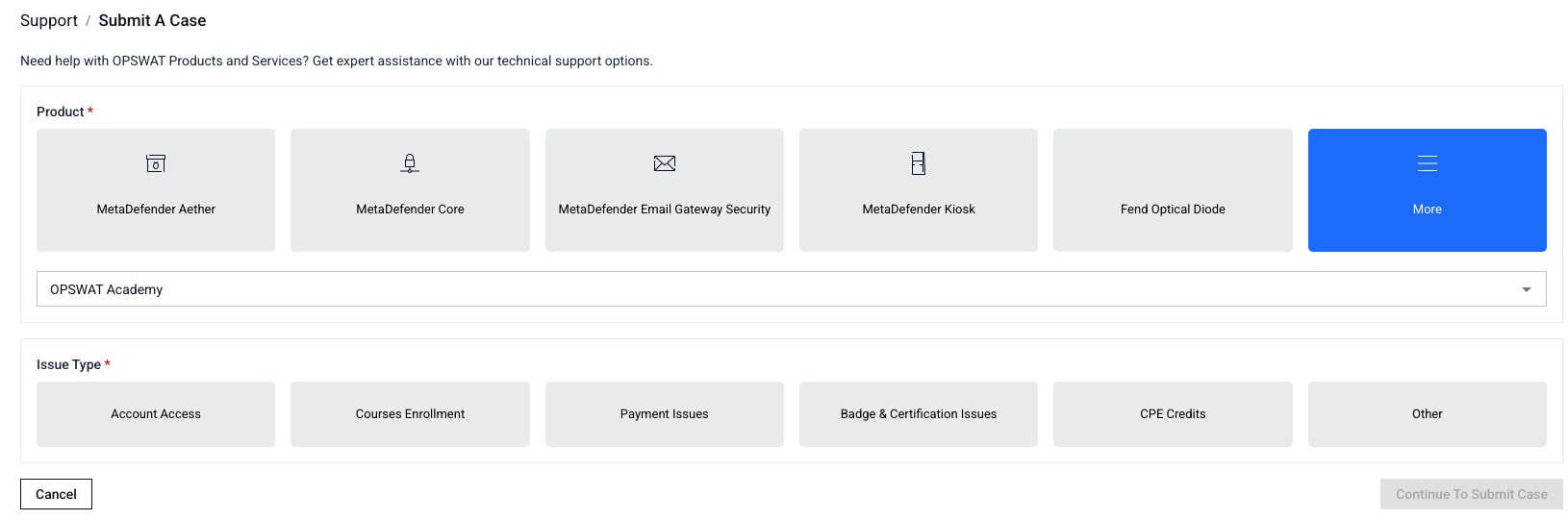
Click Need help? link on the Academy Overview tab, which opens the form with the product already set to OPSWAT Academy.
Choose an Academy issue type
Complete the remaining fields following Case Submission Guide
Academy cases appear in your case lists and support comments, escalation, and follow-up, just like other support cases.
2. My Learning
The My Learning page helps you monitor your learning journey:
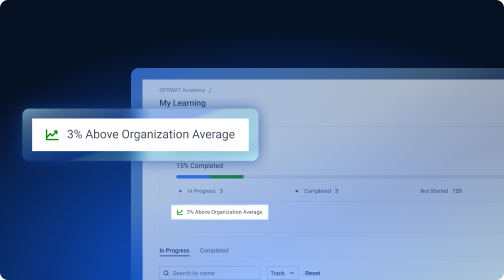
Progress Bar: See your overall progress, including the percentage of courses in progress, completed, or not started. If you belong to an organization, you can compare your progress to the organization average.
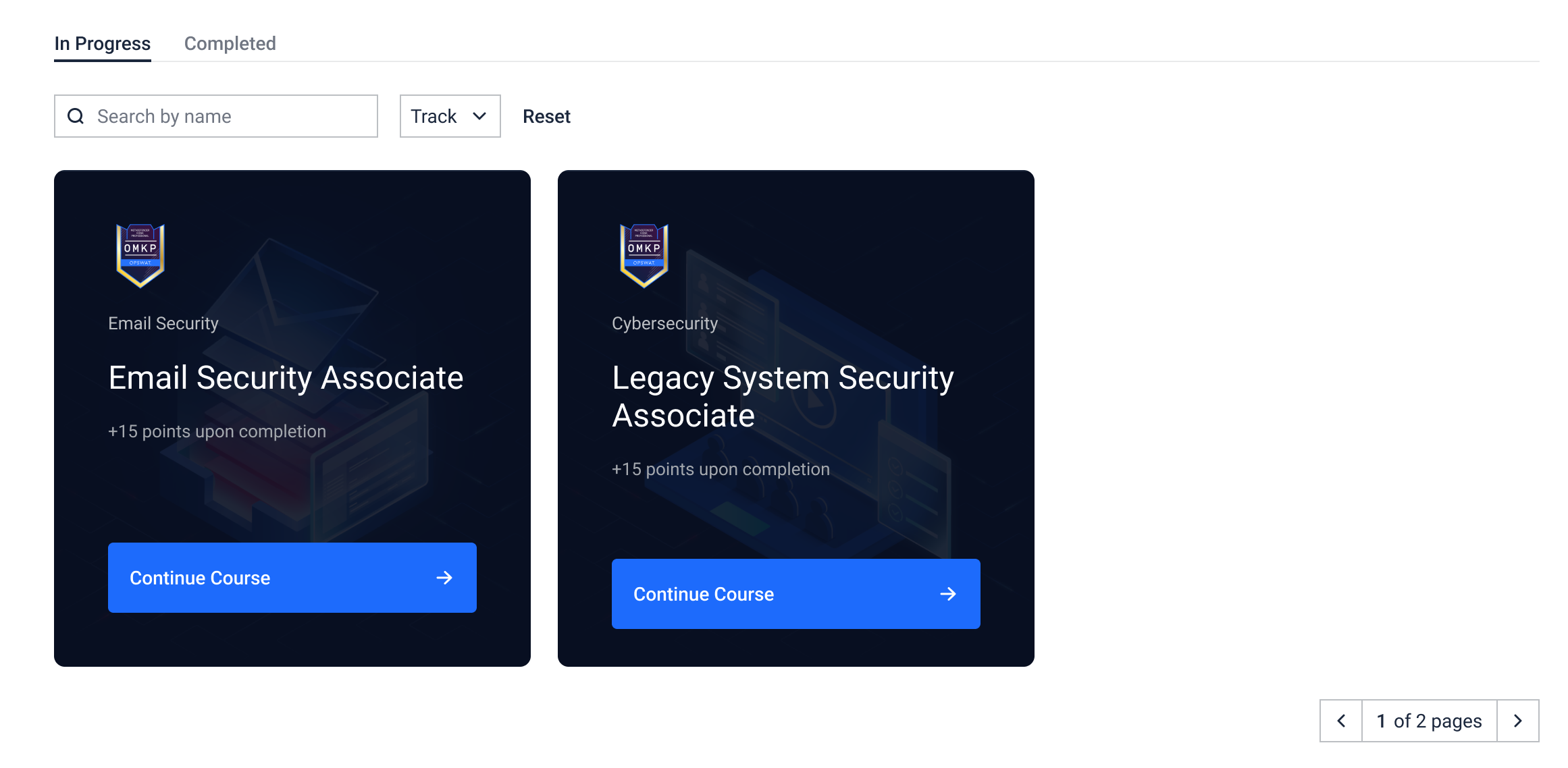
In Progress Courses: View all courses you’ve started but not yet finished. You can search, filter by track, and navigate to course details.
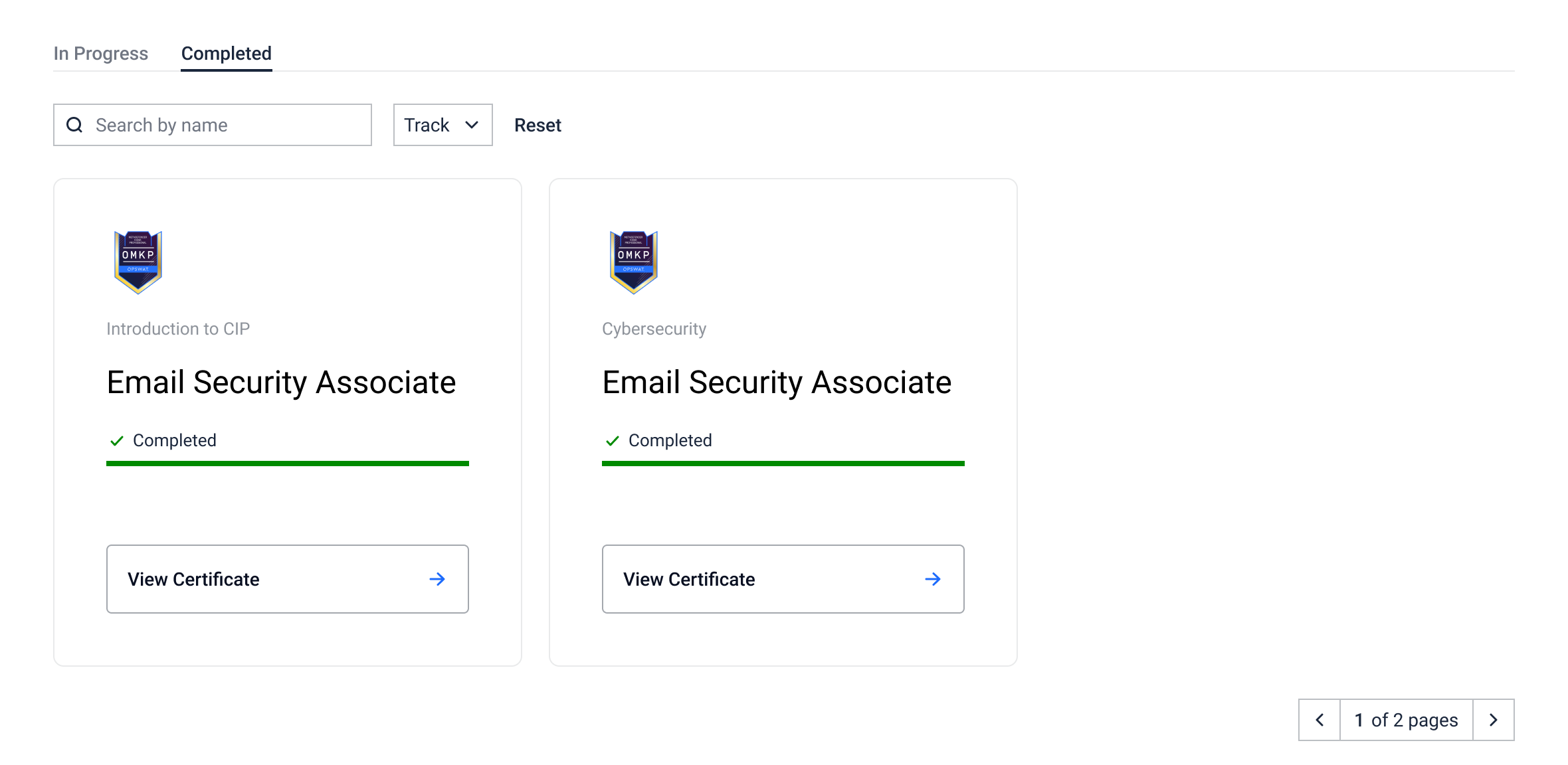
Completed Courses: See all courses you’ve finished, sorted by completion date. This tab is hidden if you haven’t completed any courses.
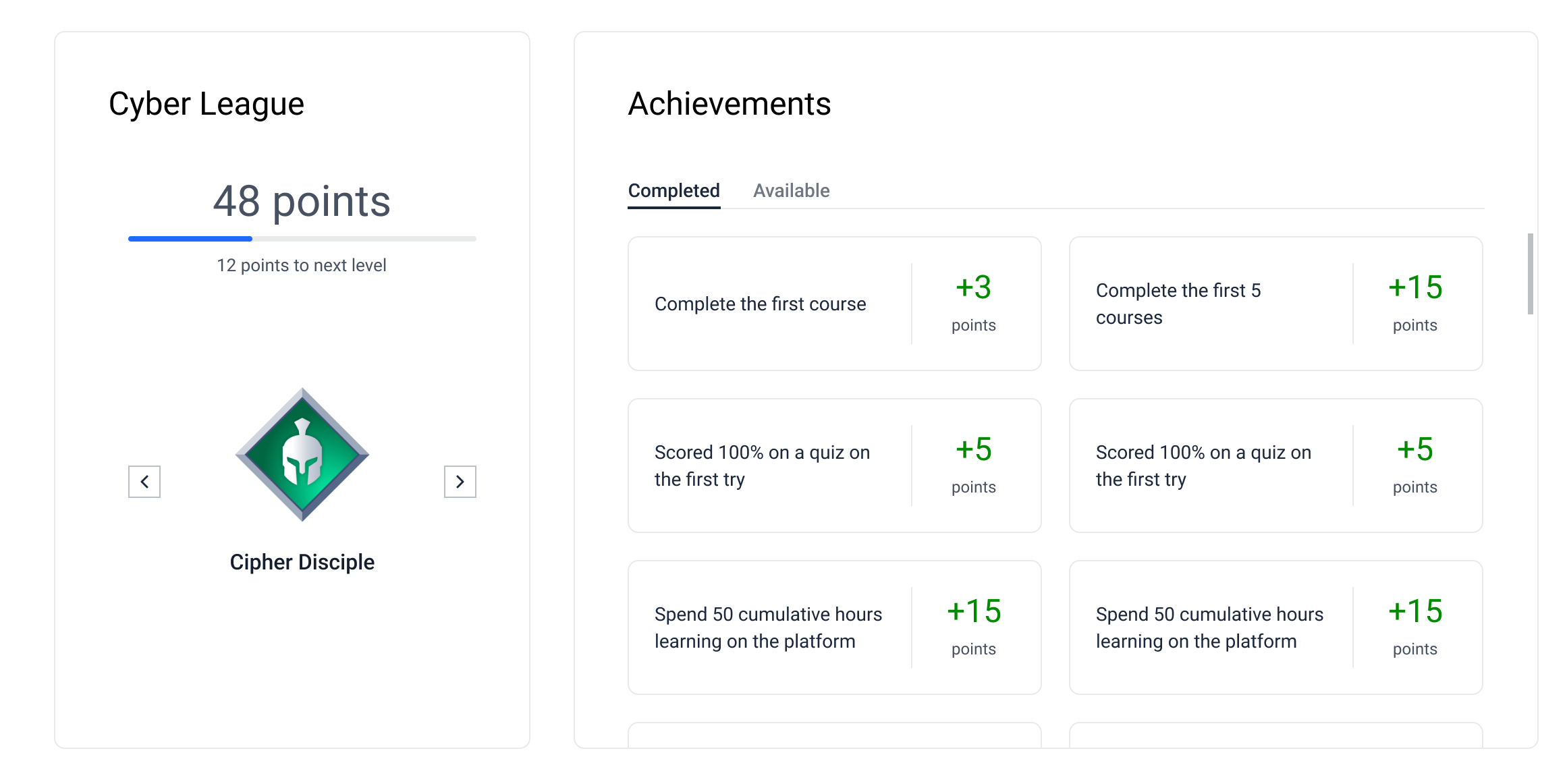
Cyber League: Track your learning rank and tier, based on points earned from enrolling in and completing courses, as well as achievements. You can see your current tier, points needed to level up, and compare with previous or next tiers.
Achievements: View your earned achievements and available missions you can take to earn more points. Achievements are listed with descriptions and points earned.
3. Explore
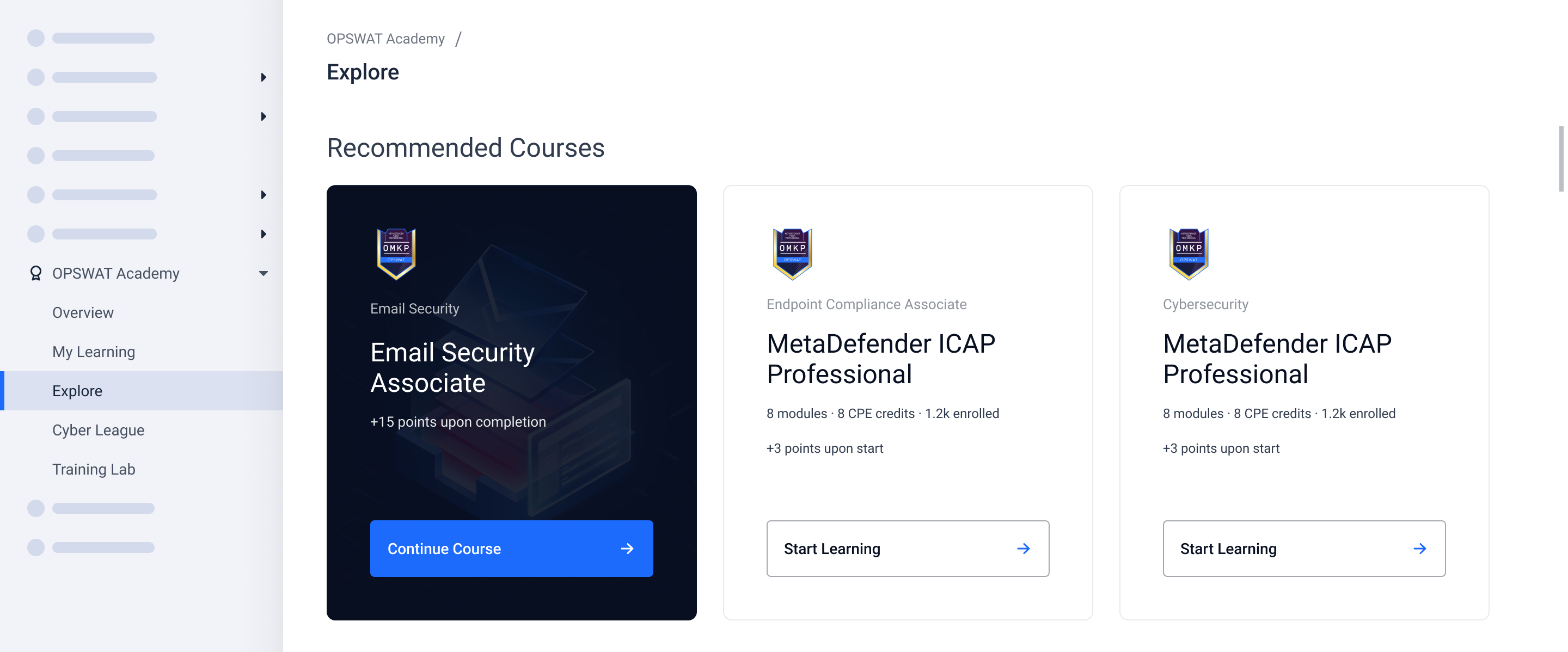
Recommended Courses
Discover recommended courses you can start or continue learning, prioritized by your recent activity and user type.
Catalogue
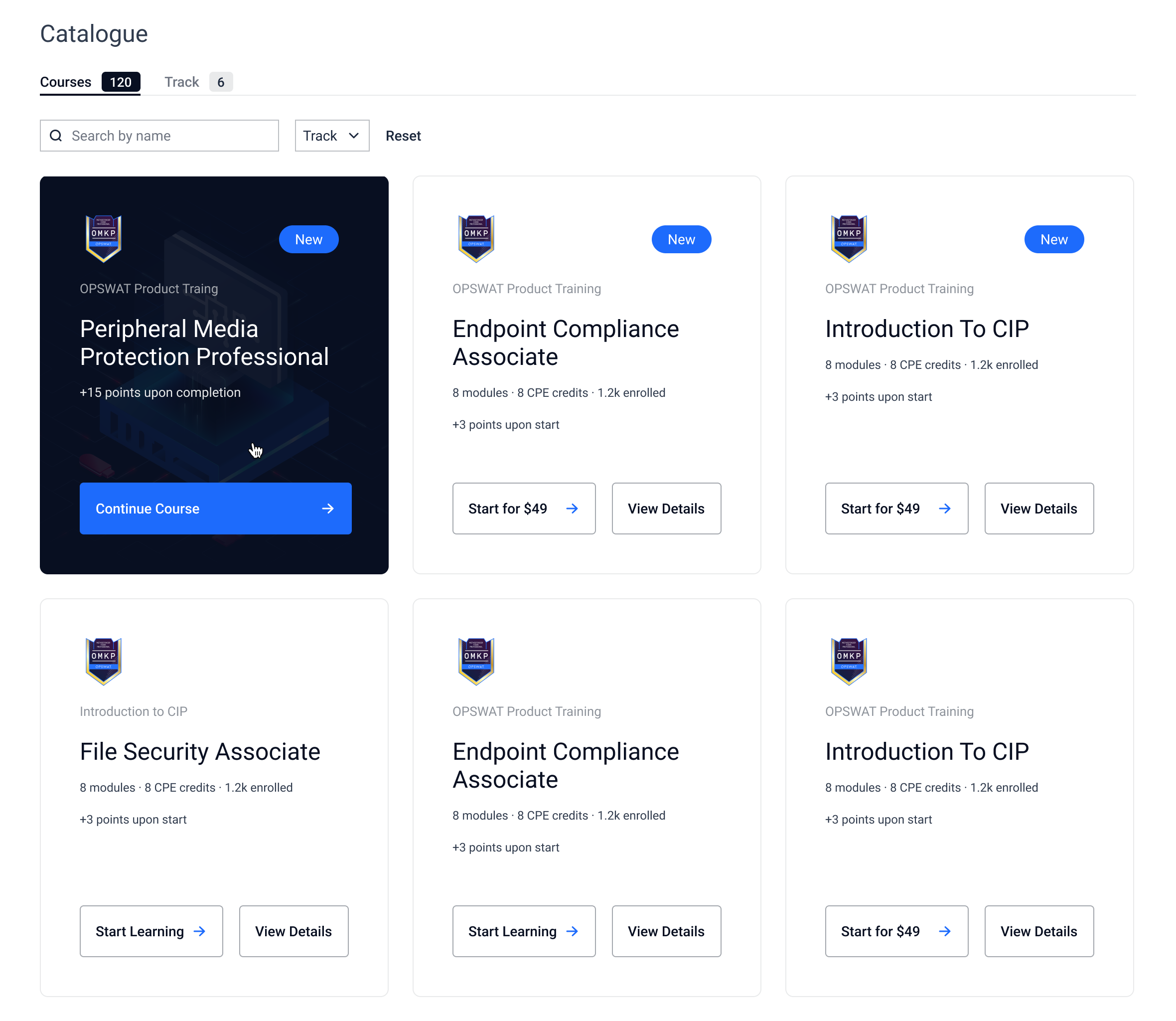
The Catalogue section lets you browse all available courses and learning tracks.
Explore Courses: Browse all available courses, organized by in-progress, not started, and completed. You can search and filter by track or status.
Explore Tracks: Explore all available learning tracks and their courses. Tracks are shown based on your user type, and you can search by course or track name.
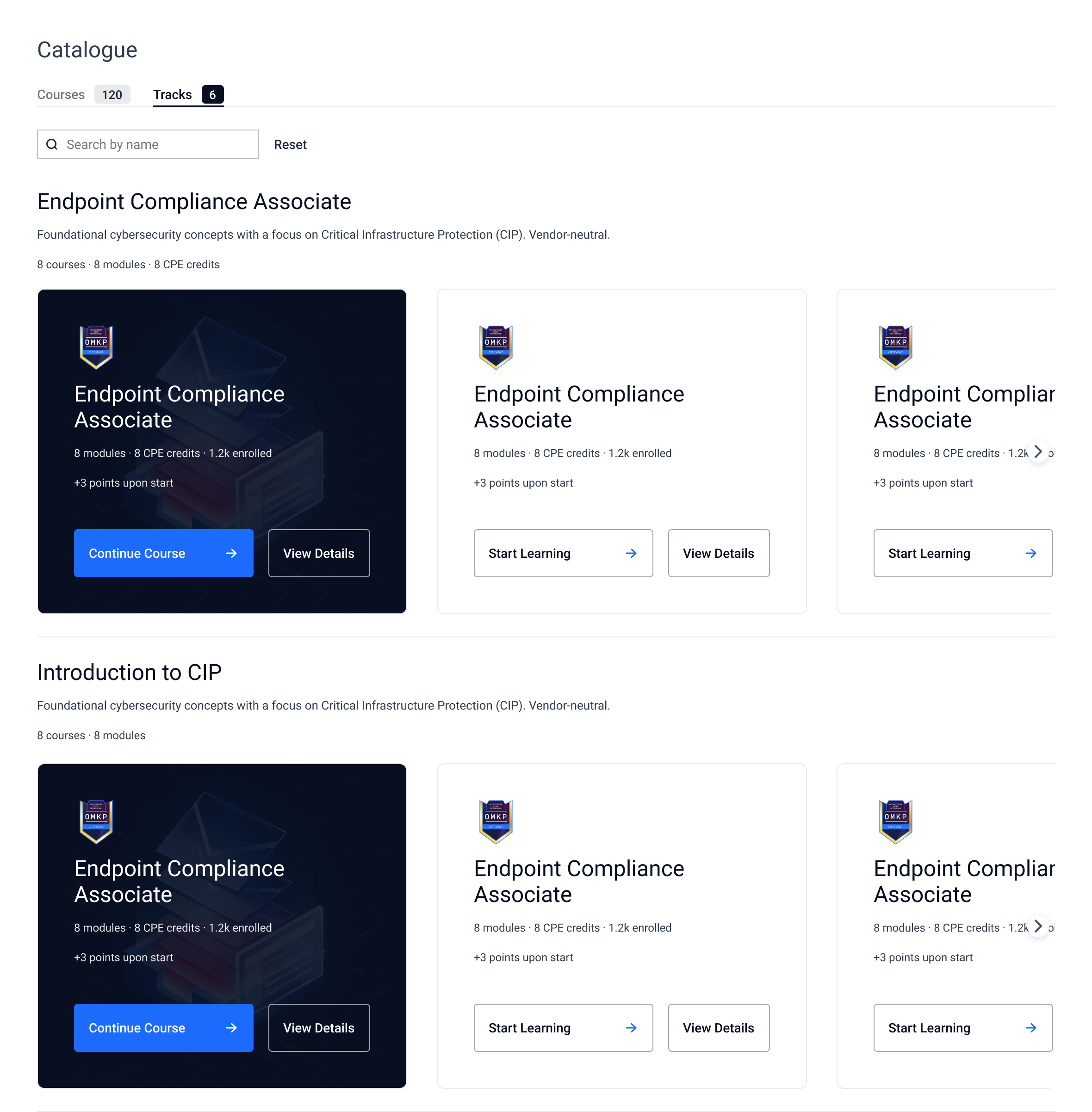
View Course Details: If you haven’t enrolled in a course, clicking “View Details” on the course card lets you see more information before enrolling.

4. Cyber League
The Cyber League page helps you track your learning achievements and see how you rank among other users.
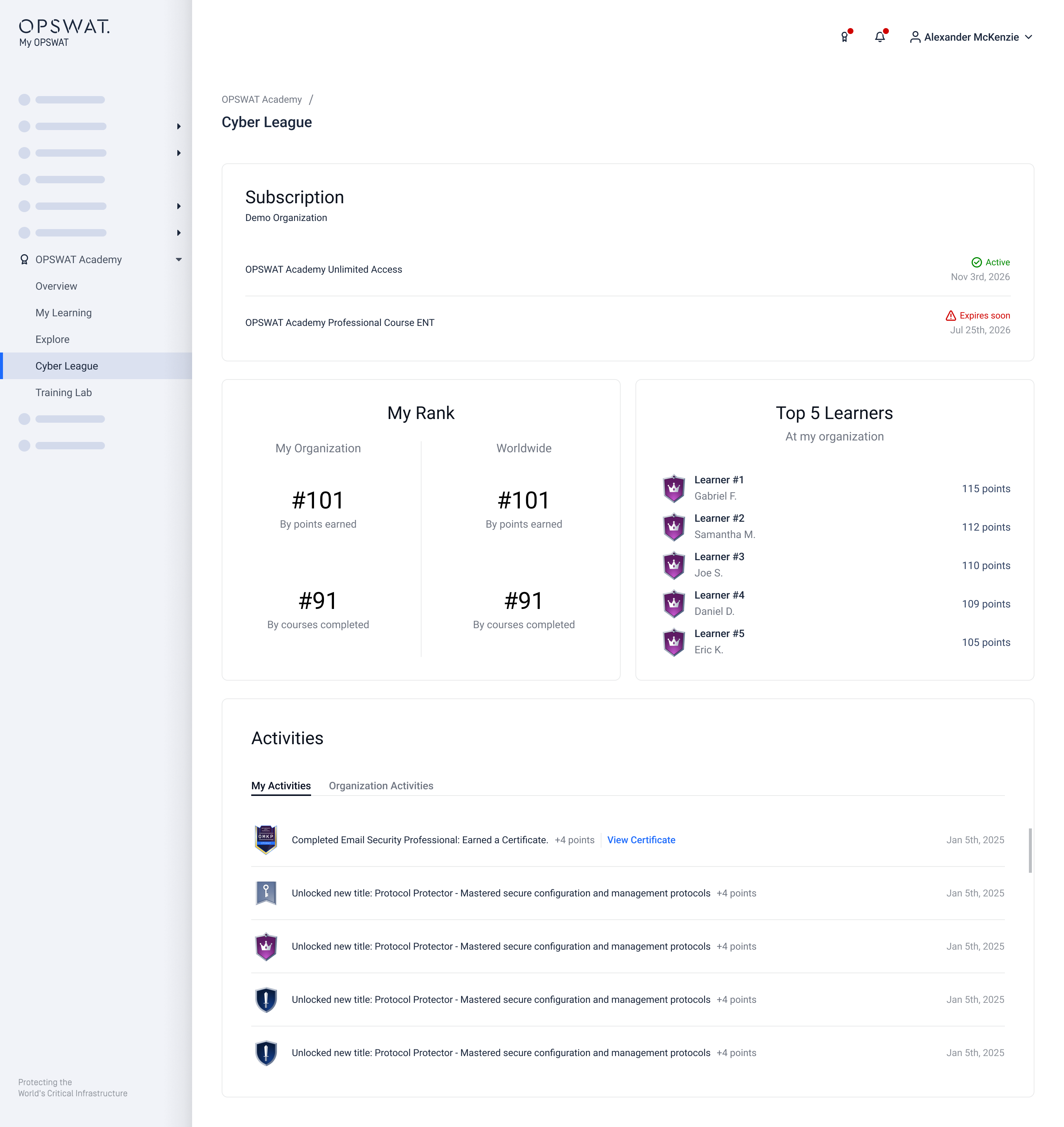
Enterprise Subscription: If your organization has an active OPSWAT Academy enterprise subscription (Unlimited Access or Professional Course ENT), this section shows the organization name, license name, and expiration date.
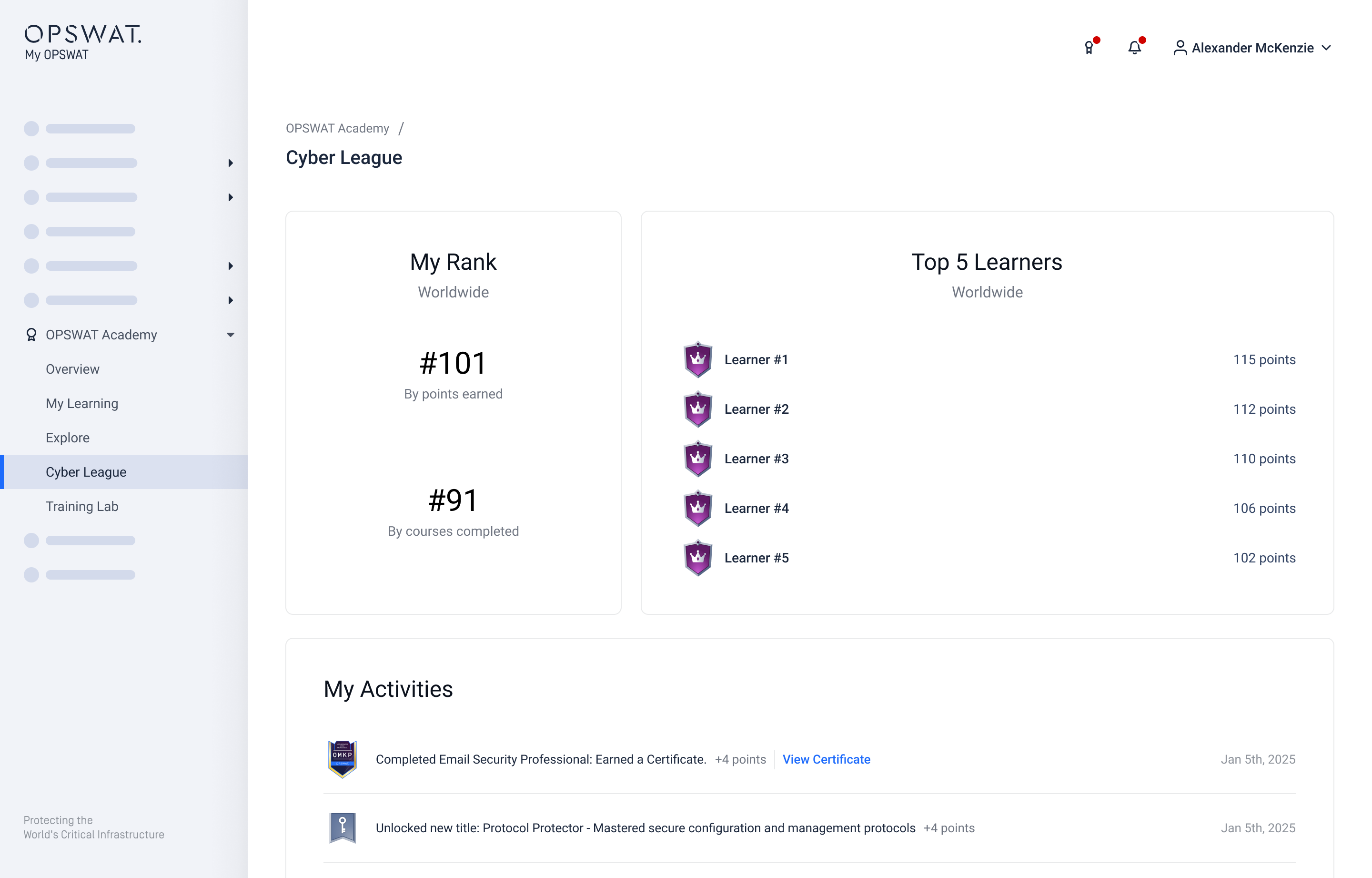
My Rank: View your current rank and total points, both within your organization and worldwide. Your rank is based on points earned from completing courses and achievements.
Top Learners: See the top 5 learners in your organization, along with their points and badges. This leaderboard helps you stay motivated and celebrate your peers’ progress.
Activities: View your recent learning activities, such as completed courses, earned certificates, and new unlocked titles. You can also see recent activities from others in your organization.
If you do not belong to any organization, the Cyber League page will display your personal rank, points, and activities, along with your worldwide ranking.
5. Training Lab
The Training Lab page lets you explore and track your Cloud-based CIP labs.
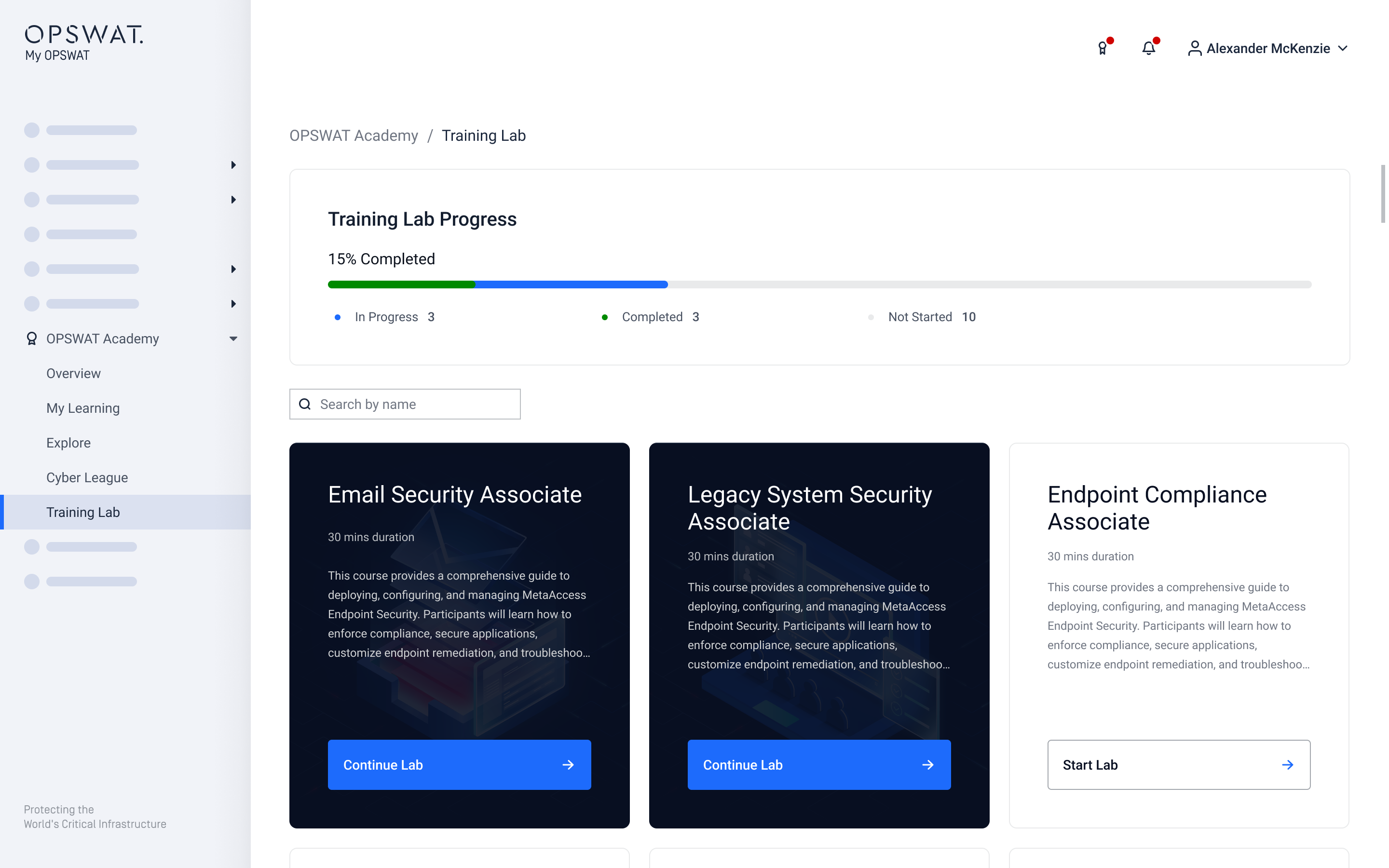
Progress Bar: Monitor your progress in training labs, including labs in progress, completed, or not started.
Lab List: Browse all your available labs, organized by their status. You can search for labs by name to quickly find what you’re looking for.
In Progress: Labs you’ve started but not yet finished
Not Started: Labs you haven’t begun yet
Completed: Labs you’ve finished, sorted by completion date.