
Overview
This guide explains how to integrate MetaDefender OT Access with OPSWAT MFT to enable secure file transfer during Remote Desktop (RDP) sessions.
By completing this setup, users can securely transfer files to remote hosts using controlled and authenticated access.
Configure MFT Settings
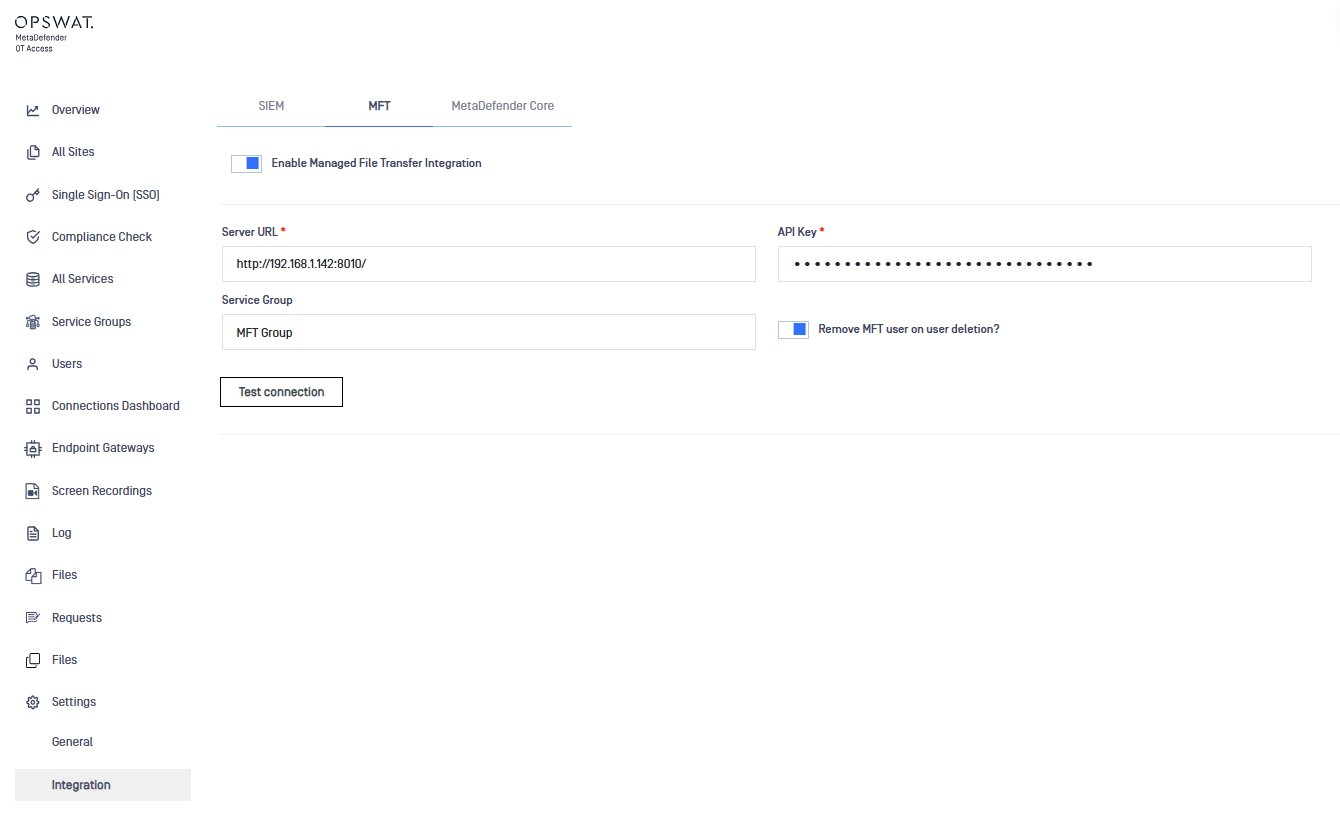
To integrate with OPSWAT MFT, you first need to configure the connection settings.
Enter the MFT Server URL
Provide the API Key
These credentials allow OT Access to communicate securely with the MFT system.
Enable File Transfer in RDP Service
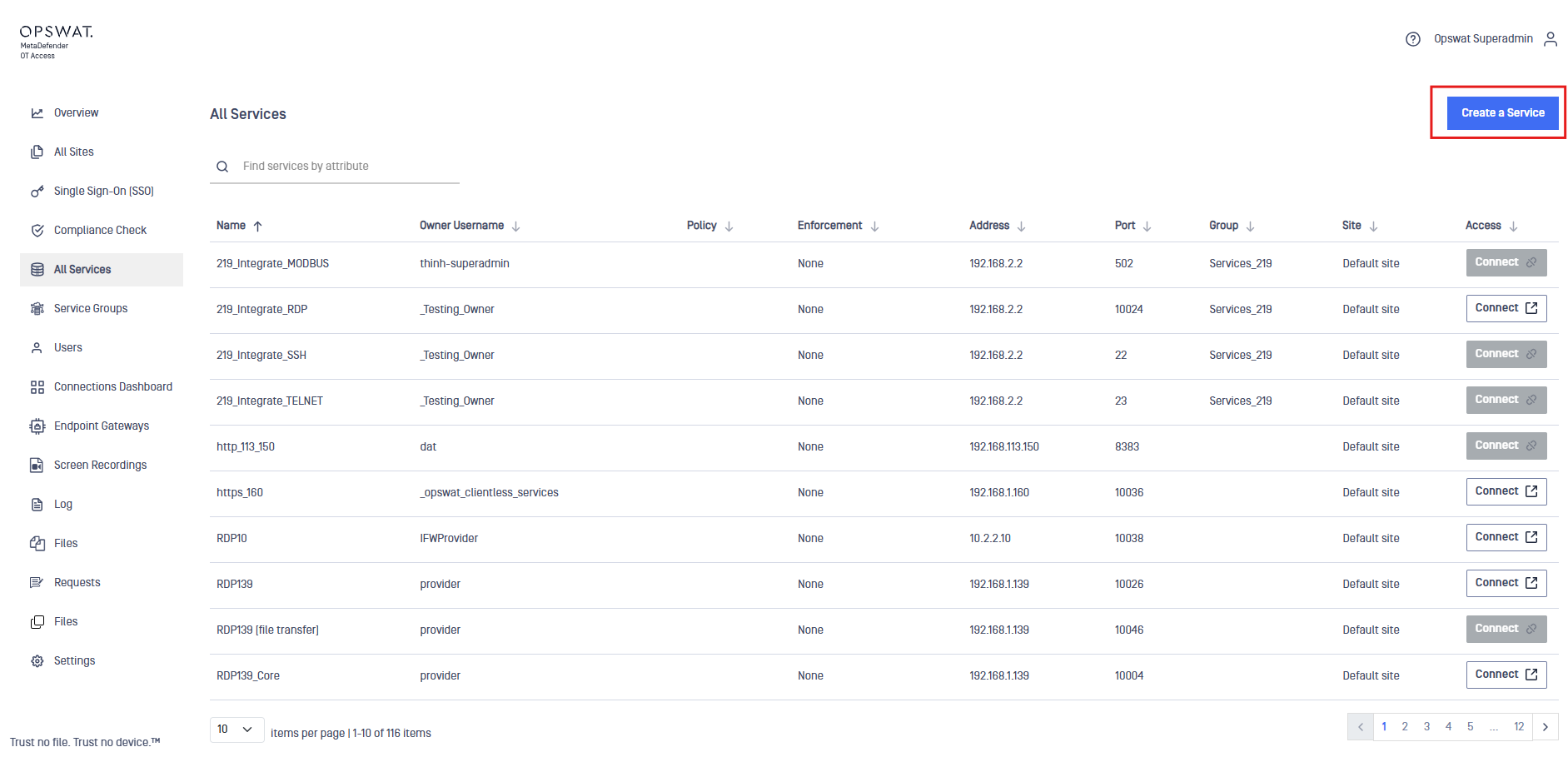
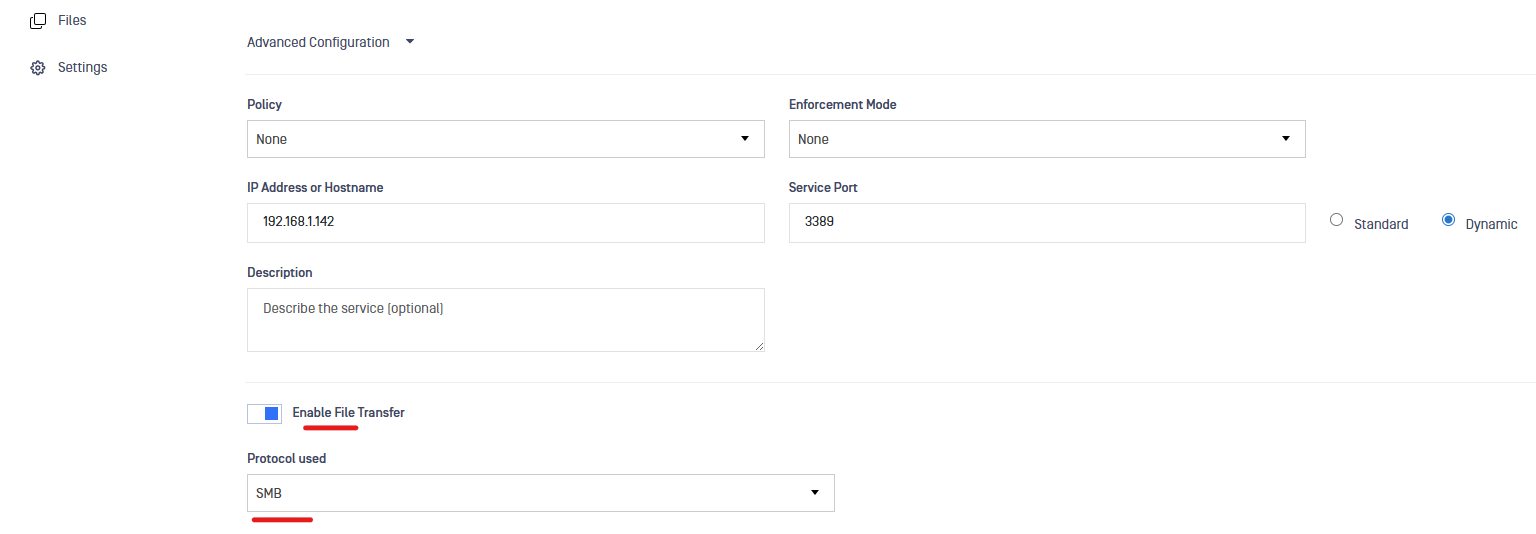
When creating an RDP service:
Enable the File Transfer option
Select SMB as the transfer protocol
This allows secure file transfer capabilities within the RDP session.
Configure File Transfer Service
After enabling file transfer:
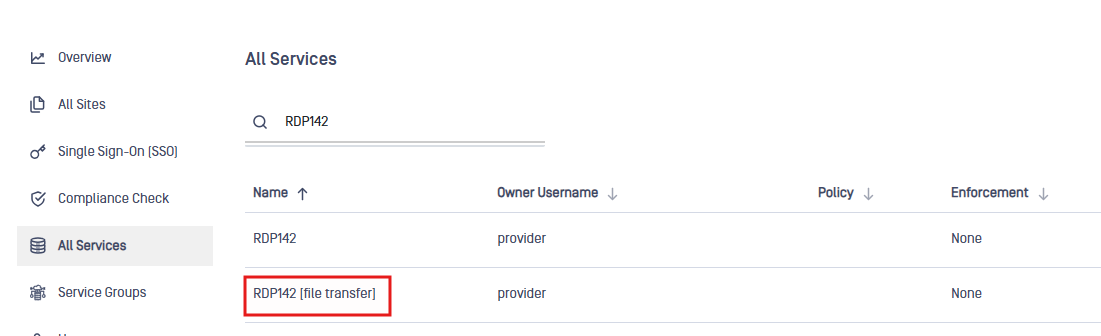
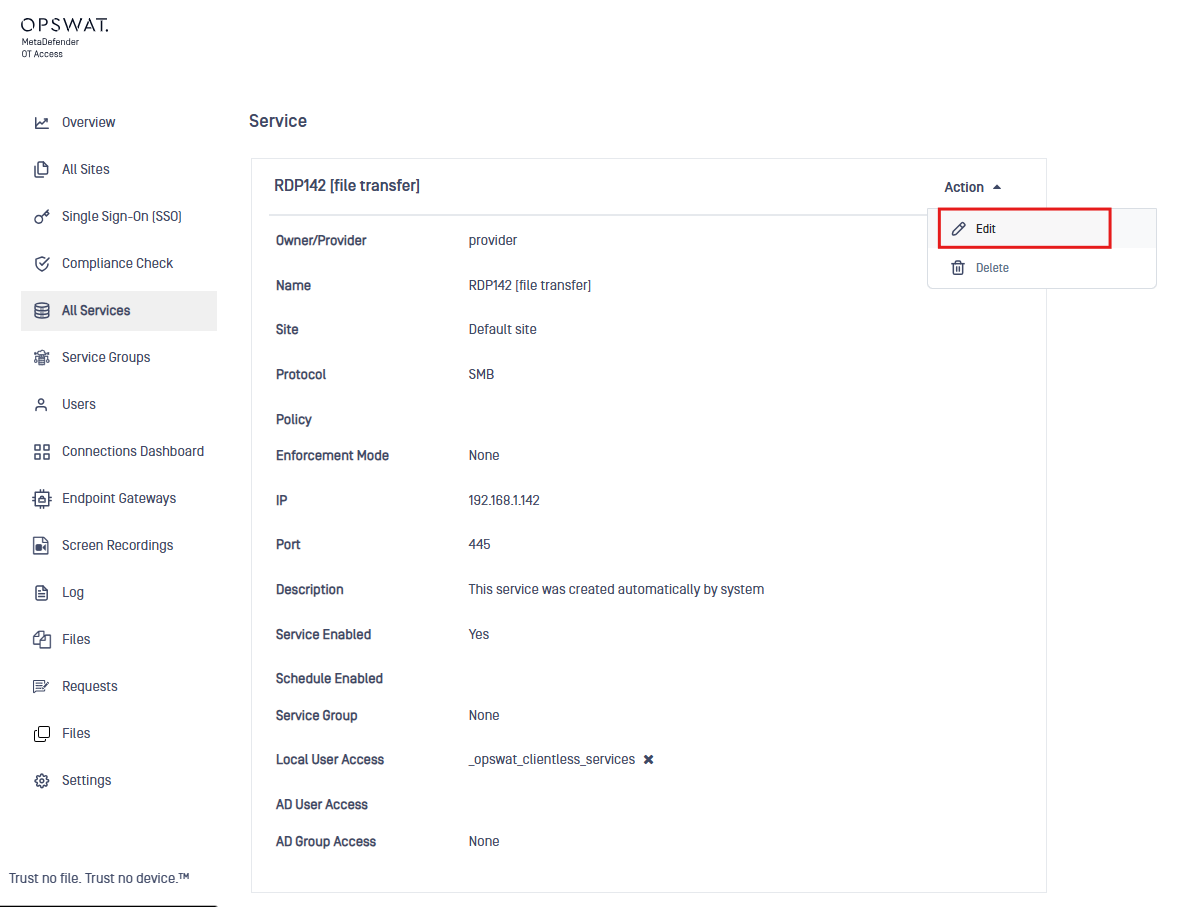
A new service labeled [file transfer] will be automatically created
Navigate to this service to complete the configuration
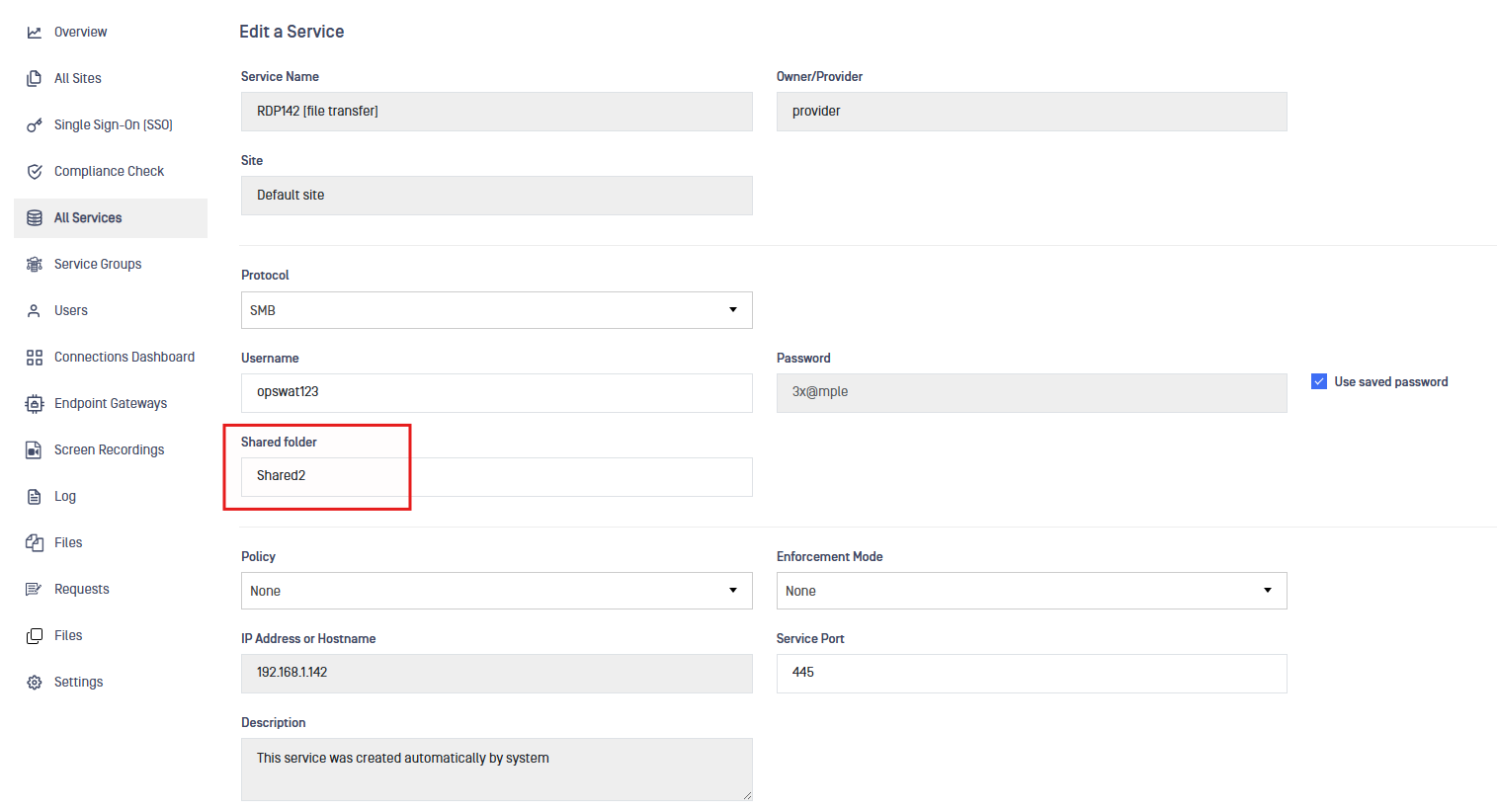
Required configuration:
Shared Folder path (destination on the remote host)
Username (for remote host access)
Password (for authentication)
This setup enables users to securely transfer files to the designated remote system.
Perform a Secure File Transfer
After completing the configuration:
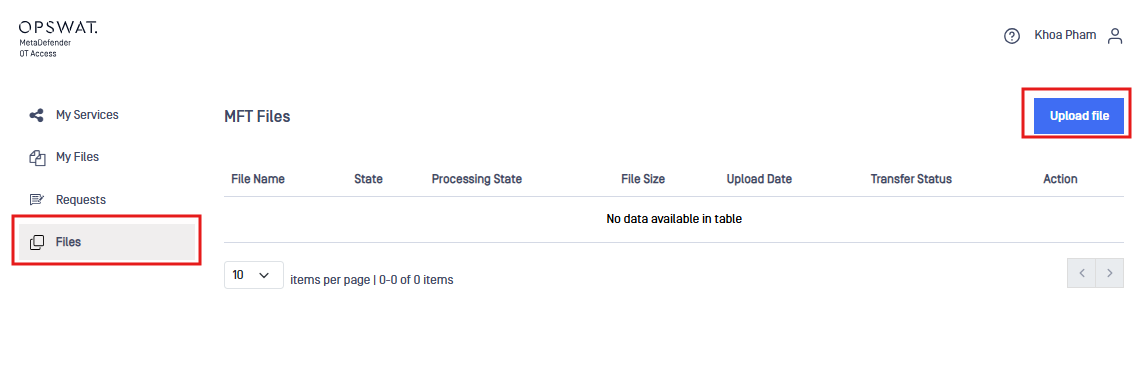
Log in as a user who has access to that RDP service
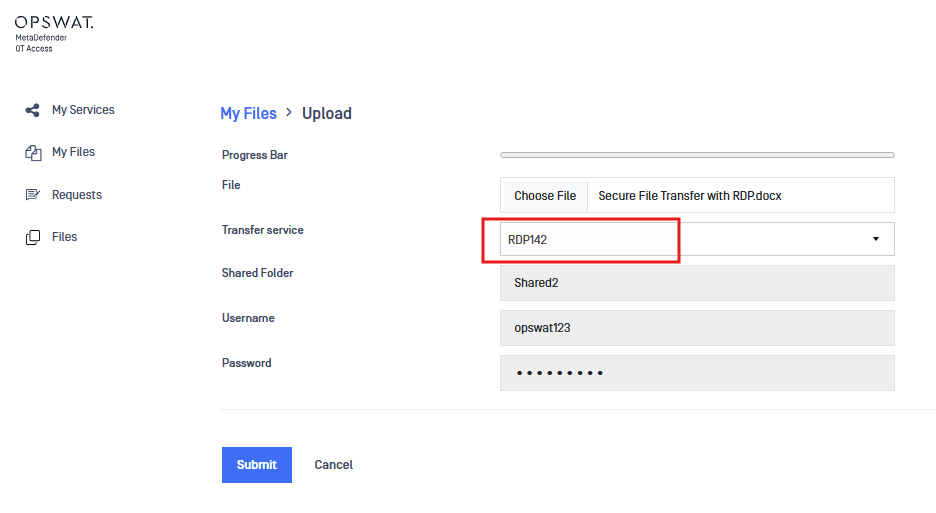
Select the RDP service
Upload or transfer the desired file
Once the transfer is complete:
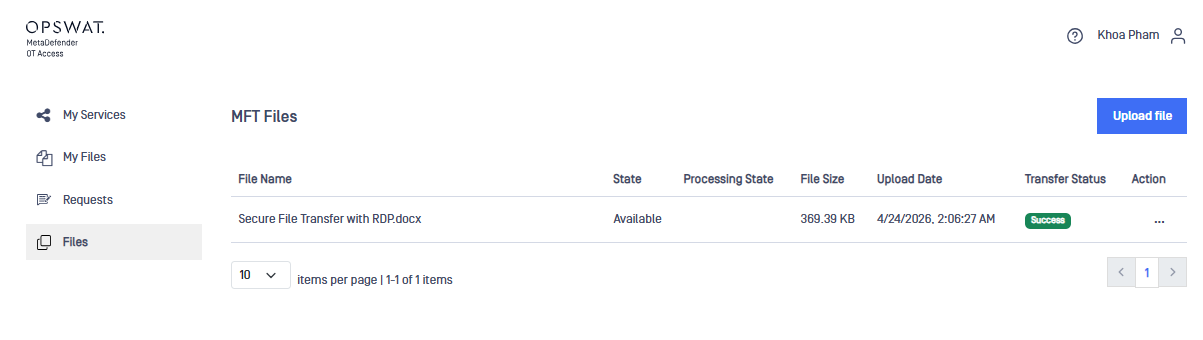
A “Success” status will be displayed, indicating the file has been successfully transferred
Verify the File on the Remote Host
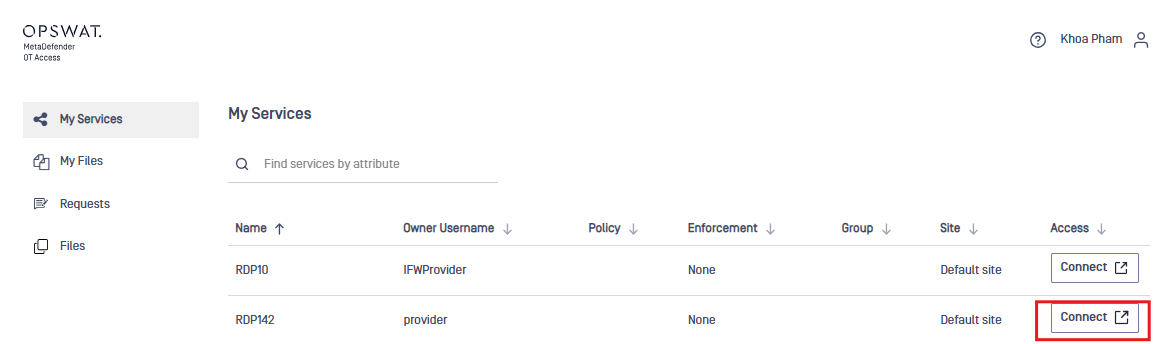
Access the remote machine
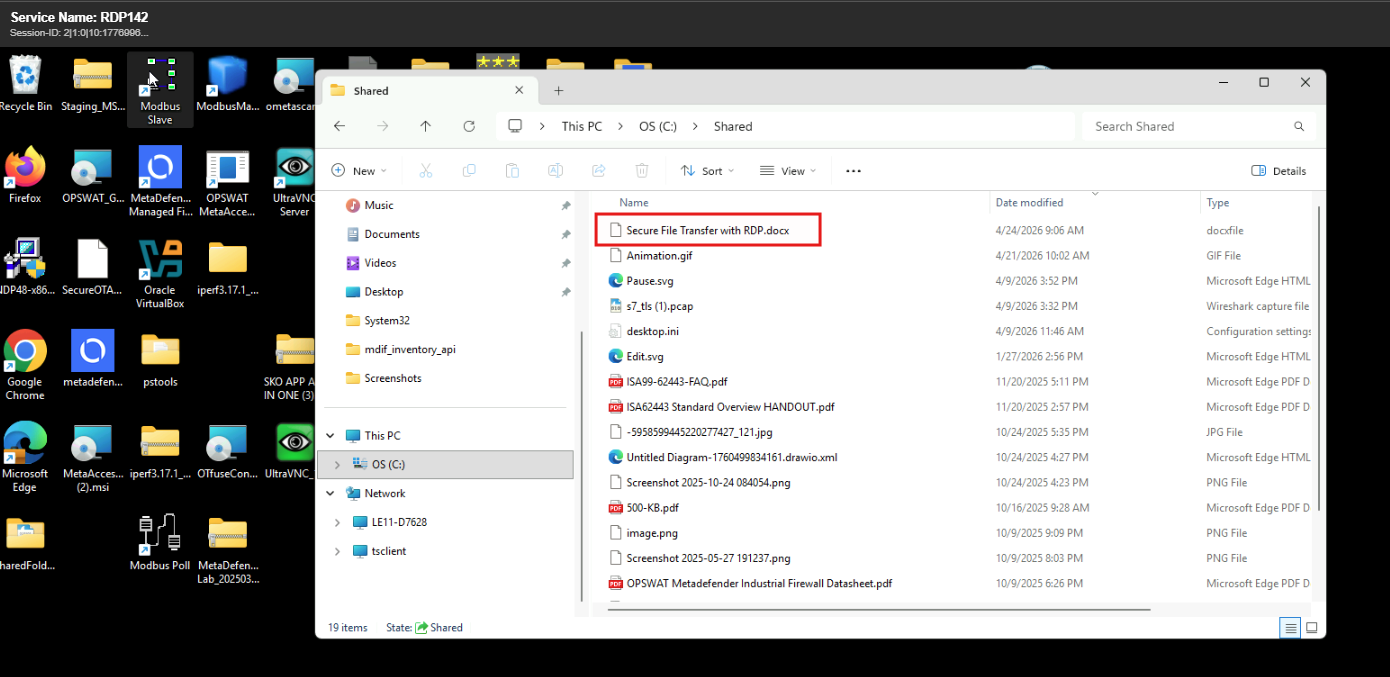
Navigate to the configured shared folder
Confirm that the transferred file is present
Conclusion
With this integration:
File transfers are securely handled through OPSWAT MFT
Access is controlled via OT Access policies
Files are delivered directly to designated locations on remote systems