Overview
This guide describes how to integrate MetaDefender OT Access with MetaDefender Core (MD Core) to enable secure file transfer during Remote Desktop (RDP) sessions.
With this integration, files are scanned and approved before being securely transferred to remote hosts through OT Access, ensuring controlled and compliant file delivery.
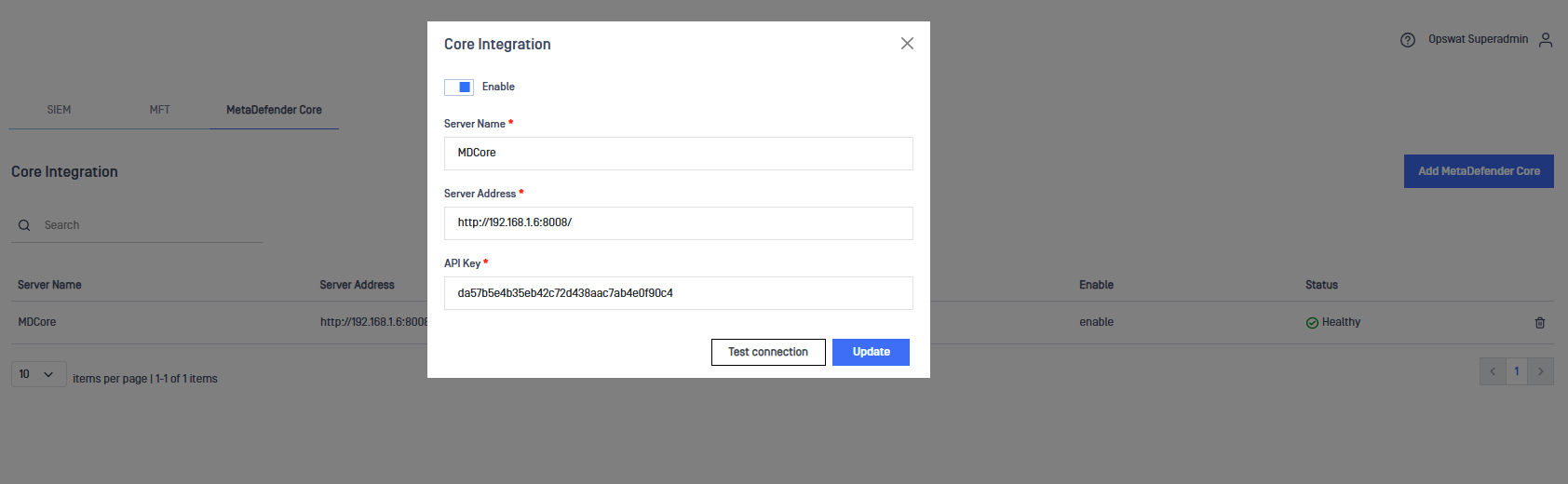
Configure MD Core Settings
Navigate to: Settings → Integration
To establish the integration:
Enter the Server Name
Provide the Server Address
Enter the API Key
These settings allow OT Access to securely communicate with MD Core.
Upload Files to MD Core
After completing the configuration:
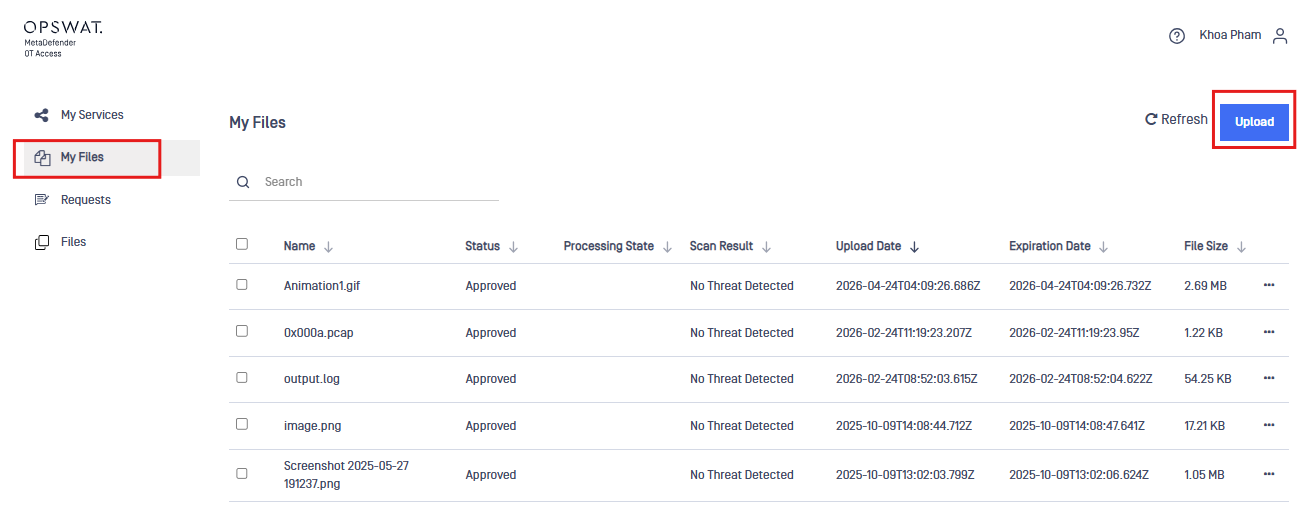
Log in as a standard user
Navigate to the MD Core Files section
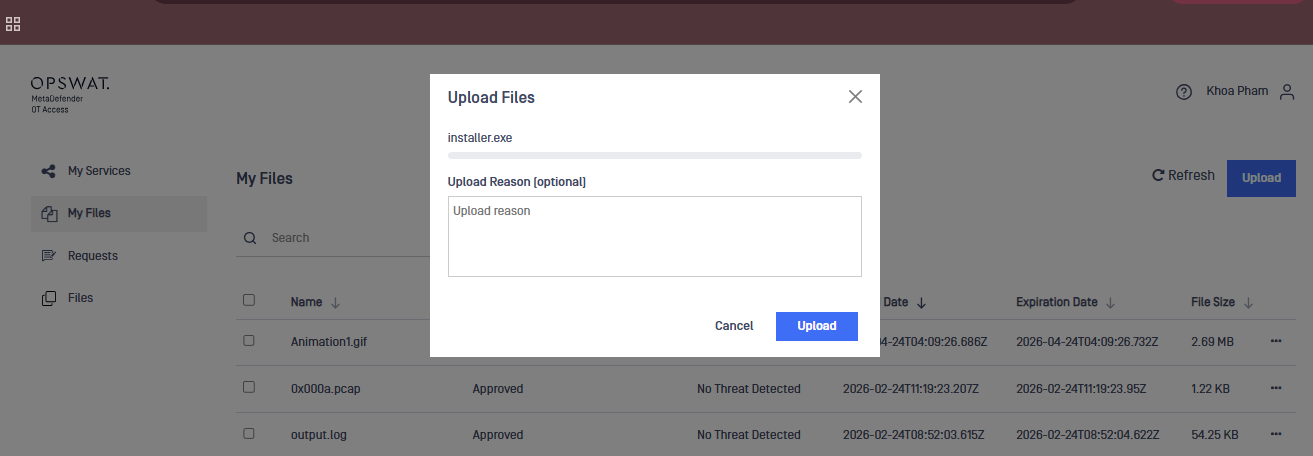
Upload the file you want to transfer
At this stage, the file cannot yet be transferred.
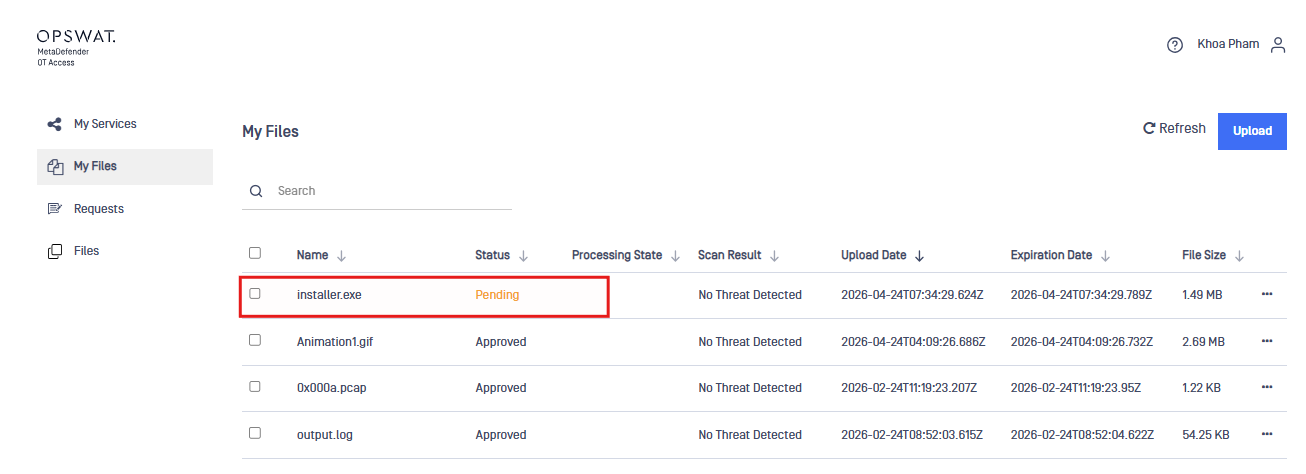
File Approval Process
Before a file can be used:
A Super Administrator must review the uploaded file
Navigate to the approval page in MD Core
Approve the file
Only approved files are eligible for transfer to remote systems.
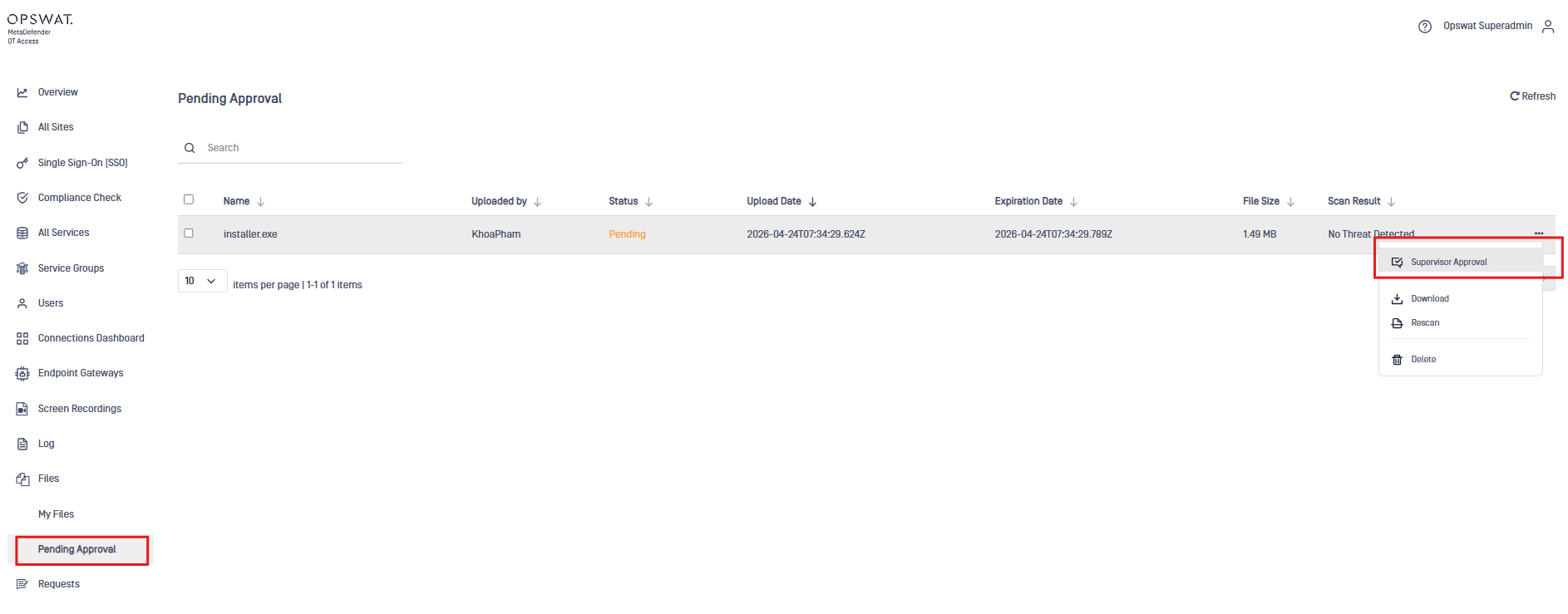
Enable File Transfer in RDP Service
To allow file transfer:
Ensure that File Transfer is enabled in the target RDP service
Configure the shared folder path on the remote host
For detailed steps, refer to: MFT Integration – Secure File Transfer via RDP
Transfer File to Remote Host
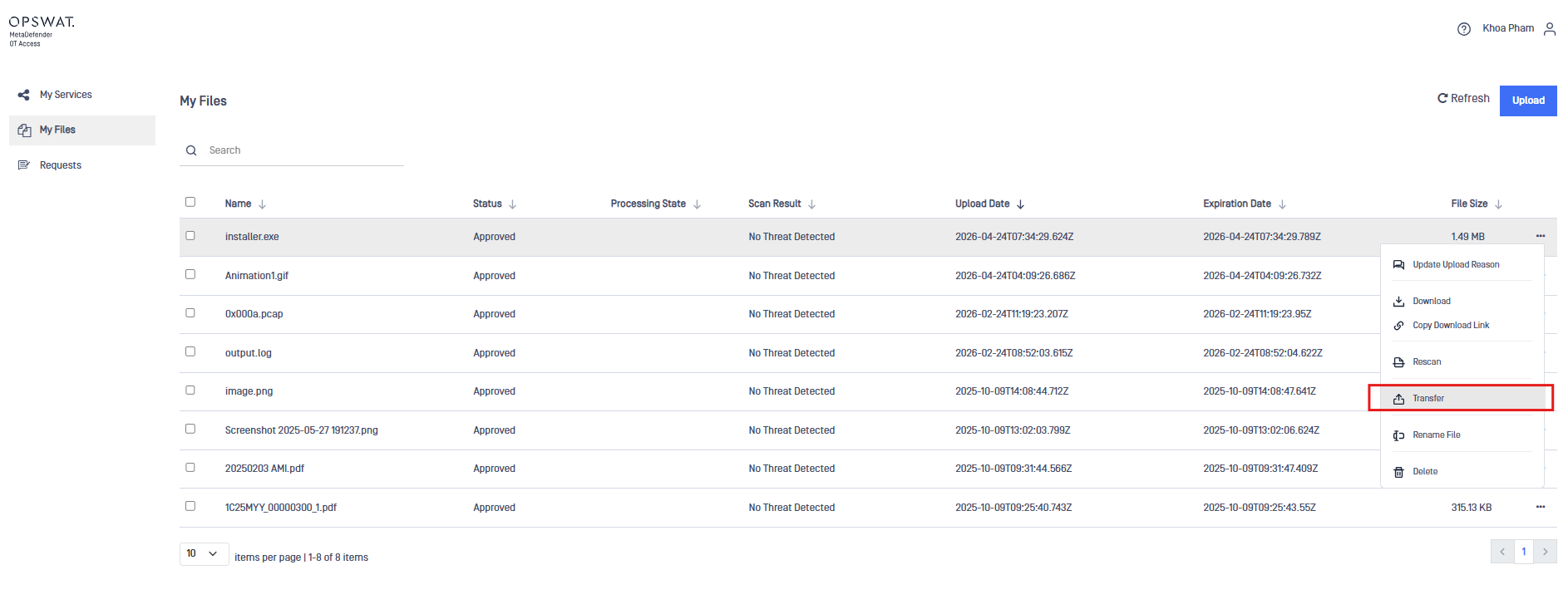
Once the file is approved:
Select the desired RDP service
Choose the approved file from MD Core
Initiate the transfer
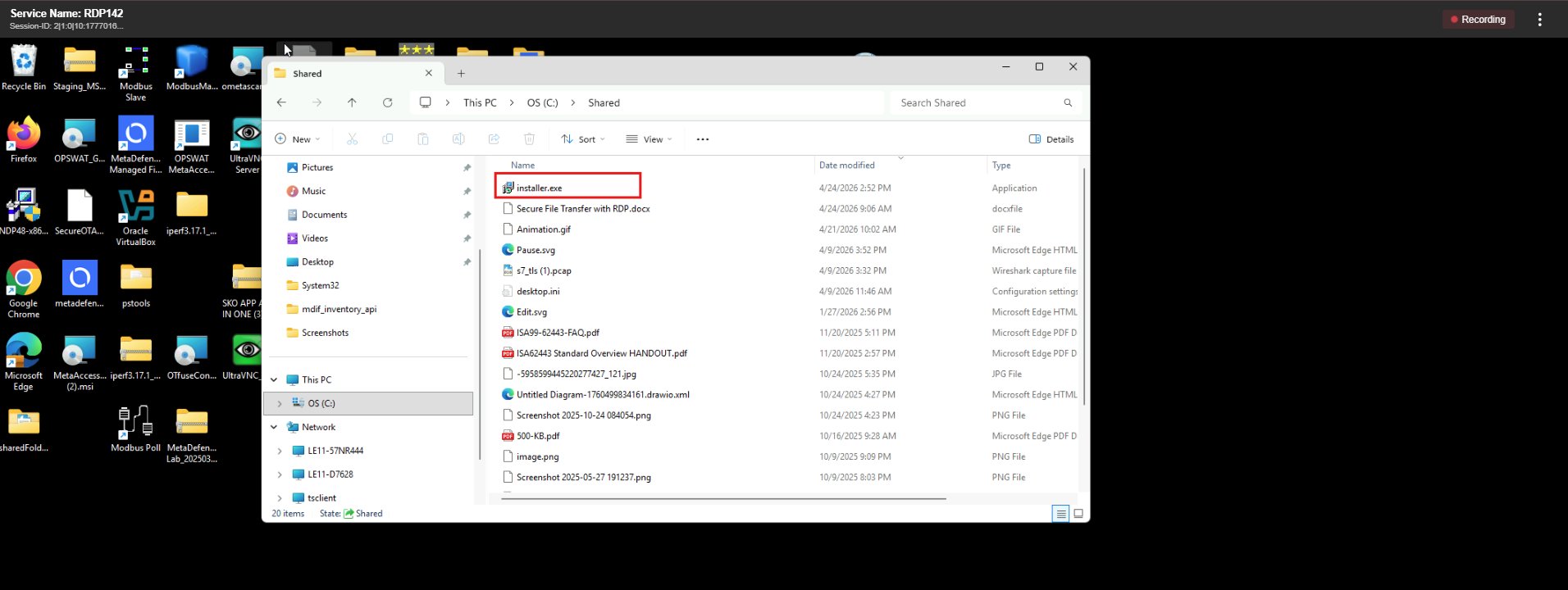
The file will be securely delivered to the configured shared folder on the remote system.
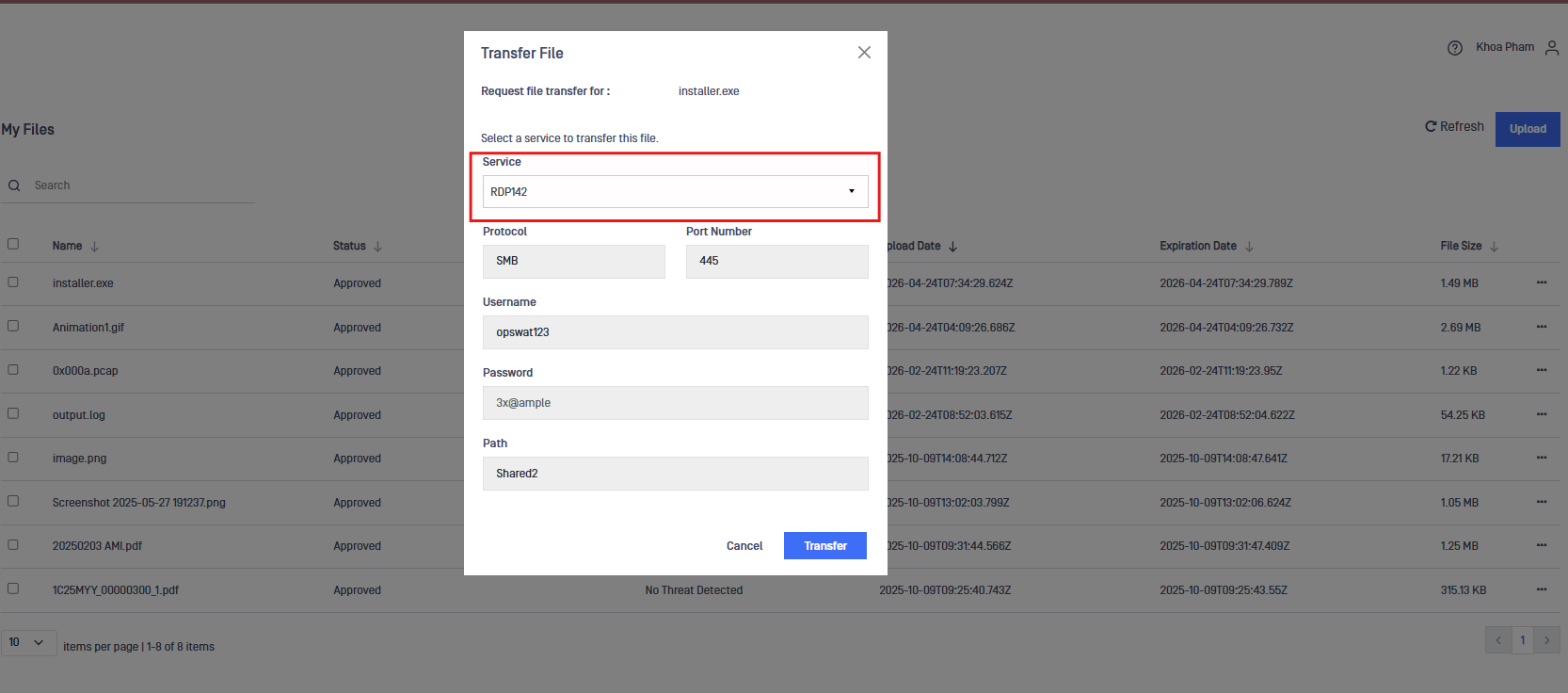
Verify File on Remote Host
Access the remote machine
Navigate to the configured shared folder
Confirm that the file has been successfully transferred