
Please note this page is applicable only for SharePoint On-Premise and not applicable for SharePoint Online. For a guide to integrating a Sharepoint Online deployment, consult this page Add a SharePoint Online Storage. Moreover, the SharePoint On-Premise integration is available only on Windows MetaDefender Storage Security Deployments.
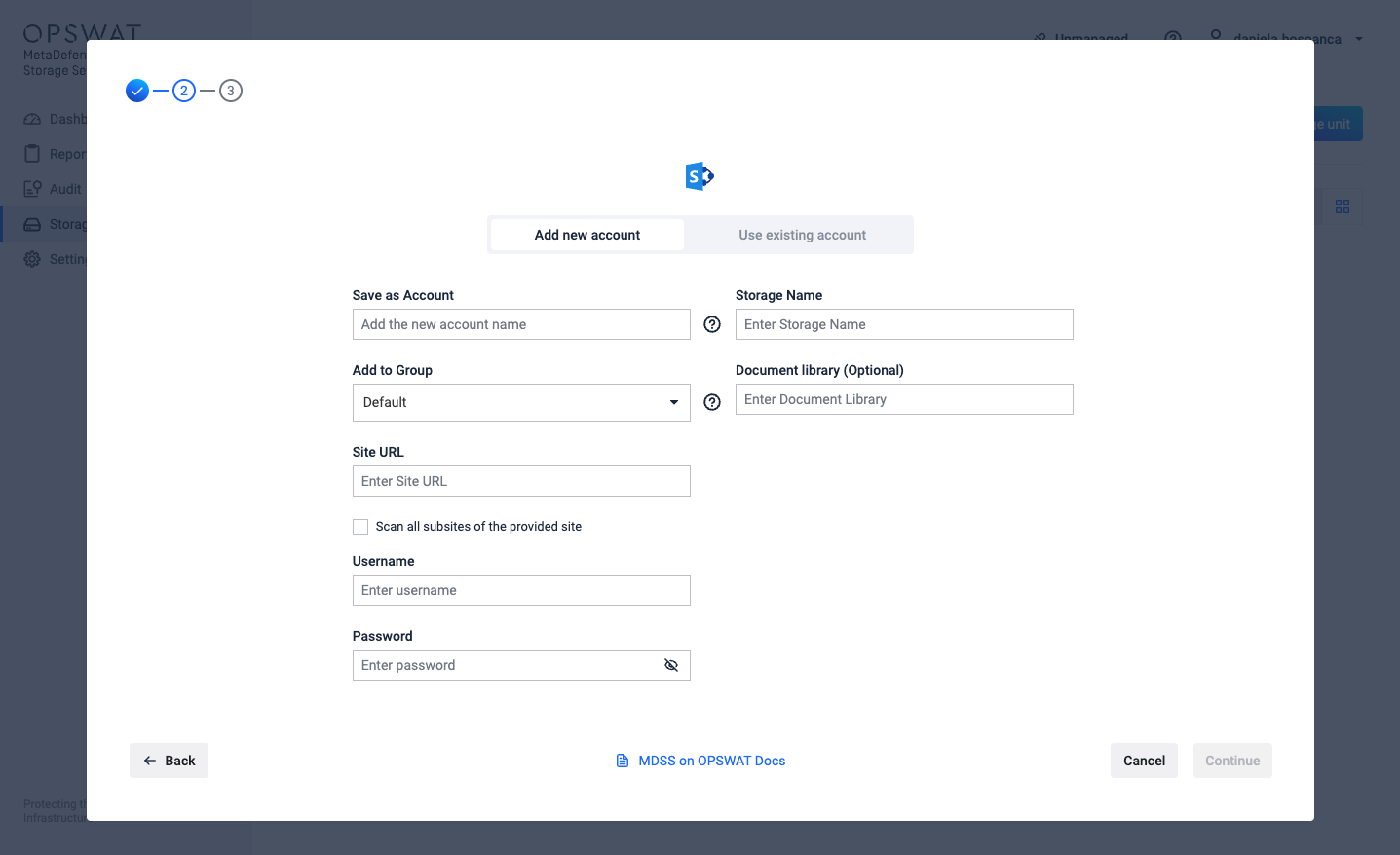
Give your storage a name so you can easily identify it later.
Enter the Site URL associated with the Site you want to integrate from you Sharepoint Server.
Enter the domain and username of the user you want to log in as. This should be in the form DOMAIN/USERNAME. The user must have at least Contribute permissions on the site.
Enter the password associated with the user account you are logging in as.
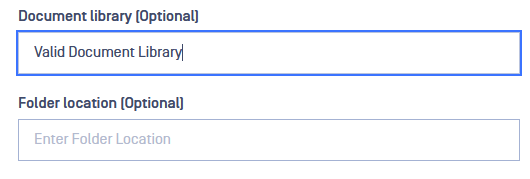
Optionally, enter the name of a Document Library from the site URL. If this field contains a valid value, then only the files from this specific document library will be processed. If no value is entered here, files from all public document libraries belonging to the site will be processed.
If the Document Library field has a value, the Folder Location field will appear. Optionally, you can enter the name of a Folder that is part of the input document library. If this field contains a valid value, then only the files from this folder inside the document library will be processed.
The Scan all subsites of the provided site checkbox enables you to optionally explore the entire subsite hierarchy of the integrated site, allowing for the processing of files from all document libraries within the subsites. This option is applicable only when a Site URL is entered without specifying a Document Library. If you do select one, the integration will be restricted to that particular library within the site.
Known Limitation: there is a heavy limitation in regards to the number of concurrent requests a user can make to the SharePoint Server. Thus, when doing remediation actions with a large number of files, the heavy throttling will cause the operations to have to wait for the SharePoint Server to free up resources and will result in a considerably long scanning time. For more information, you can access this article:
To customize the values used in the error handling and retry mechanism to better suit your deployment, please visit this page for more information.