
Below is a step-by-step tutorial on how to integrate Okta IdP with MetaDefender Managed File Transfer™ using the OpenID Connect protocol.
Sign into Okta and go to the admin dashboard.
Go to "Applications" and select "Create App Integration."

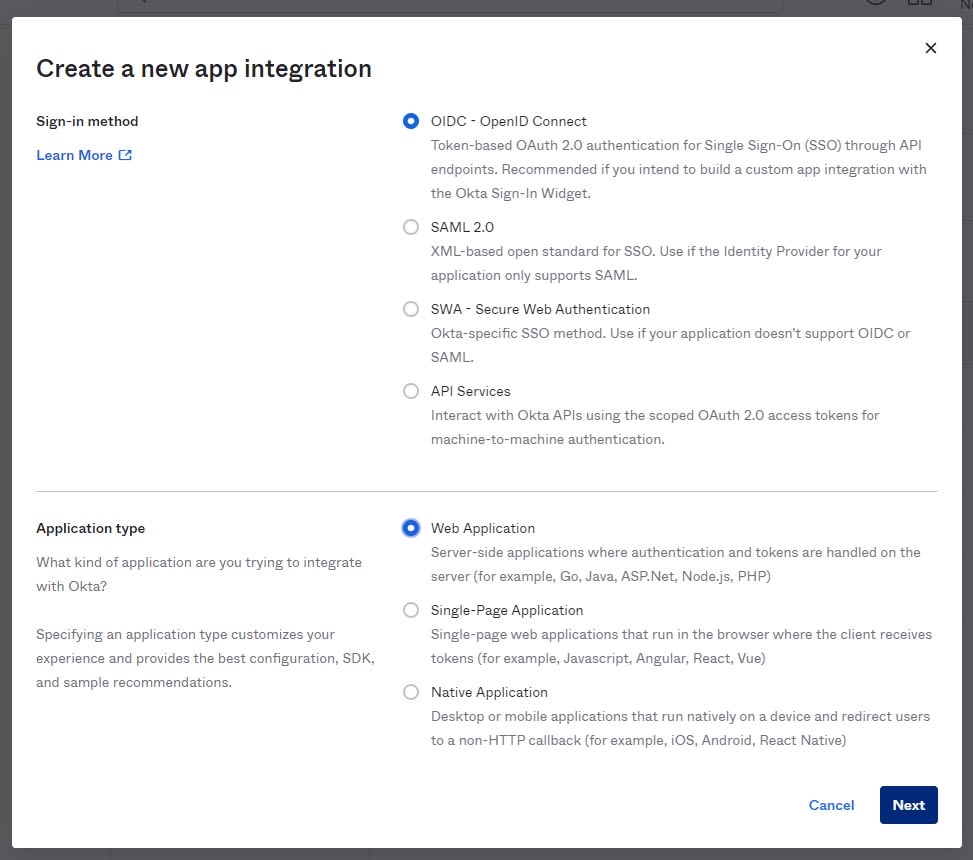
Choose "OIDC" and "Web application" then click "Next."
Configure the application settings. Name the application (e.g., “Managed File Transfer App”).
Base URI should point to the location of the Managed File Transfer machine.
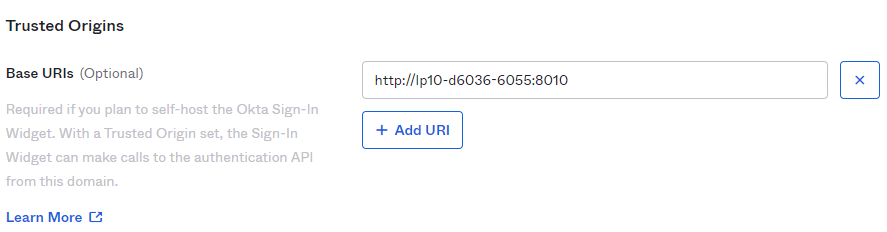
To find the login redirect URI,
Go to the MetaDefender Managed File Transfer web console.
Go to "Settings" **→ "**Single Sign-On."
Turn on "Enable Single Sign-On."
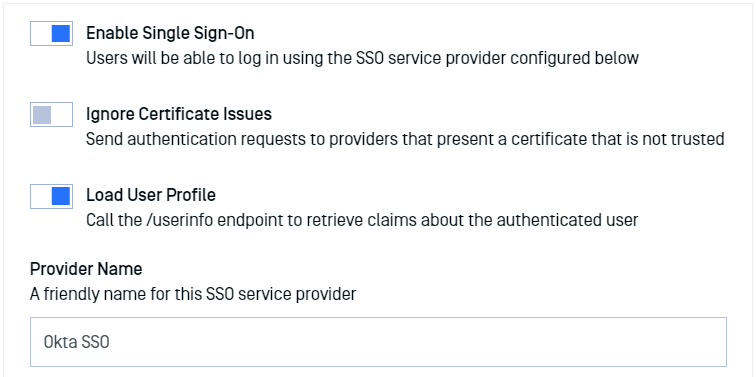
Do not turn on "Ignore Certificate Issues" as Okta provides a trusted certificate.
Turn on "Load User Profile" so MetaDefender Managed File Transfer™ can acquire the following claims:
name
email
preferred user name
given_name
family_name
"Authority" should point to your Okta Org. URL, found on the Okta dashboard.
"IP Address or Domain" should point to the location of your Managed File Transfer instance. MFT will automatically generate the Redirect URI.
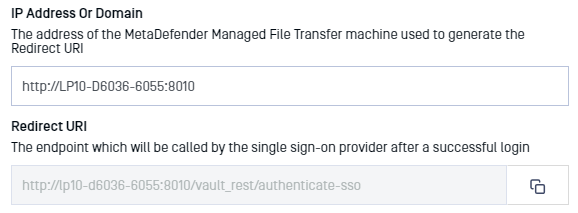
Copy the Redirect URI and paste it into the Okta Application Settings (step 6).
The configuration should look like this:

No need to configure "Logout redirects URIs" as Managed File Transfer does not support single logout.
Configure "Group assignments" as desired.
For "Grant type allowed," check "Authorization Code**."**
Click "Done."
The newly created app will appear. On the "General" tab, scroll down to "Client Credentials."
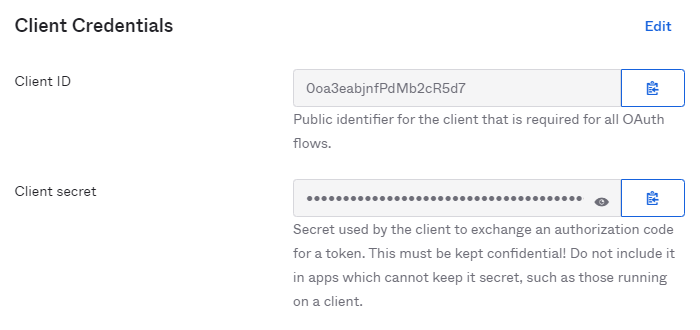
Copy and paste the "Client ID" and "Client secret" into the MetaDefender Managed File Transfer SSO configuration.
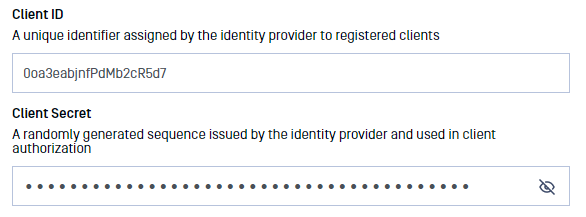
Administrator Emails: to grant Okta users administrative rights in Managed File Transfer, add their email addresses here. During login, MetaDefender Managed File Transfer™ will compare them with the list of authorized users to check for validity.
No need to specify additional integration scopes.
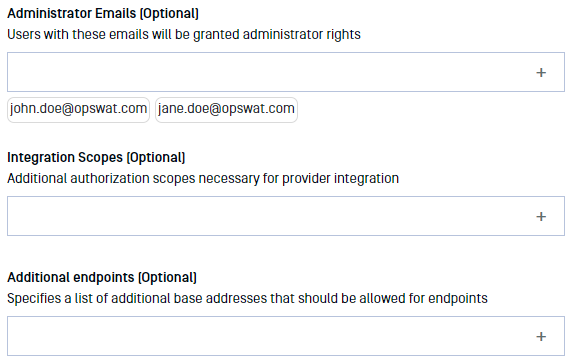
Click "Update."
Testing the Integration
To test the integration:
Log out of MetaDefender Managed File Transfer™.
A new "Sign in with SSO" button appears.
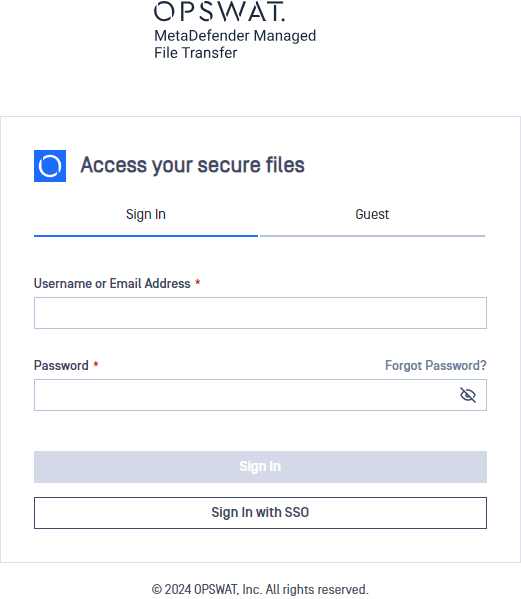
Click "Sign In with SSO." Once logged in via Okta, you will be redirected to MetaDefender Managed File Transfer™.