
This section covers the integration of SharePoint On-Premises document libraries with MetaDefender Managed File Transfer™ for various use cases, such as automating file transfers. For example: Introduction to File Transfer Automation.
Configuration
To add a new SPOP Integration, click the "Add SPOP Integration" button.
SPOP Name: The display name, customizable as needed. This name will be used when selecting the integration instance.
SharePoint Version: Choose the version that matches your on-premises SharePoint Server installation to ensure compatibility.
SharePoint Server 2019 (Default)
The URL of the SharePoint On-Premises site.
Document Library: The name of the document library, which can be found in the left navigation pane of the SharePoint site. Each integration is limited to a single document library, which will serve as the root path for automated jobs.
File Size Limits
According to Microsoft's documented boundaries for SharePoint On-Premises, the platform enforces the following file upload size limits:
SharePoint Version | Default File Limit | Maximum Supported |
|---|---|---|
SharePoint 2013 | 2 GB | 2 GB |
SharePoint 2016 | 2 GB | unofficially ~10 GB (not recommended) |
SharePoint 2019 | 2 GB | 15 GB (official limit) |
Even if SharePoint is configured to support larger files, network bandwidth, timeout settings, and server resources should be considered when planning large file transfers. SharePoint administrators can modify the maximum upload file size through Central Administration → Web Application → General Settings → Maximum Upload Size.
Test Connection
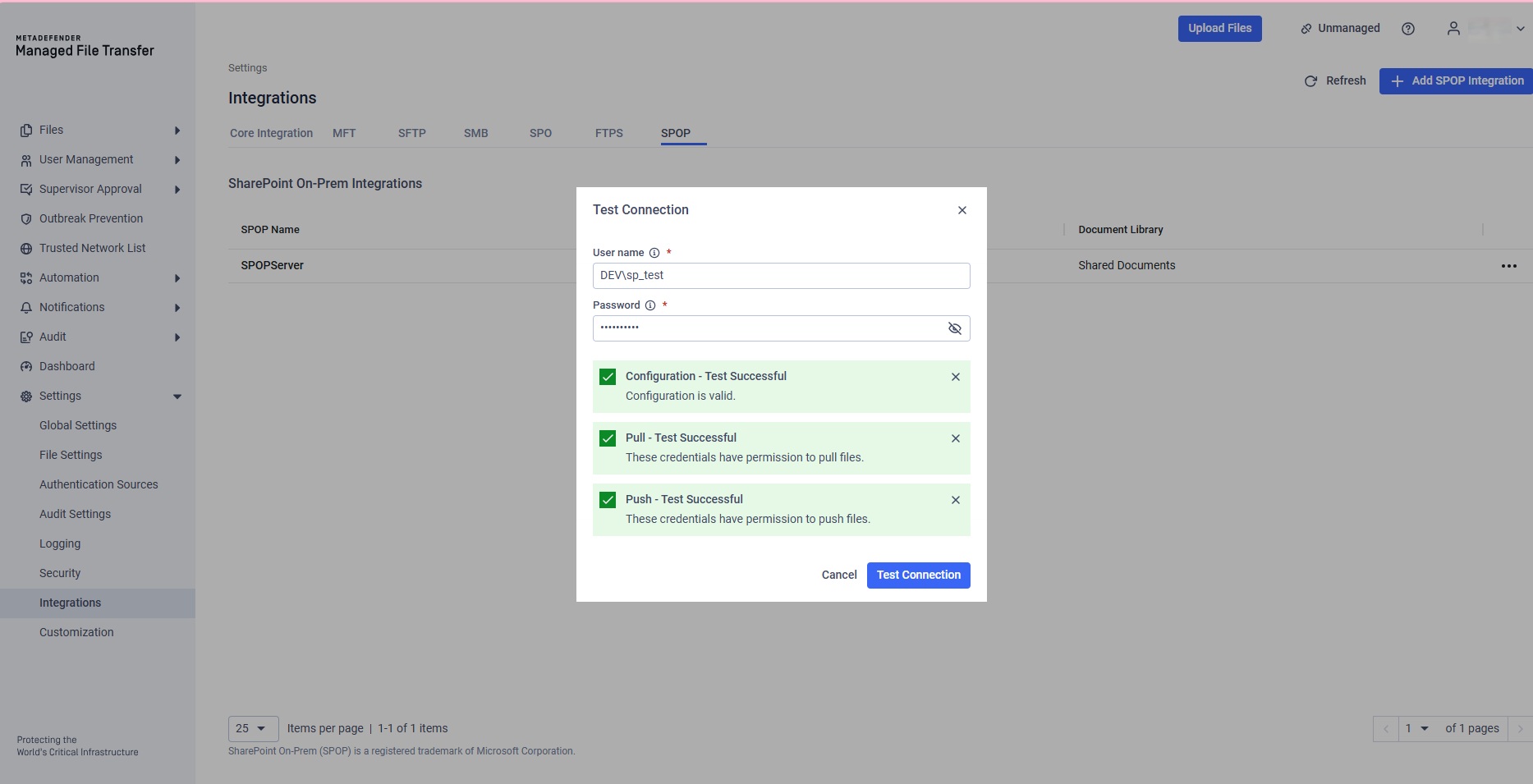
You can test the connection for a configured SharePoint On-Premises (SPOP) integration by following these steps.
Please note: You will need to provide the credentials of MetaDefender® MFT you want to test with. MetaDefender MFT will not store these credentials, they are used only for validation during this test.
Click action menu [three dot] → click "Test Connection"
Popup opens →Provide your SharePoint credentials:
Username: The service account username in DOMAIN\Username format (e.g., DEV\sp_test) .
Password: The password for the service account.
The test connection performs three validation checks:
Configuration: Verifies that the site URL is accessible and the document library exists.
Pull Permissions: Verifies that the credentials have Read permissions to pull files from the document library.
Push Permissions: Verifies that the credentials have Contribute or Full Control permissions to push files to the document library by creating and deleting a test file.
Test Results:
• All checks pass: The integration is ready for both pull and push jobs
• Configuration fails: Verify the Site URL and Document Library name are correct
• Pull fails: The account needs Read permissions on the document library
• Push fails: The account needs Contribute or Full Control permissions on the document library
Note: For pull jobs only, Read permissions are sufficient. For both pull and push jobs, or push jobs only, Contribute or Full Control permissions are required..
Your SharePoint On-Premises integration with MetaDefender® MFT is now complete. Learn how to configure Automated Jobs using this integration by reading more here.