
It is recommended for both Kiosk and MFT to be connected to the same user directory in order for the integration to work seamlessly
MFT servers are configured from the Kiosk global configuration page. In the MFT Server section, click View and configure MFT servers. This will open the MetaDefender MFT Servers page where multiple servers can be added and configured.
Each entry is validated for a successful connection. Once a MFT server is added, it can be selected in all sections of the configuration where a MFT server is required.
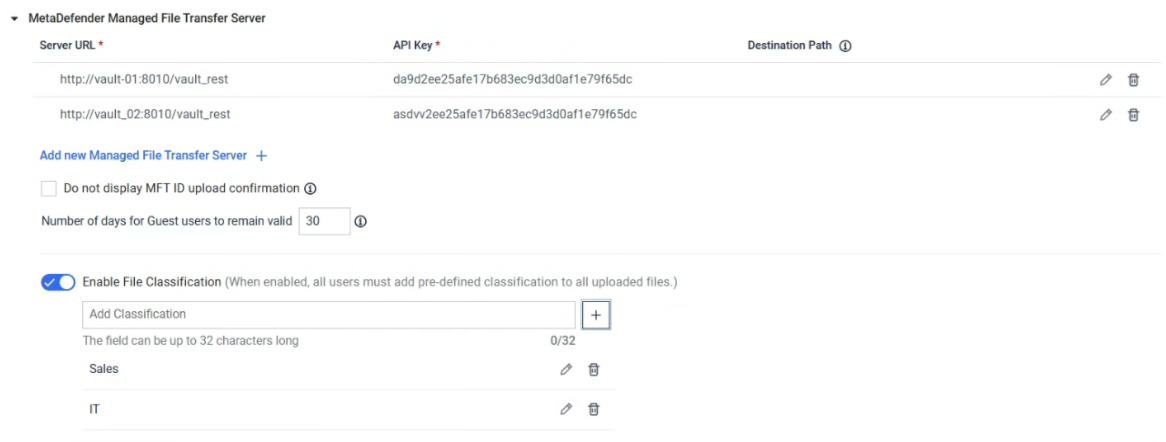
Server url MFT REST server's URL
API Key API key obtained from the MetaDefender Managed File Transfer management interface
Folder path The directory structure specified in which files are uploaded to. The default is a root folder of the respective Kiosk session ID.
[date] current date (Year-Abbreviated month-Day), e.g. 2020-Mar-10
[time] time of session (Hour-Minute-Second), e.g. 18-42-28
Note: [18:42:28] is invalid name on Windows OS, [18-42-28] is used instead
[username] user logged into the Kiosk session
[sessionid] Kiosk session id
Number of days for Guest users to remain valid indicates how long a guest user is valid before MFT removes the user and files associated to it.
Do not display MFT ID upload confirmation a MFT ID will not be displayed when files are uploaded
File classification
Starting with Kiosk 4.7.5, Kiosk supports a File Classification option that enforces user-selected classification before scanning and uploading files to MFT. This ensures files are properly tagged with the chosen classification. Note that this feature requires MFT to be configured with matching classification values. For more details on MFT File Classification configuration, refer to this KB (link)
Central Management Policy Behavior
If MFT is configured through a Central Management policy shared by multiple Kiosk instances, the Server URL, API Key, and Folder path all normally follow the policy. To let one instance keep its own MFT configuration instead of the policy's — for example, if that instance needs to reach a different MFT server than the rest of the fleet — the policy can be configured to skip the MFT settings for that policy going forward.
In the Central Management policy's MetaDefender Managed File Transfer Server settings, enabling Do not apply this configuration to the device stops the policy from overwriting MFT settings (including the MFT destination selection) on instances that use it — each instance keeps its own current MFT configuration.
This option is only available when editing a Central Management policy, not when editing an individual Kiosk instance directly.
For installing a MFT self-signed certificate, it is necessary to add the certificate configured on MFT into the Kiosk configuration. Please refer to Trusting an HTTPS OPSWAT product to add a certificate into the Kiosk configuration.