
Check Your Version:
This article applies to the MD Kiosk (Windows) that is enrolled with MyOPSWAT Central Management On-premises
After enrolling the MD Kiosk into MyOPSWAT Central Management (MOCM), you may see a warning under the Kiosk device information for the Kiosk version:
“Unable to inherit settings due to an incompatible version”.
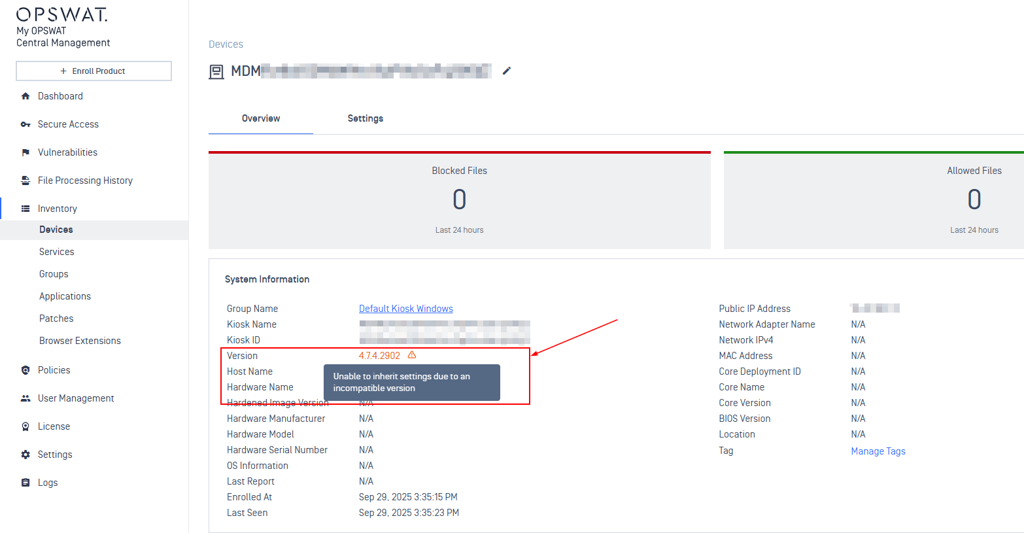
Below are the reasons for this warning and how to resolve it.
1. The Kiosk is enrolled in MOCM for the first time
After enrolling the first MD Kiosk into MOCM, this warning will appear because the Kiosk Group Policy has not yet been initialized, and no Policy Version has been created.
Solution:
From the MOCM console, go to Policies > Peripheral Media > Import Policy from Device > .. Windows
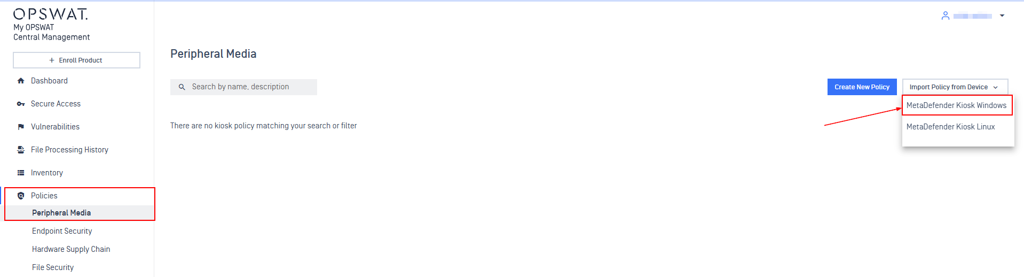
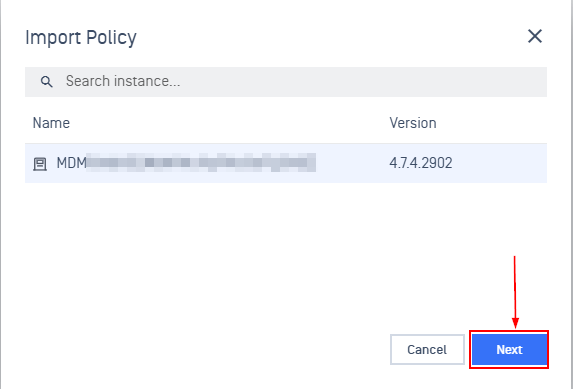
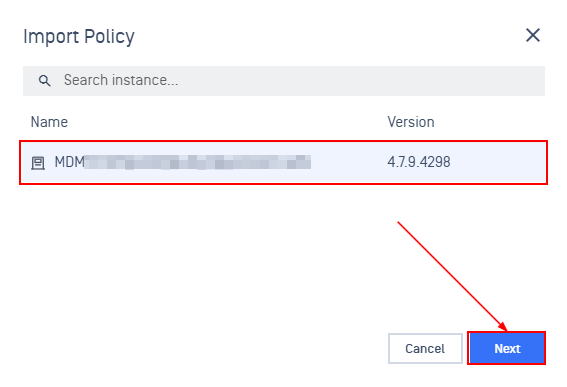
Choose the Kiosk instance that was enrolled. Then, click on Next
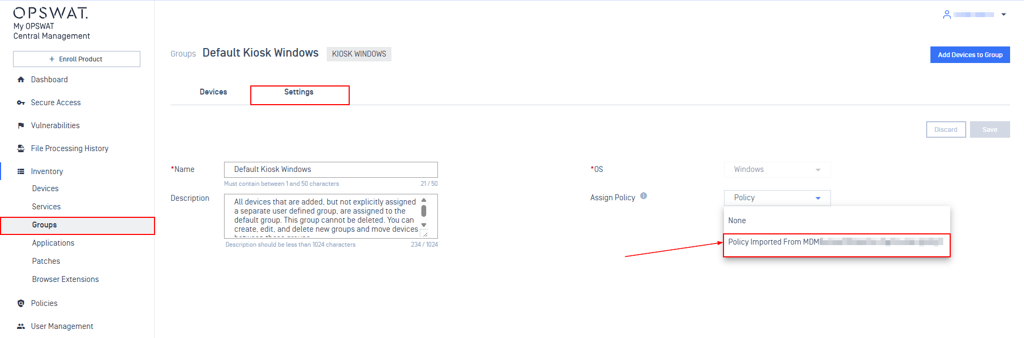
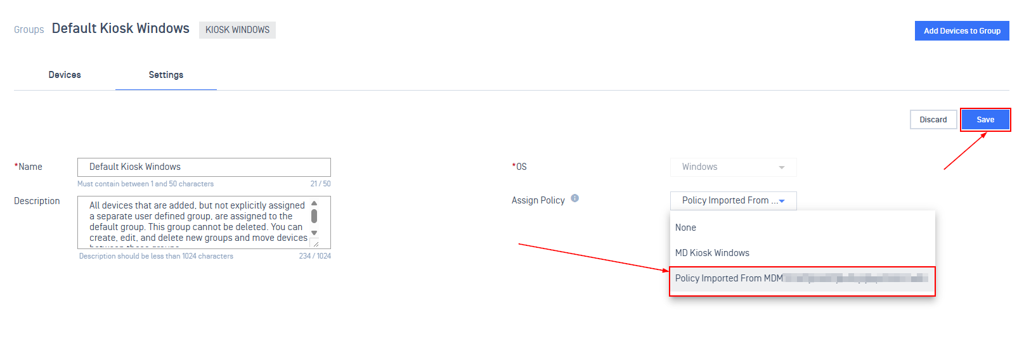
After the policy is created, go to Inventory > Groups > Choose the Kiosk Groups > Settings > Assign Policy > Choose the policy that was just created. Then Save
Double-check the Device Information and see if the warning has disappeared.
2. The MD Kiosk version has been upgraded
After upgrading the MD Kiosk version, it may no longer match the Policy Version, as the Policy Version does not update automatically.
Solution:
You must re-import the policy from the latest Kiosk version into MOCM to update the Policy version.
From the MOCM console, go to Policies > Peripheral Media > Import Policy from Device > .. Windows
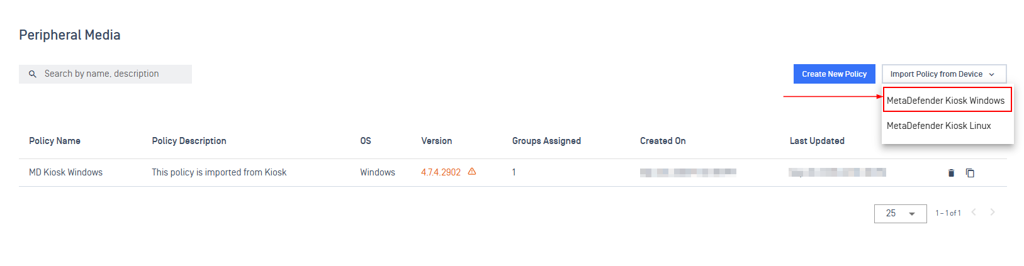
Choose the Kiosk instance with the latest version. Then click Next.
After the new policy is created, go to Inventory > Groups > Choose the Kiosk Groups > Settings > Assign Policy > Choose the policy that was just created. Then Save
Go back to Inventory > Groups, then check the Policy Version column and make sure that it is the same version as the MD Kiosk version.

Support:
If Further Assistance is required, please proceed to log a support case or chatting with our support engineer.