Purpose
The Kiosk UI can be exited using the Alt-F4 keyboard combination. By default, Kiosk UI can be closed without password required. This article document shows how to enable “Exit Password” for Kiosk UI.
Detail benefits when enable “Exit Password” function in MD Kiosk:
Prevent unauthorized personnels to turn off Kiosk functions on the device.
Guarantee continuous system operation without disruption.
Solution
To enable “Exit Password” in MD Kiosk, please read through the following guidance for step-by-step instructions
Setup Progress | Description |
|---|---|
Step 1 | Access to Kiosk Web Management Console |
Step 2 | Navigate to Configuration, select Kiosk UI |
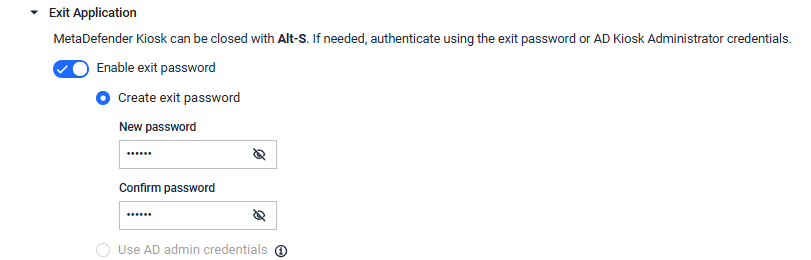
Step 3. | Expand Exit Application section, enable exit password
The MetaDefender Kiosk application can be exited using the Alt-F4 keyboard combination. If a exit credentials is required, the user will be prompted to enter the password or credential of AD users assigned as Kiosk Administrators after hitting Alt-F4.
|
Step 4 | Click Save Updates |