
This article explains how to connect a MetaDefender Industrial Firewall (MDIF) appliance to My OPSWAT Central Management for centralized monitoring, health alerting, and cloud-based licensing. It then walks through monitoring the device dashboard, configuring devices remotely, and updating licenses and firmware once the integration is in place.
Retrieve the Registration Code from My OPSWAT
Log in to my.opswat.com with an account that has Central Management rights.
In the left‑hand navigation pane, select Enroll Product.
From the list of products that appears, select MetaDefender Industrial Firewall.
Copy the Server URL and Registration Code.
Configure the Industrial Firewall
Log in to the Industrial Firewall web UI.
Navigate to Configuration → Integrations → My OPSWAT.
Paste Server URL and Registration Code obtained from Central Management.
Click Enroll.
After the configuration is done, please check back into Central Management to see if the MDIF appears in the product list and also check in My OPSWAT settings from the MDIF UI if the additional information has appeared.
1.Monitoring the Industrial Firewall Dashboard
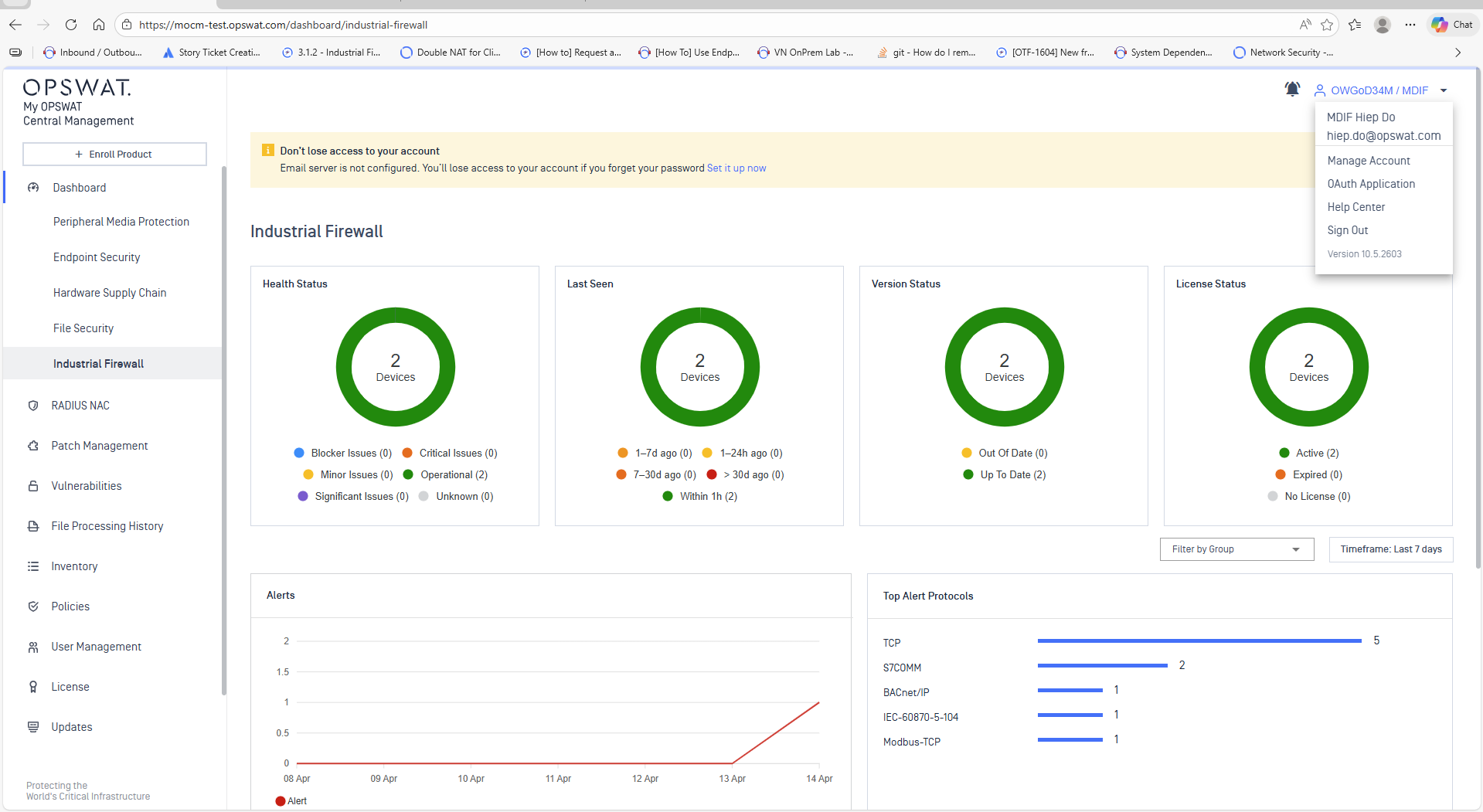
Once the MDIF appears in Central Management, navigate to Industrial Firewall from the left-hand navigation pane to open its dashboard. This dashboard gives you an at-a-glance view of every enrolled device. At the top you will find a set of status cards:
Health Status – overall operational state of your devices (Operational, Minor Issues, Critical Issues, etc.).
Last Seen – how recently each device reported back to Central Management.
Version Status – whether the firmware on each device is up to date or out of date.
License Status – number of devices with an active, expired, or missing license.
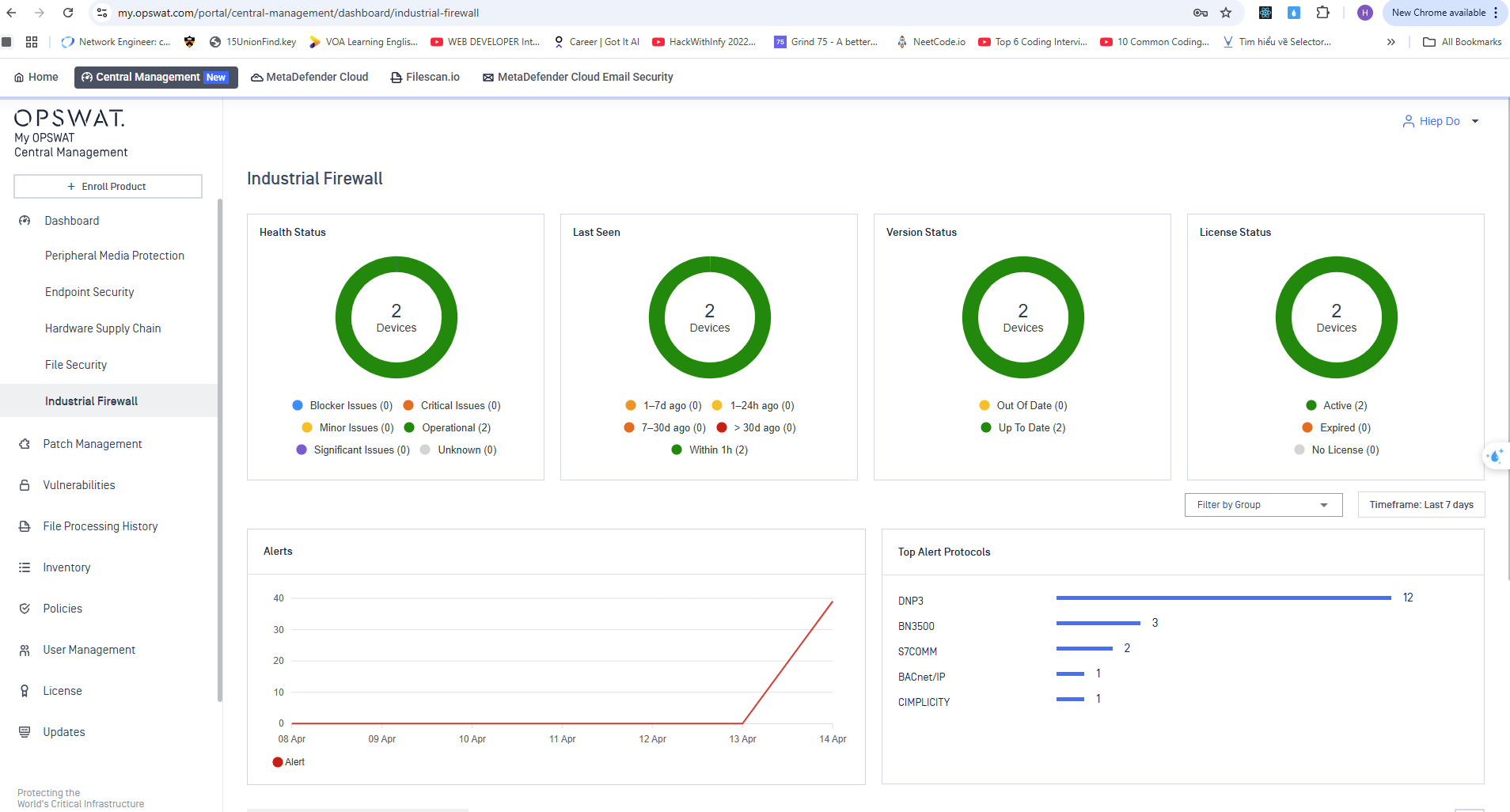
Below the status cards you will find alerting insights:
Alerts – a chart showing the number of alerts generated over the selected timeframe.
Top Alert Protocols – a breakdown of which industrial protocols (e.g. DNP3, Modbus-TCP, S7COMM) are triggering the most alerts.
Device list – a table of devices that generated alerts, including Health Status, Model, Group, Total Alerts, Acknowledged Alerts, and Last Alert Date.
2.Configuring the Industrial Firewall from My OPSWAT
You can configure your MDIF devices remotely from Central Management, either one device at a time or in bulk through policies.
Configuring a single device
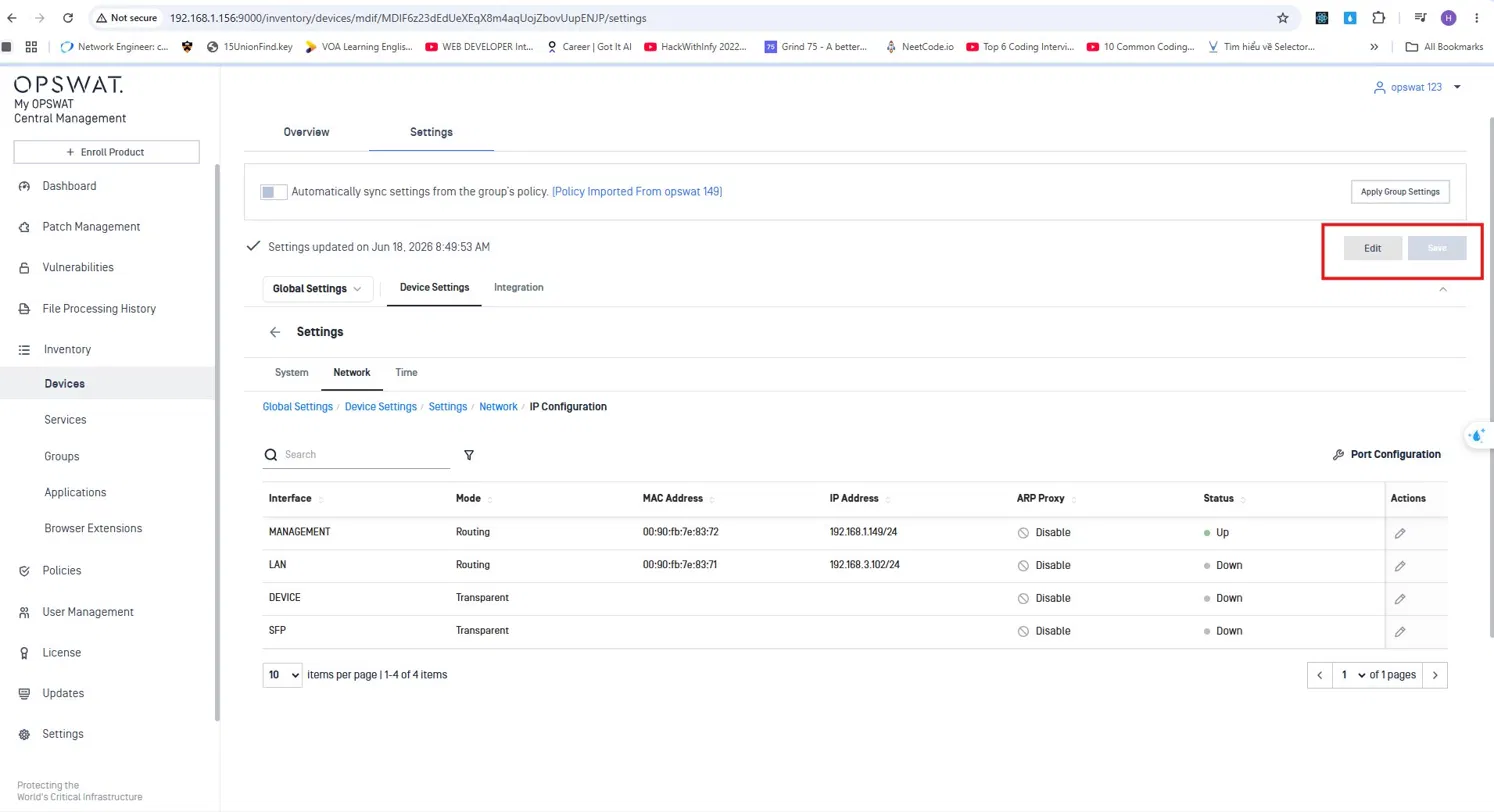
Navigate to Inventory → Devices → Industrial Firewall and select the device you want to configure.
Open the Settings tab.
Click the Edit button and adjust the configuration just as you would on the Industrial Firewall web UI, then click Save.
Within about one minute, the MDIF will receive the configuration and report the result back to Central Management.
Managing multiple devices with Policies
To apply the same configuration to several devices at once, use policy-based management:
Create a policy for the Industrial Firewall.
Create a group and add the relevant devices to it.
Assign the policy to the group.
A policy can only be applied to devices that share the same firmware version and model type as the policy. Devices in the group that do not match will be flagged as incompatible, and the configuration will not be applied to them.
For full details, see the My OPSWAT documentation: Overview – Policy Management.
3.Updating the License
Device licenses can be managed centrally from My OPSWAT. For instructions, see Overview – Product Management.
4.Updating the Firmware
Firmware updates can also be pushed from Central Management. For instructions, see Update Application.
If Further Assistance is required, please proceed to log a support case or chatting with our support engineer.