
This article applies to the current MetaDefender IT-OT Access Console and API, and all MetaDefender Endpoint releases deployed on macOS systems.
Users running MetaDefender Endpoint on one or more macOS devices may occasionally see MetaDefender IT-OT Access device compliance warnings/flags related to User Authentication, although this depends entirely on policy configurations.
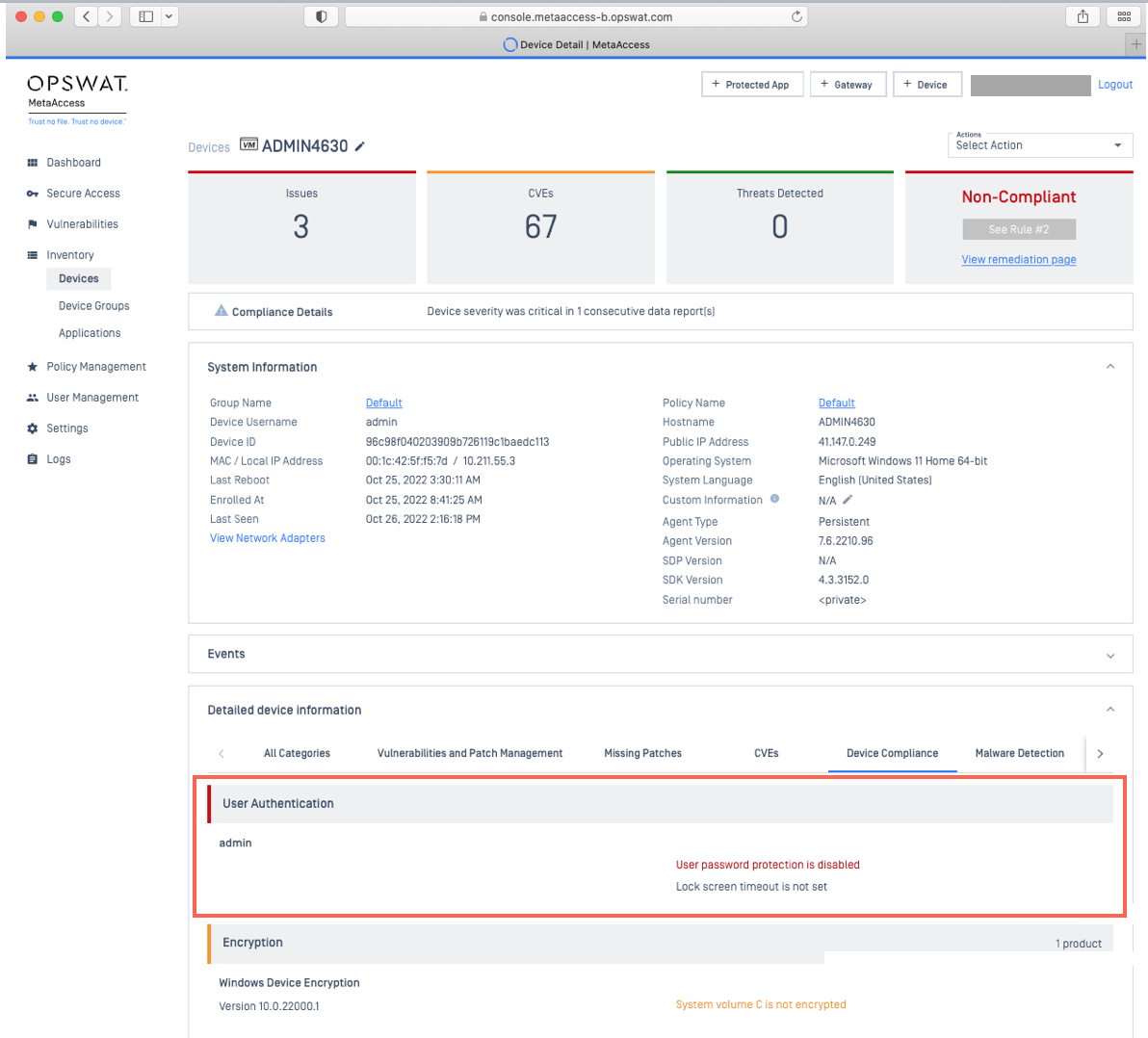
These warnings/flags are triggered by device issues and will appear under MetaDefender IT-OT Access Console>Inventory>Devices>Relevant Device>Detailed Device Information>Deep Compliance>User Authentication, as illustrated below.
To remediate authentication-related device compliance issues on managed macOS devices, please follow the instructions below.
MetaDefender IT-OT Access Compliance Warning: User Authentication - Lock Screen Timeout Is Not Set / User Password Protection Is Disabled
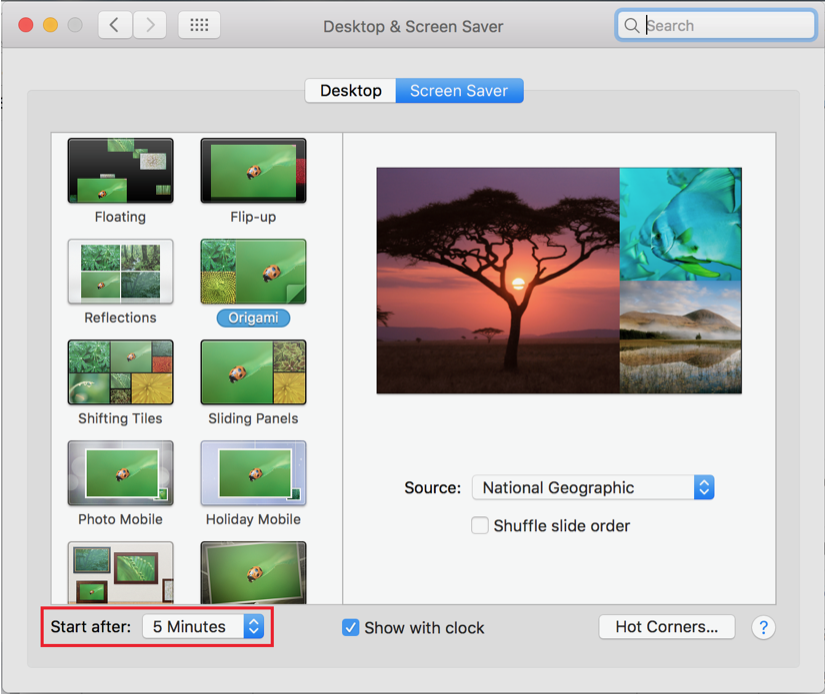
Open the Apple menu in the top left-hand corner of the screen,click on System Preferences, then navigate to the Desktop & Screen Saver section.

Expand the Screen Saver tab, then adjust the screen saver timeout to Start after 5 minutes.
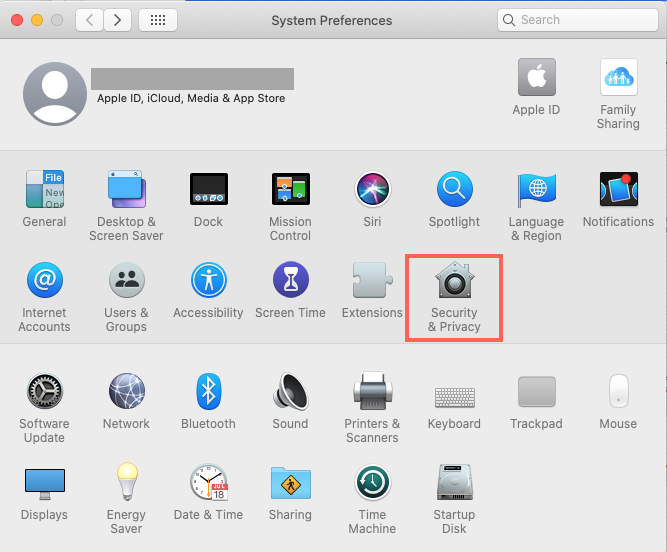
Go back to the System Preferences menu page, then click on Security & Privacy.
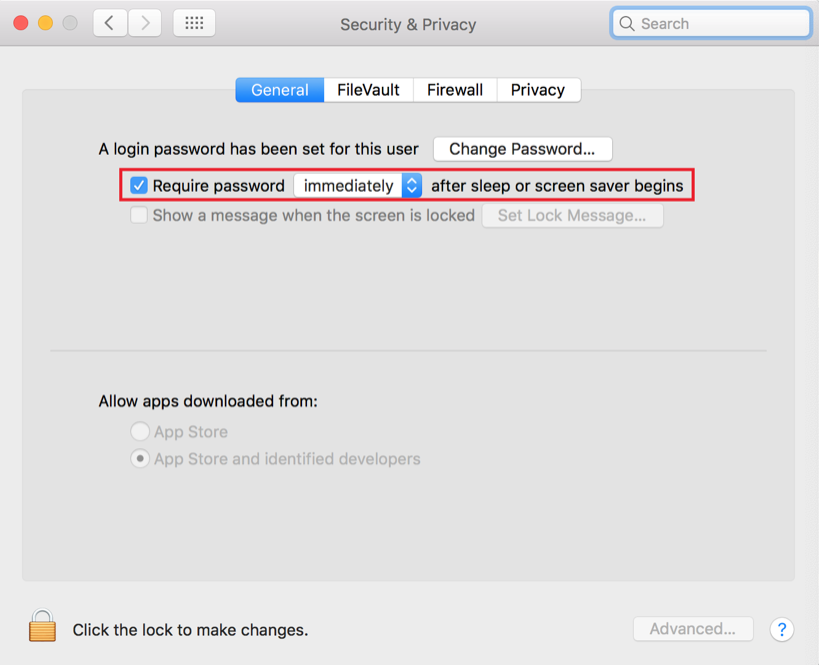
Expand the General tab, then click the Lock in the bottom left-hand corner to make changes.
Then, select the option to Require password X after sleep or screen saver begins, and adjust the duration to immediately, before clicking the Lock again to close it.
Open Finder, click on Applications, then search the list for OPSWAT Gears and open it.
Once the app is running, click/right-click on the Client tray Icon and, from the pop-up menu, click Recheck.
This will trigger the MetaDefender Endpoint to scan all device compliance data and report to the MetaDefender IT-OT Access servers again.
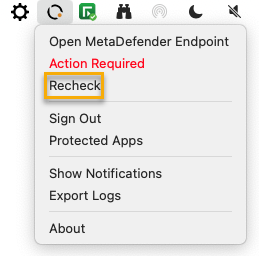
Wait for a few moments, then check MetaDefender IT-OT Access Console>Inventory>Devices>Relevant Device>Detailed Device Information>Deep Compliance>User Authentication again to see the updated issue report.
If you have followed the instructions above but Continue To Experience User Authentication Issues On Your MetaDefender Endpoint/MetaDefender IT-OT Access Managed MacOS Devices, please open a Support Case with the OPSWAT team via phone, online chat or form, or feel free to ask the community on our OPSWAT Expert Forum.