
Connecting with OPSWAT Central Management enables MetaDefender Drive administrators to centralize the following operations:
- Viewing and Managing scan reports
- Adjusting the settings of all MetaDefender Drive units
- Exporting reports in PDF/TXT format
OPSWAT Central Management must be deployed for your organization. For more details, please find the following instructions: OPSWAT Central Management v7
Connecting a MetaDefender Drive With OPSWAT Central Management
- After booting the MetaDefender Drive you intend to connect with My OPSWAT Central Management, go to Settings → Central Management, and check the connection status
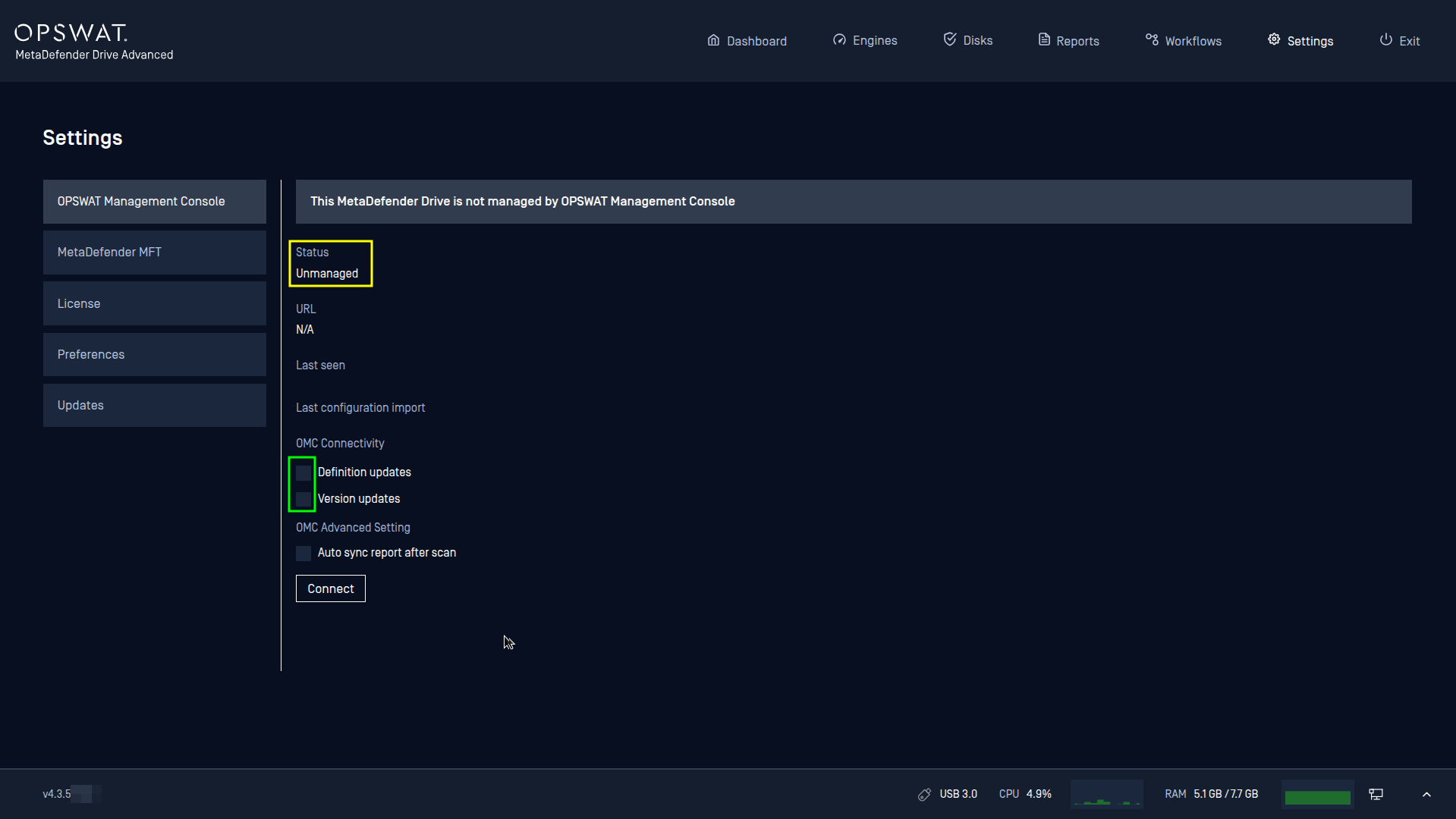
Unmanaged
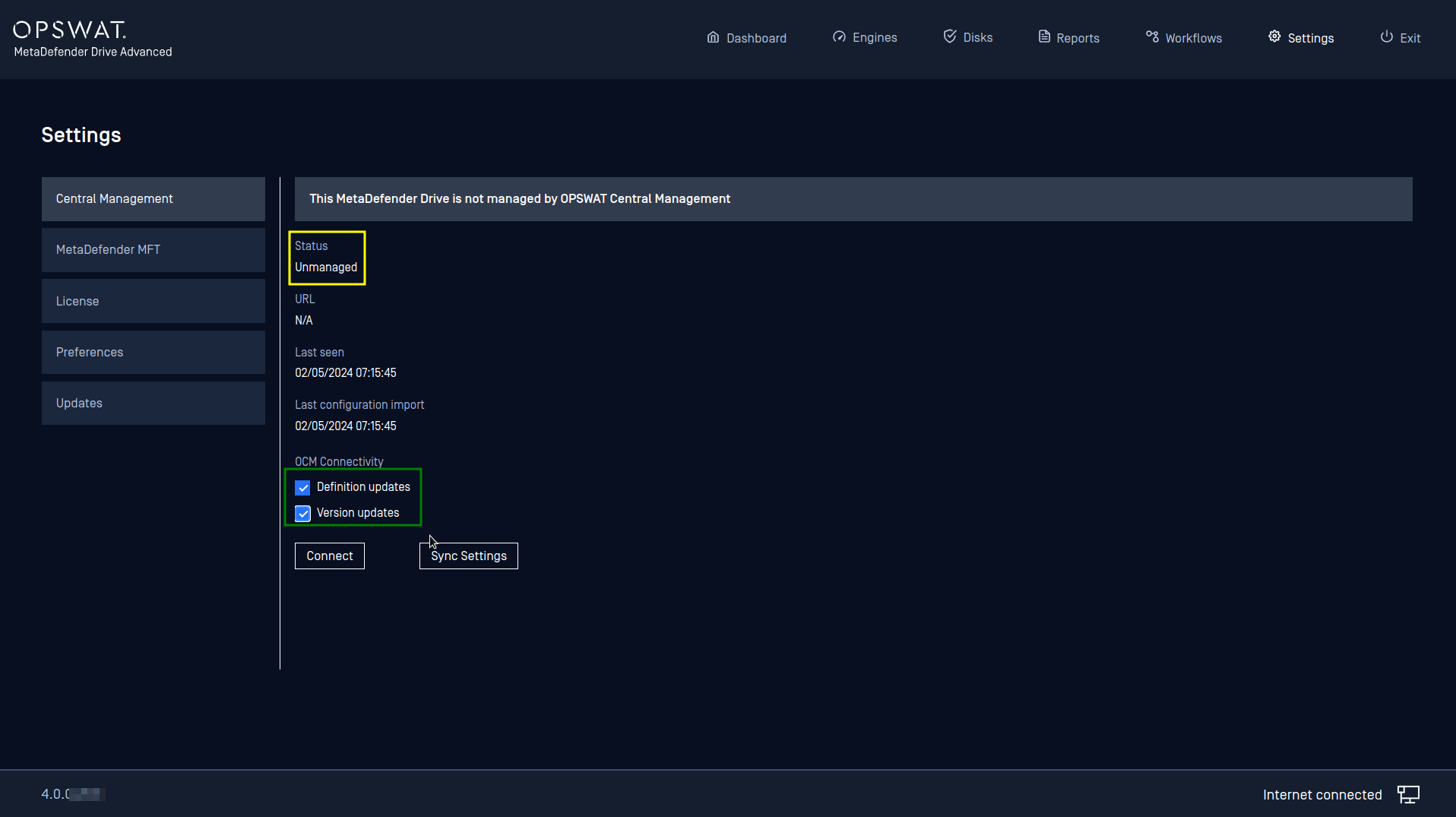
Managed. Engines Definitions and Drive Version are fetched from Central Management Server.
If you are connecting to an OPSWAT Central Management Server 7.8 or later, the following options will be available:
- Update definitions from this OCM: check this box to allow MetaDefender Drive to fetch engine definition updates from this server
- Update version from this OCM: check this box to allow MetaDefender Drive to download and install its software upgrade packages from this server
To learn more about how to prepare your OPSWAT Central Management server for connection, please follow the instructions on the following pages:
Settings to update core modules
- Please note that the "Pushing modules update" function in Folder mode is not designed for MetaDefender Drive.
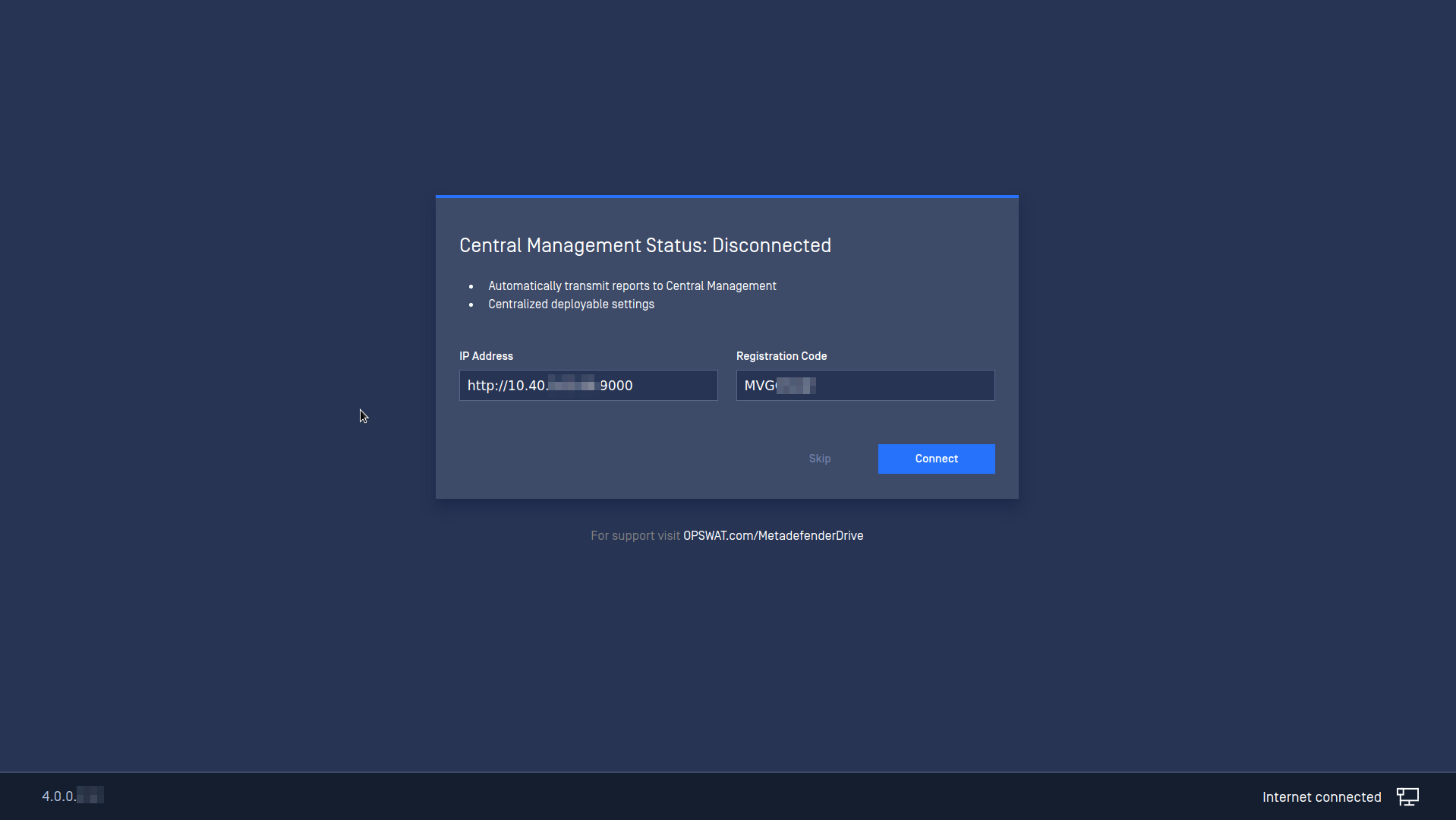
- Click Connect, then enter your My OPSWAT Central Management URL and Registration Code, that you can obtain from your My OPSWAT Central Management account, in the dialog box
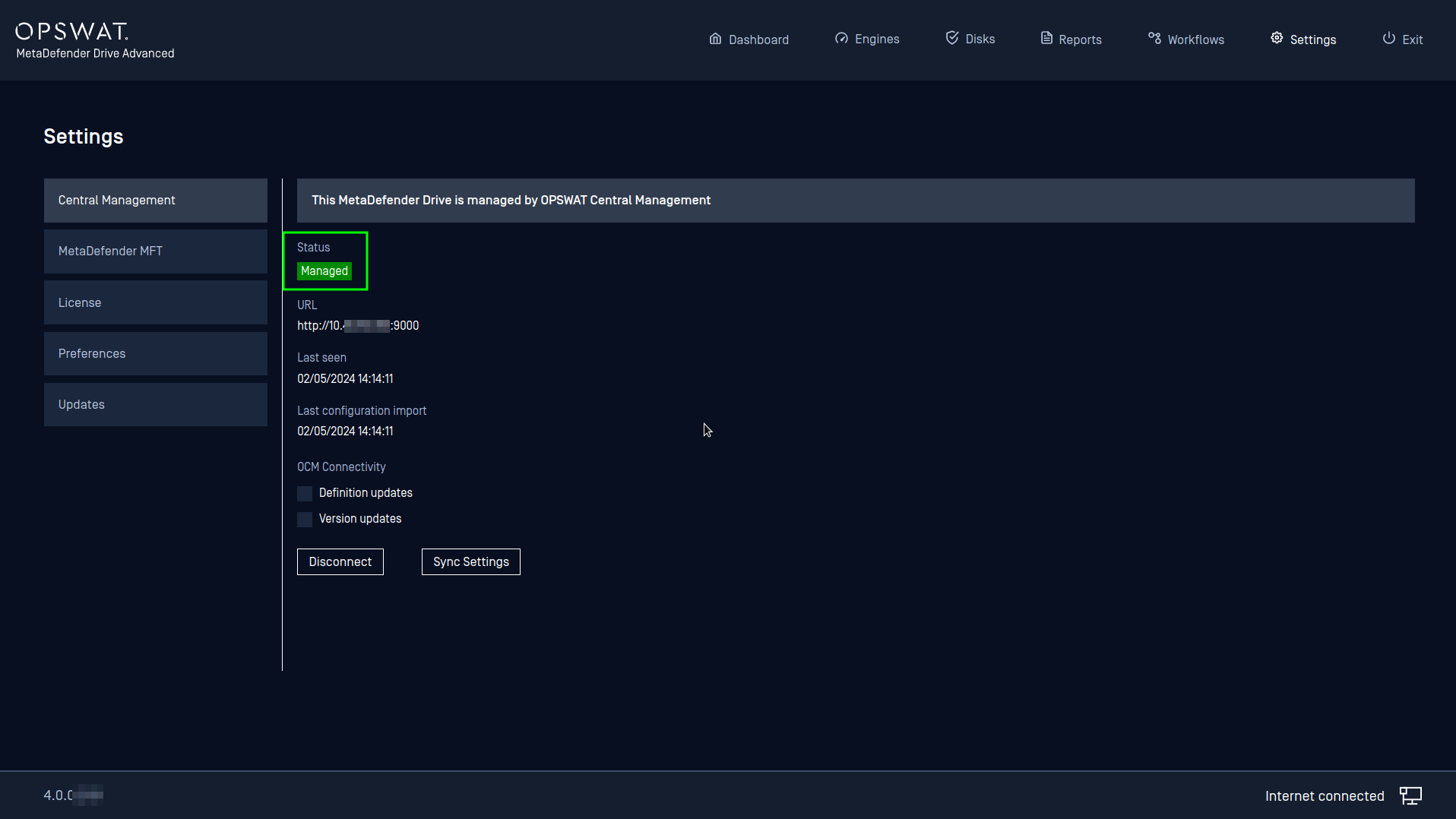
- After the connection is established, you can confirm it by checking that the status of the My OPSWAT Central Management connection changed to Managed
If a MetaDefender Drive is configured to download updates from My OPSWAT Central Management that is not accessible on boot, it is recommended to use MetaDefender Drive Toolkit to update the scanning engines.
For MetaDefender Drive to establish a connection with an OPSWAT Central Management server using self-signed certificates, please follow the instructions on the Using Self-signed Certificates for OPSWAT Central Management page.
For more details on how to manage MetaDefender Drive from OPSWAT Central Management, please refer to the Managing MetaDefender Drive page.
Send Email Notifications from My OPSWAT Central Management
From MetaDefender Drive v4.4.5, My OPSWAT Central Management can automatically email IT and security teams when key events occur on enrolled MetaDefender Drives — enrollment, removal, or an unsafe device detection — enabling faster incident response and seamless integration with downstream ticketing (e.g. ServiceNow).
What you get
- Event-driven email alerts — triggered the moment a device is enrolled, removed, or detected as unsafe.
- Group-based routing — define notification groups and route different events to different recipients.
- HTML or JSON payload — pick the format that fits your inbox or downstream automation.
- Inline scan report link — every unsafe-device email includes a one-click signed Download Report link (valid for 7 days).
CM Setup
Configure these in the My OPSWAT Central Management console.
Create a Notification Group
Go to Settings → Notification Groups and click + Add Notification Group (or open an existing one). Fill in the form:
- Group Name — 1–50 characters.
- Email Format — HTML (human-readable) or JSON (machine-readable for automation).
- Group Members — one email per line; at least one is required.
- Triggers — select MetaDefender Drive from the dropdown, then tick the events you want: Enrolled, Removed by an administrator, Unsafe device detected.
Click Save.

Notification Group configuration in My OPSWAT Central Management
Example notifications
Once configured, group members receive emails the moment a triggered event occurs. Each email is sent from My OPSWAT Central Management with a structured event table.
Outcome 1 — Unsafe device detected
An enrolled MetaDefender Drive returned an unsafe scan result. The email shows Final Verdict: Unsafe Device and a Download Report link (valid for 7 days) to fetch the signed session log for triage.

Email notification — Unsafe Device
Outcome 2 — Device enrolled
A new MetaDefender Drive was enrolled into Central Management. The email confirms the device identity (Serial Number, Device Type, Group, Version) and the user who enrolled it — useful for asset tracking and onboarding audit trails.

Email notification — Device enrolled
Troubleshooting
- No email received — confirm the recipient is listed under Group Members and the relevant trigger is ticked; check the recipient’s spam folder.
- Wrong format — switch Email Format between HTML and JSON in the Notification Group.
- Download Report link expired — links are valid for 7 days; ask the user to forward the alert sooner, or re-export the report from CM.
- To stop receiving alerts — sign in to My OPSWAT Central Management and adjust Settings → Global → Notifications.
Send Email Notifications from My OPSWAT Central Management
From MetaDefender Drive v4.4.5, My OPSWAT Central Management can automatically email IT and security teams when key events occur on enrolled MetaDefender Drives — enrollment, removal, or an unsafe device detection — enabling faster incident response and seamless integration with downstream ticketing (e.g. ServiceNow).
What you get
- Event-driven email alerts — triggered the moment a device is enrolled, removed, or detected as unsafe.
- Group-based routing — define notification groups and route different events to different recipients.
- HTML or JSON payload — pick the format that fits your inbox or downstream automation.
- Inline scan report link — every unsafe-device email includes a one-click signed Download Report link (valid for 7 days).
CM Setup
Configure these in the My OPSWAT Central Management console.
Create a Notification Group
Go to Settings → Notification Groups and click + Add Notification Group (or open an existing one). Fill in the form:
- Group Name — 1–50 characters.
- Email Format — HTML (human-readable) or JSON (machine-readable for automation).
- Group Members — one email per line; at least one is required.
- Triggers — select MetaDefender Drive from the dropdown, then tick the events you want: Enrolled, Removed by an administrator, Unsafe device detected.
Click Save.
Notification Group configuration in My OPSWAT Central Management
Example notifications
Once configured, group members receive emails the moment a triggered event occurs. Each email is sent from My OPSWAT Central Management with a structured event table.
Outcome 1 — Unsafe device detected
An enrolled MetaDefender Drive returned an unsafe scan result. The email shows Final Verdict: Unsafe Device and a Download Report link (valid for 7 days) to fetch the signed session log for triage.
Email notification — Unsafe Device
Outcome 2 — Device enrolled
A new MetaDefender Drive was enrolled into Central Management. The email confirms the device identity (Serial Number, Device Type, Group, Version) and the user who enrolled it — useful for asset tracking and onboarding audit trails.
Email notification — Device enrolled
Troubleshooting
- No email received — confirm the recipient is listed under Group Members and the relevant trigger is ticked; check the recipient's spam folder.
- Wrong format — switch Email Format between HTML and JSON in the Notification Group.
- Download Report link expired — links are valid for 7 days; ask the user to forward the alert sooner, or re-export the report from CM.
- To stop receiving alerts — sign in to My OPSWAT Central Management and adjust Settings → Global → Notifications.