
Create SAML directory in MetaDefender Core
Sign in to MetaDefender Core.
In the dashboard, click on
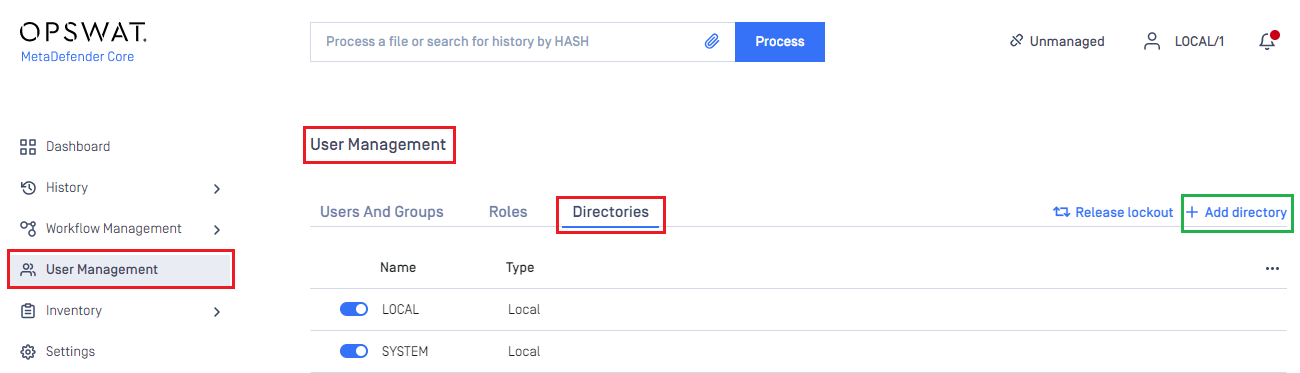
User Managementin the left sidebar.On
User Managementpage, selectDirectoriestab and clickAdd Directoryin the top right corner.
In
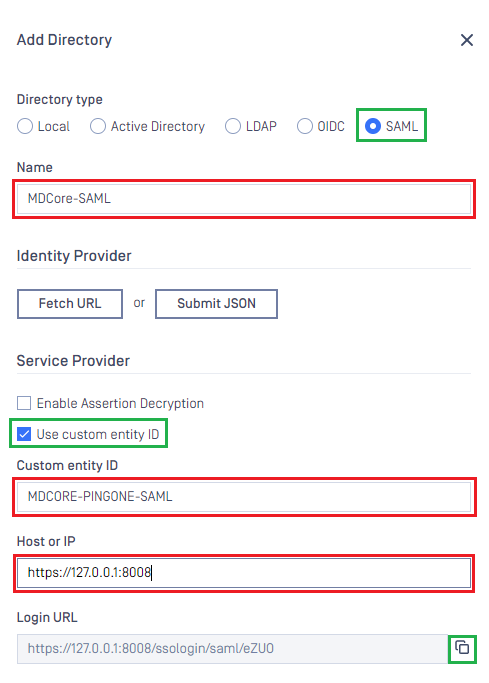
Add Directorypage, selectSAMLasDirectory type, and enter a name for the new directory, such as MDCore-SAML.In
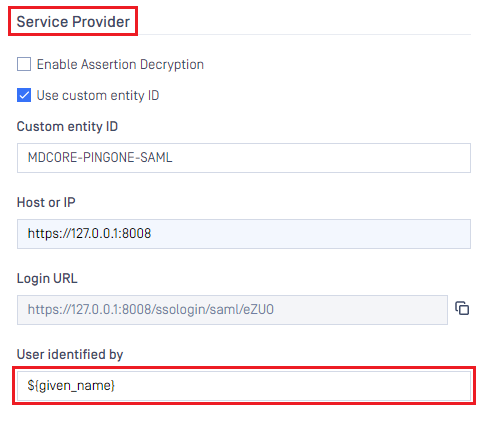
Service Providersection, enableUse custom entity IDoption and enter the ID, such as MDCORE-PINGONE-SAML, then store it in entity_id.Enter
Host or IPwhere MDCore is hosted, for this example use https://127.0.0.1:8008.Copy the string generated under
Login URLand store it as reply_uri.
Create and configure SAML application in PingOne
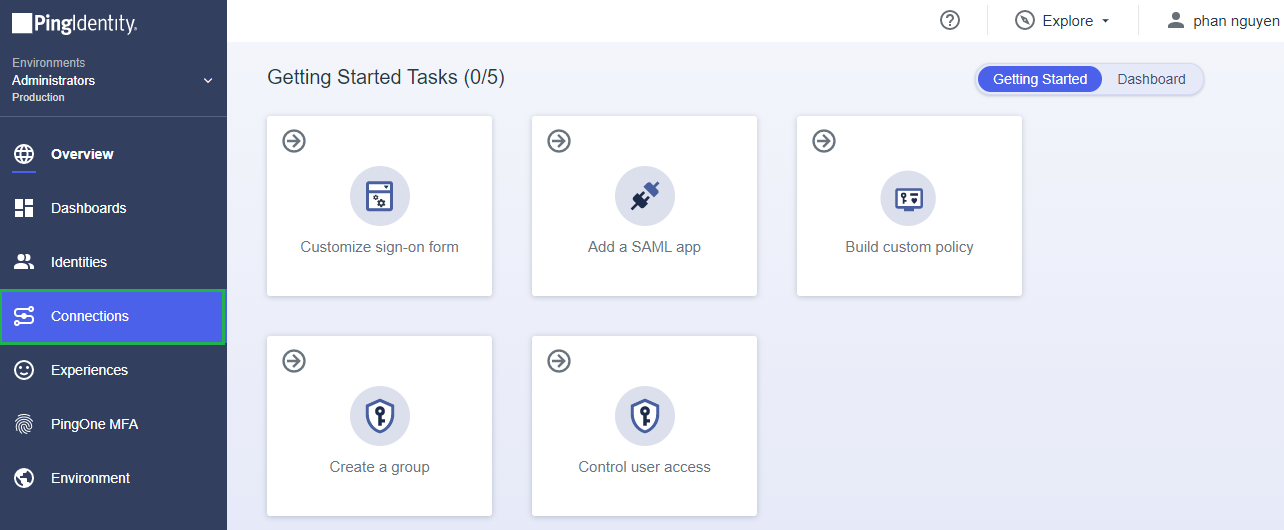
In the PingOne Overview page, navigate to
Connectionson the sidebar.
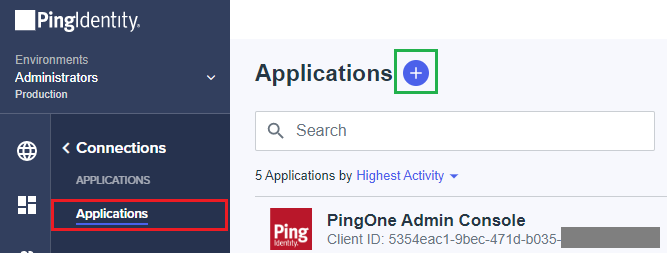
Click the plus button to add a new application.
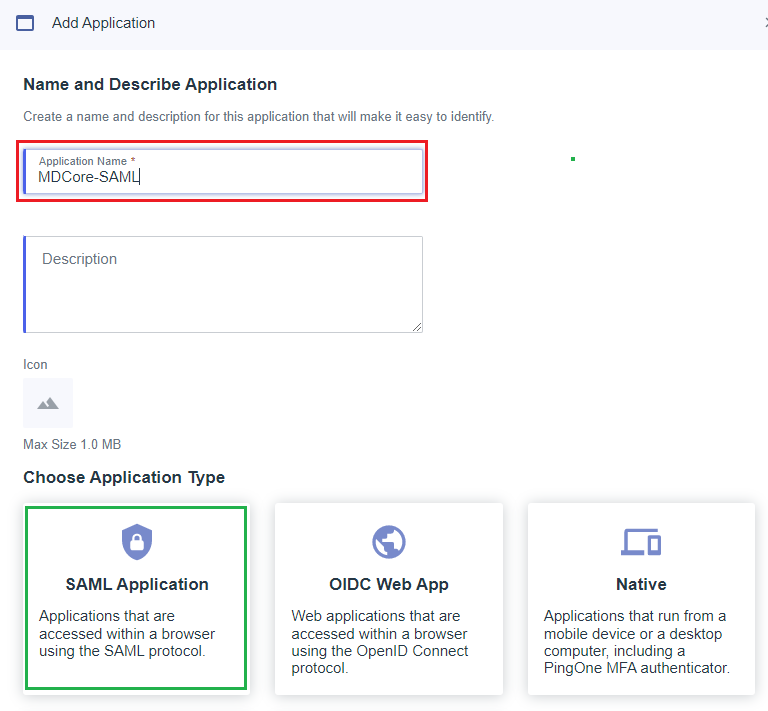
Enter the application name, MDCore-SAML as an example, choose
SAML ApplicationforApplication Type, and clickConfigure.
Select
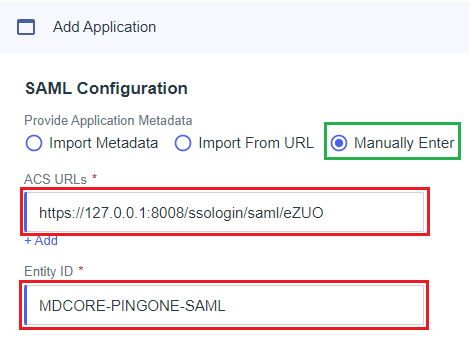
Manually Enterfor SAML Configuration, fill inACS URLswith reply_uri,Entity IDwith entity_id, and clickSave.
Select
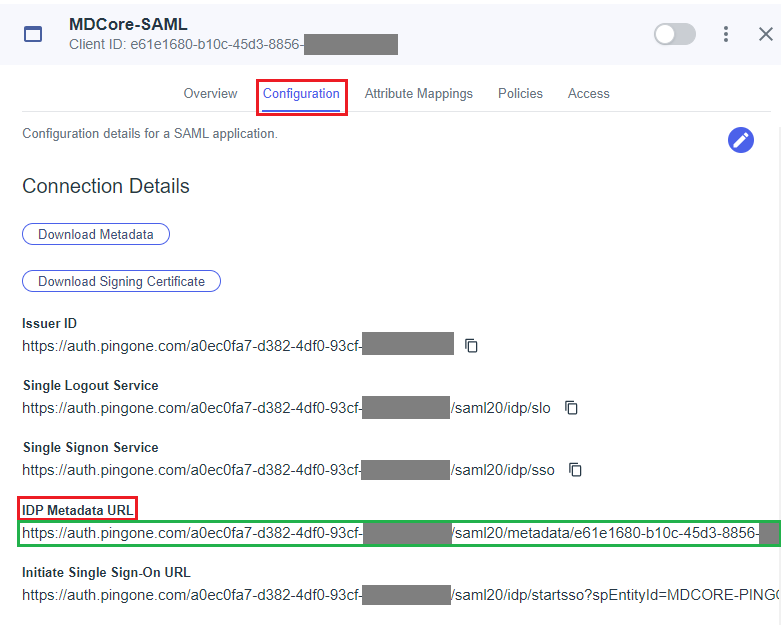
Configurationtab, navigate toIDP Metadata URL, copy the link below, and store it in metadata_url.
Select
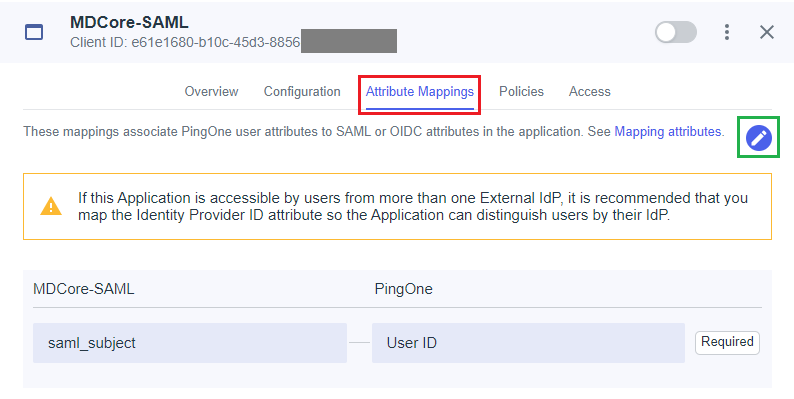
Attribute Mappingstab and click Edit button.
On
Edit Attribute Mappingspage, clickAddto create a new mapping.
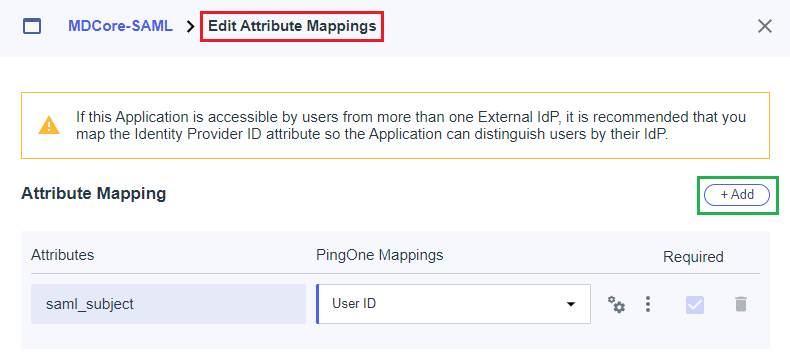
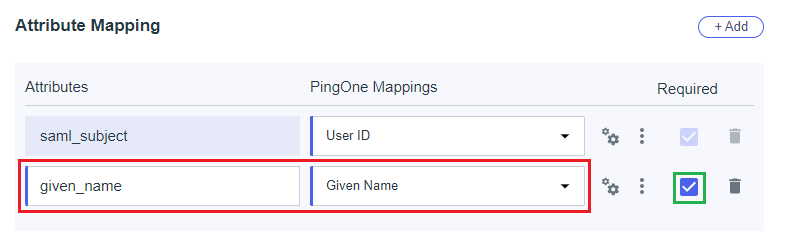
In this step, we create a mapping from the key name used by MetaDefender Core to the one exported by PingOne. For example, we set given_name mapped to Given Name from PingOne. Later, given_name is utilized by MetaDefender Core to identify the logged-in user..
Enter the attribute name,
given_namein this example, select the itemGiven NameinPingOne Mappings, enableRequiredoption, and clickSaveto complete.
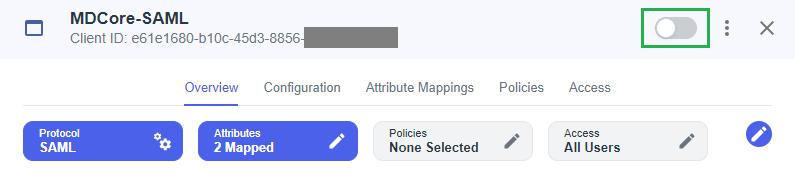
Enable the new application in PingOne.
Complete configuration in MetaDefender Core
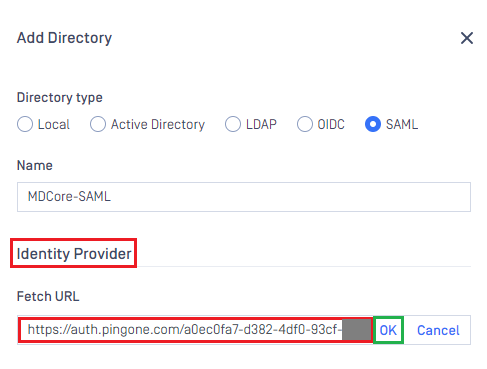
Switch back to MetaDefender Core. Under
Identity Provider, clickFetch URL, paste the value of metadata_url into the box below, clickOK, and wait a moment for MetaDefender Core to check and set PingOne as its IdP.
Under
Service Provider, fill in ${given_name} in the box labeledUser identified by.
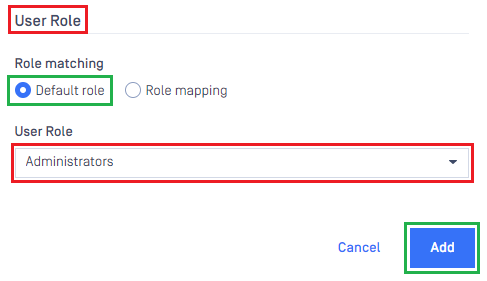
Select
Default roleoption, choose the appropriate role to assign to users underUser Role, and clickAddto complete the settings in MetaDefender Core.
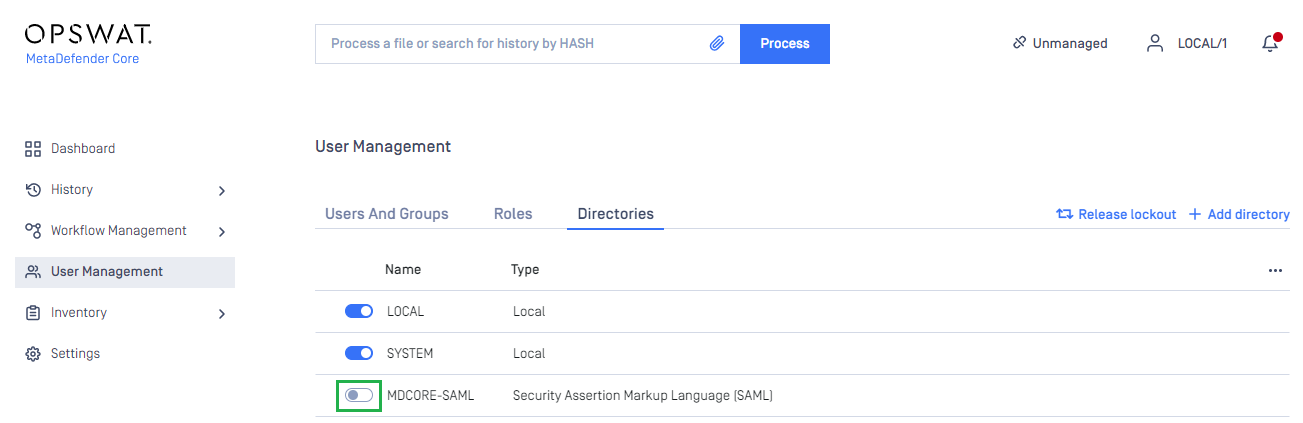
On
User Managementpage, toggle the new directory, MDCORE-SAML in this example. A dialog box will appear to confirm the action. OnceEnableis clicked , all sessions will expire immediately.
Test the integration
On the home screen of MetaDefender Core, click
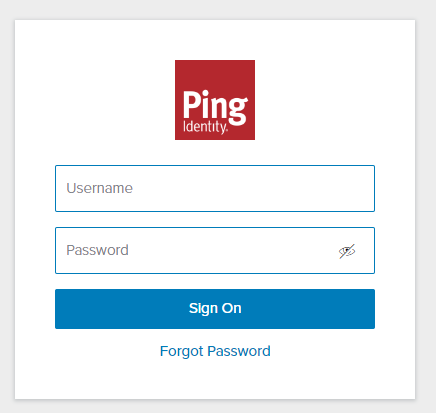
Login; the user is redirected to PingIdentity login page.
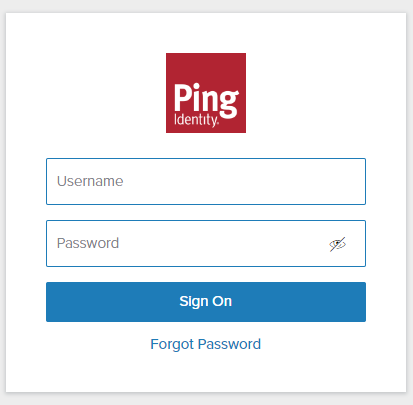
Sign in using the account registered with PingIdentity.
If everything goes well, MetaDefender Core dashboard is displayed with the user identity in the top right corner.

Otherwise, access backup login page at
<mdcore-host>#/public/backuploginfor trouble shooting.
Test IdP-initiated login
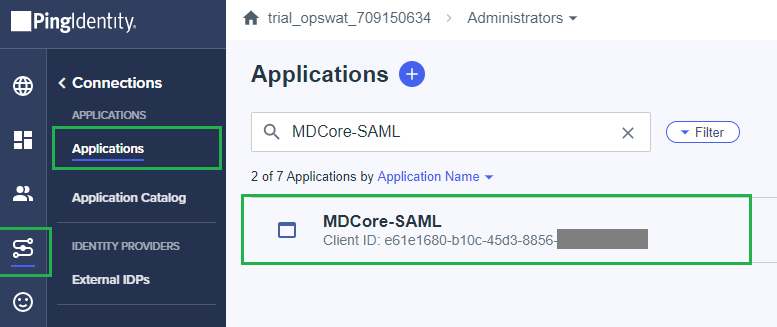
Sign in to PingOne management page.
In the left sidebar, click on
Connections, thenApplications.Select the SSO directory from which IdP-initiated login is enabled, such as MDCore-SAML in this example.
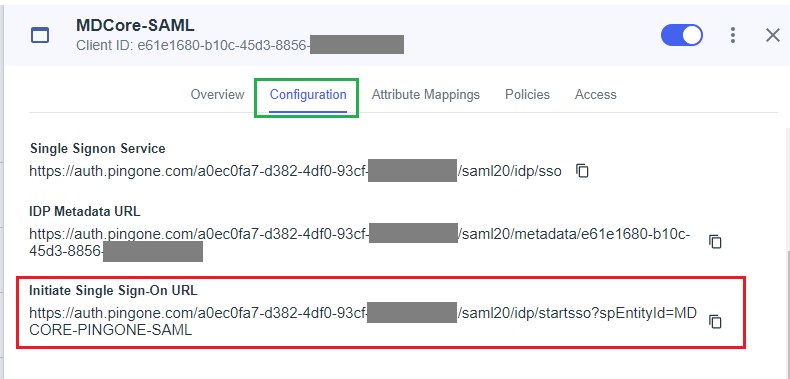
In the right sidebar, click on
Configurationtab. Copy the URL underInitiate Single Sign-On URL.
Paste the URL into your browser and try to sign in.
If everything goes well, MetaDefender Core dashboard is displayed with the user identity in the top right corner.

Otherwise, access backup login page at
<mdcore-host>#/public/backuploginfor trouble shooting.