
The list of devices is accessible under Assets → Asset List.
The list of devices contains all devices information in the system.
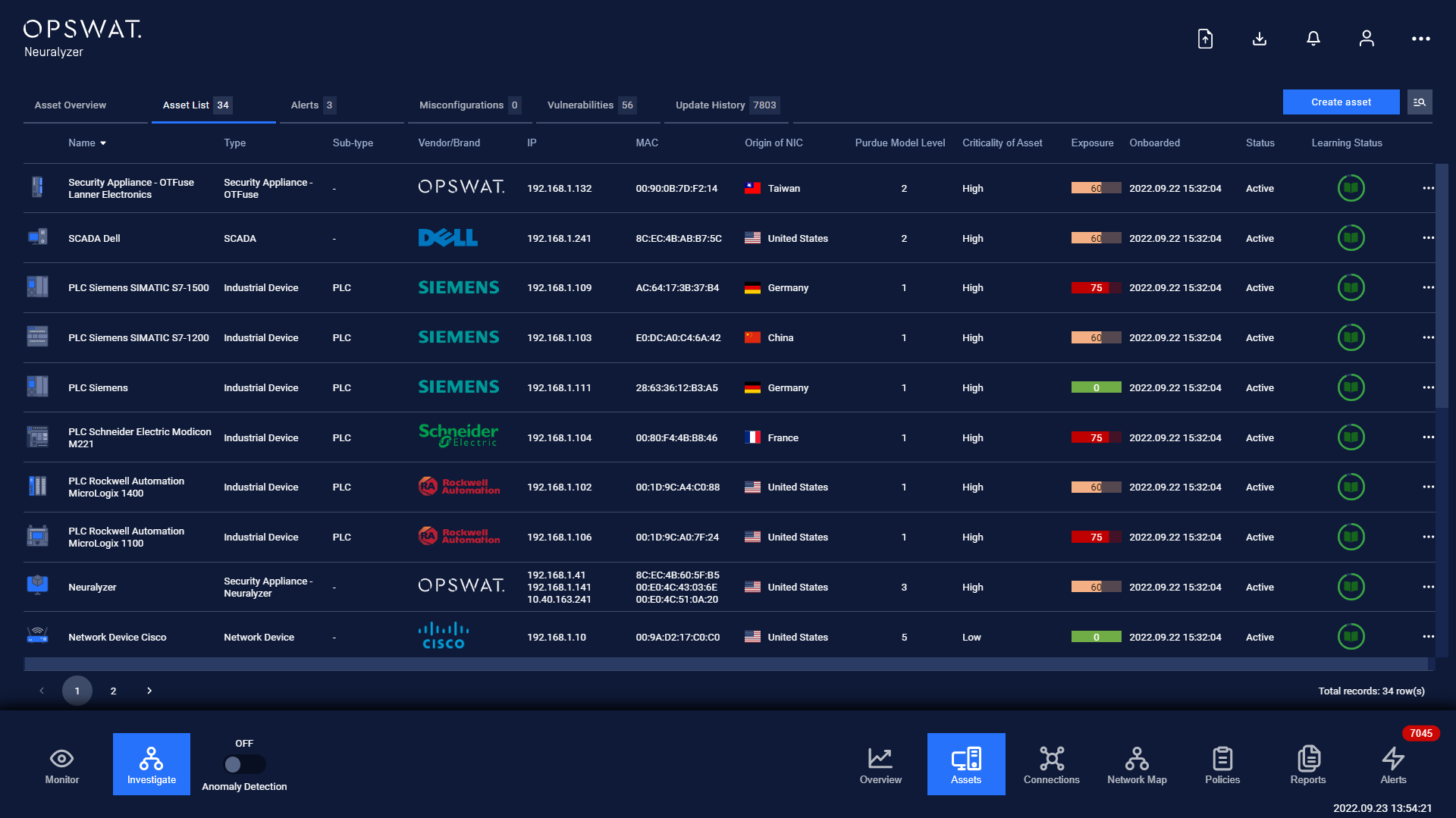
Each row contains these following fields:
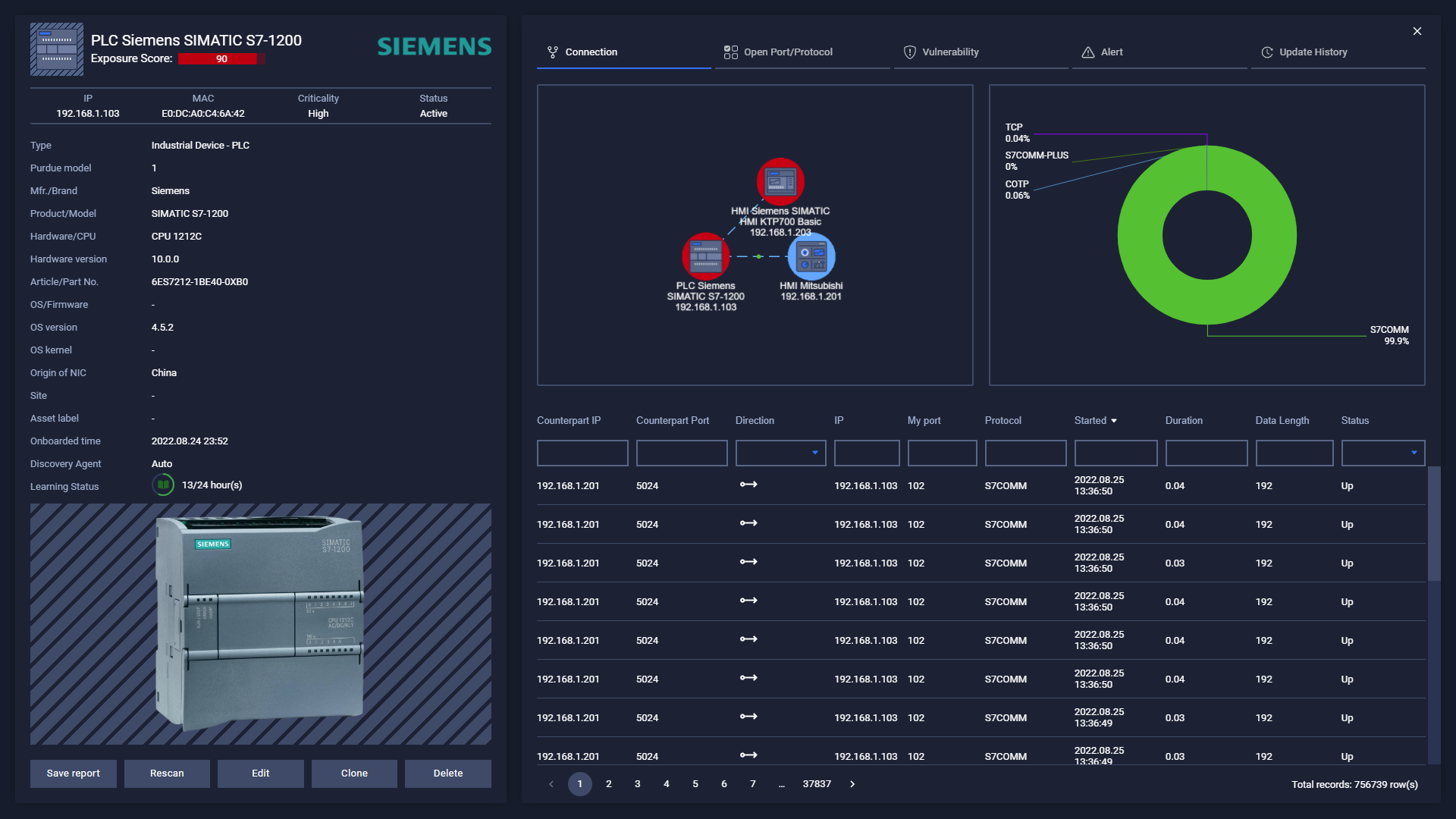
Basic information of that device such as Name, IP, MAC, Criticality, Type, Sub-type, Brand, OS and exposure score.
Detailed information such as product model, hardware/CPU, hardware version, part No., OS version.
Also, the status of the device in the system such as Onboarded Time, Current Status, Asset ID, Agent that detected that device is shown or device learning time status.
Note: you can sort a field in ascending or descending order by clicking on its name.
You can perform actions on a device while on list of devices such as edit its details, delete the device, clone the device by tapping "..." on each device's record and select Edit/Delete/Clone. For more detail, refer to “Device Manipulation”.
Filter
We support searching and filtering on the list of devices:
You can enter value for 1 or more fields, and the result list and number of total records will be updated according to the value(s) you entered.
Index | Field | Data type | Type of input | Support multi-input | Note |
|---|---|---|---|---|---|
1 | Name | Text | Input text | No | |
2 | IP | Number | Input number in IP address format (e.g. 192.168.1.102), IP netmask format (e.g.192.168.1.0/24) | No | |
3 | Criticality | Text | Select from drop-down list | No | |
4 | MAC | Text&Number | Input number and text in MAC address format (e.g. A1:B2:C3:D4:E5:F6), | No | |
5 | Type | Text | Select from drop-down list | Yes | |
6 | Sub-type | Text | Select from drop-down list | No | |
7 | OS | Text | Select from drop-down list | No | |
8 | Brand | Text | Select from drop-down list | No | |
9 | Country of origin | Text | Select from drop-down list | No | |
10 | Purdue models | Number | Select from drop-down list | Yes | |
11 | Status | Text | Select from drop-down list | No | |
12 | Site | Text | Select from drop-down list | No | |
13 | Onboarded from | Date time | Select from pop-up calendar and clock | No | |
14 | Onboarded to | Date time | Select from pop-up calendar and clock | No | |
15 | Asset ID | Number | Input number | No | |
16 | Agent | Text | Select from drop-down list | No | |
17 | Learning status | Icon | Discovery/Protected | No |
You can change the order of the fields displaying on the list by clicking "..." -> “Filter preference” then drag and drop the fields and arrange them in the desired order.
You can choose to show/hide the fields in the list by clicking "..." -> “Filter preference” and tick/untick the box on the left of field name
You can save a custom filter for your convenience when you need to reuse them in the future. Enter values into the fields to filter then select "..." -> "Create filter", give a name for your filter. Every time you come back, click on "..." → Your saved filter to apply it.
You can update your saved custom filters by editing/adding values to the fields and selecting "..." then "Save filter”
You can delete a saved custom filter by selecting “…” → “X” button on saved filter
Note: When you select a type first then select a purdue model, if the selected type is not included in selected purdue model, the type will be discarded, you will need to choose another type.
Note: When you select a sub-type first then select a type, if the selected sub-type is not included in selected type, the sub-type will be discarded, you will need to choose another sub-type.