
Check Your Version:
This article applies to all versions of MetaDefender IT Access and MetaDefender Endpoint.
When the OPSWAT Client is executed on systems outside the scope of registered domain controllers (DCs), the devices may be automatically registered in MetaDefender IT Access. This behavior can result in unnecessary consumption of license tokens and the accumulation of irrelevant device records. This article describes the available solutions to mitigate the issue outlined in “Why are unknown devices randomly registered in MetaDefender IT Access?”
To minimize impact, OPSWAT has introduced new Global Settings options (Solution 1) and alternative Policy-based Mitigations (Solution 2).
Solution 1: New Global Settings (Preferred)
A new setting in Global Settings allows administrators to choose whether to enable automatic migration of devices that do not belong to a registered DC.
Automatic Migration to “Unknown”
Devices that do not belong to your DCs will automatically be assigned Unknown status upon registration
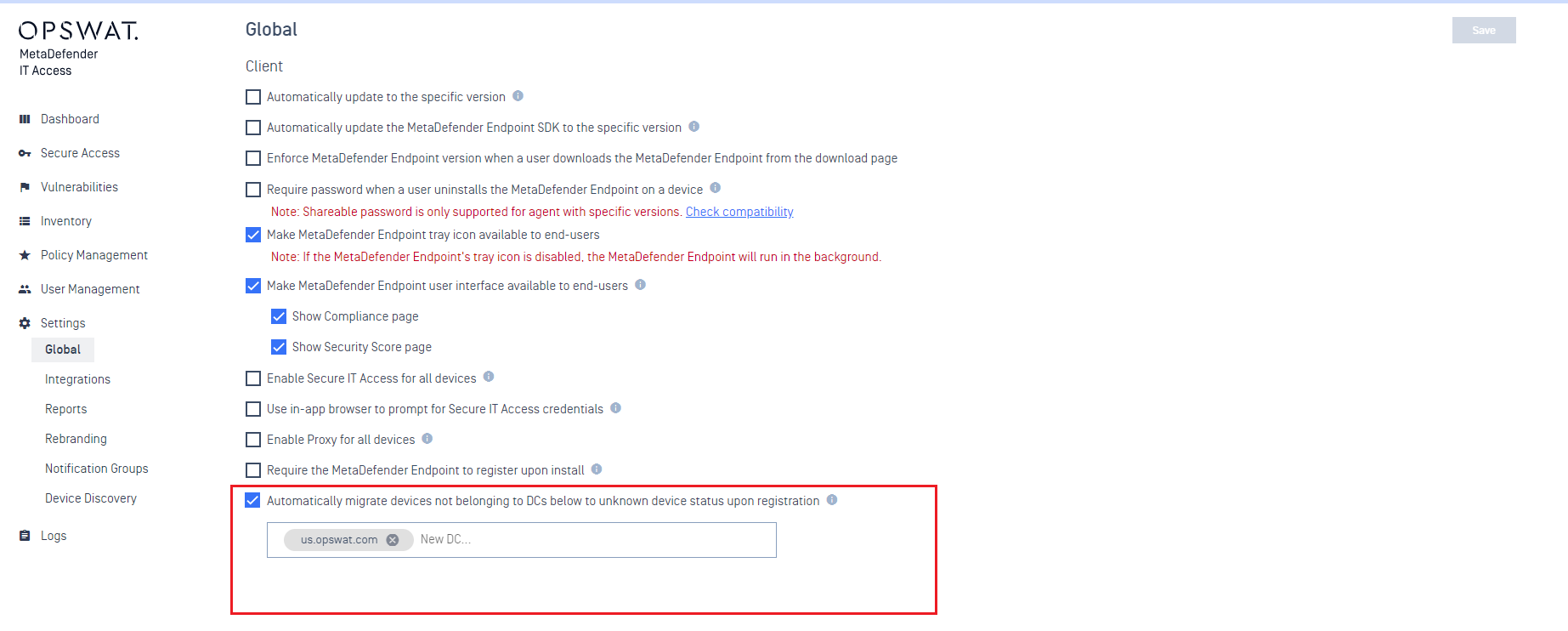
Devices in Unknown status:
Do not consume IT Access license tokens.
Do not allow admin access to device details.
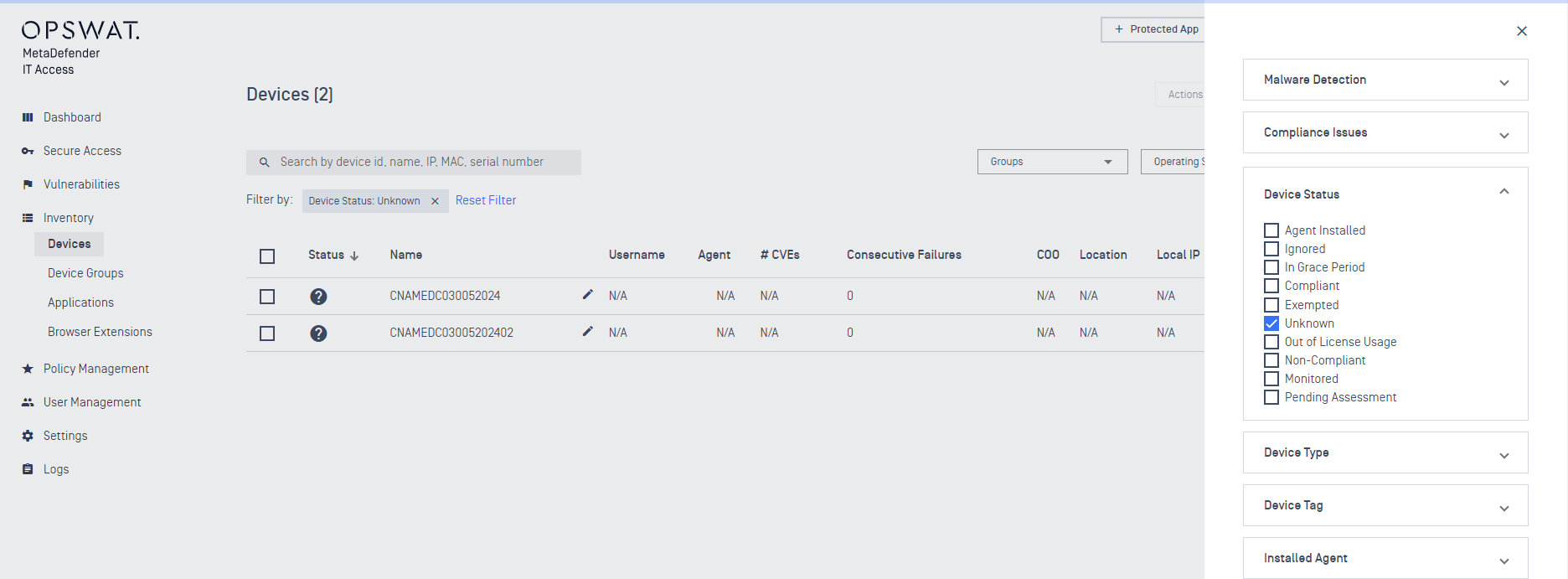
Admin Approval
On the Devices List page, administrators can manually review and Approve devices in “Unknown” status.
Once approved, the device will change status to Pending Assessment.
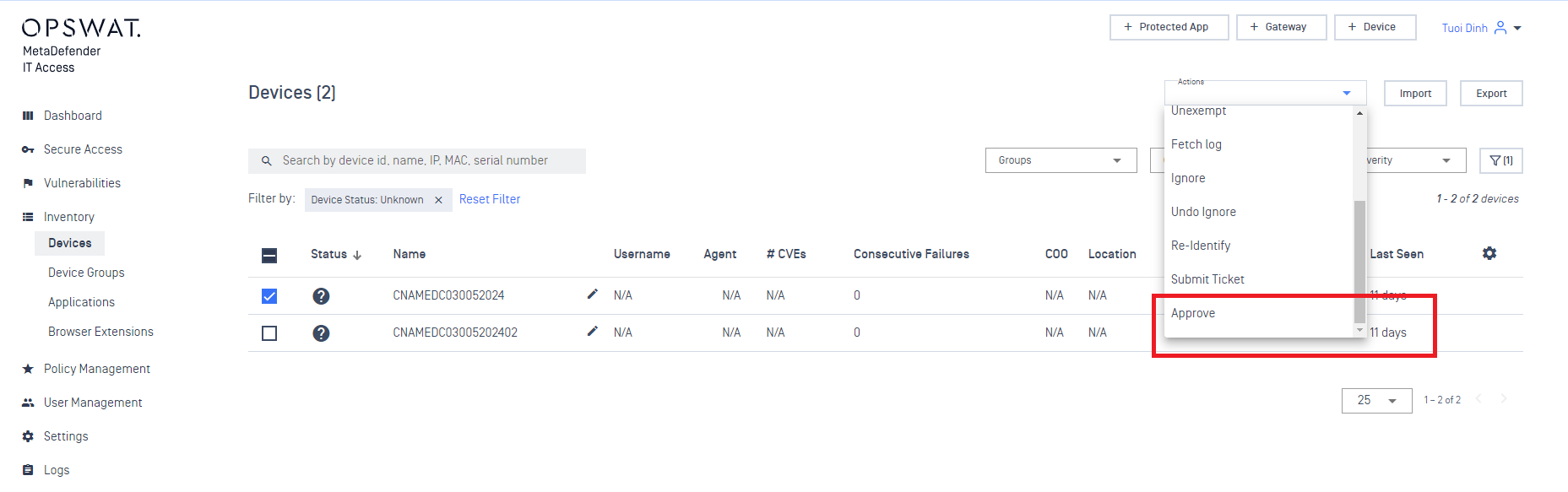
Note: The Approve action is only available for devices in Unknown status.
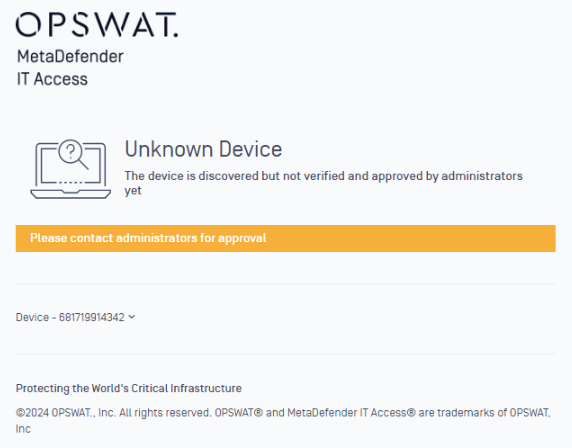
When the OPSWAT Client is installed on a system outside the expected domain, it may exhibit below warning.
Solution 2: Policy-based Mitigation (Alternative)
If the Global Settings option is not enabled, administrators can mitigate impact through policy configuration.
Group Management
Move all managed devices into a separate group with the expected policy applied.
Default Group Policy
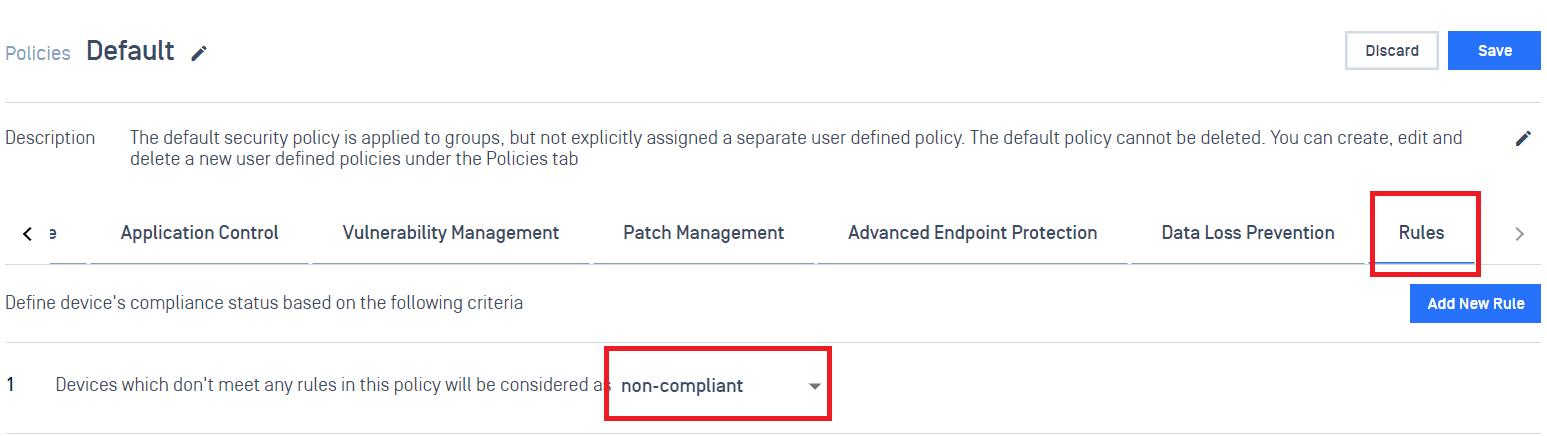
Create a dedicated policy for the Default Group:
Always consider devices as non-compliant.
Disable all categories to reduce unnecessary information in the account.
Lost Device Handling
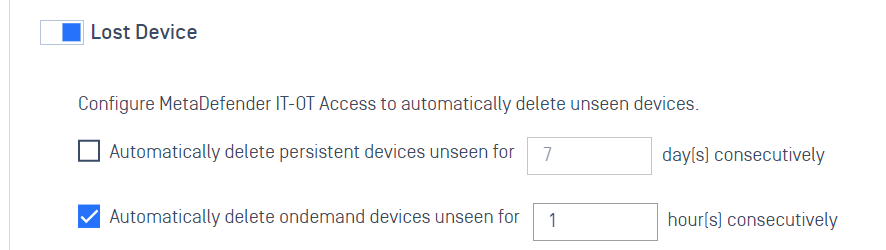
In the Default Group settings:
Enable Lost Device handling.
Configure to automatically delete On-Demand devices unseen for 1 hour, helping preserve license capacity.
Notes
Solution 1 is recommended as it provides a cleaner workflow and prevents license consumption automatically.
Solution 2 remains a valid mitigation strategy if Solution 1 is not enabled.
OPSWAT continues to monitor this behavior and may provide further improvements in future releases.
Support:
If Further Assistance is required, please proceed to log a support case or chatting with our support engineer.