
Guests who connect to a network protected by MetaDefender NAC may be redirected to a captive portal sign-in page hosted by My OPSWAT Central Management. By default, this page shows the OPSWAT logo and color scheme. You can replace the logo and colors with your own by creating a rebranding package and assigning it to the captive portal.
What can be customized
Element | Customizable |
|---|---|
Logo at the top of the page | Yes |
Page and sign-in card background colors | Yes |
Text, button, link, and icon colors | Yes |
Page text (for example, "Welcome to the network") | No |
Page URL | No |
The branding applies to the whole guest flow: sign-in, guest self-registration, forgot/set password, and the success and error pages.
The same rebranding packages are also used for the MetaDefender Endpoint remediation page of any device groups they are assigned to. Changes to a package that is already in use affect every place it is assigned. Create a dedicated package for the captive portal if you want to brand them differently.
Step 1: Download the rebranding package template
Go to Settings > Rebranding.
Click Add New Package.
Enter a Name (and optionally a Description) for the package.
Under Rebranding, select Customize a package.
Click English next to Download modern rebranding package for customization to download the template
.zipfile.
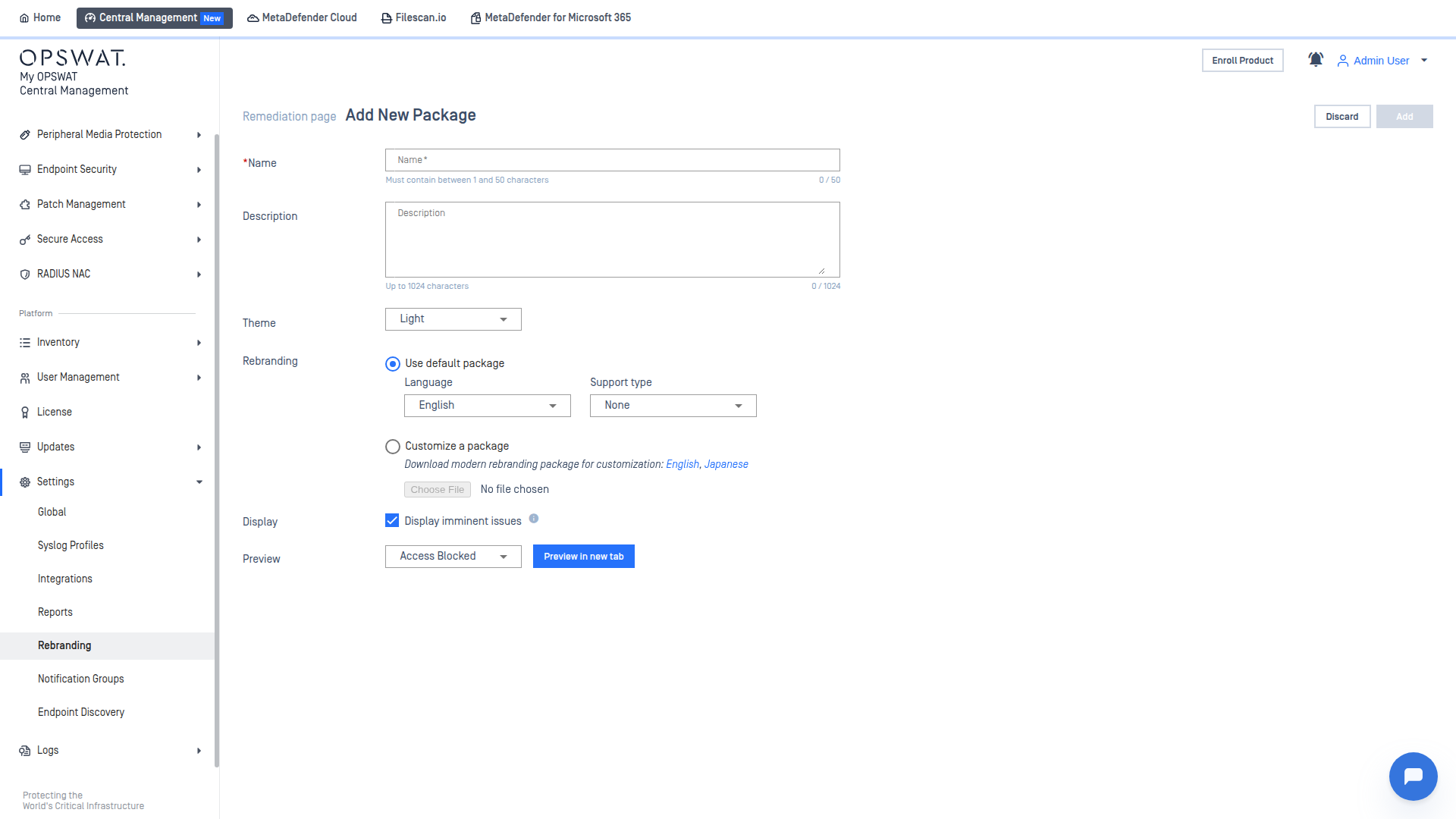
Keep this page open. You will upload the customized package here in Step 3.
Step 2: Customize the package
Extract the downloaded .zip file. Only the files below affect the captive portal. Leave all other files (category_*.json, rule_*.json, and the remaining keys in generic.json) unchanged.
Logo
Replace logo.png, light_logo.png, and dark_logo.png with your own logo. Keep the same file names and format:
Format: PNG (a transparent background is recommended)
Size: 264 x 112 pixels
Colors
Open generic.json and edit the nac_* keys inside the colors object. Each value must be a 6-digit hex color in the form #RRGGBB.
Key | Controls | Default |
|---|---|---|
| Page background |
|
| Sign-in card background |
|
| Main text color; also tints input field borders, placeholders, and dividers |
|
| Primary button (Sign In) background |
|
| Primary button text |
|
| Secondary button (Register a guest account) text |
|
| Links (for example, Forgot password?) |
|
| Success icon |
|
| Error icon |
|
| Error message background |
|
| Footer trademark text |
|
For example:
Re-package
Compress the files back into a .zip file. The files must be at the root of the archive, not inside a folder.
Step 3: Upload the package
Return to the Add New Package page from Step 1.
Confirm Customize a package is selected, click Choose File, and select your
.zipfile.Click Add.
Step 4: Assign the package to the captive portal
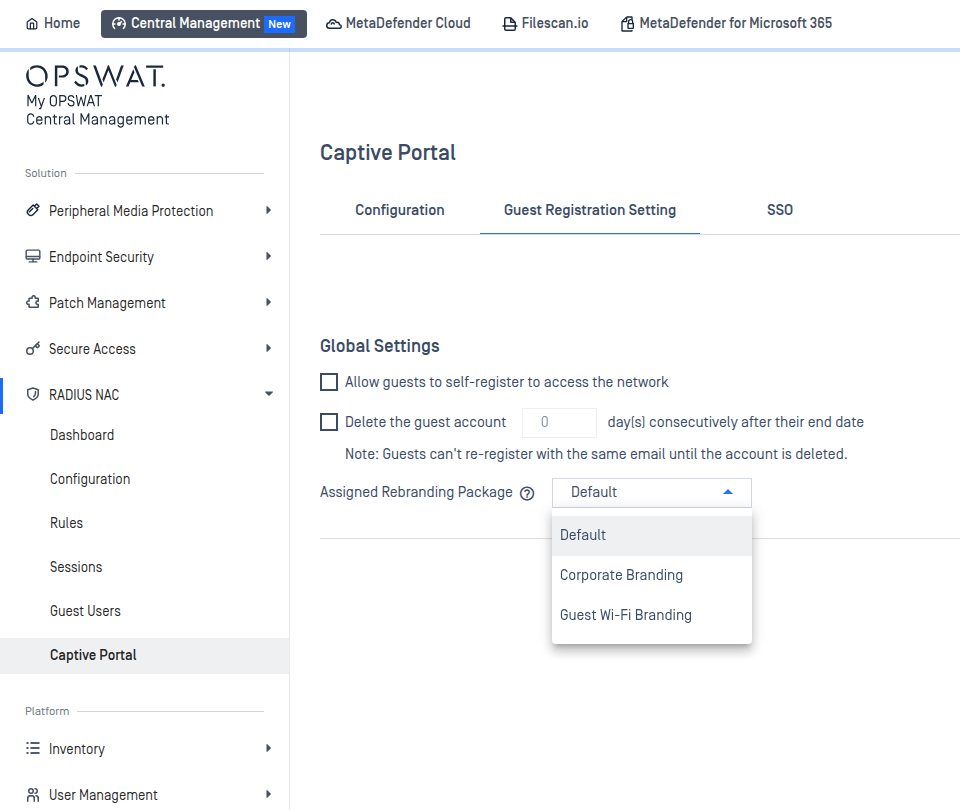
Go to RADIUS NAC > Captive Portal and open the Guest Registration Setting tab.
In Assigned Rebranding Package, select your package.
Click Save.
Step 5: Verify
Connect a guest device to the network, or open the captive portal in a new private browser window, and confirm that your logo and colors appear. Branding is loaded when the portal page opens, so a page that is already open will not change until it is reloaded.
Notes
To return to OPSWAT branding, select Default in Assigned Rebranding Package (assuming the Default package has not itself been customized).
If an assigned package is deleted, the captive portal automatically reverts to the default OPSWAT branding.
If your logo or colors cannot be loaded, the portal falls back to the default OPSWAT branding. Guests can still sign in.