Download and Install My OPSWAT Central Management
Follow the instruction Onboarding My OPSWAT Central Management for on-premises deployment.
Download and Install Your NAC VM
Please follow these instructions to download and configure the NAC VM.
Download NAC VM:
Login to your my.opswat.com
Navigate Product Download
On MetaDefender NAC , click on Download
Choose Platform and Version 10.x.x, click on Download
Follow the instructions below to install and configure the NAC in the admin's virtual environment
Step-by-step guide
Once the appliance is powered on, connect to the console and login with the username “admin” and the password “admin”.
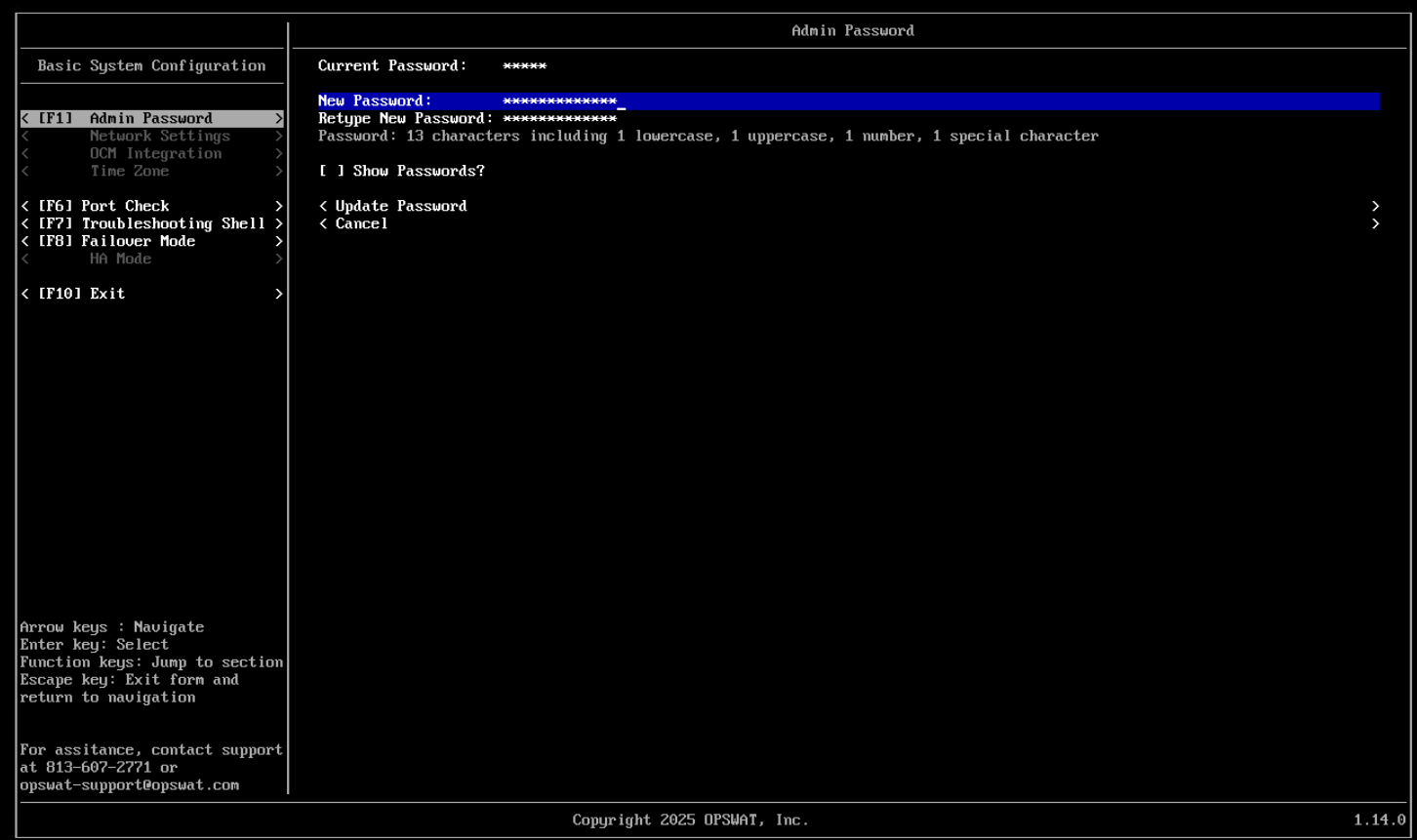
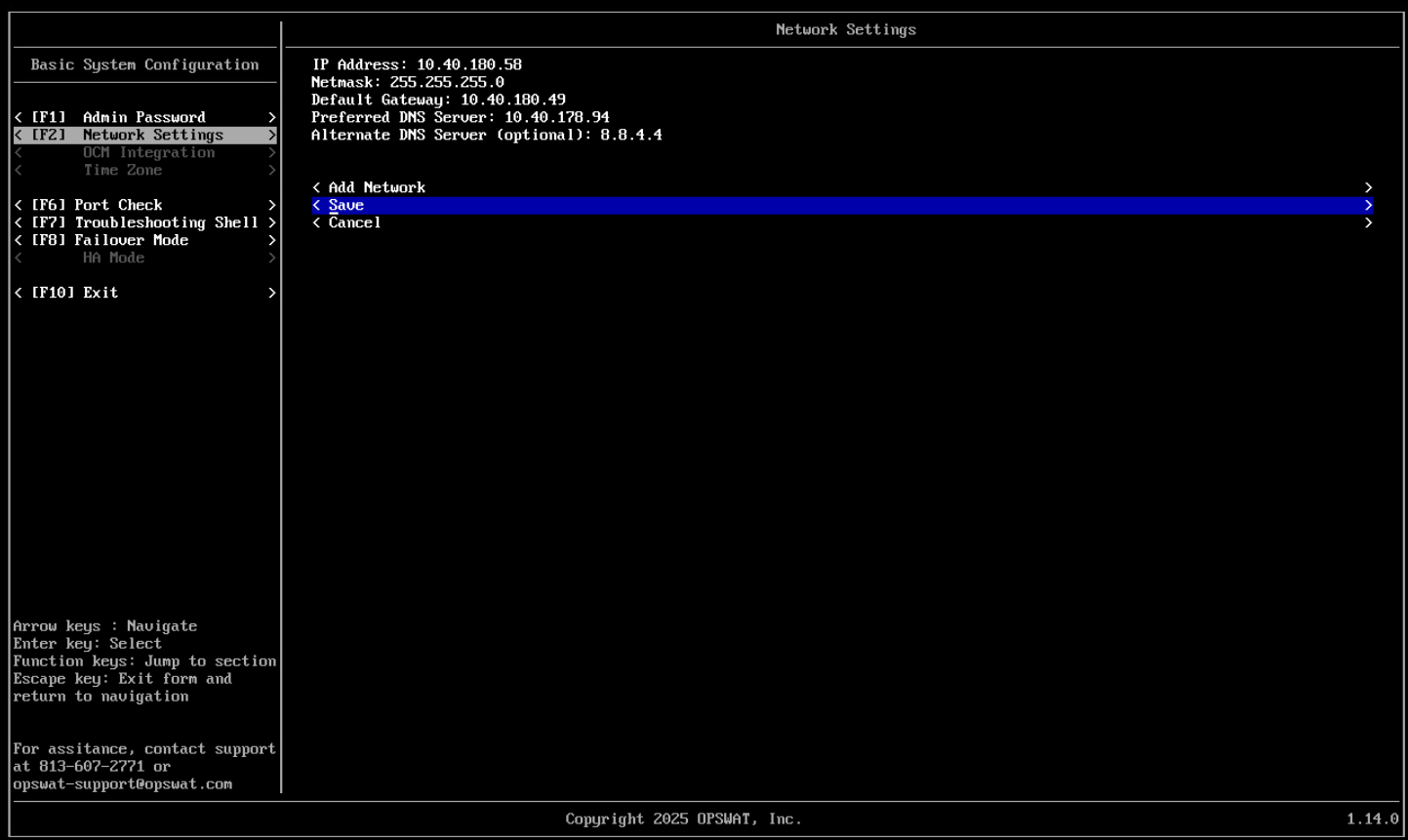
After logging in, the console configuration utility will be launched. The resulting pages will prompt the user to update the admin password, configure the IP address settings and enter a license key.
Reset Admin Password
Configure Appliance Network Settings
OCM Integration
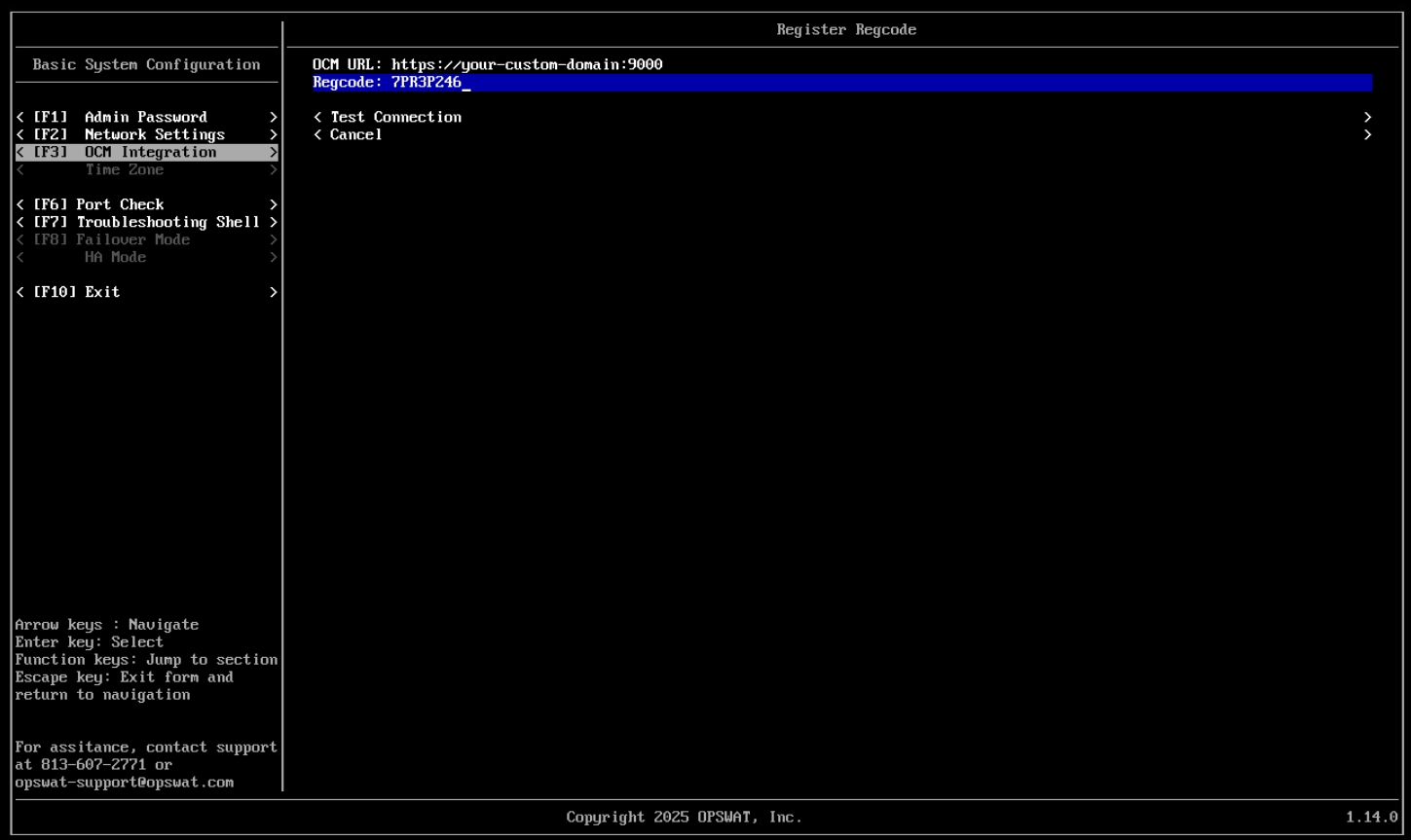
You can achieve OCM RegCode by:
Click on the button Enroll Product
Select Metadefender NAC Server
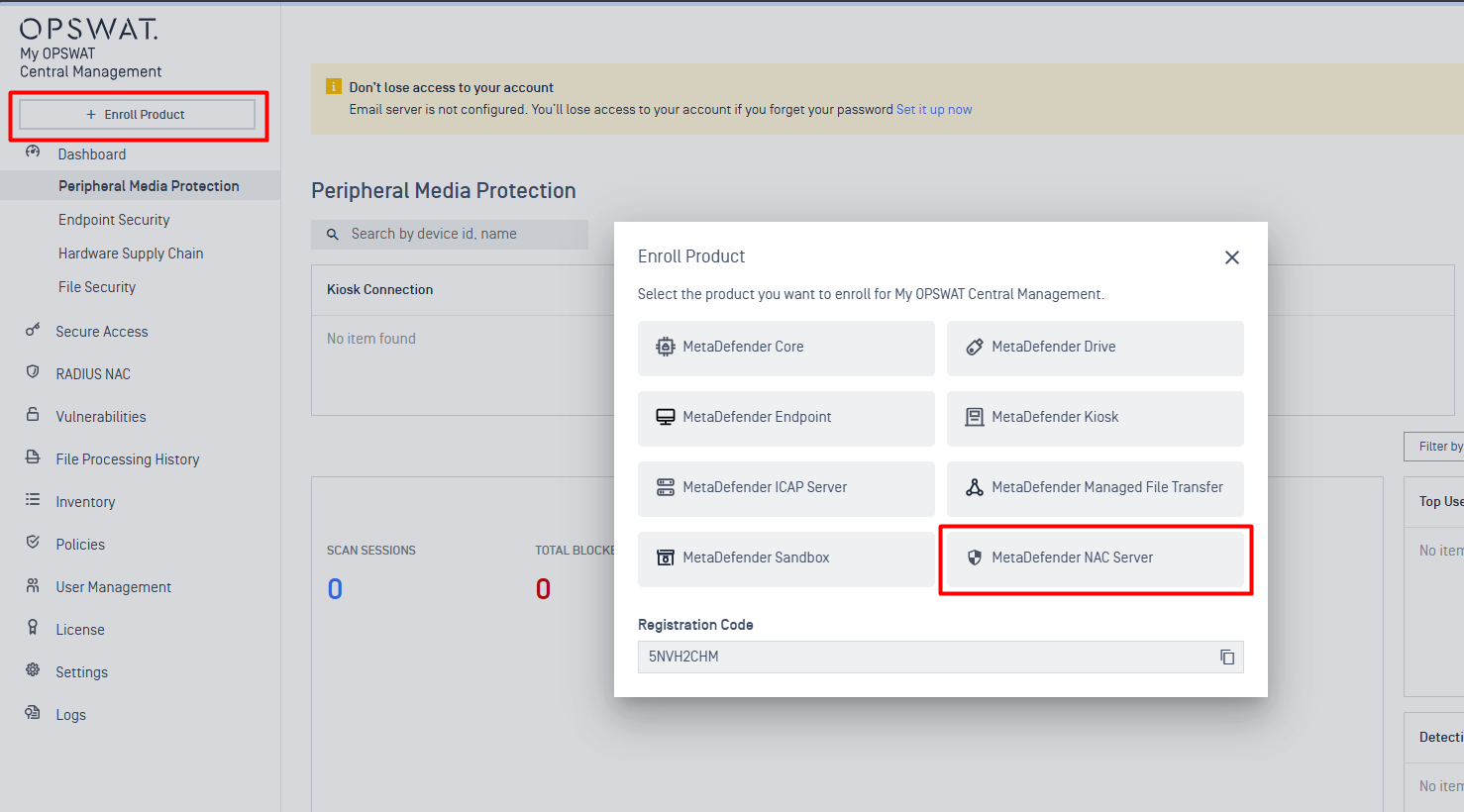
Copy the Server URL and the Registration Code then paste to the NAC VM
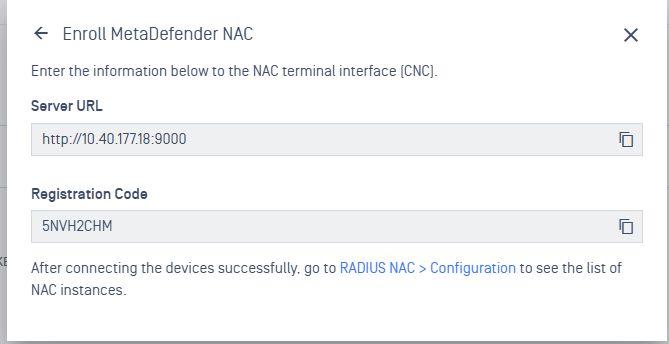
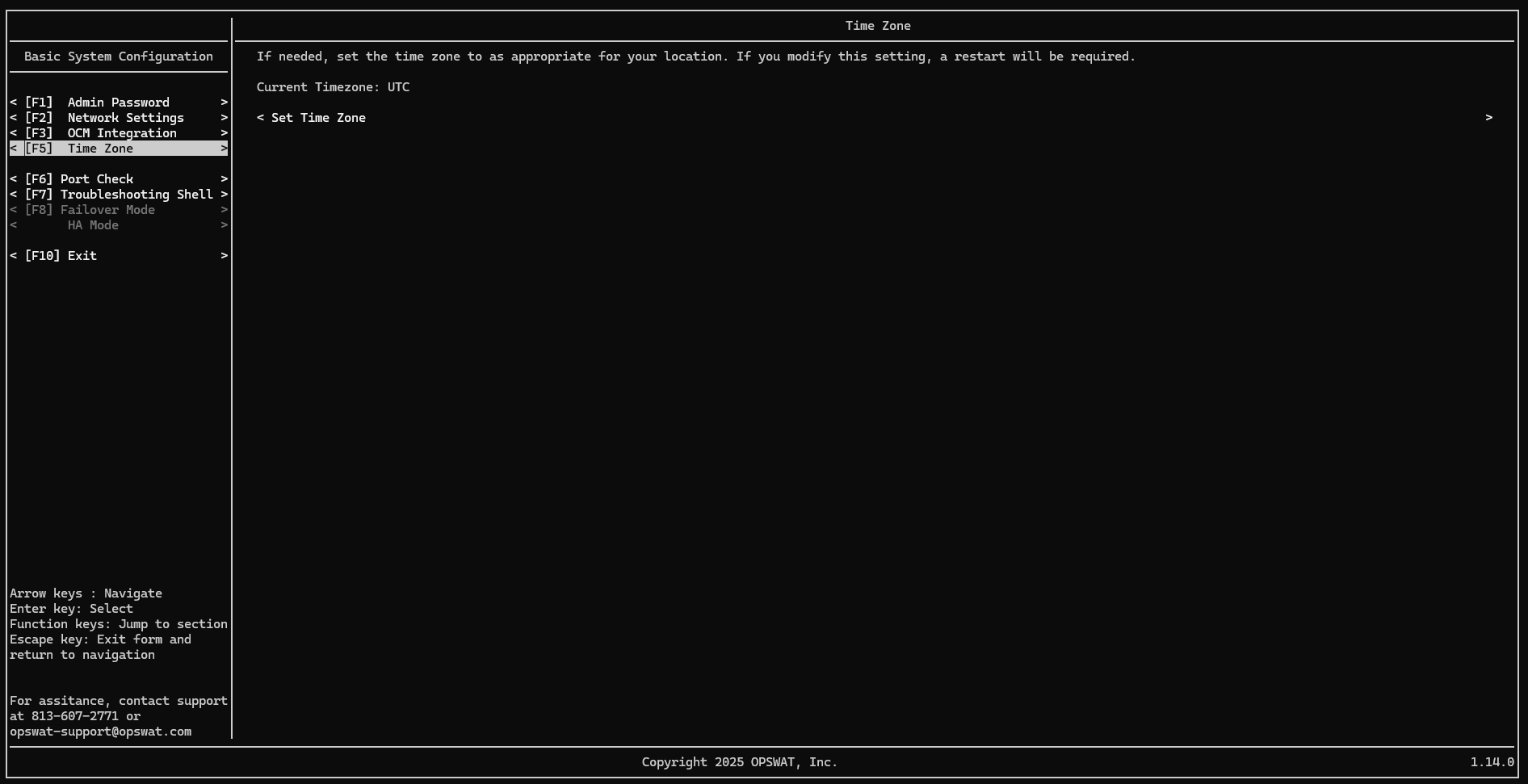
After activate successfully, you will able to move to the last setup step - Time Zone.
Setup Time Zone
Choose your best match Time Zone. After done setting, the system will restart