
Patch Notifications alert you when a key patch event needs attention, such as a deployment finishing, a device failing, a ring waiting for your approval, or a patch about to miss its SLA due date, so you don't have to keep checking the dashboard or patch lists yourself.
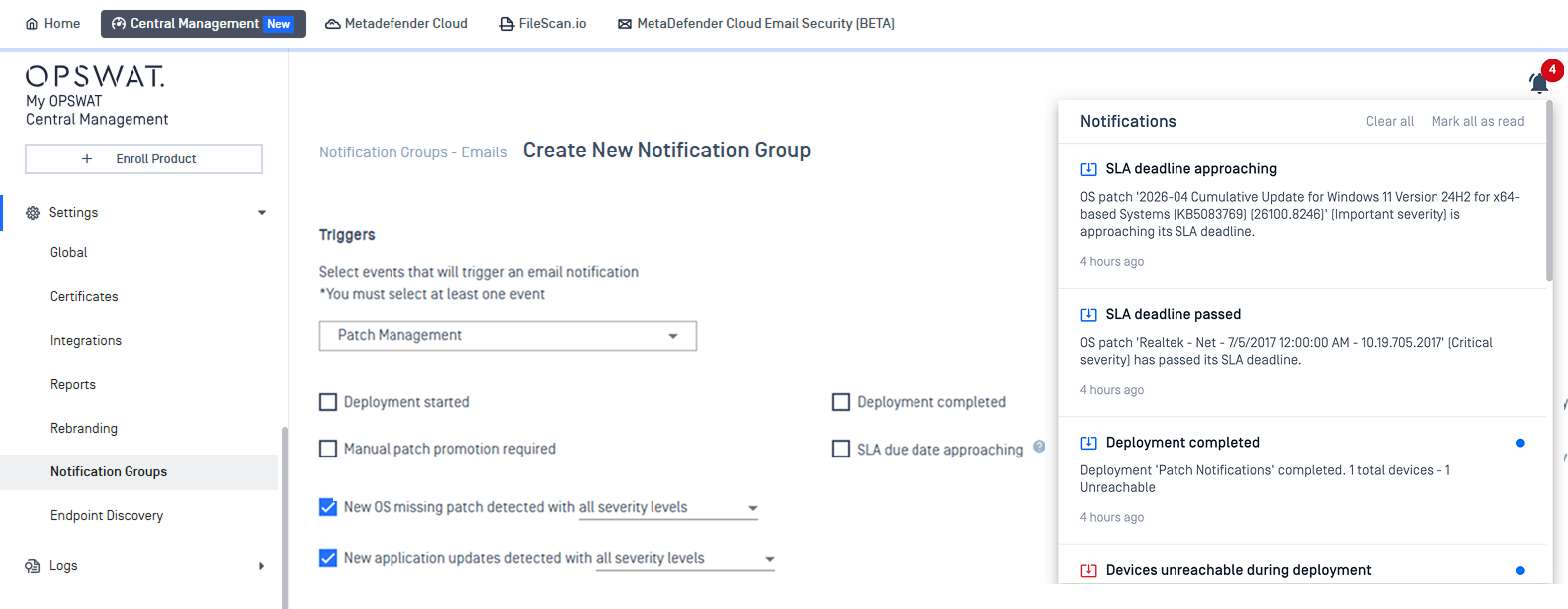
Enable Patch Notification for Your Account
Step 1. Create a Notification Group
To create a notification group, navigate to Settings > Notification Groups
Select Create New Group to begin
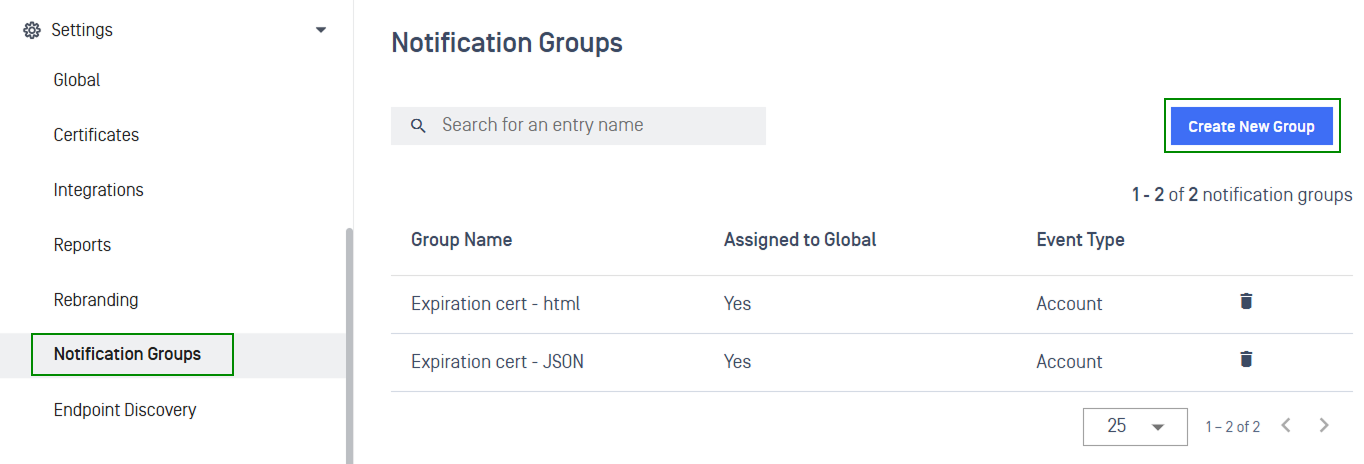
In the notification group creation page, fill in configuration fields
Field | Details |
|---|---|
Fill in the group's details | Fill in the group's details, including group name, email format, and group member emails 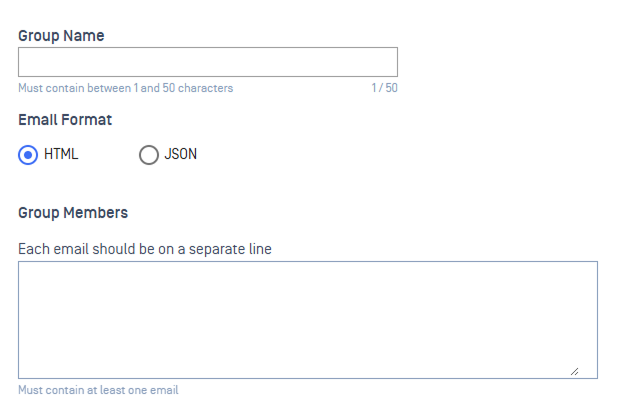 |
Choose event triggers | Select Patch Management from the dropdown, then select the checkbox for each event you want this group to receive. You must select at least one 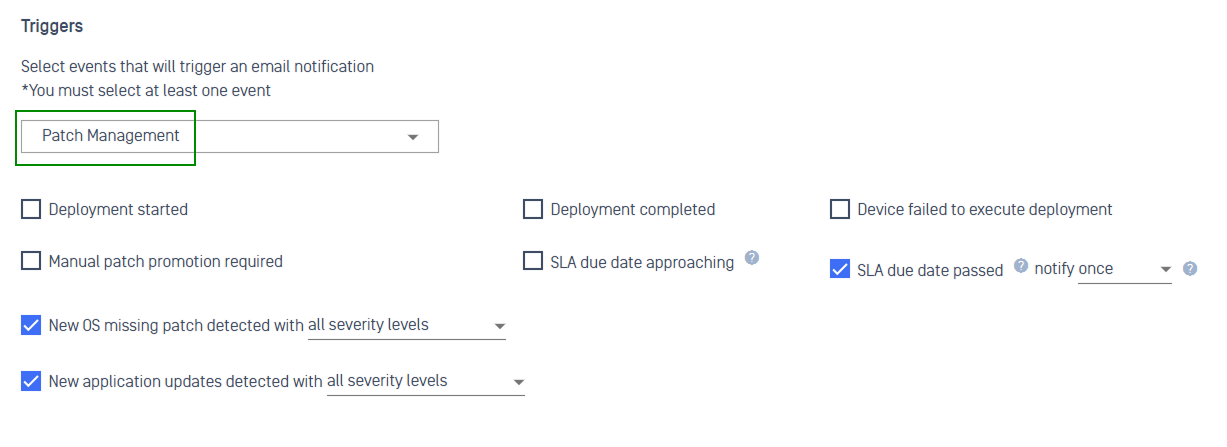 |
Select Save
Step 2. Assign Notification Group to Account
A notification group only sends alerts once it's assigned to your account.
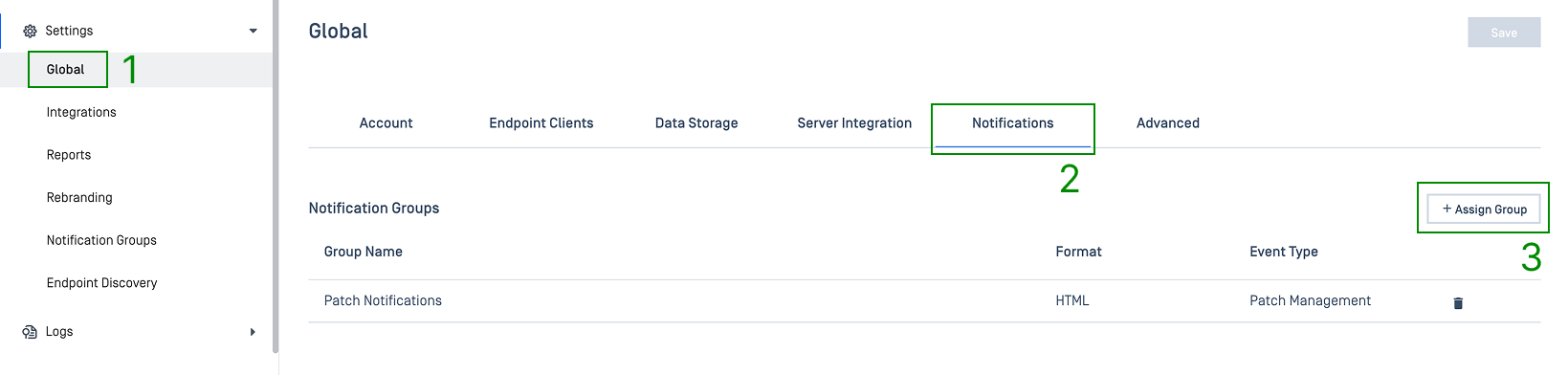
In the left navigation, select Settings > Global
Open the Notifications tab
Select Assign Group, then choose the notification group you created. See Create a new email notification group for detailed instructions.
Enable Patch Notification for Webhook and SIEM Integration
You can configure patch notification to send email alert to the external security and logging tools your team already monitors.
Webhook
Step 1: Create a webhook. See Webhook guidelines.
Step 2: Create a Notification Group
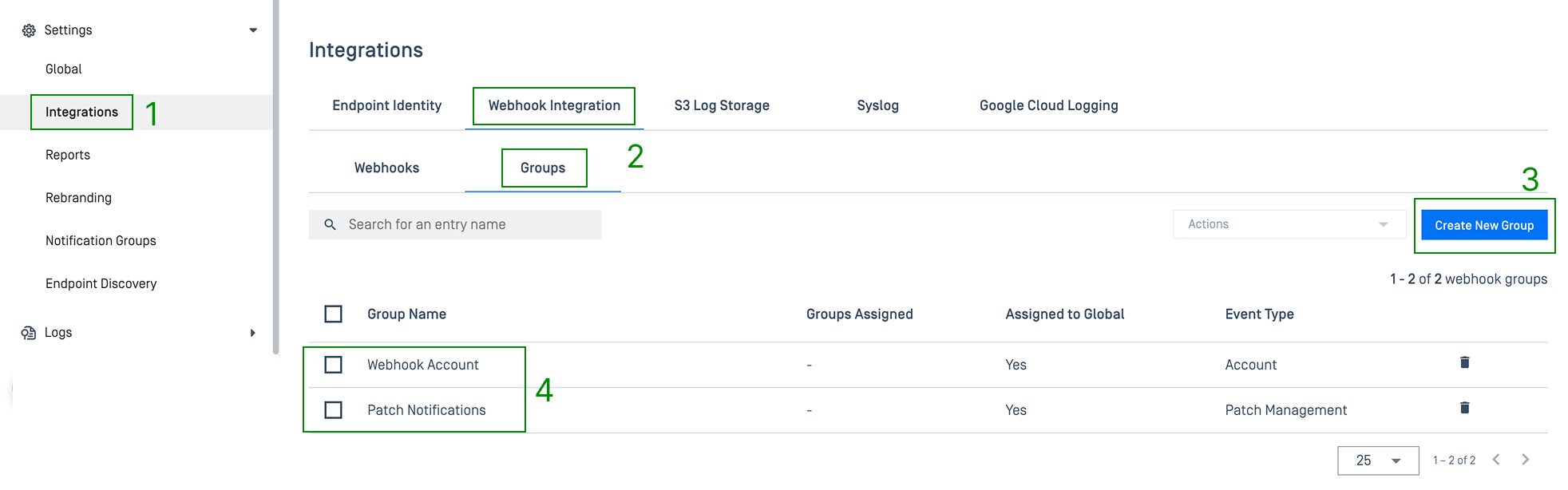
Navigate to Setting > Integration, choose Group under Webhook Integration tab
Click Create New Group, then fill in Group Name
Under Triggers, select Patch Management from the dropdown, then select the checkbox for each event you want this group to receive. You must select at least one.
Select the group and assign it to the account
S3 Log Storage, Syslog, or Google Cloud Logging
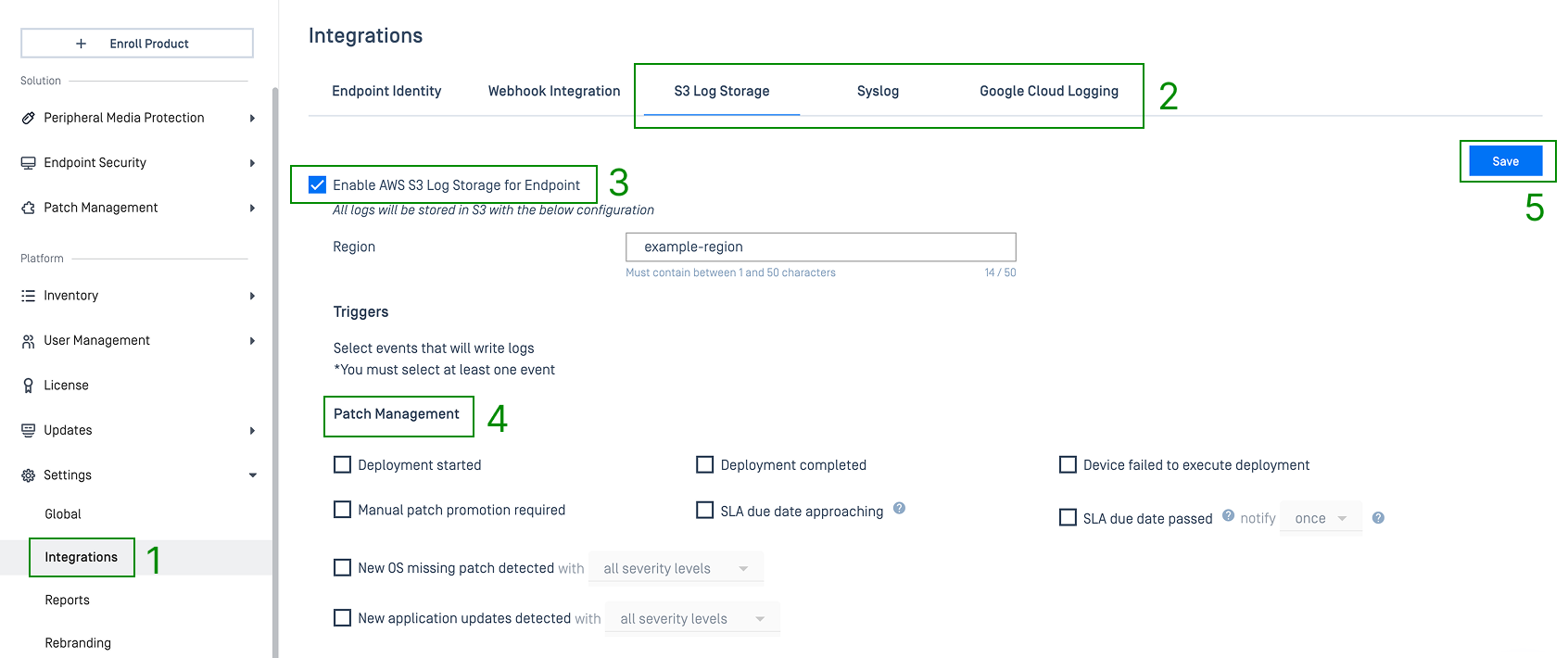
Navigate to Setting > Integration
Choose corresponding tabs
Click Enable checkbox
Select patch events under Patch Management section
Click Save
How Notifications Show Up
Locations | What You'll See |
|---|---|
In-app bell 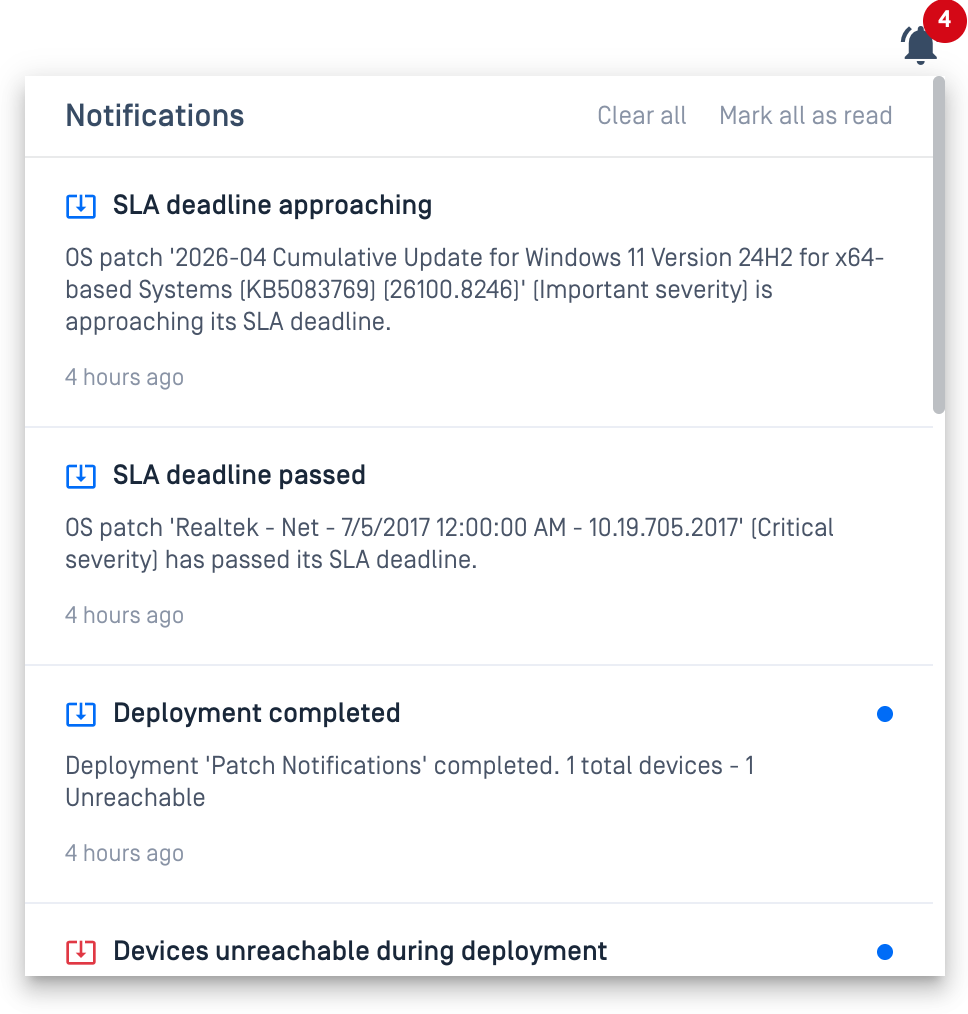 | A card with the event title, message, and timestamp. Select it to jump straight to the relevant page |
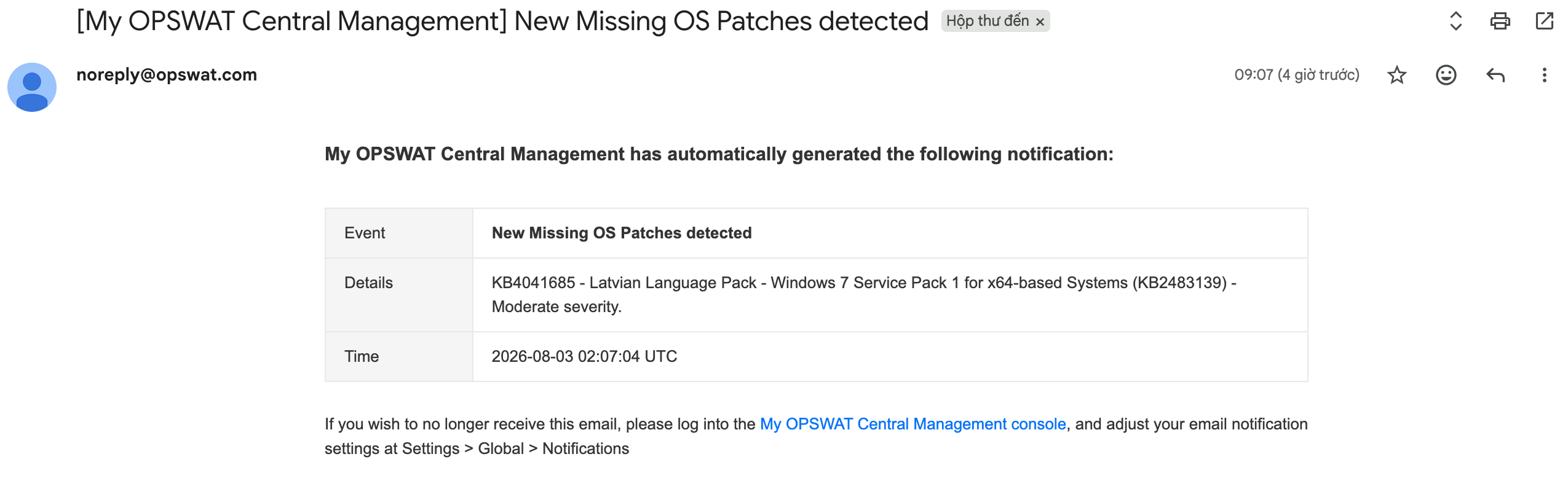 | Subject line is the event title. The body shows a simple Event, Details, Time table |
Webhook | An HTTP POST to your configured callback URL |
S3 Log Storage, Syslog, Google Cloud Logging | A structured log entry alongside your other My OPSWAT Central Management events |
Sample Notification Contents
Subject: [My OPSWAT Central Management] New Missing OS Patches detected
My OPSWAT Central Management has automatically generated the following notification:
Event | New Missing OS Patches detected |
|---|---|
Details | 5058383 - Security Intelligence Update for Microsoft Defender Antivirus - KB2267602 (Version 1.435.97.0) - Current Channel (Broad) - Important severity. |
Time | 2026-08-03 02:07:04 UTC |
If you wish to no longer receive this email, please log into the My OPSWAT Central Management console, and adjust your email notification settings at Settings > Global > Notifications
JSON
Webhook
Syslog
SYSLOG
Common Event Format (CEF)