
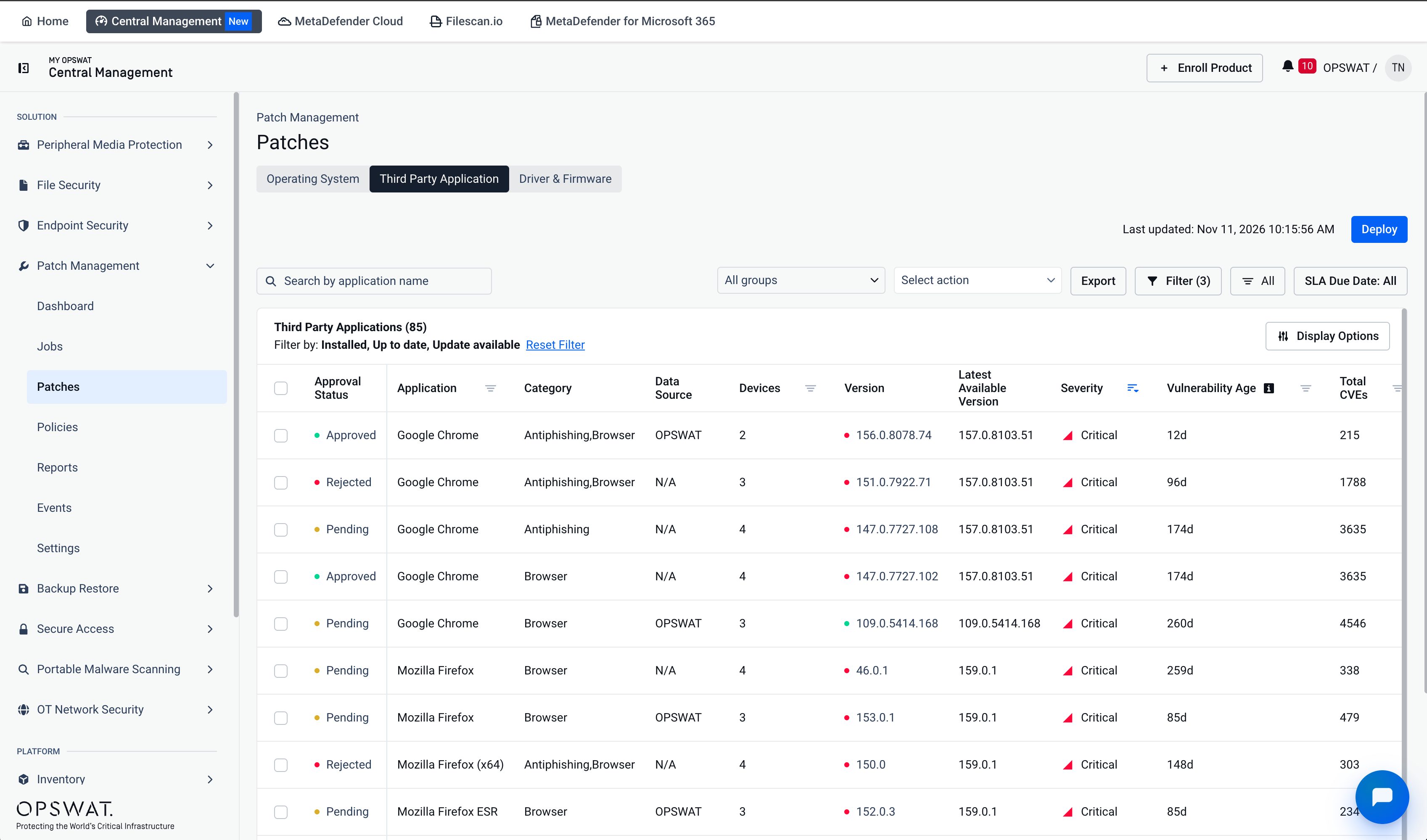
The Third Party Application list gives you one clear view of every version of every application in your environment: the versions your devices run today, and the supported versions they do not have yet. See what is out of date, understand the risk of each version, and act on it from a single page.
Note Available on MetaDefender Endpoint Windows persistent agent version 7.6.2612 or later.
Navigate to Patch Management > Patches > Third Party Application.
How It Works
Each row is one version of one application. A row is either:
Row type | Meaning |
|---|---|
Installed | At least one device runs this version. |
Not installed | The version is in the supported catalog, but no device has it (Devices = 0). |
By default the list shows installed versions only. Use the filters to include Not installed versions.
The list shows these columns, among others:
Column | What it tells you |
|---|---|
Version | The version of the row, with a status dot: green when it is the latest version, red when it is behind the latest. |
Latest Available Version | The latest version of the product. It is shown on every row, including rows that are already at the latest version. |
Devices | The number of devices running this version. |
Severity and Vulnerability Age | How critical the version is and how long its vulnerabilities have been known. |
Where the supported versions come from
The supported applications and versions come from the patch catalog. Every catalog version carries a vendor, a category, a severity rating and a CVE count, so a version that is not installed can be assessed like an installed one. The catalog and its severity ratings refresh automatically.
When devices move to a newer version
When every device has moved past a version, the version stays in the list with 0 devices:
for 30 days, or
permanently when a deployment targeted it, so you can still open its deployment history.
Its dot stays red if it is still behind the latest version.
Find what matters
Use Search to find an application by name, and Filter to narrow the list.
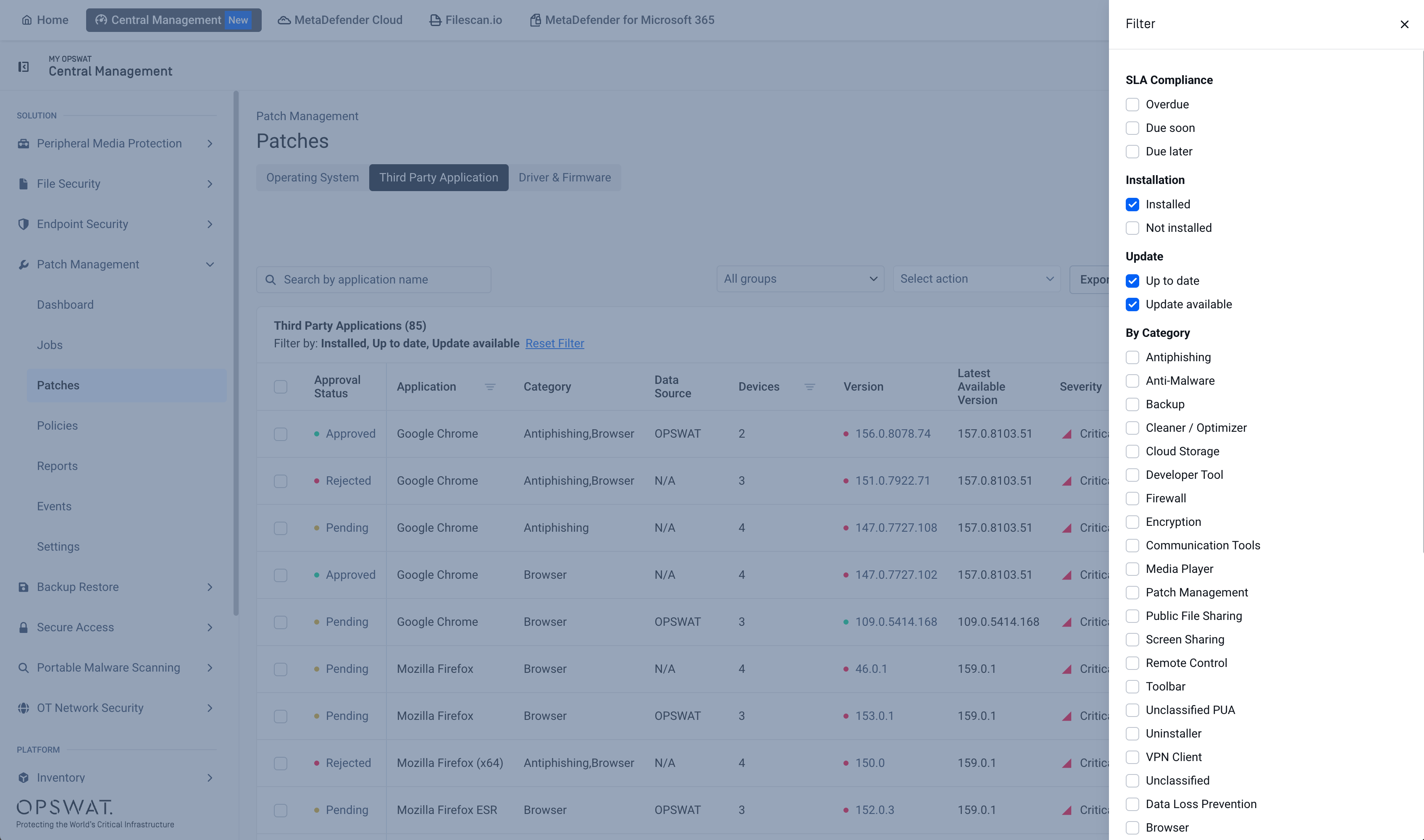
Filter | Options |
|---|---|
Installation | Installed, Not installed |
Update | Up to date, Update available |
You can also sort by severity, application name, vendor, devices, vulnerability age or total CVEs.
Review versions you do not have yet
Select Not installed under Installation to list the catalog versions that no device has. The header shows how many installed and not installed versions match your filters.
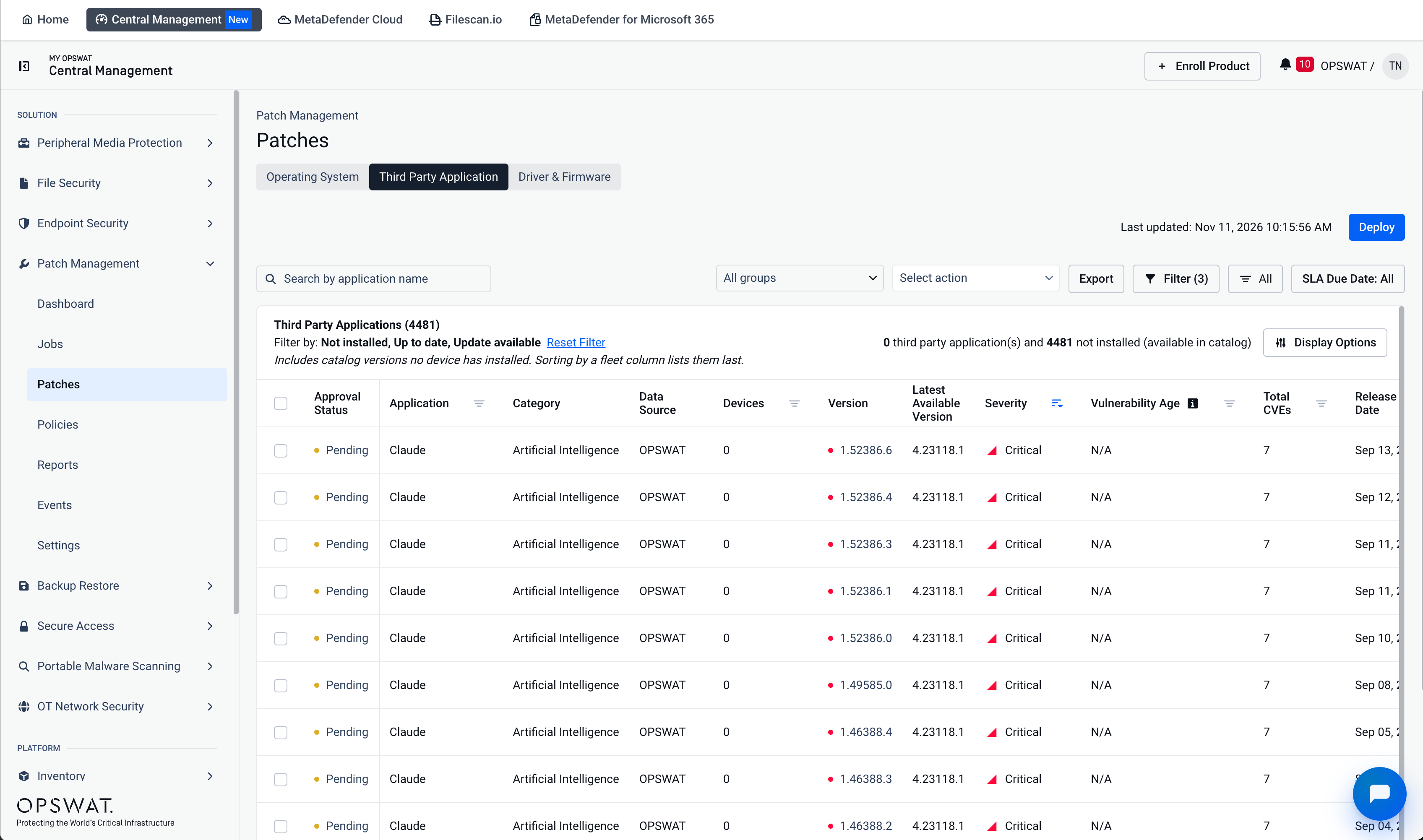
Catalog versions that no device has installed (Devices = 0).
Take action
Select one or more versions, then open Select action.
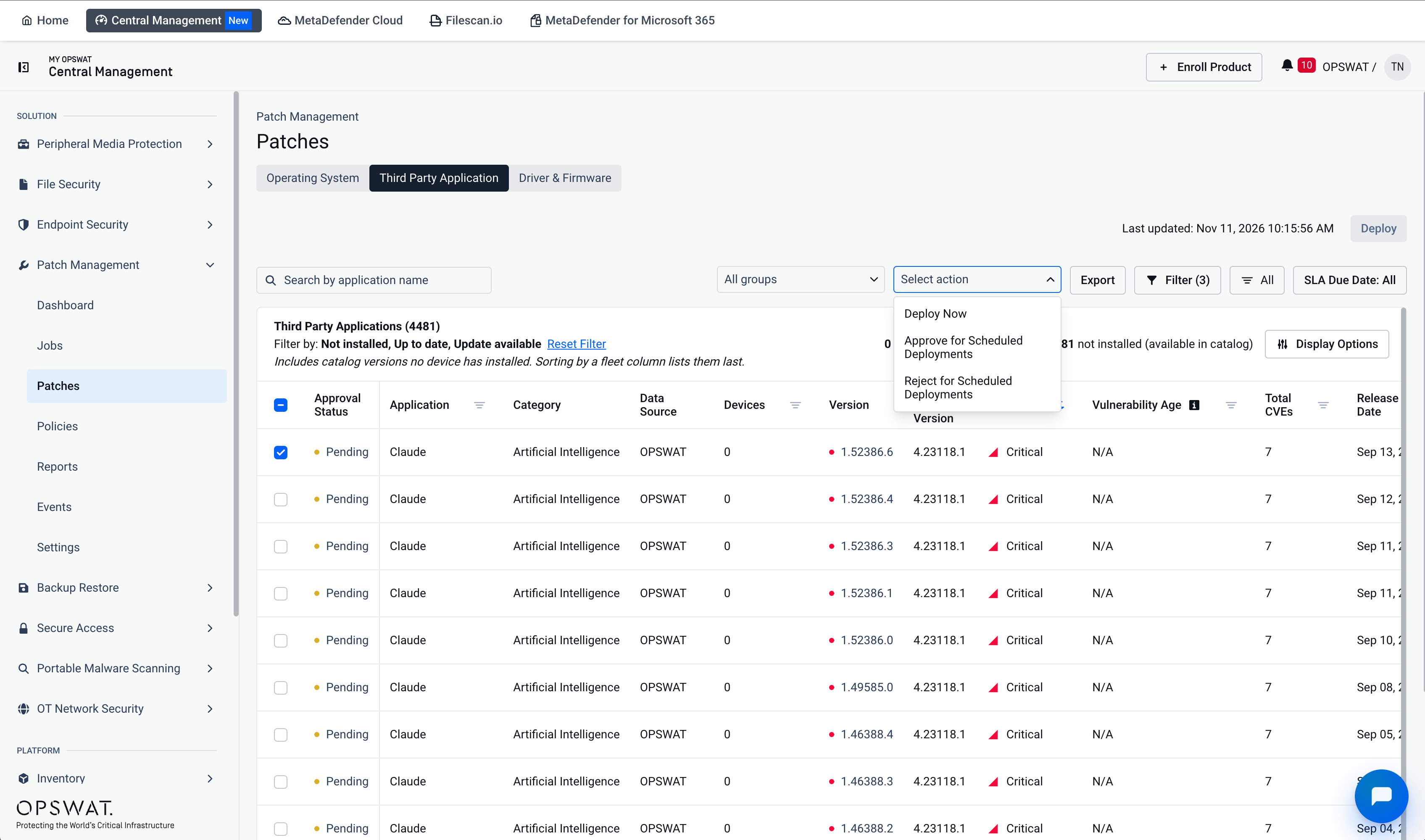
Action | What it does |
|---|---|
Deploy Now | Starts an on-demand deployment for the selected versions. |
Approve for Scheduled Deployments | Allows the selected versions in scheduled deployments. For a Not installed version, the approval carries over once the version is installed. |
Reject for Scheduled Deployments | Excludes the selected versions from all deployments. |
Use Export to download the list. The export contains exactly what the list shows, with the same filters and rows.
Version details
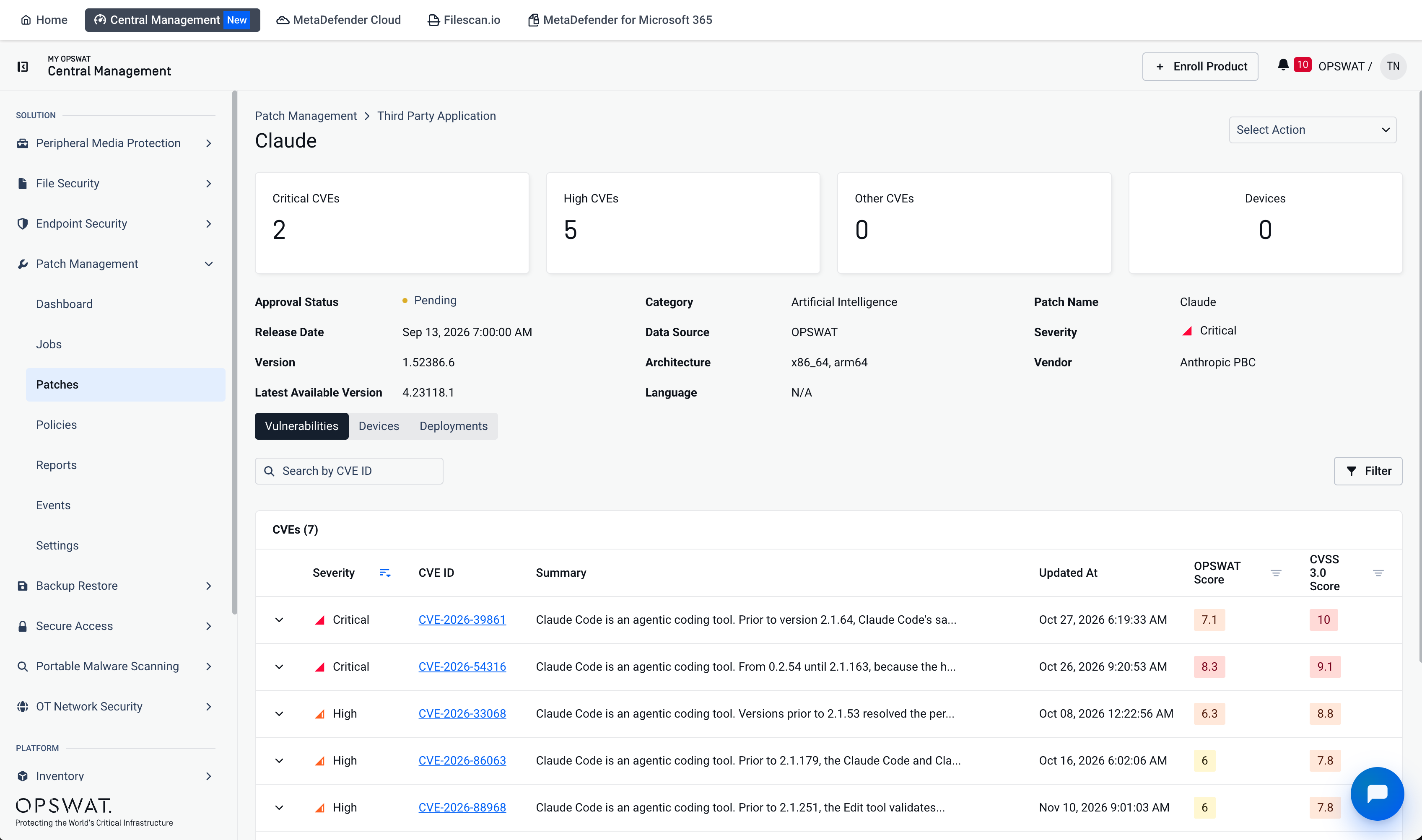
Click a row to open the version. The page shows:
the number of Critical, High and Other CVEs and the number of devices;
approval status, severity, vendor, category, release date, version, latest available version, architecture and language;
three tabs: Vulnerabilities (the CVEs of the version), Devices and Deployments.
Related Resources
Deploy Patches: roll out updates via on-demand, policy, or ring deployment.
Monitor Deployment: monitor updates across devices.