
This onboarding guide aims to help you get familiar with My OPSWAT Central Management platform, enroll MetaDefender products, navigate core functions, and manage your account with maximum efficiency.
On This Page
Pre-Onboarding Setup
Complete these steps to prepare your environment and install My OPSWAT Central Management.
Check System Requirements
Verify that your server meets the minimum specifications to deploy My OPSWAT Central Management On-premises. Refer to the System Requirement guideline for more details.
Download Installation Package
Once your server is ready, the next step is to obtain the My OPSWAT Central Management installation files.
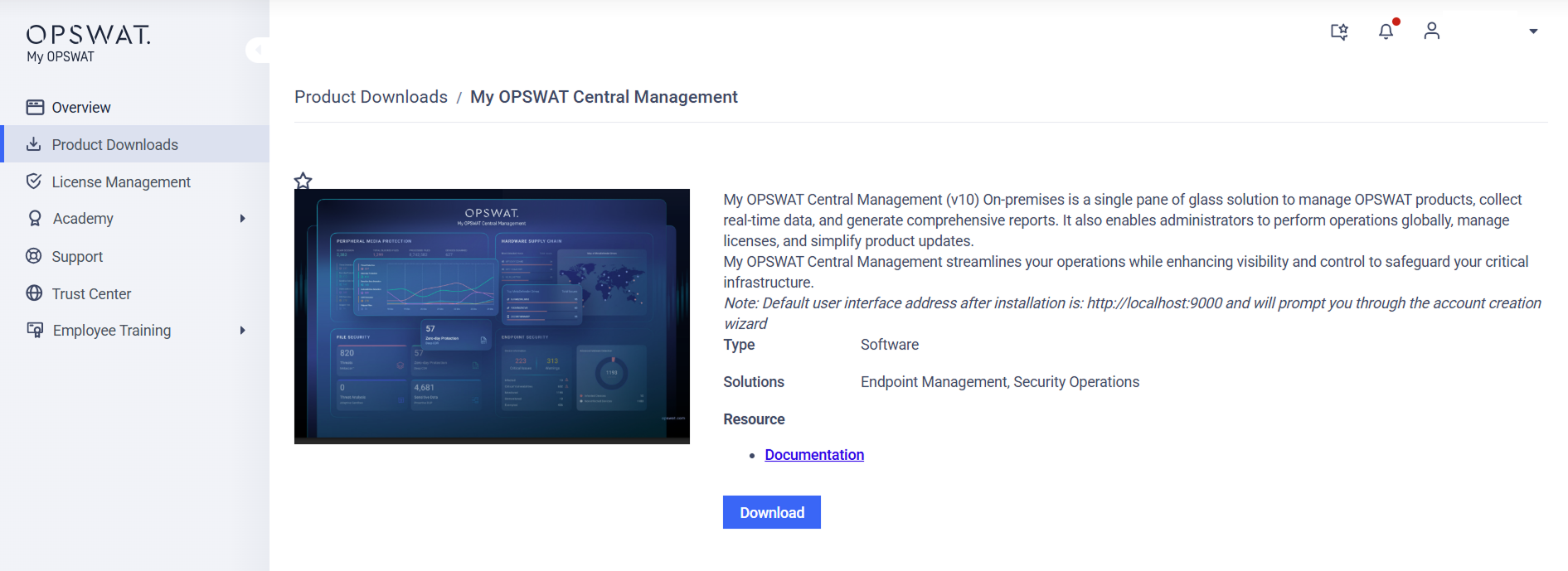
Log into the My OPSWAT Portal.
In the left-side menu, click Product Downloads.
Search or scroll for My OPSWAT Central Management to open the product details page.
Click Download, then select the specific system and version you need.
Install My OPSWAT Central Management
Choose the procedure that matches your infrastructure:
For Windows: Follow MSI Installation - Standalone mode guideline for detailed instructions.
For Linux: Follow RPM Installation guideline for detailed instructions.
For OVA: Follow Virtual Appliance Deployment guideline for detailed instruction.
For AWS: Follow Deployment with AWS guideline for detailed instruction.
Setup Wizard
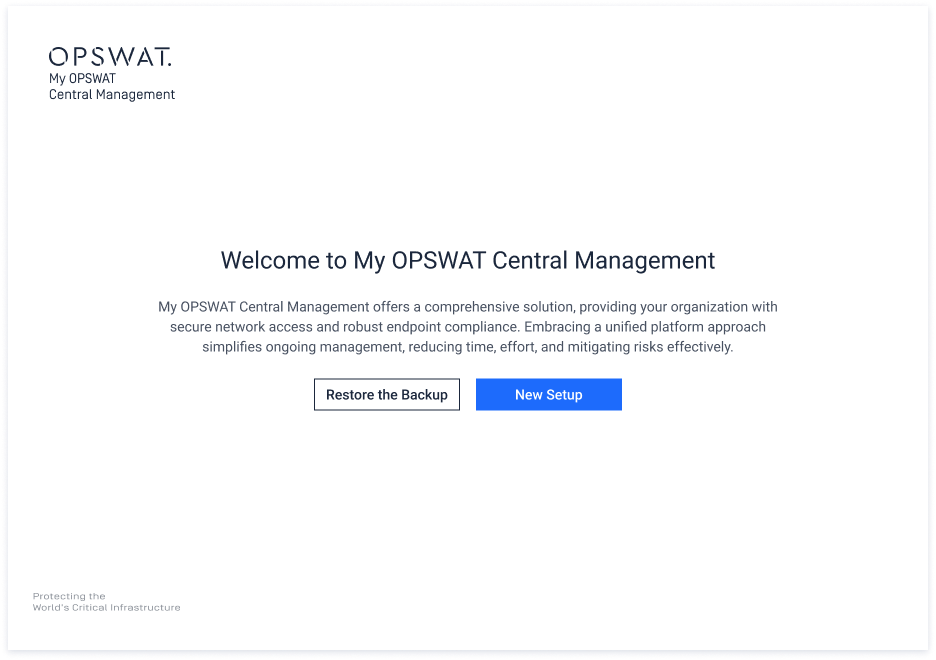
Once the installation is finished, the Setup Wizard will walk you through the final configuration steps to register your account and get your console live. Please follow the Setup Wizard guideline to complete the process.
Getting Started
Steps to execute once your environment is ready and your console is active.
Enroll Products
Enrollment connects your distributed MetaDefender products to My OPSWAT Central Management console. Select the specific enrollment workflow for your product:
Once enrollment is complete, head over to the Inventory tab where you can view and manage all enrolled assets.
Navigate Core Functions
This section outlines the core functions available to help you view, monitor, and manage your environment effectively.
Dashboard
Gain near real-time insights into your security posture through specialized dashboards. Instead of digging through logs, you get a clear, intuitive visual of what’s happening across your infrastructure.
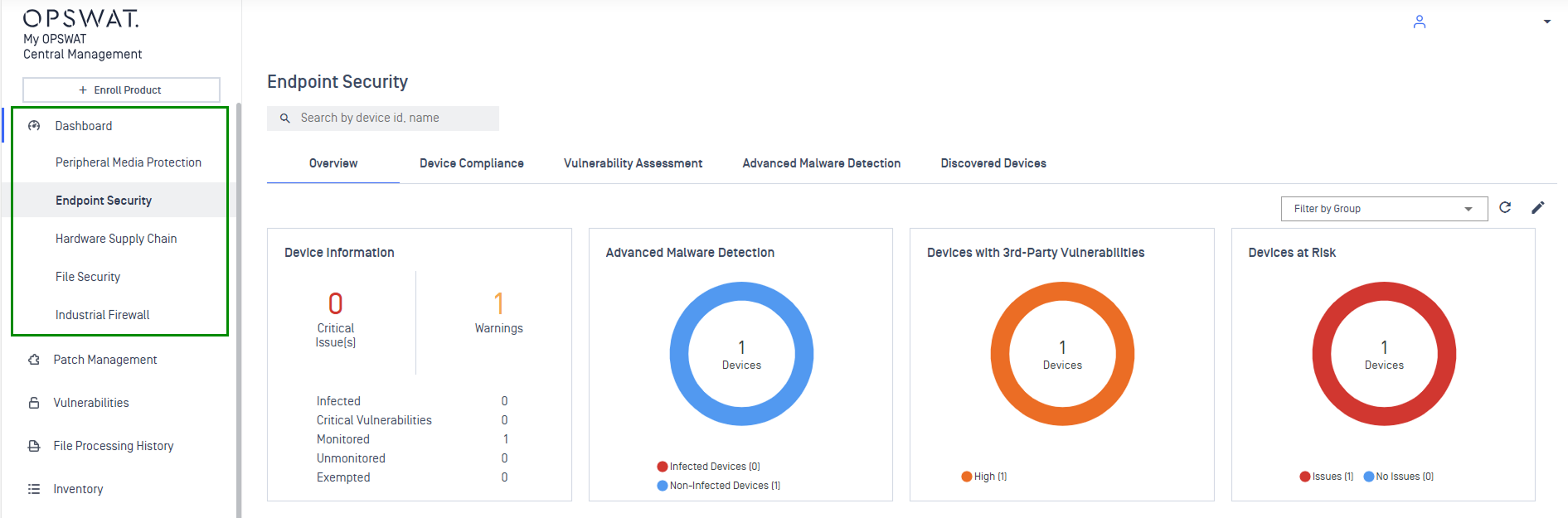
Peripheral Media Protection Dashboard: Monitors the security lifecycle of removable media across your Kiosk, Media Firewall, and Endpoint network to prevent physical-entry threats.
Endpoint Security Dashboard: Monitor device posture checks, track OS update status, and identify non-compliant devices.
Hardware Supply Chain Dashboard: Secure your hardware lifecycle by identifying vulnerable hosts and tracking supply chain integrity across your MetaDefender Drive deployments.
File Security Protection Dashboard: Centralizes statistics and data from your MetaDefender Core and MetaDefender ICAP, ensuring file-processing security measures are performing effectively.
Industrial FirewalI Dashboard: Centralize the configuration and management of MetaDefender Industrial Firewall deployments across OT environments.
Inventory
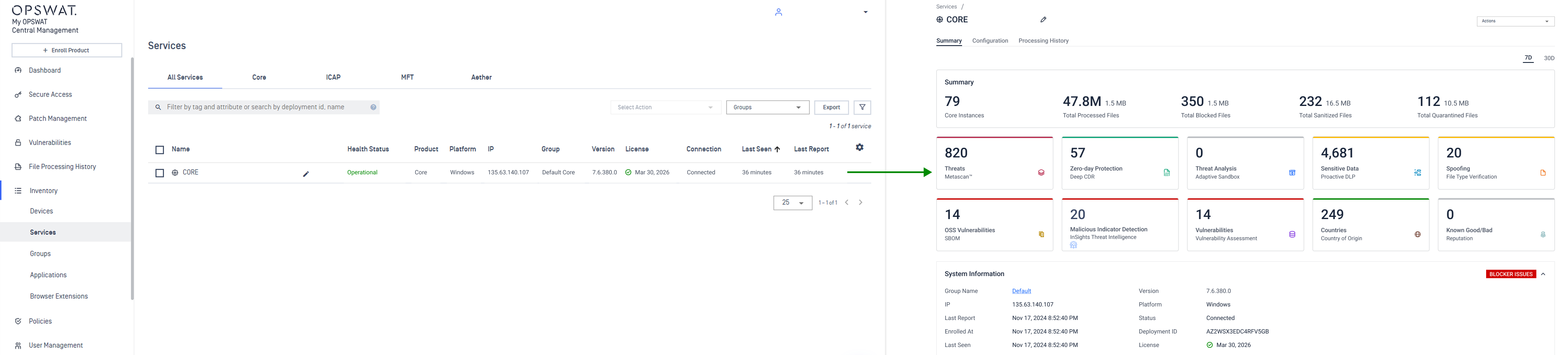
The Inventory serves as the centralized warehouse for every service, device, and application in your environment. Use this function to view real-time health status, track event logs, and organize assets into Groups for streamlined management.
Refer to the Inventory guideline for a full walkthrough of every filter, view, and action available.
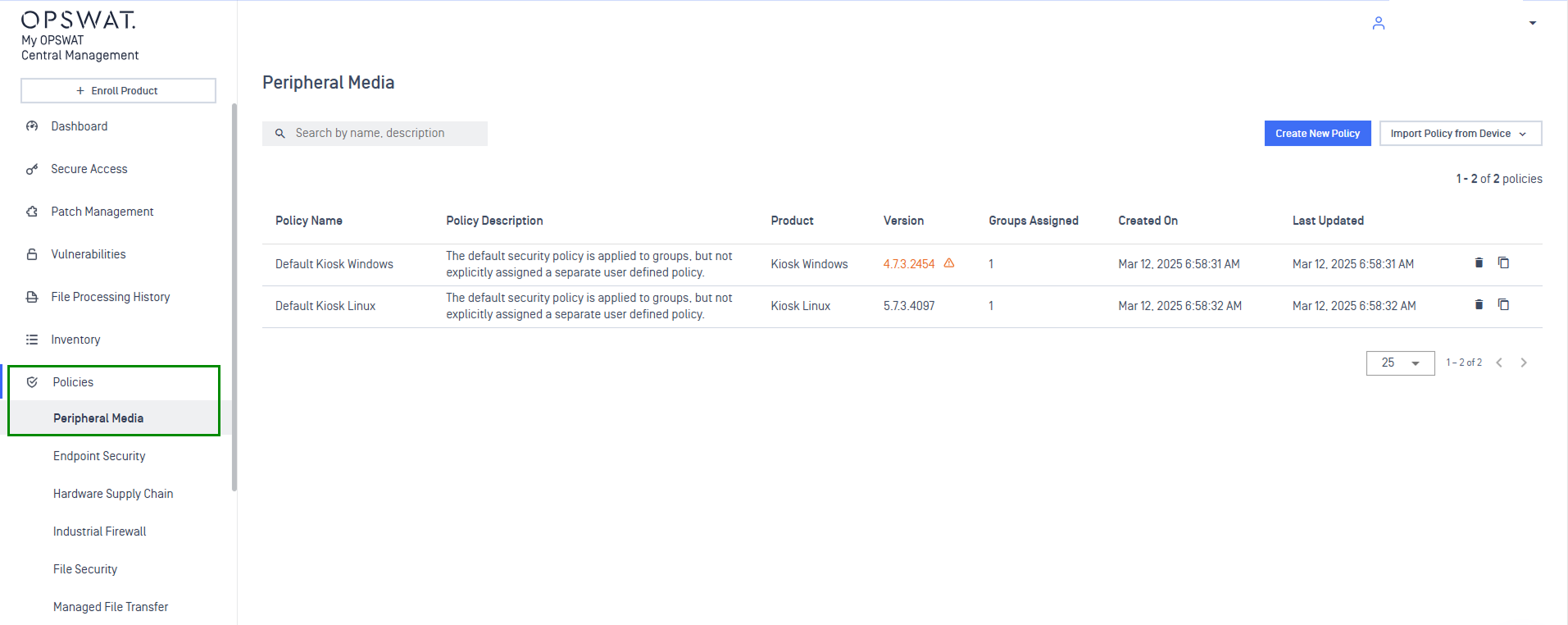
Policies
The Policies function allows you to define and enforce security standards and push them out to all your devices at once. It ensures every instance is following the same security rules without manual effort.
Refer to the Policies Management guideline for detailed configuration steps.
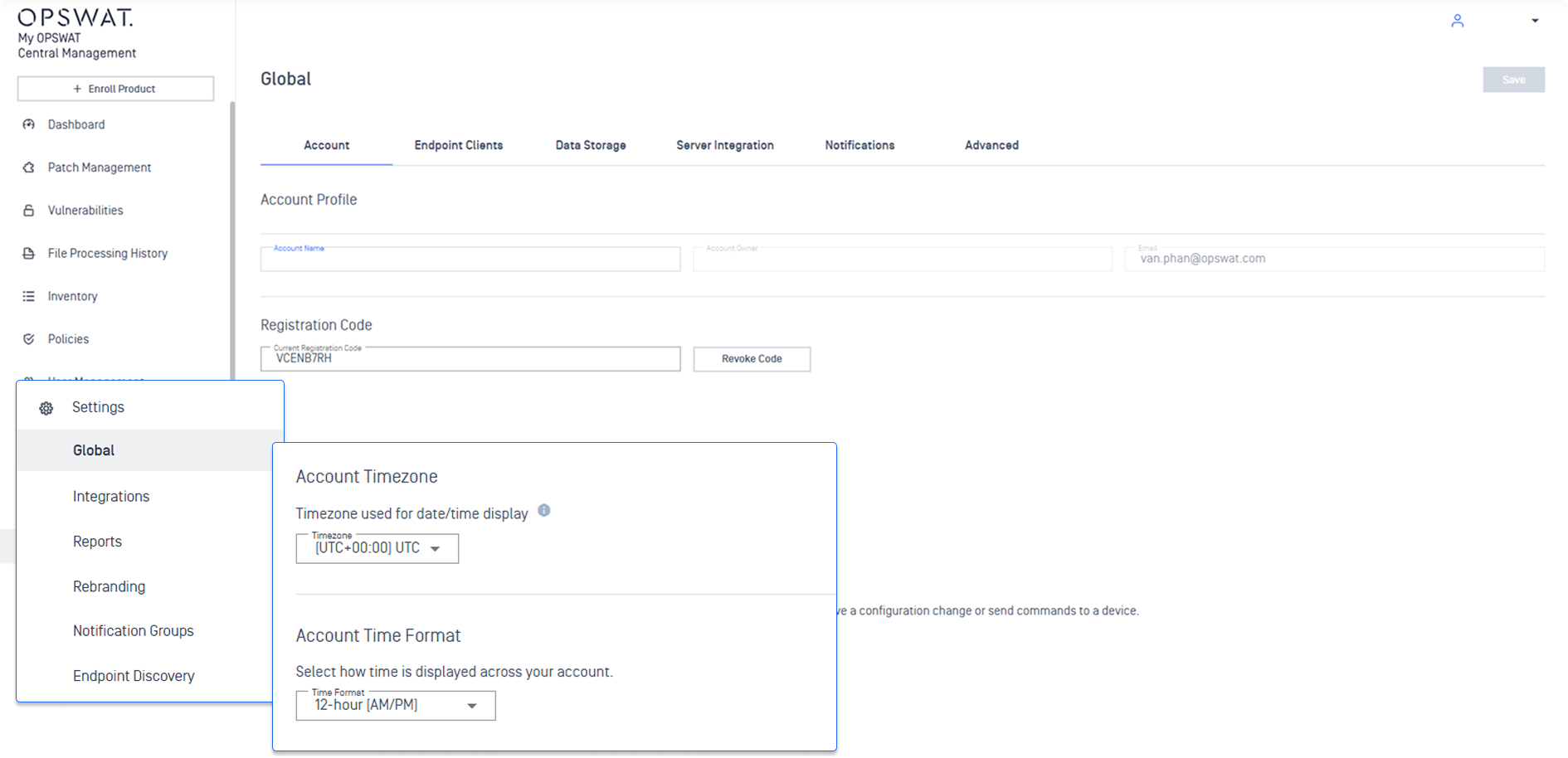
Settings
Fine-tune your platform-wide configurations by navigating to the Settings tab.
Refer to the Global Settings guideline for more details on the settings you can customize to tailor your account to your needs.
Manage Your Account
Keep your platform running efficiently with these administrative workflows.
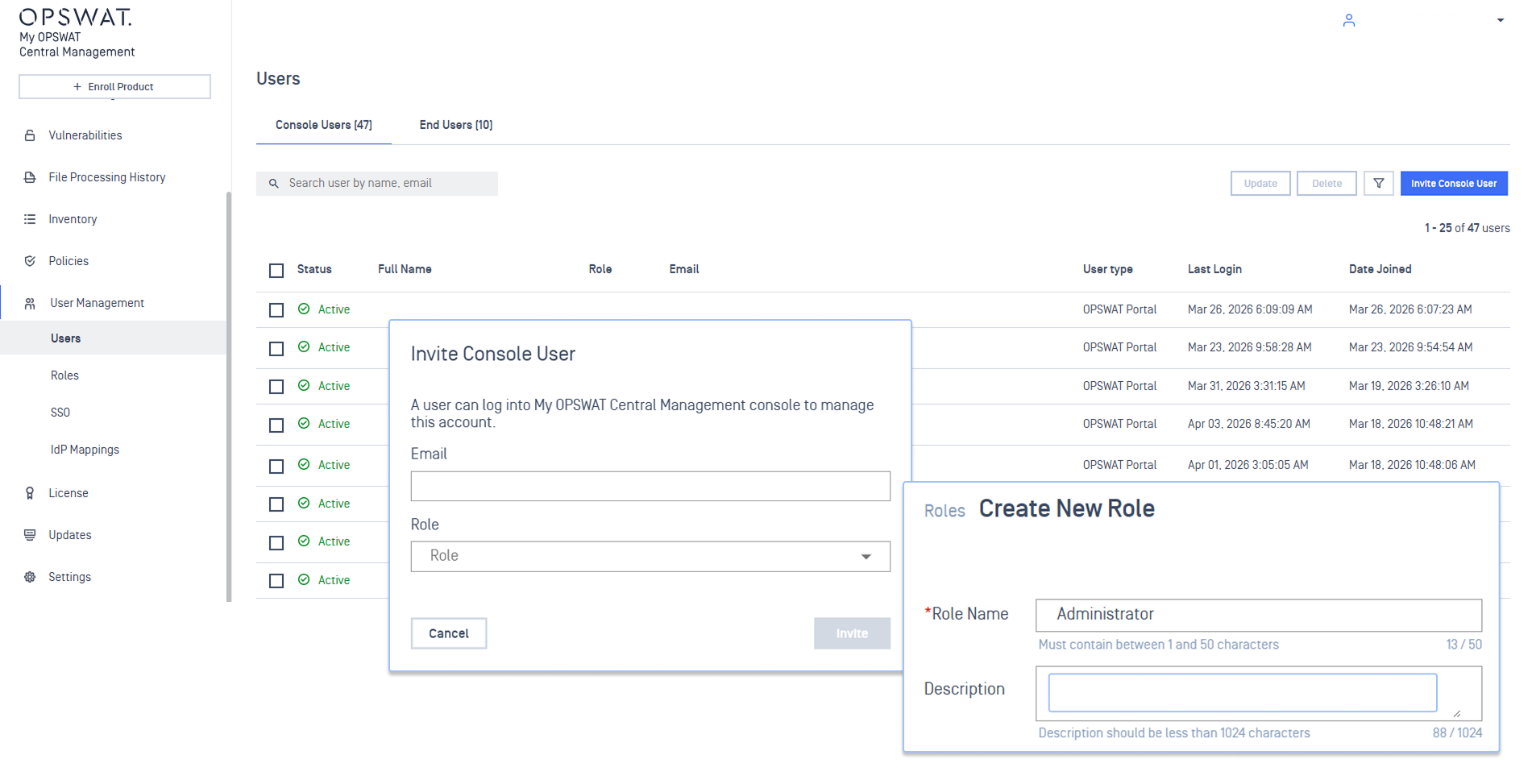
Users & Roles
Provision console users and define granular access levels.
To provision users who will access the My OPSWAT Central Management console, refer to the Provision Users guideline.
To create a customized level of access for console users, follow the Role Management guideline.
Server Configuration
Refer to the Server Configuration guideline for detailed instructions on how to configure server settings.
Product Updates
Use the Product Updates guideline to learn how to manage product updates.