
This article applies to the current My OPSWAT Central Mangement Console and API, and all MetaDefender Endpoint releases deployed on Windows systems.
Users running MetaDefender Endpoint on one or more Windows devices may occasionally see My OPSWAT Central Mangement device compliance warnings/flags related to User Authentication, although this depends entirely on policy configurations.
These warnings/flags are triggered by device issues and will appear under My OPSWAT Central Mangement Console>Inventory>Devices>Relevant Device>Detailed Device Information>Deep Compliance>User Authentication, as illustrated below.
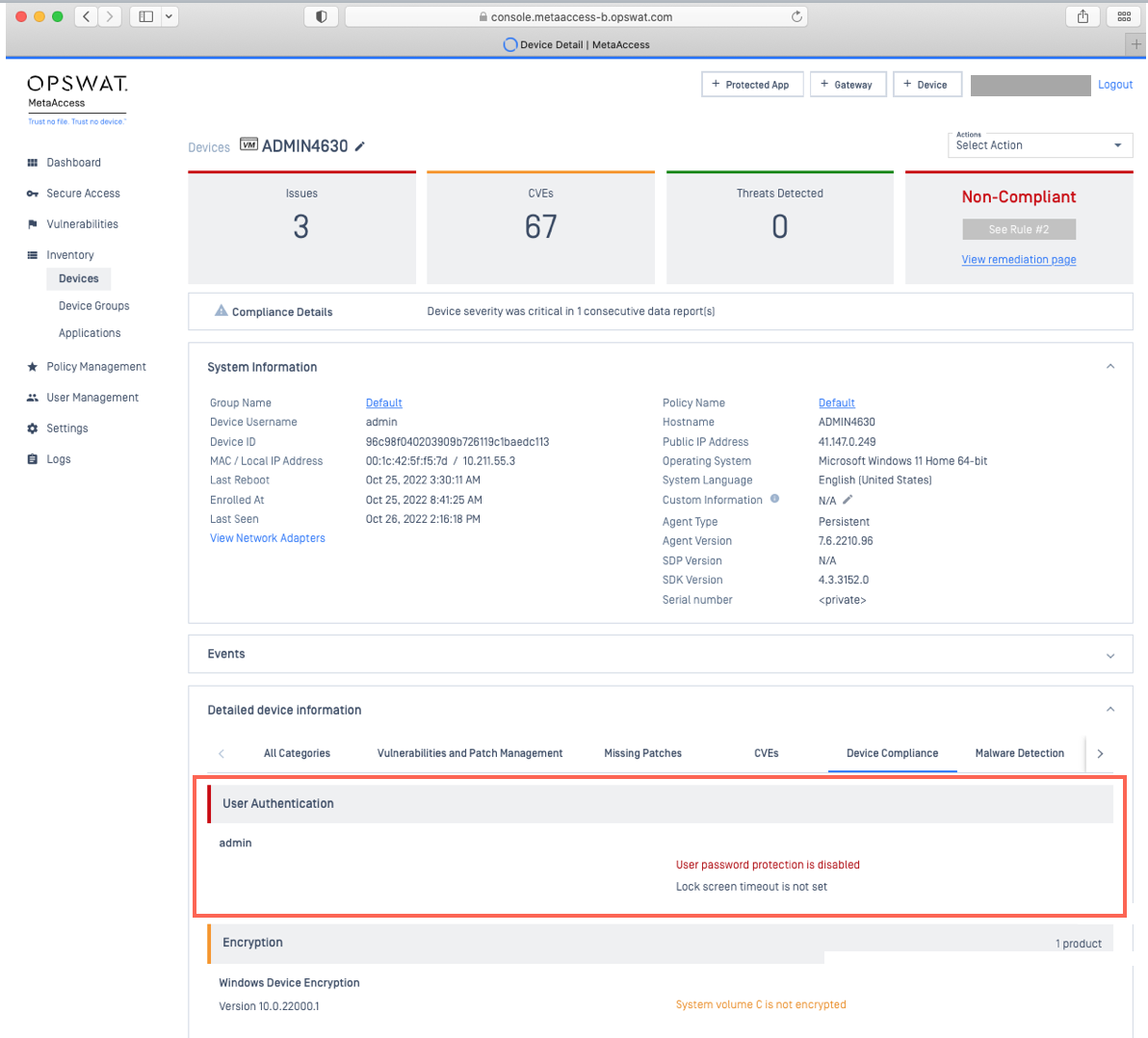
To remediate authentication-related device compliance issues on managed Windows devices, please follow the relevant instructions below.
My OPSWAT Central Mangement Compliance Warning: User Authentication - User Password Protection Is Disabled
Windows 11
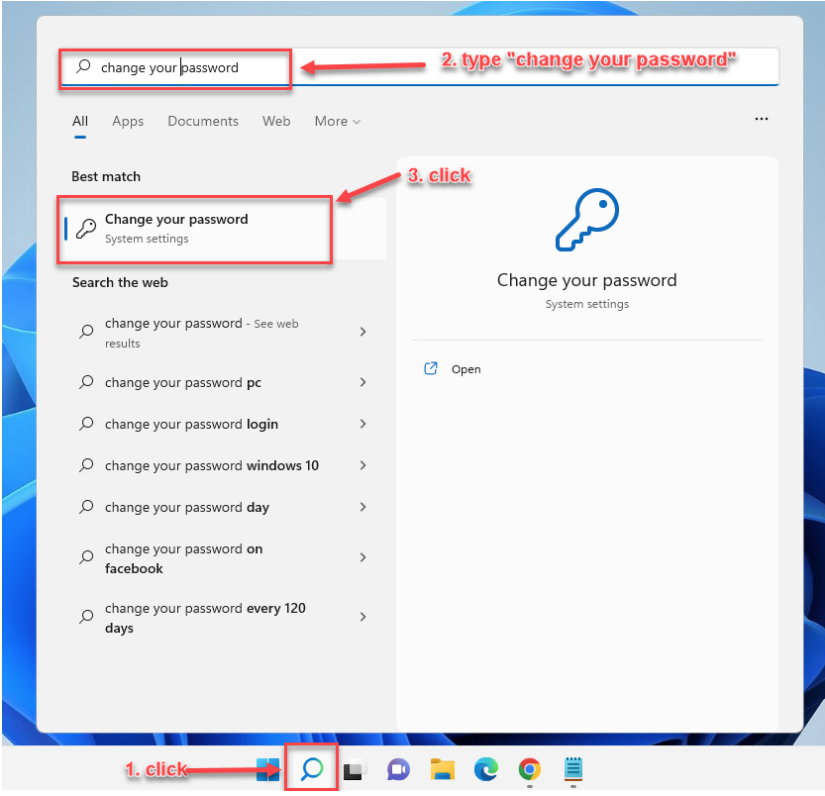
Go to the Windows Start menu, search for Change your password, then click on it to open the settings, as illustrated below.
Click to expand the Password section, then click Change, as illustrated below.
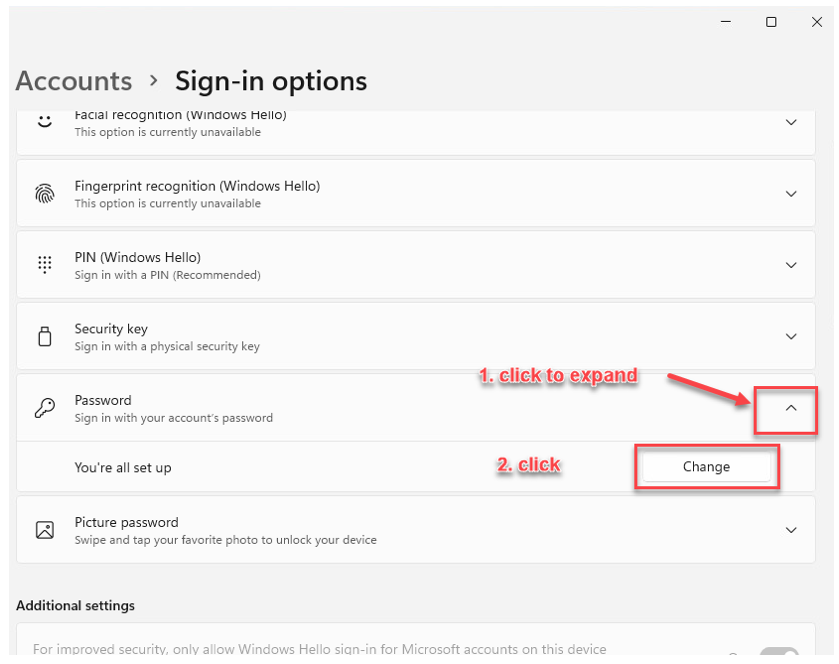
Follow the wizard to set your account Password.
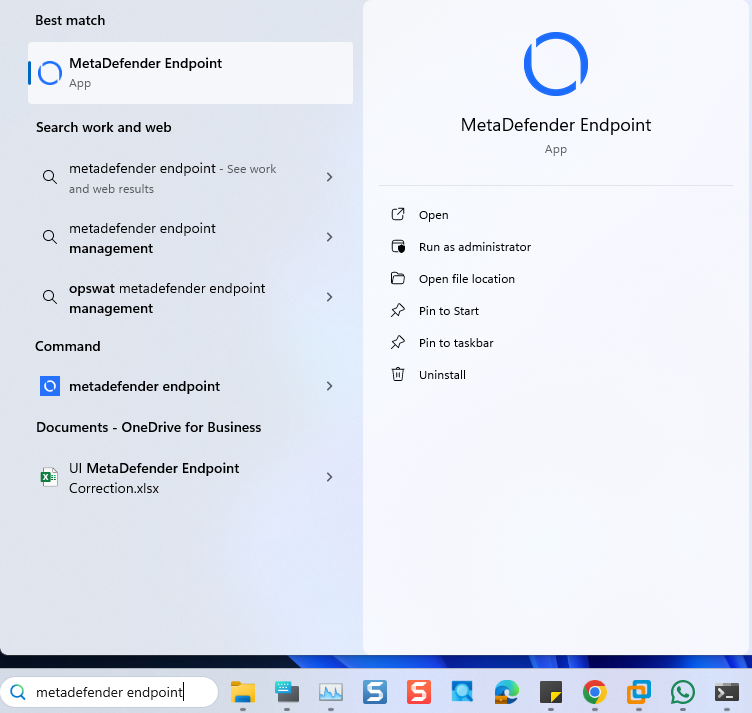
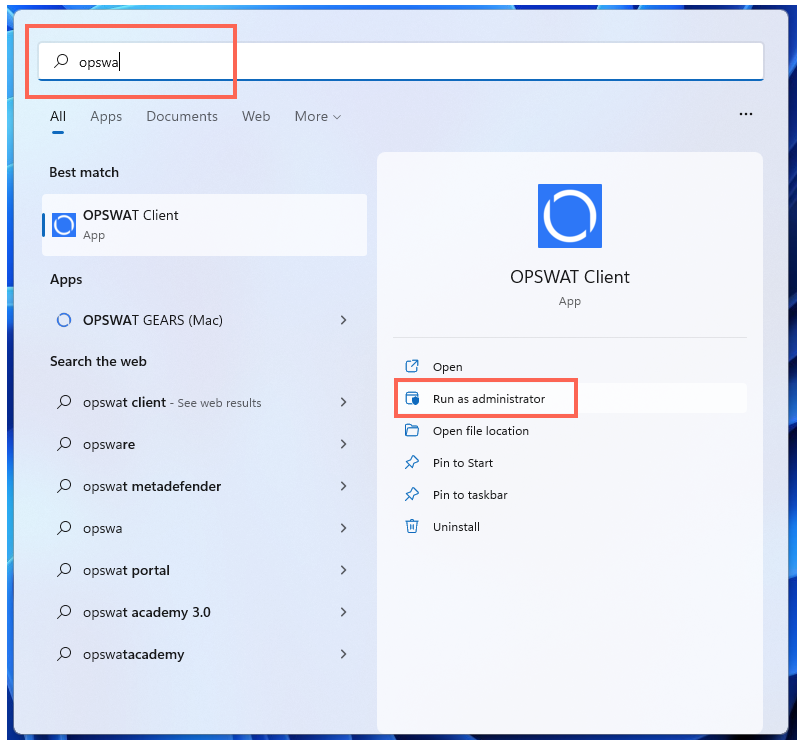
Open the Windows Start menu, then search for MetaDefender Endpoint (or My OPSWAT Central Mangement) and select Run as administrator.
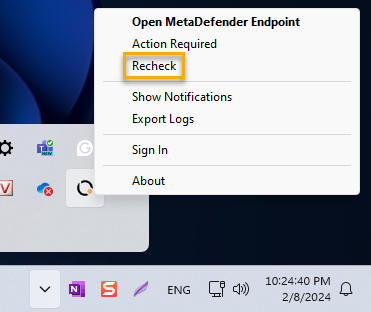
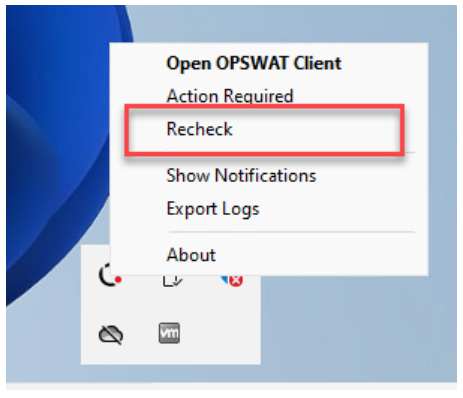
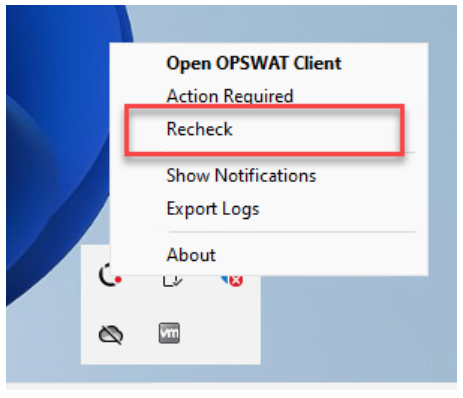
Once the app is running, right-click on the MetaDefender Endpoint tray icon and, from the pop-up menu, click Recheck.
This will trigger the MetaDefender Endpoint to scan all device compliance data and report to the My OPSWAT Central Mangement servers again.
Windows 10
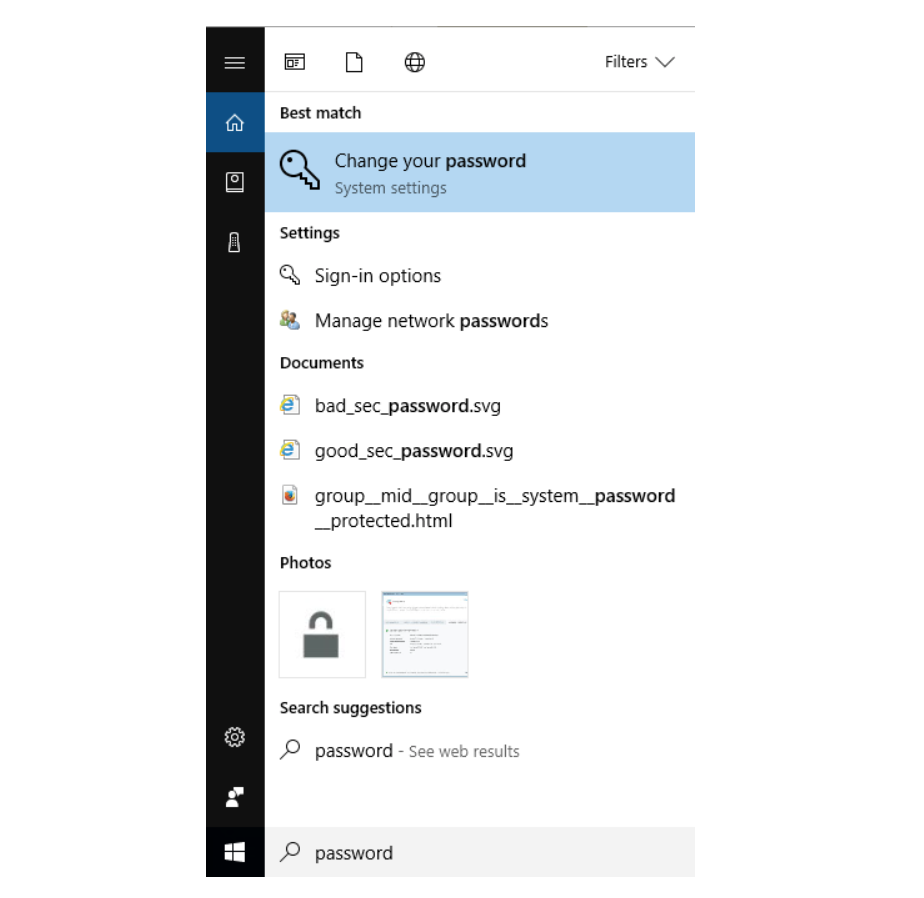
Go to the Windows Start menu, search for Change your password, then click on it to open the settings, as illustrated below.
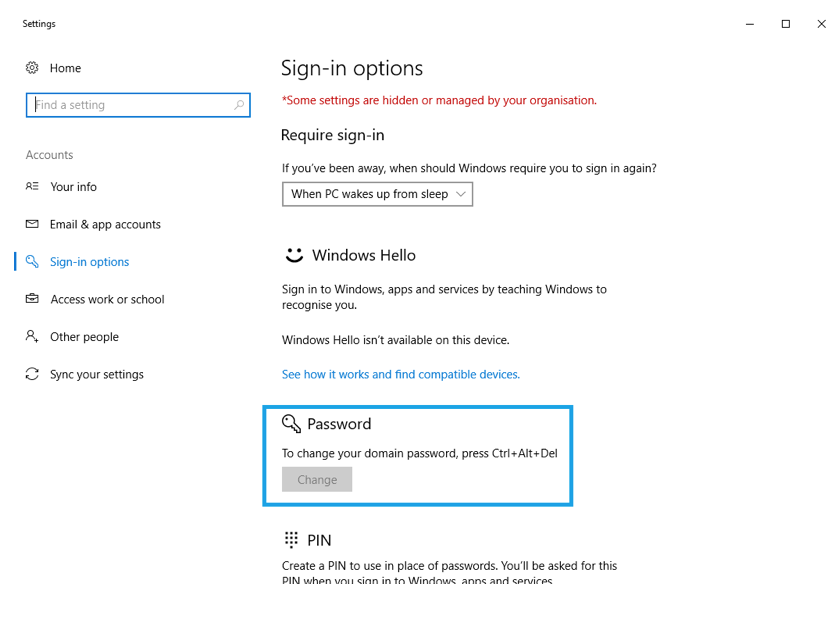
In the Password section, click on the Change button.
Follow the wizard to set your account Password.
Open the Windows Start menu, then search for MetaDefender Endpoint (or My OPSWAT Central Mangement ) and select Run as administrator.
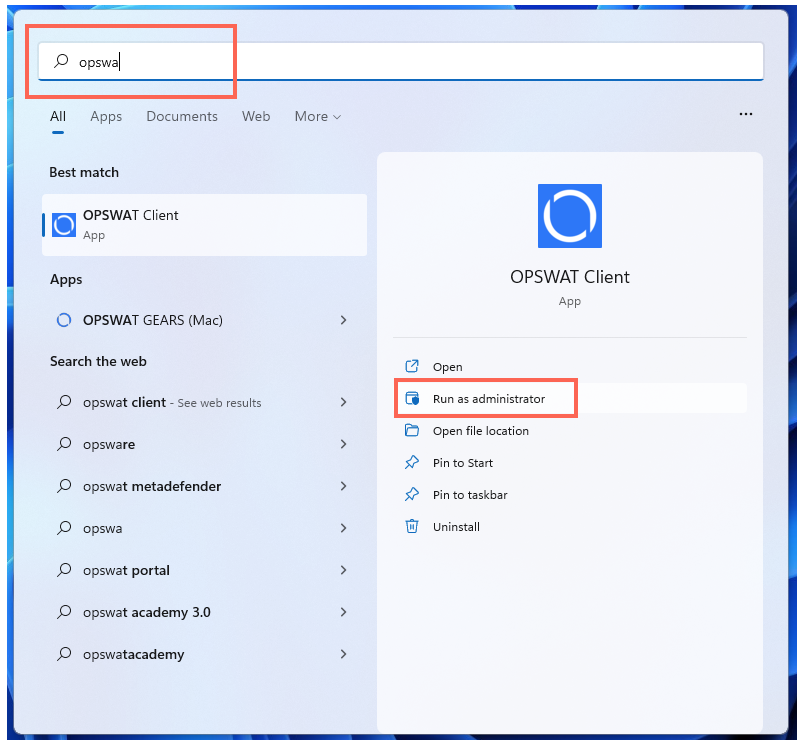
Once the app is running, right-click on the Client tray Icon and, from the pop-up menu, click Recheck.
This will trigger the MetaDefender Endpoint to scan all device compliance data and report to the MetaDefender IT Access servers again.
My OPSWAT Central Mangement Compliance Warning: User Authentication - Lock Screen Timeout Is Not Set
Windows 10/11
First, ensure that your Password is set and established on your device, by following the process outlined above.
With your password set, go to Settings>Personalization>Lock screen and click on Screen saver settings.
On the Screen saver settings page, set a timeout that complies with your organization’s relevant My OPSWAT Central Mangement Policy requirements, by adjusting the period in the Wait drop-down box.
Check the option to On resume, display logon screen.
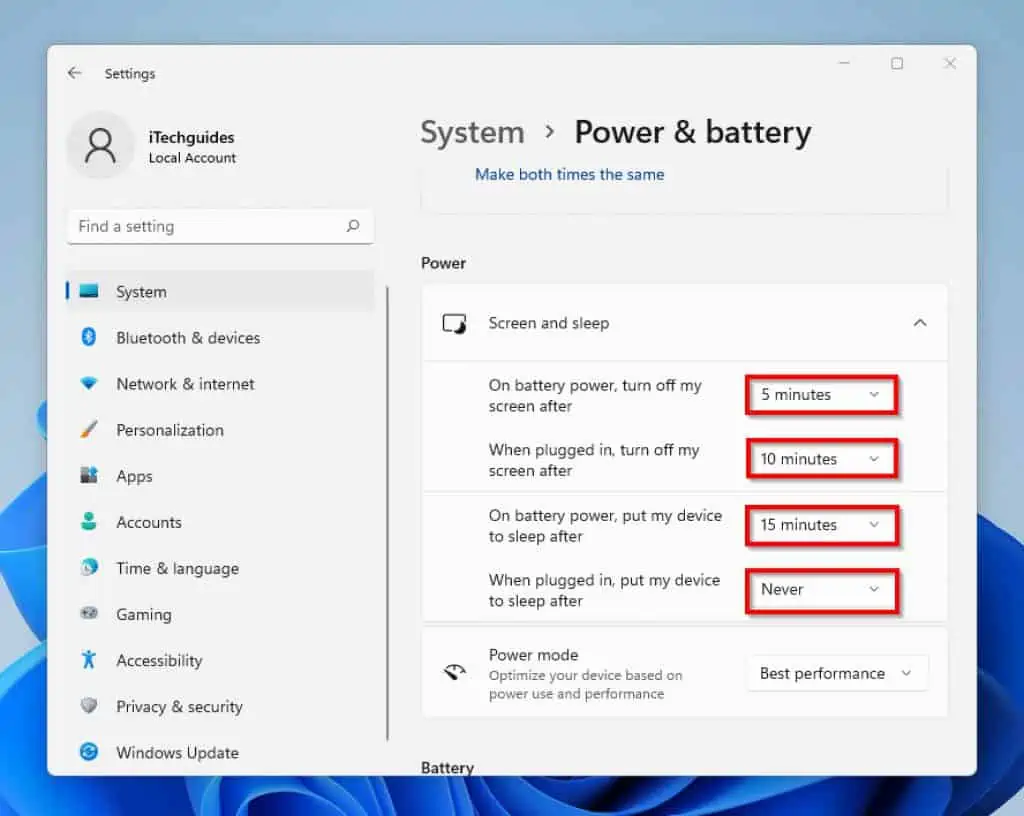
There are two settings on Screen and Sleep settings. Use the first two to set Screen timeout. Then, use the last two set when your computer Sleeps.
The settings in the screen section will lock your screen (turns your display off) if you are inactive for the specified period of time. On the other hand, the settings in the Sleep section put your PC to sleep if you are inactive for a specified period of time.
It is also important to note that each of the sections has a setting for when your PC is plugged to power or running on battery power.
On some devices, users may be required to restart their machine in order to apply the new settings.
Open the Windows Start menu, then search for MetaDefender Endpoint (or My OPSWAT Central Mangement ) and select Run as administrator.
Once the app is running, right-click on the Client tray Icon and, from the pop-up menu, click Recheck.
This will trigger the MetaDefender Endpoint to scan all device compliance data and report to the My OPSWAT Central Mangement servers again.
If you have followed the instructions above but Continue To Experience User Authentication Issues On Your MetaDefender Endpoint / My OPSWAT Central Mangement Managed Windows Devices, please open a Support Case with the OPSWAT team via phone, online chat or form, or feel free to ask the community on our OPSWAT Expert Forum.