
This document explains how to manage policies for products under File Security Solution.
Supported Products
The File Security Solution Policy applies to the following products:
MetaDefender Core
MetaDefender ICAP Server
Available Actions
Log into the My OPSWAT Central Management console.
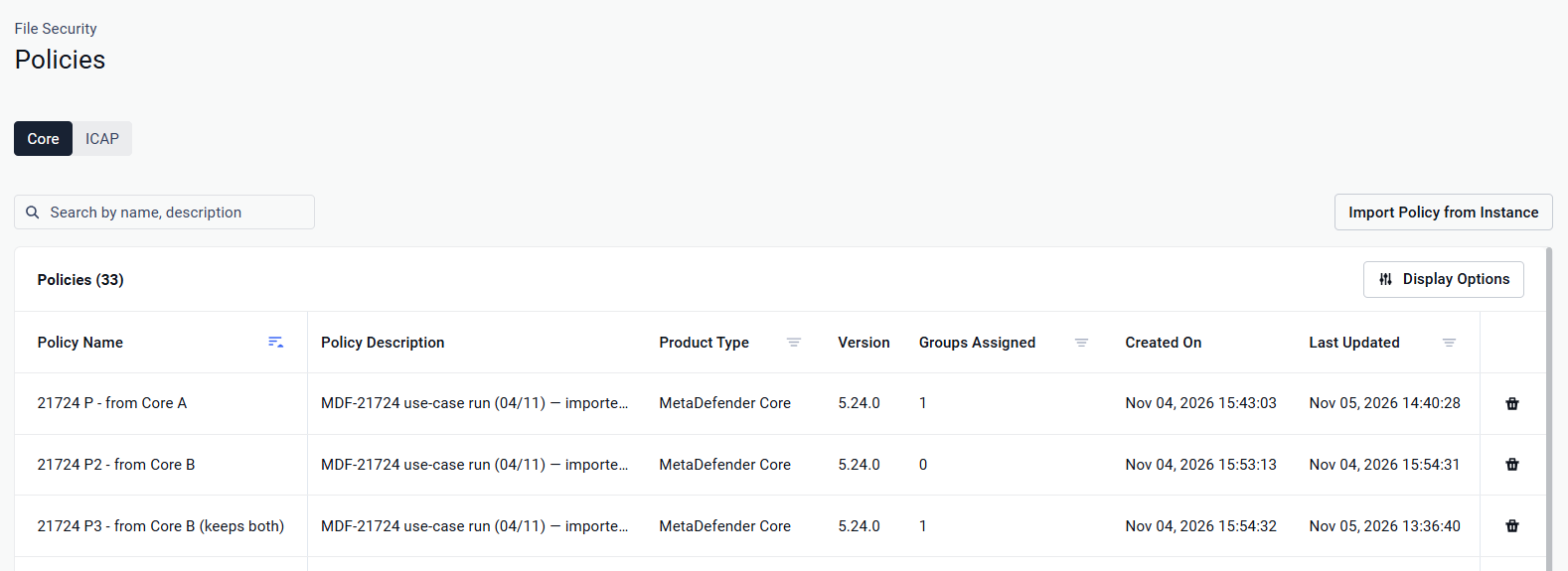
Go to File Security > Policies, select the product whose policies you want to view
The following actions are available for all supported products:
Available actions | What it does |
|---|---|
Import Policy from Instance | Import a policy into My OPSWAT Central Management from the configuration of an enrolled instance |
Delete | Permanently removes a policy |
Assign Policy to a Group | Applies a policy to instances in the selected group |
Enable "Automatically Sync Group Policy for New Instances" | Automatically applies the group’s assigned policy to instances added or reassigned to the group and keeps them synchronized with subsequent policy changes |
Please Note My OPSWAT Central Management does not support creating File Security policies or editing their configurations.
Import Policy from Instance
Import a policy when an enrolled instance has a tested configuration you want to reuse on other instances.
On the File Security > Policies page, select Import Policy from Instance.
In the popup dialog:
Search for specific instance or select a group, then select the instance from that group
Enter PIN (optional)
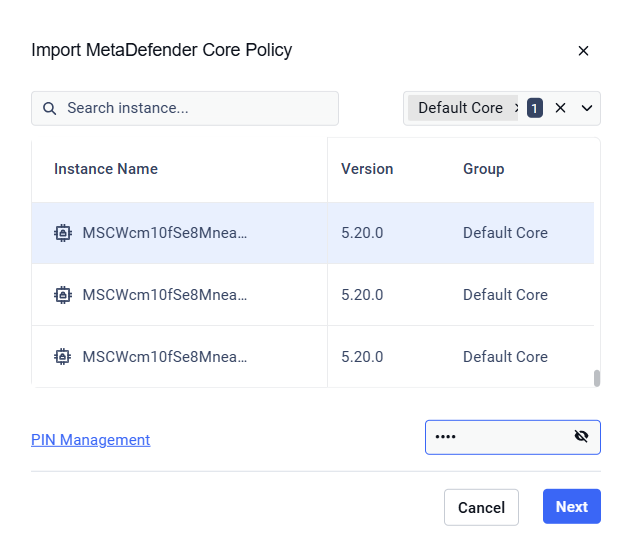
Click Next to start the import
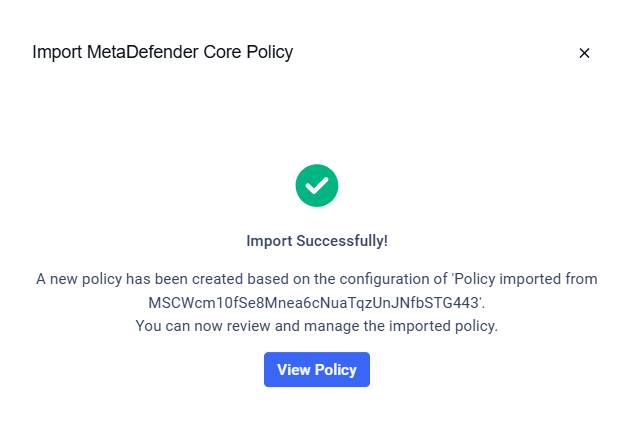
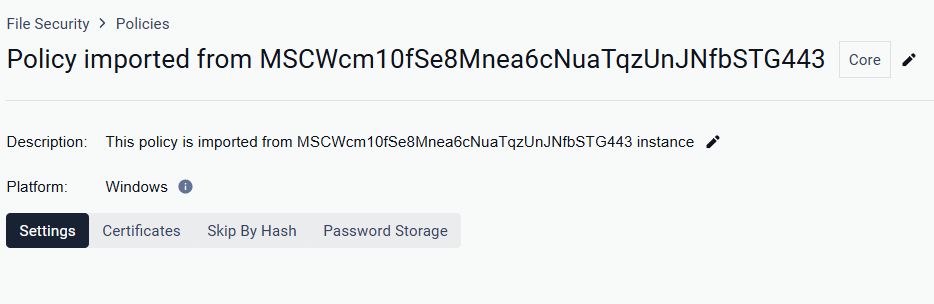
A confirmation message appears when the import completes. Select View Policy to open the policy details page.
Delete a Policy
On the File Security > Policies page, locate the policy you want to remove
Select Delete icon

Confirm the deletion. If prompted, enter your PIN.
Assign Policy to a Group
Go to Inventory > Groups
Select the group you want to apply the policy to, and open Settings tab
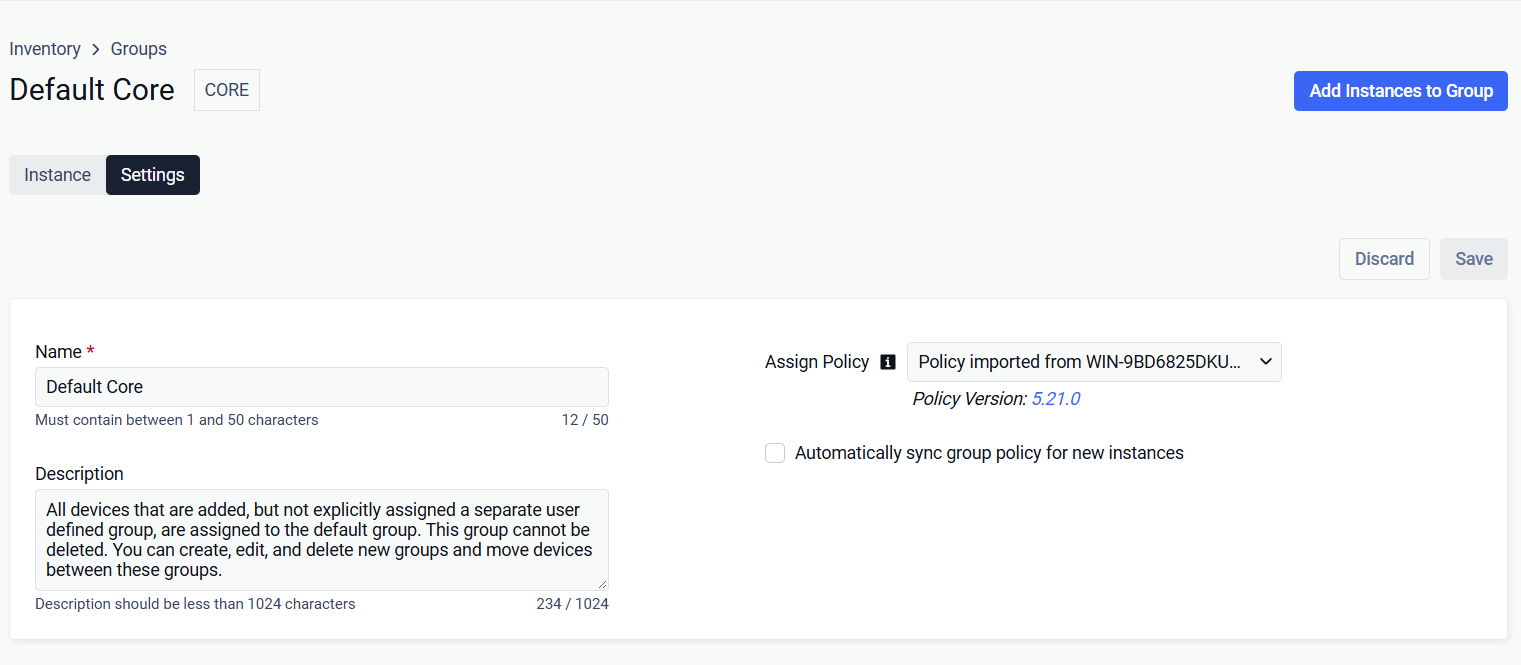
Under Assign Policy, select the policy
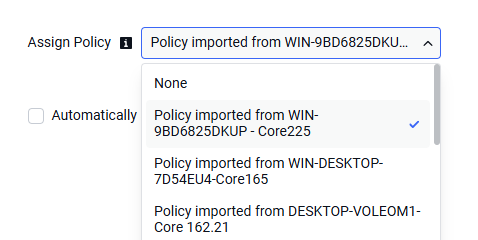
Click Save to confirm
Please Note My OPSWAT Central Management will re-assess device status for devices in the group with the new policy, except changes for Threat Detection.
Automatically Sync Group Policy for New Instances
Go to Inventory > Groups
Select the group you want to apply the policy to, and open Settings tab
Enable "Automatically sync group policy for new instances"
Whenever a new instance being added or re-assigned into this group, the group’s assigned policy configuration is automatically applied to that instance
Any subsequent edits made to this group's assigned policy will automatically push down to that instance