
The MetaDefender Software Supply Chain for TeamCity plugin allows you to trigger repository scans as part of your continuous integration pipeline. When a build runs, the plugin contacts MDSSC, launches an on-demand scan for the current repository and branch, waits for the results, and fails the build if findings exceed the policy you set.
Supported Versions
Component | Supported versions |
|---|---|
TeamCity server | 2020.1+ (validated with 2024.x) |
TeamCity agent | Same as server; requires outbound HTTPS access to MDSSC |
MetaDefender Software Supply Chain | Version 2.5.3 with API access and a configured workflow |
Before You Begin
Collect an MDSSC webhook URL and API key with rights to access the target workflow.
Ensure the repository you plan to scan already exists in the MDSSC workflow.
Sign in to TeamCity with an account that can upload plugins and edit build configurations.
Get the latest Plugin ZIP
From JetBrains Marketplace: MetaDefender Software Supply Chain Plugin for TeamCity | JetBrains Marketplace
From GitHub Release v2.1.0 · OPSWAT/metadefender-supplychain-teamcity-plugin
Step 1: Install the Plugin in TeamCity
Open Administration → Plugins.
Select Upload plugin ZIP and choose
OPSWAT-MDSSC-v<version>.zip.Restart the TeamCity server if prompted.
Verify the plugin appears in the Installed Plugins list as MetaDefender Software Supply Chain for TeamCity.
To upgrade, repeat the same steps with a newer ZIP. To remove the integration, delete the plugin from the list and restart.
Step 2: Add an MDSSC Build Step
Edit the build configuration where you need MDSSC scanning.
Go to Build Steps → Add build step.
Choose MetaDefender Software Supply Chain for TeamCity.
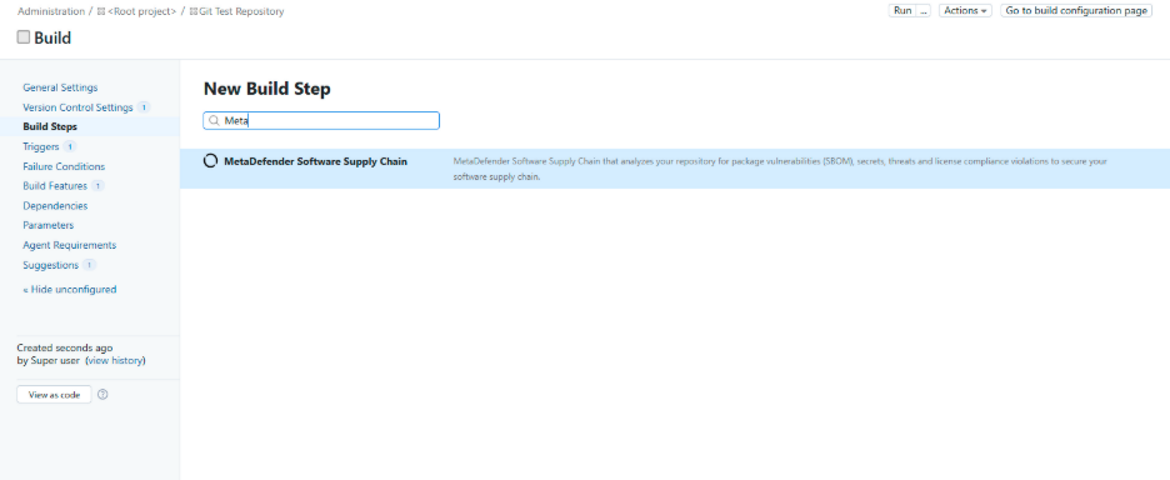
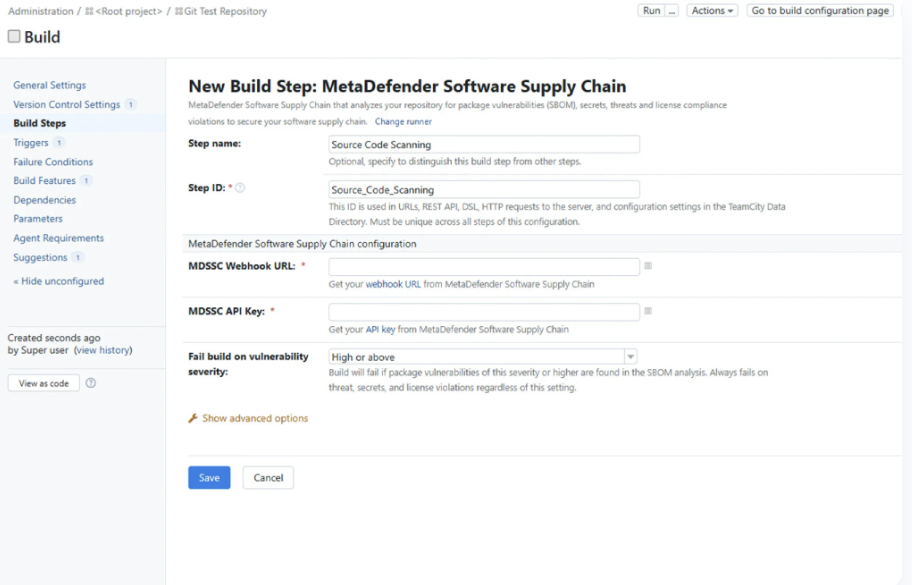
Provide a descriptive name and complete the configuration fields below.
Step 3: Trigger a Scan
Open the build configuration and click Run to start a build.
Monitor the build log and build status for scan progress.
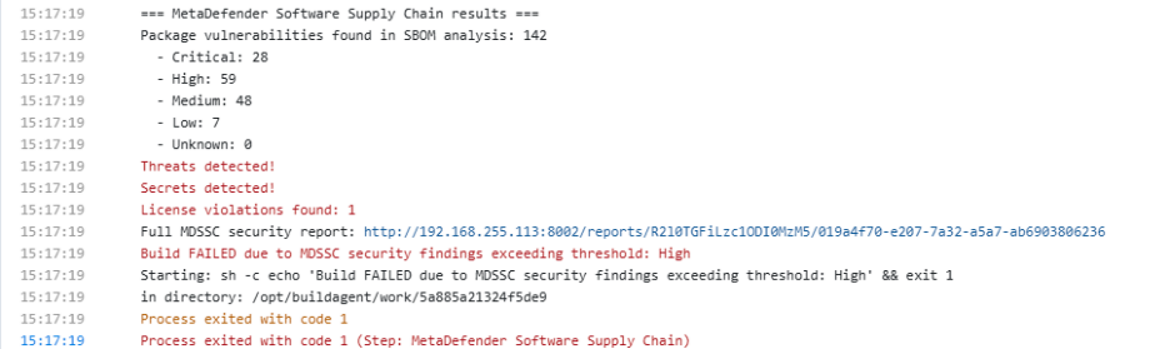
Review results via the Full MDSSC Security Report link — the build fails automatically if policy limits are exceeded.
If no scan appears in MDSSC, check the webhook URL, API key, and agent network access
Field | Required | Description |
|---|---|---|
MDSSC Webhook URL | Yes | The webhook URL generated by the MDSSC workflow. The plugin decodes it to identify the workflow and storage service. |
MDSSC API Key | Yes | API key with rights to query workflow details and launch scans. Store the key as a secure TeamCity parameter (for example |
Fail build on vulnerability severity | Optional (default: High) | Lowest severity that should fail the build. Options: low, medium, high, critical, off The build always fails if MDSSC detects malware, secrets, or blocked licenses, regardless of this setting. |
Secure parameters: Create secure parameters such as secure:mdssc.webhook and secure:mdssc.api.key, then reference them in the build step using %secure:parameterName%.
Monitoring and Reporting
Use the TeamCity build log to track progress. Search for
MDSSC workflow,MDSSC scan, andFull MDSSC security report.The detailed report link opens the scan in the MDSSC portal, where you can view remediation guidance, SBOM data, and historical results.
Agent logs (
<teamcity-agent>/logs/teamcity-agent.log) contain extended debug output if you enable verbose logging.
Maintenance
Upgrade: Upload the new ZIP and restart. TeamCity replaces the previous version automatically.
Rollback: Re-upload an earlier ZIP or remove the plugin entirely from the Administration page.
Uninstall: Delete the plugin from the Installed Plugins list and restart the server.