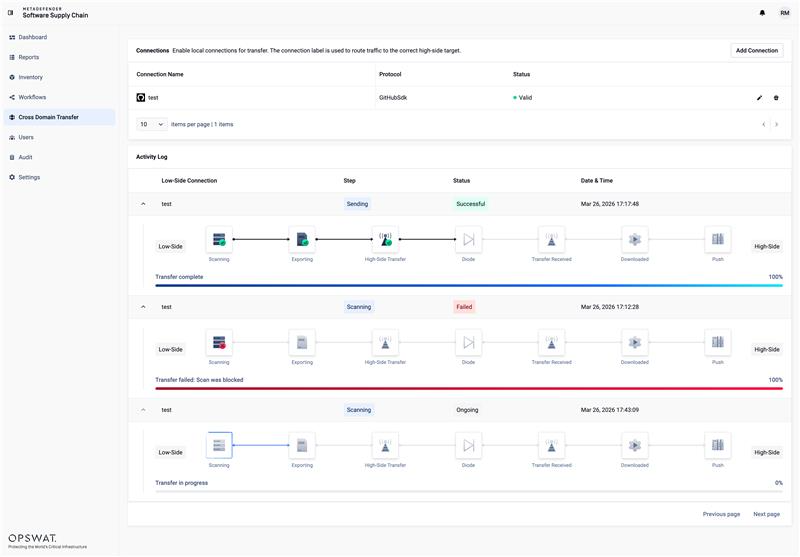
Cross Domain Transfer is a feature that allows users to securely transfer data from a Low Side environment to a High Side environment using MetaDefender Software Supply-Chain and optionally, Data Diodes.

This feature is designed for environments where strict separation between networks is required while still allowing controlled data flow into a secure zone.
High Side Configuration
The High Side environment is the secure destination where scanned source code or data is transferred after passing inspection.
This is typically the production or more restricted environment.
High Side Setup
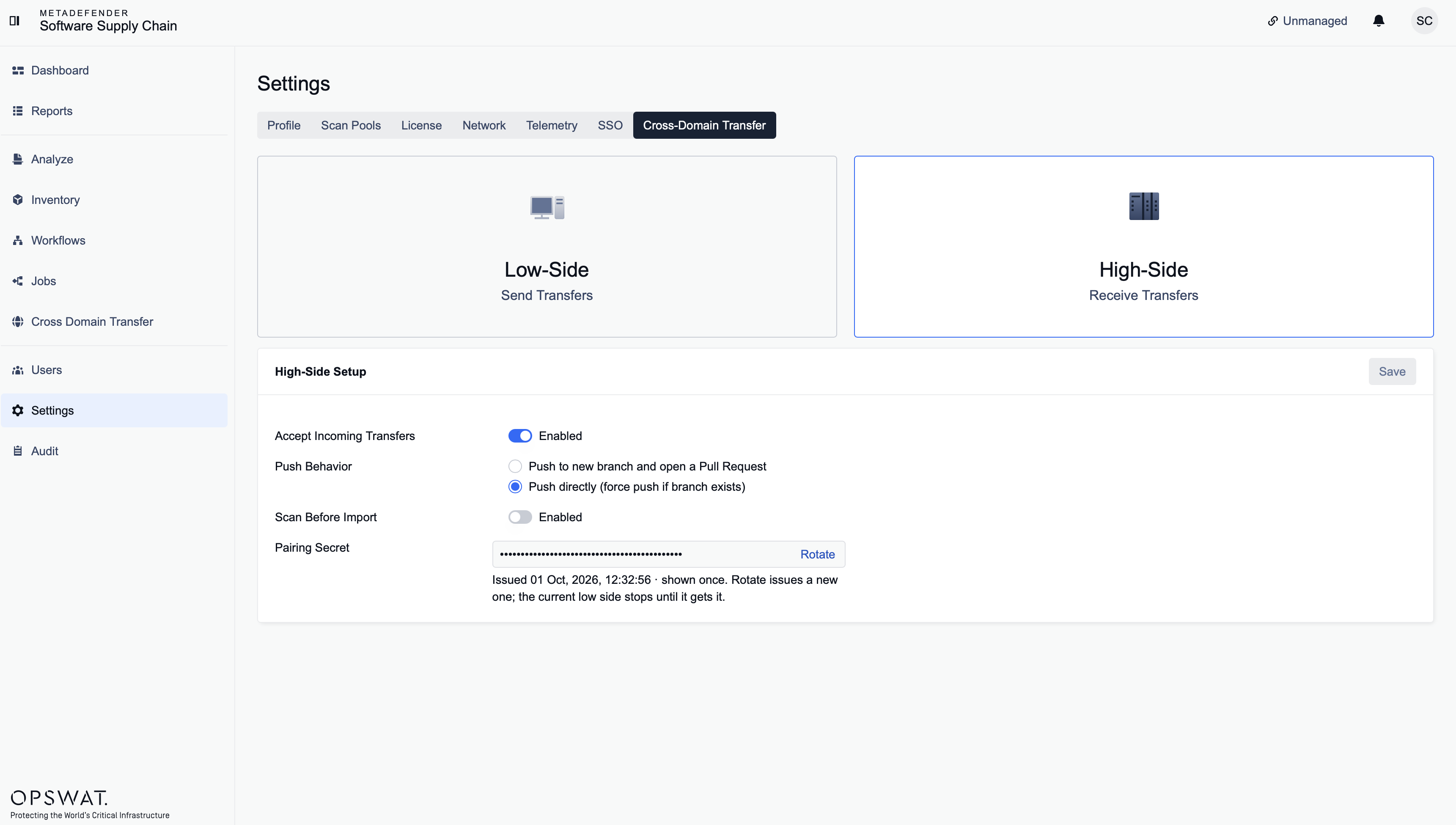
In your High Side MDSSC Instance -> Open Settings.
Navigate to the Cross Domain Transfer tab.
Select "High Side" to configure this as a High Side environment.
Accept incoming transfers using the toggle switch.
Configure your Push Behaviour either via pull request or direct push.
Turn on Scan Before Import to scan each incoming transfer before it is imported. This toggle is off by default.
Set Maximum Allowed Severity to None, Low, Medium, or another available severity. The default is None. "Vulnerability findings above this severity will block the import."
Leave Block transfer if secrets are found checked. It is checked by default.
These two fields appear only when Scan Before Import is on.
Under Pairing Secret, click Generate. The secret is shown only once. Copy it now. You need it for the Low Side Setup.
After the secret is generated, the field shows it masked and the button changes to Rotate.
Warning: Rotating issues a new secret. Transfers from the current low side fail until you enter the new secret on the low side.
Click on the "Save" button.
To push code to the High Side, ensure your API tokens have write permissions. You may need to regenerate them if they were created with read-only access.
Low Side Configuration
The Low Side environment is where the source code or data resides before being scanned and transferred to the High Side (secure zone).
This is typically the development or less restricted environment.
Low Side Setup
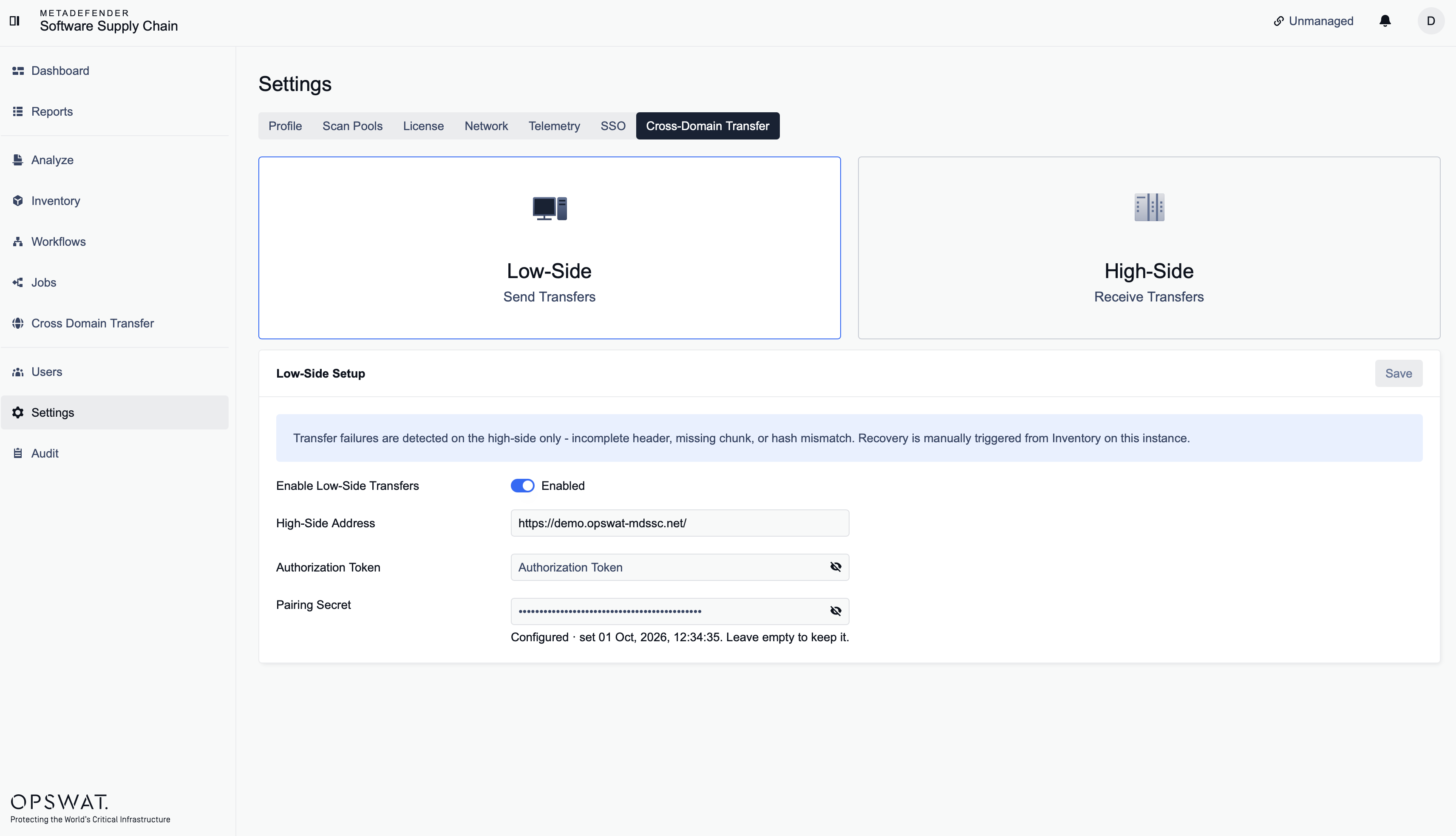
In your Low Side MDSSC Instance -> Open Settings.
Navigate to the Cross Domain Transfer tab.
Select "Low Side" to configure this as a Low Side environment.
Enable transfers using the toggle switch.
Enter the Data Diode address.
Configuring an API Key from the High Side V1 UI
Enter the API key from the High Side as the authorization token.
Under Pairing Secret, paste the secret you generated on the high side. This field is required.
Click on the "Save" button.
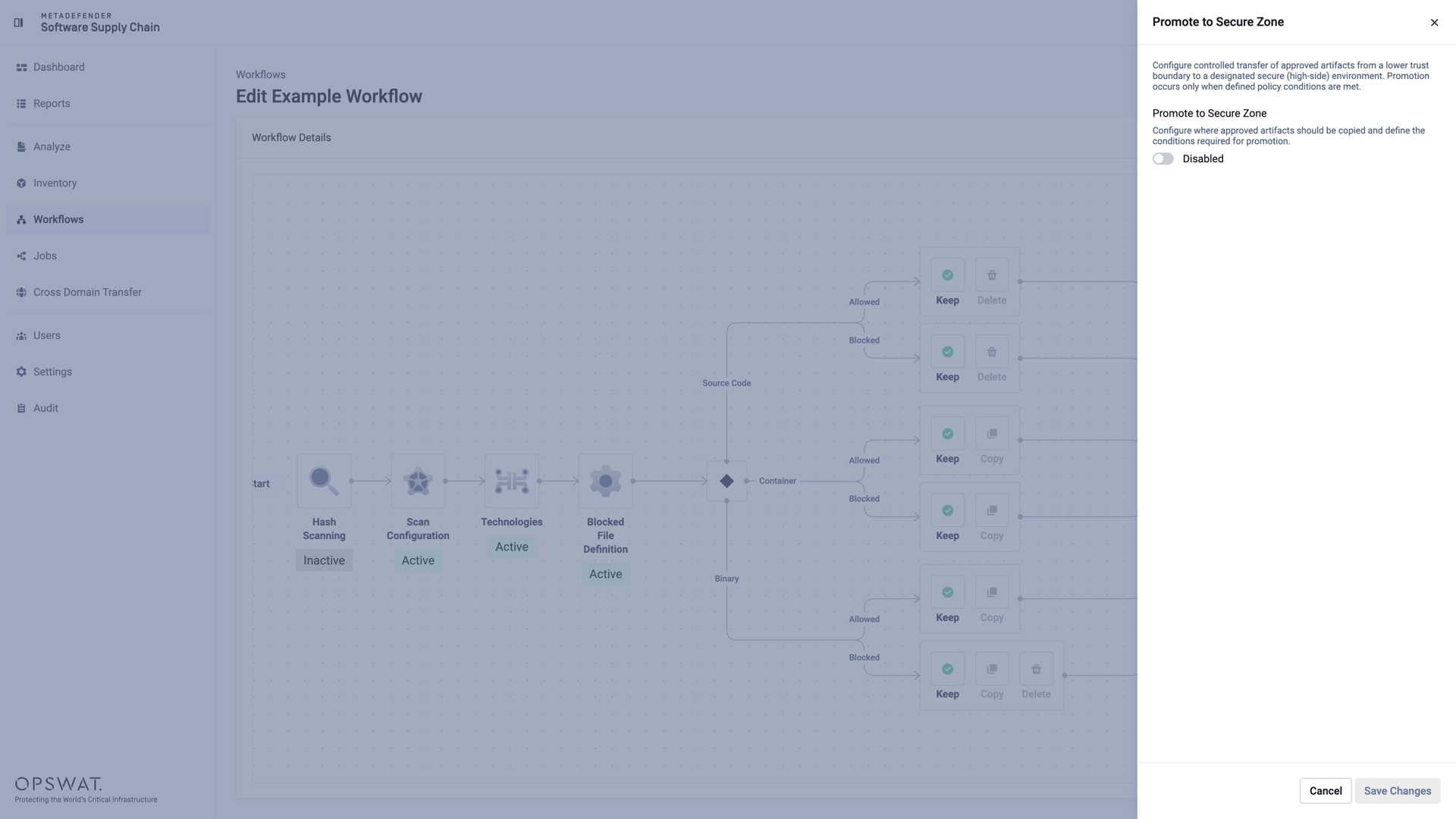
Once the Cross Domain Transfer settings are configured on both sides, cross-domain transfers must also be enabled at the workflow level on the Low Side instance.
This is done through the V1 interface, in the workflow creation or update screen.
The Low Side workflow sets the severity and secrets thresholds before export. The High Side Scan Before Import setting is a second, independent gate on import.
Setup:
Navigate to Workflow in the left sidebar and open or create a workflow.
Enable the Cross-domain transfer after scan toggle.
Set the Max Allowed Severity — files exceeding this threshold will be blocked from transfer.
If needed, enable Block transfer if secrets are found to prevent transfers when sensitive data is detected.
Click Continue to finalize the workflow.
Operating
Once both MDSSC instances are individually set up, you will need to link the connections for which you want cross-domain transfers.
Mapping the Transfer
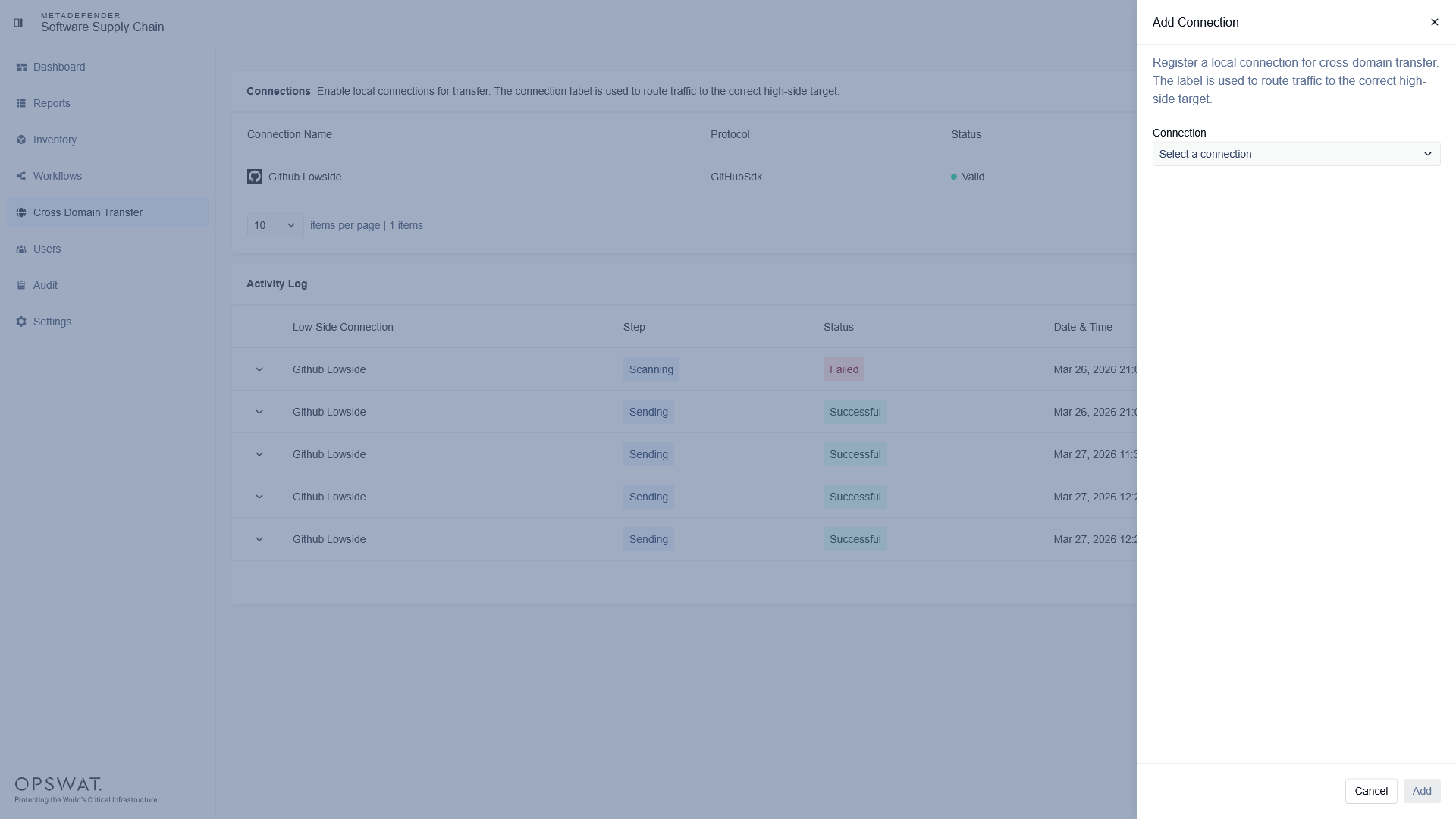
On the Low Side, navigate to Cross Domain Transfer and add a new connection.
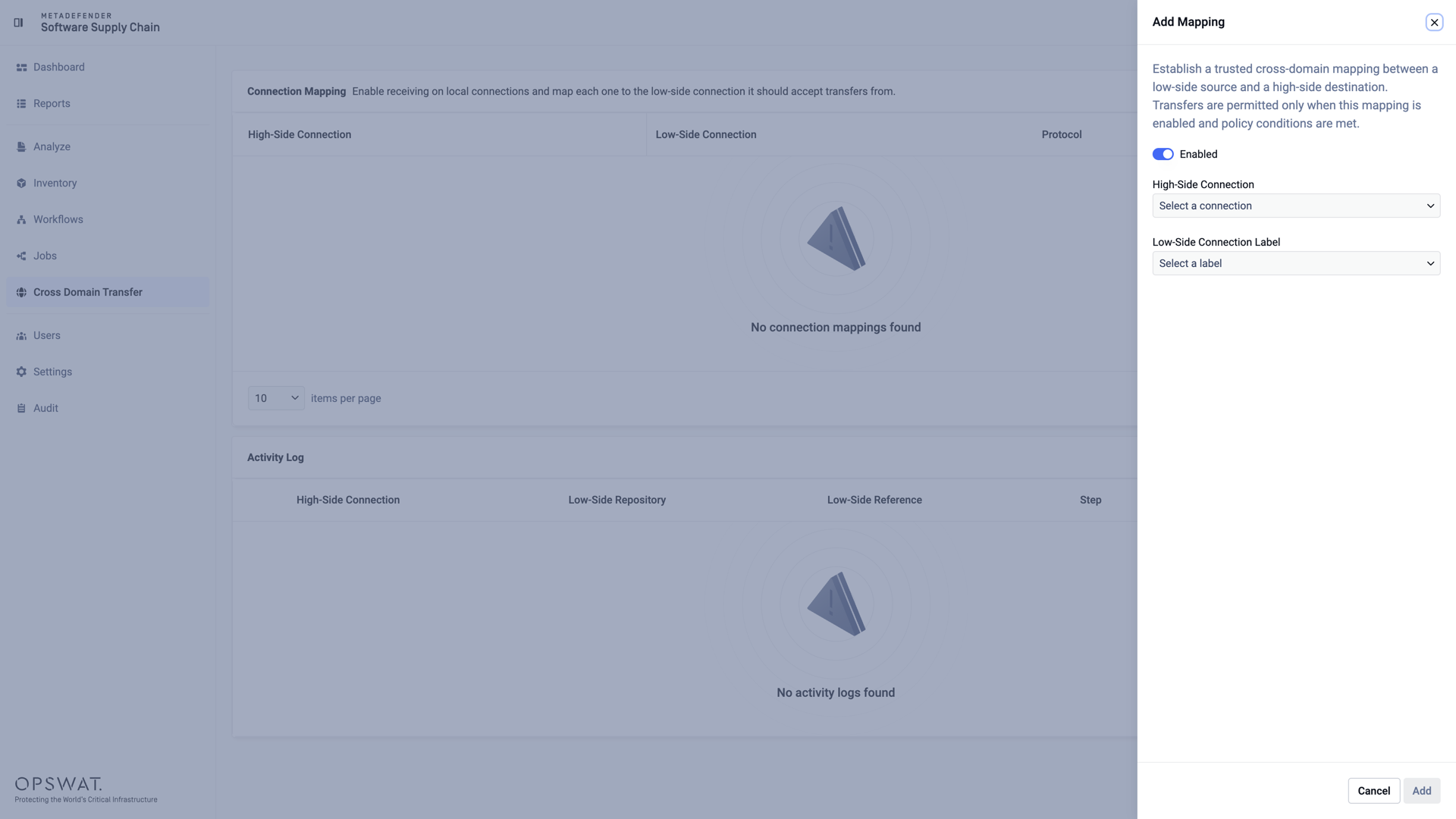
After adding the connection, head to the High Side and map it to a local connection via the Add Mapping panel. Transfers from the Low Side will be routed to that connection.
Triggering & Monitoring
Once the feature is configured:
Initiate a scan in V1 with the previously configured workflow.
Use the live logs on both the Low Side and High Side to monitor the transfer in real time.
If the transfer completes successfully, your code will now be available on the High Side.