You can deploy My OPSWAT On-premises by using the marketplace image, available on the AWS Marketplace.
Prerequisites and Requirements
AWS knowledge: This guide assumes familiarity with EC2 and Amazon Machine Images.
AWS account: needs permission to create EC2 instances and edit/create security groups.
DNS: My OPSWAT uses the internal routing of the host instance and does not require any special routing.
Scripting languages supported: Linux - shell
Launch Instance
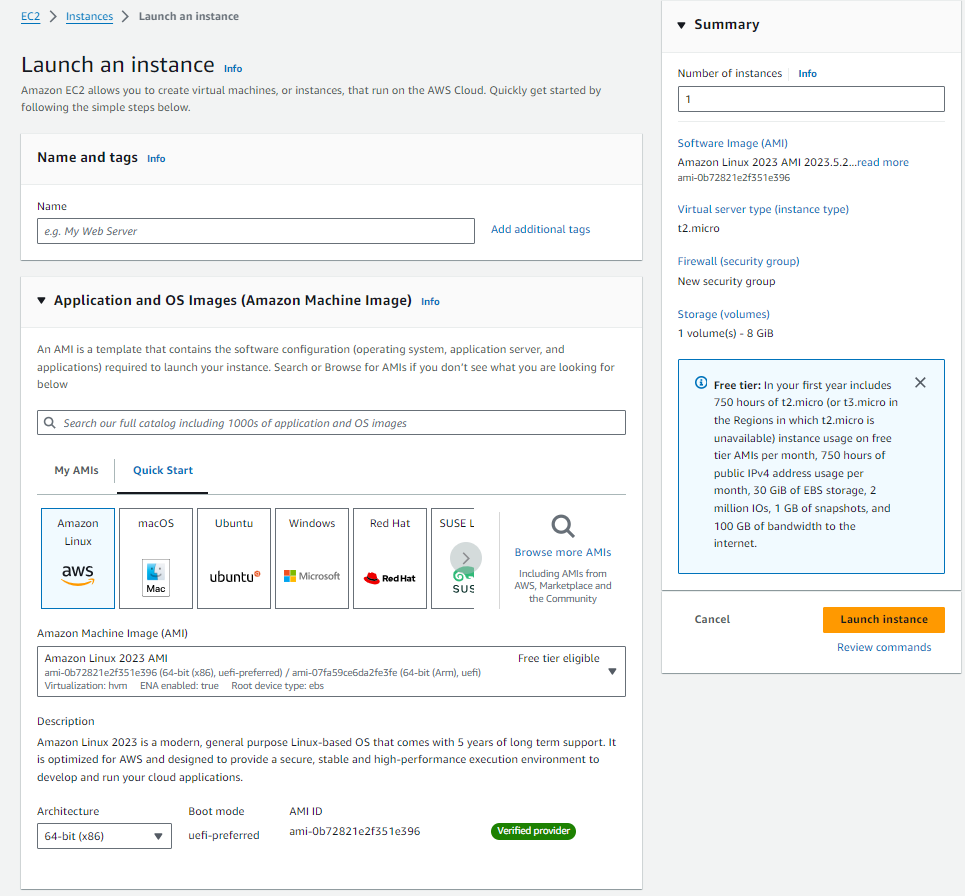
Navigate to the EC2 Management Console in AWS and select Launch Instance
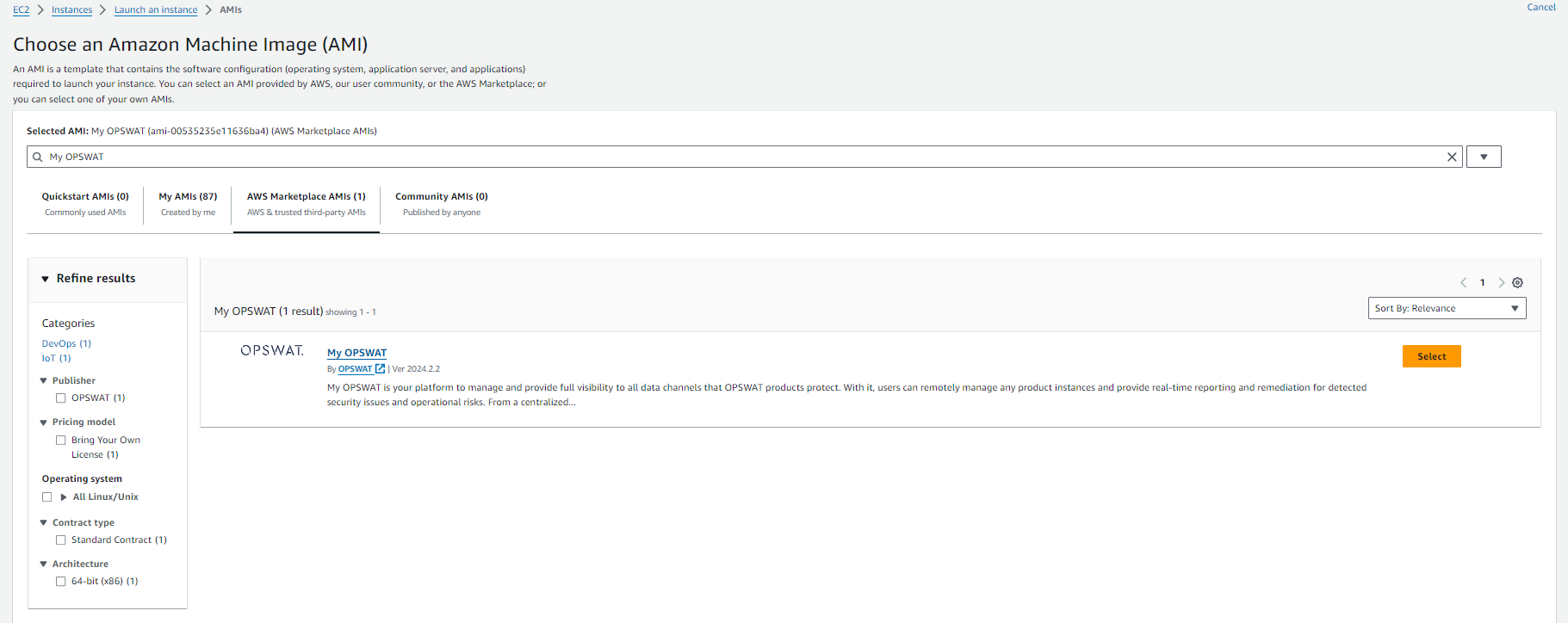
Select Browse more AMIs > AWS Marketplace AMIs (tab) > search "My OPSWAT"
Select the My OPSWAT AMI
t2.xlarge instance type meets the minimum requirements to run My OPSWAT
Configure Network Settings
Select the desired VPC and subnet you would like to deploy My OPSWAT in. My OPSWAT requires connections to the servers it manages.
Security groups should follow your organizations best practices and recommendations. My OPSWAT can be used on 80 or 443 and can be changed to fit security requirements. Port 22 can be used to access via ssh for troubleshooting and administration.
Configure Storage
My OPSWAT comes with 100gb gp2 root volume storage
Launch Instance
Approximate time to initialize after launching: **~**5 minutes
Setup Wizard
Navigate to the IPv4 address or DNS of the instance you just provisioned. You should be redirected to the setup wizard to help set up My OPSWAT for the first time.
Read and agree to the Terms of Service by ticking the checkbox. Click Continue.
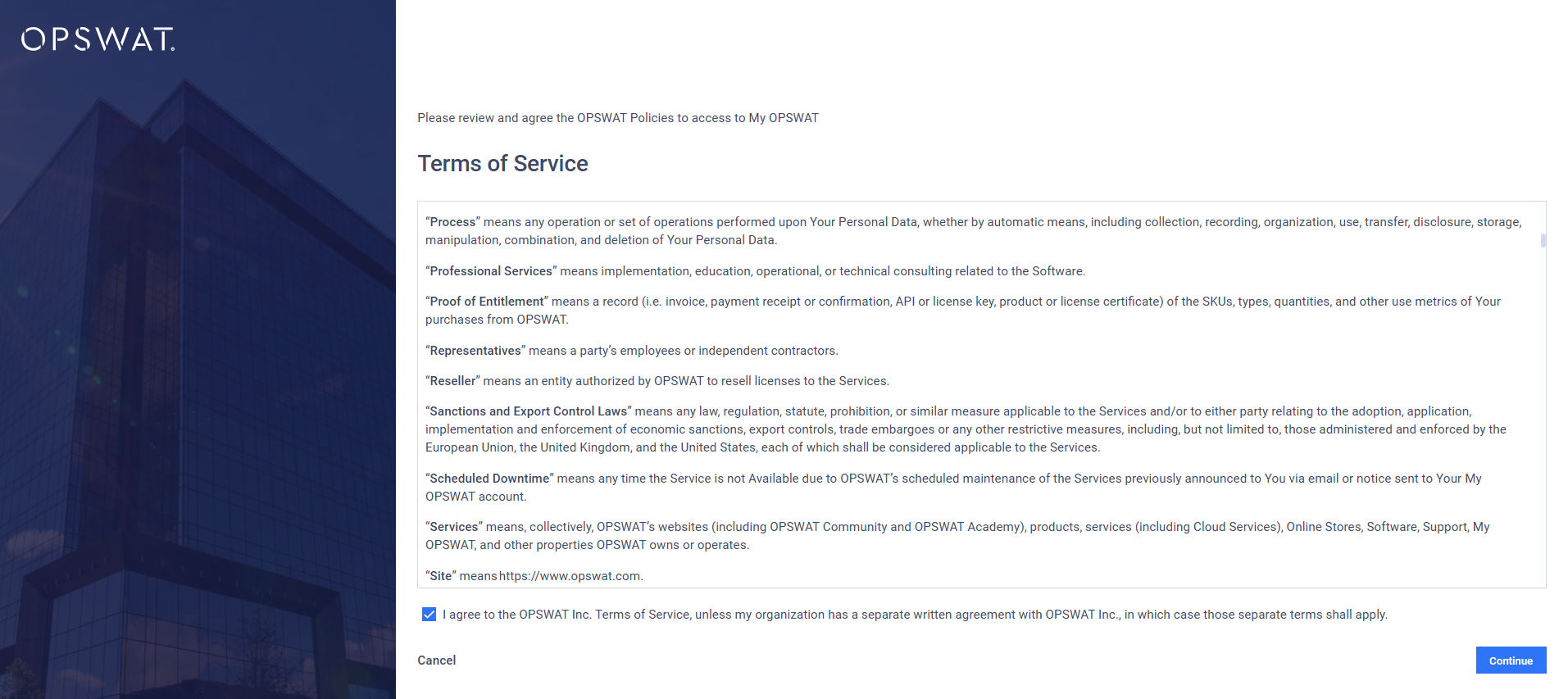
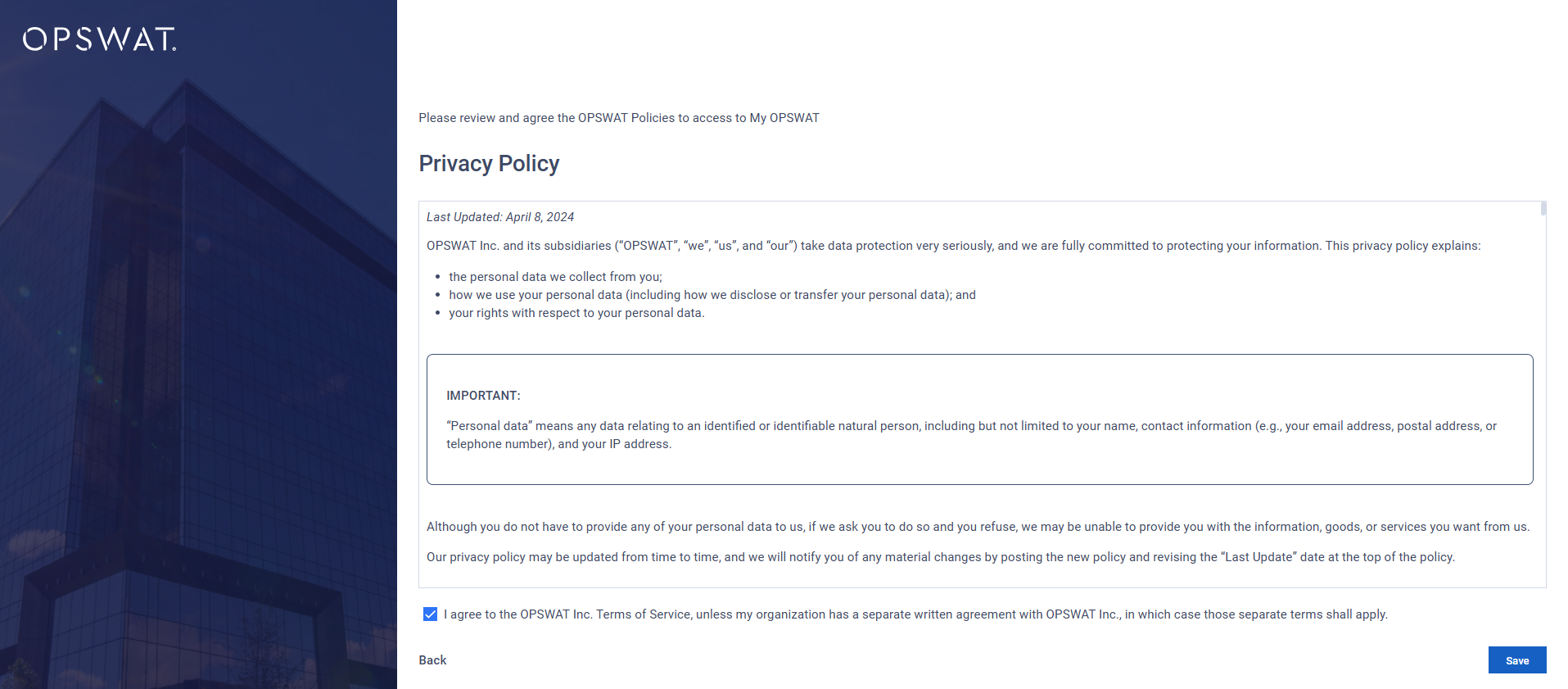
Read and agree to the Privacy Policy by ticking the checkbox. Click Continue.
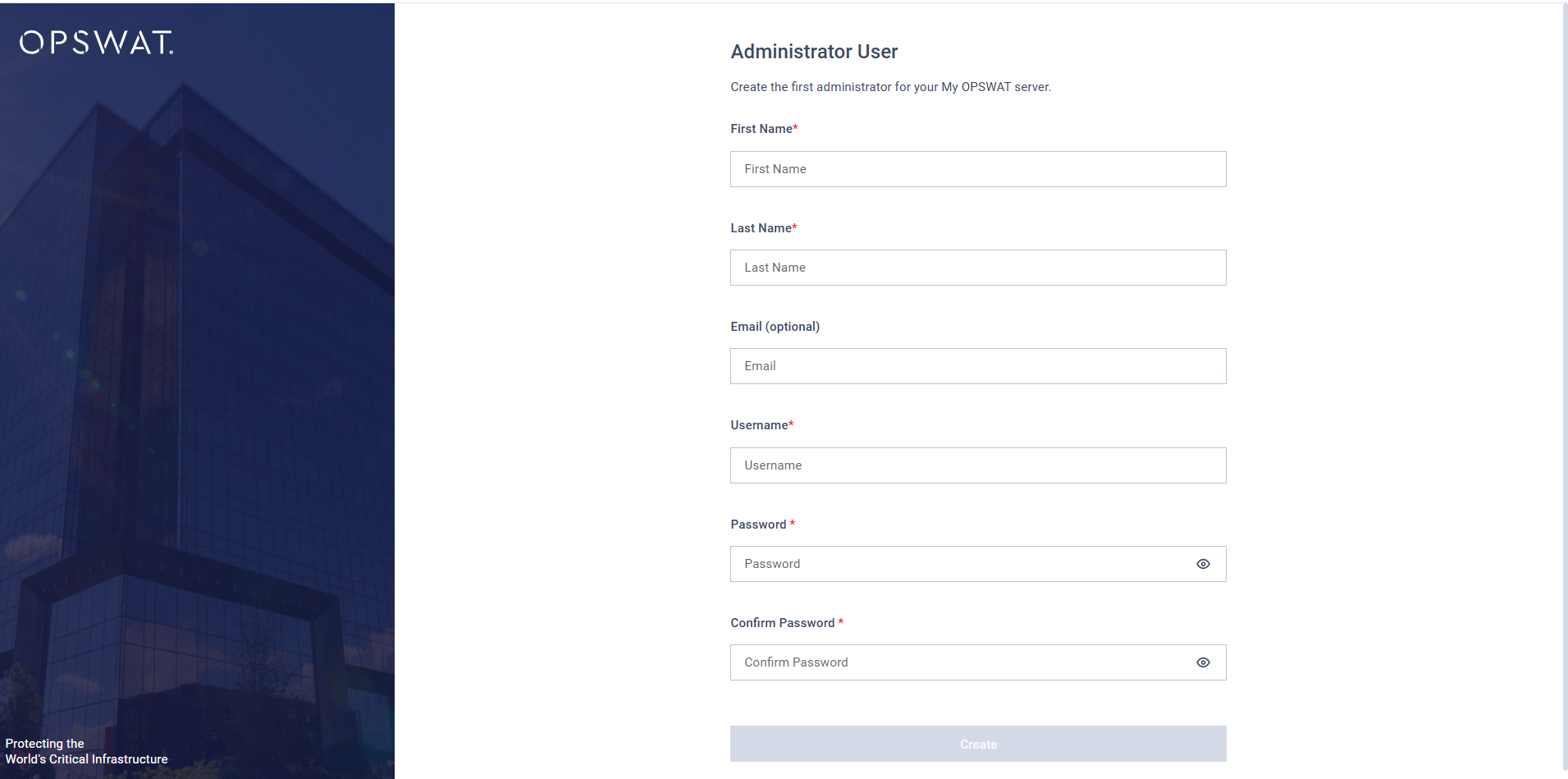
Create your first user, which will serve as your default administrator credential.
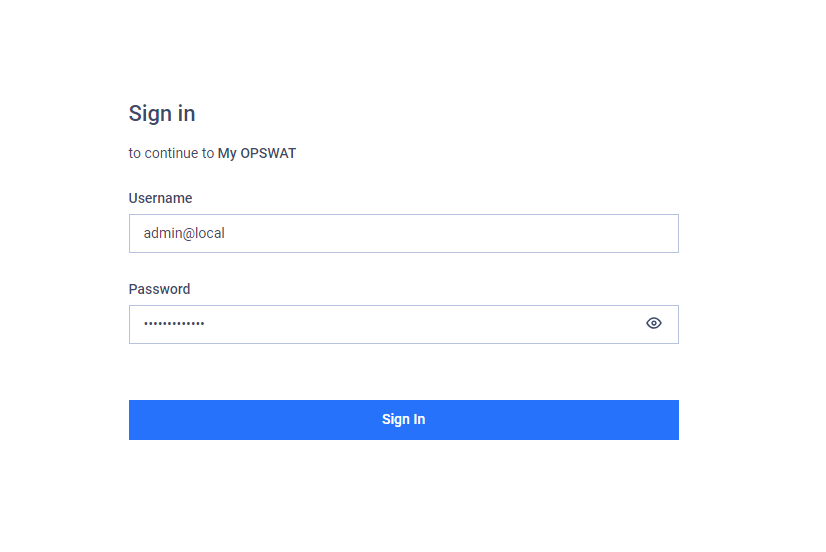
After user creation, you should now be redirected to the sign in page.
Sign In to My OPSWAT
Use the administrator credential that was created previously to login to the instance.