
1. Overview
Notifications emails an administrator when an endpoint gateway stops responding, or when sign-ins to a gateway keep failing. You choose who receives the email by tagging users, not by typing addresses.
The page holds two built-in rules. You switch each one on or off and set its condition; rules cannot be added, renamed or deleted.
Gateway status — a gateway drops and does not come back. The appliance waits 45 seconds for a reconnect before it treats the drop as an outage.
Connection failures — sign-ins to a gateway fail more often than the threshold you set, inside the window you set.
Email is the only delivery channel. The page has no SMTP settings of its own, so outgoing email must already work on the appliance.
An alert reaches every user carrying any of the selected tags, at the address stored on that user's account.
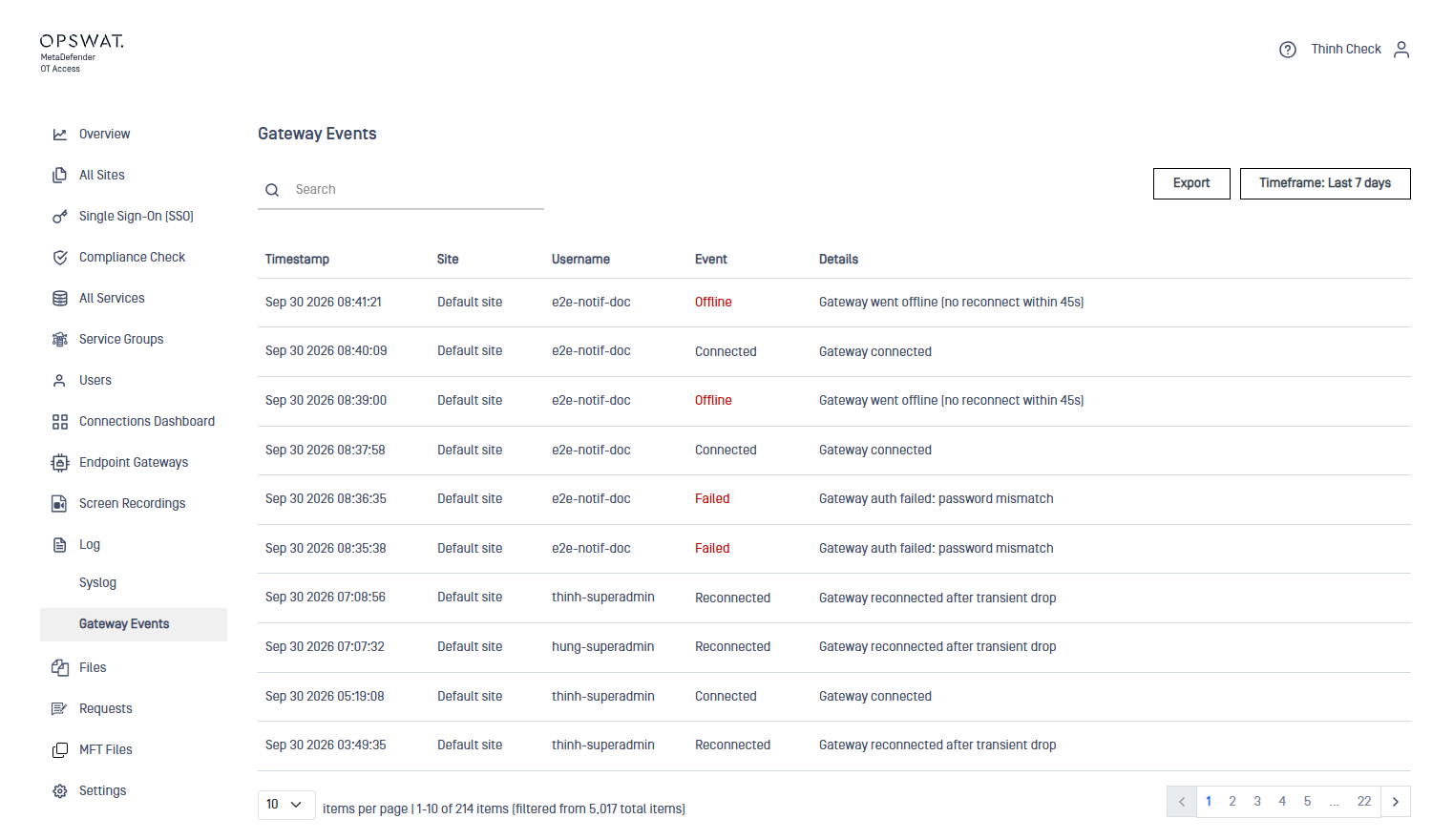
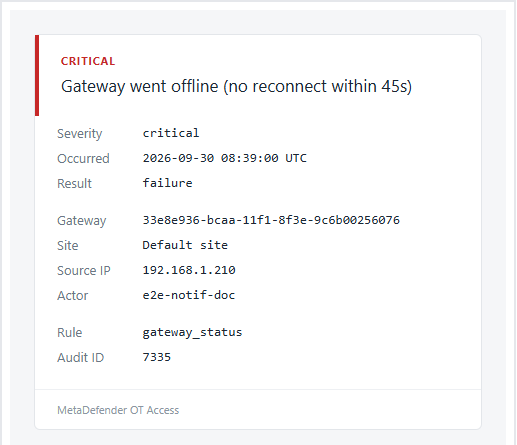
Every alert also appears in the portal under Log → Gateway Events, under the same event id that the email prints as Audit ID.
2. Before you begin
What you need
A user to notify, with a valid email address on the account. You select recipients by tag alone, and you add that tag in section 3.
Working outgoing email on the appliance. Notifications sends email; it does not configure it.
Good to know
A recipient never has to sign in to the portal. Any user with an address and a selected tag receives the email.
The Applies to list offers the accounts that own at least one service, so a gateway appears there before it has ever connected. Its count can differ from the number of rows on Endpoint Gateways.
Severity is a label on the email. It changes neither the recipients nor the frequency.
3. Add the recipient tag
Start here: the Notifications page can only pick a tag that already exists on a user.
Open Users and click the user who should receive the alerts.
Click Action → Manage tags.
Click + Add Tag and fill in Keys and Values, for example
notiandqa.Click Save. The user page now lists the tag as
noti:qa.
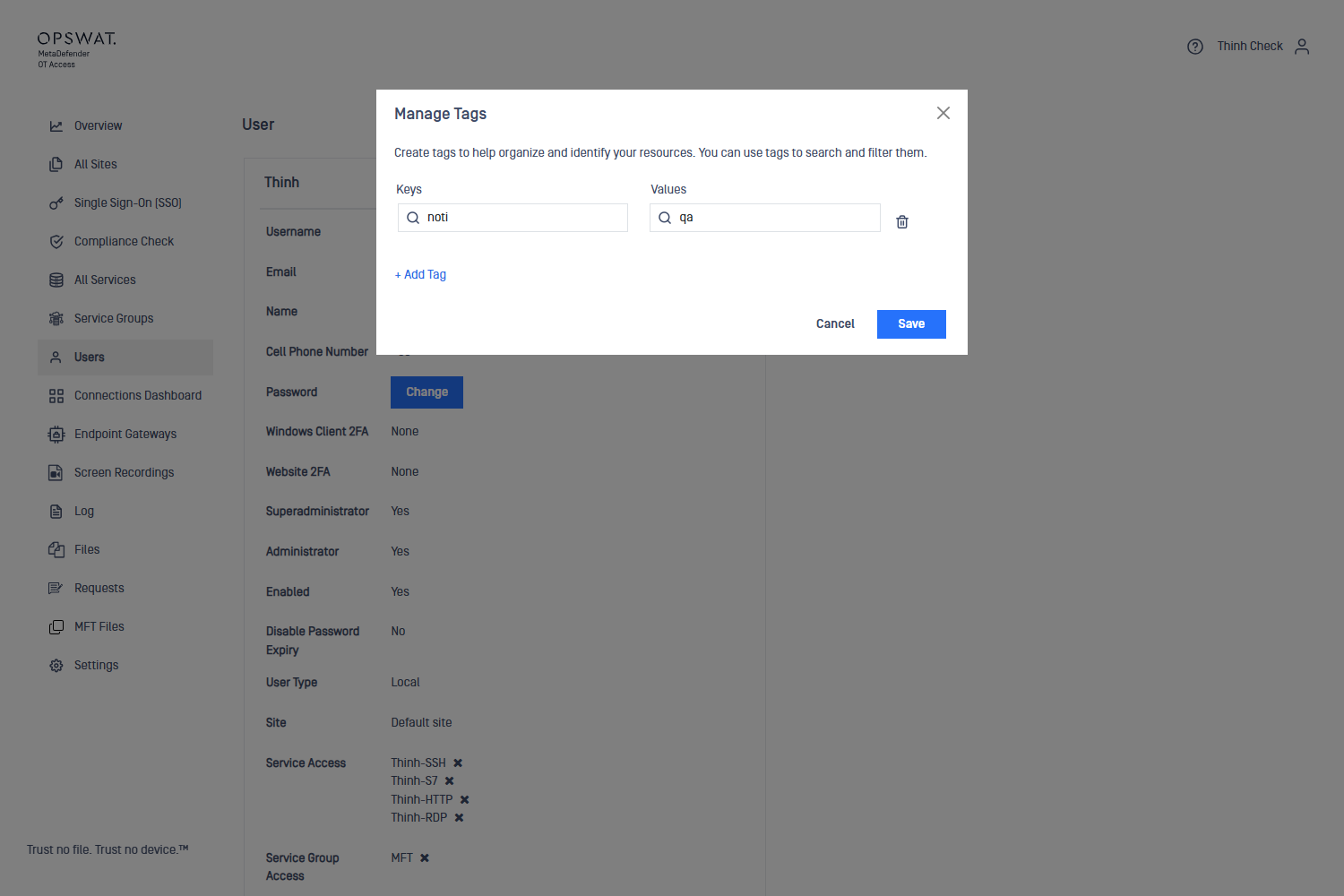
Repeat for every user who should receive the same alerts.
4. Switch on the rules and choose the gateways
Open Settings → Notifications.
Switch on a rule with the toggle at the left of its row. A rule that is off appears greyed out and never sends.
For Connection failures, set the number of failures and the window: immediately, 1, 5, 10 or 15 minutes.
Open Applies to on the rule row and pick what the rule watches:
All gateways — every gateway, including any added later.
A site — every gateway in that site, including any added to it later. Gateways under a ticked site show as ticked and cannot be unticked one by one.
Individual gateways — the gateways you tick, and no others. A gateway added later stays outside the rule.
Click Done. The row then reads "N selected" above the gateway count.
Set Severity for each rule, then click Update.
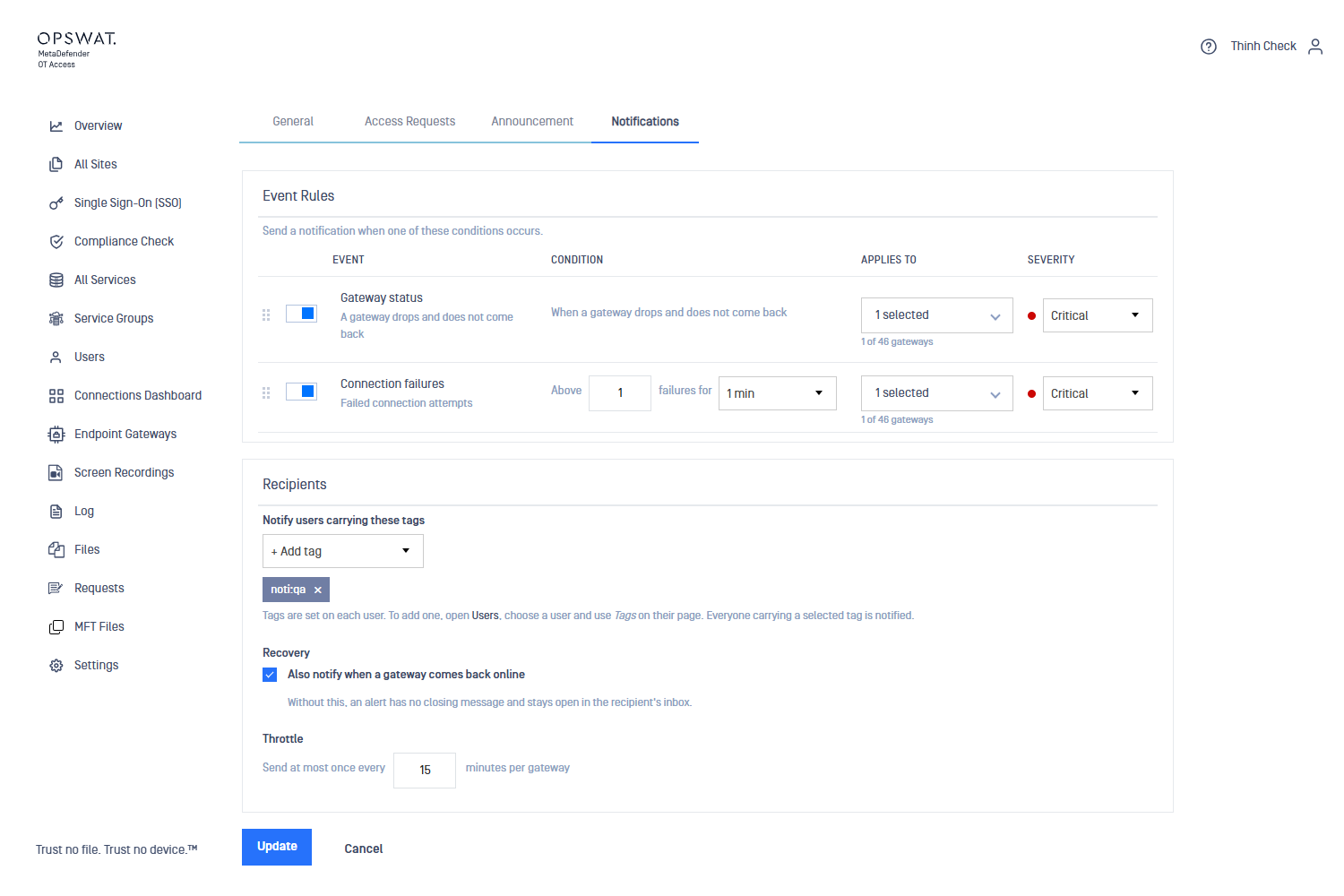
The alert fires on the failure that reaches the threshold: with Above 1 failures the first failed sign-in already sends an email. Set the number to the count at which you want to be told.
A further failure inside the same window does not send a second email. The rule sends one alert per window, not one per event.
5. Set recipients, recovery and throttle
Setting | What it does |
|---|---|
Notify users carrying these tags | Adds a tag to the recipient list. Everyone carrying that tag receives every alert from every enabled rule. The |
Also notify when a gateway comes back online | Sends a second email, subject RESOLVED, once the gateway reconnects. Without it an alert has no closing message. |
Send at most once every N minutes per gateway | Interval between repeat alerts for the same gateway. |
Recovery applies to the Gateway status rule. A connection-failure alert has no closing state, so it sends no RESOLVED email.
Click Update after any change, and allow a few minutes for a saved change to take effect.
6. Verify
Use a test account and a gateway you can take offline, so that no one else loses a session.
Connection failures
On a machine that runs the MetaDefender OT Access Console, sign in against the appliance's service address with a wrong password, as many times as the threshold requires.
Open Log → Gateway Events. Each attempt appears as Gateway auth failed: password mismatch.
Open the recipient's mailbox. The subject reads CRITICAL: N connection failures in M minutes (threshold N).
Gateway status and recovery
Sign in to the app with the correct password. Log → Gateway Events records Gateway connected.
Close the app window and leave it closed.
After 45 seconds without a reconnect, Gateway Events records Gateway went offline (no reconnect within 45s) and the alert follows.
Sign in again. Gateway Events records Gateway connected, and Recovery adds the RESOLVED email.
7. What the alert email contains
Field | Meaning |
|---|---|
Subject | Severity, the condition that fired, and the threshold behind it |
Severity | The value set on the rule |
Occurred | Time of the event, in UTC |
Result |
|
Gateway | Identifier of the gateway that triggered the rule |
Site | Site of that gateway |
Source IP | Address the gateway connected from |
Actor | Account behind the event |
Rule |
|
Audit ID | Event id in Log → Gateway Events. Use it to find the exact event behind the email |
8. Quick reference
Field | Values | Notes |
|---|---|---|
Gateway status | on / off | Fires 45 s after a gateway drops without reconnecting |
Connection failures | threshold and window | Window: immediately, 1, 5, 10 or 15 minutes |
Applies to | All gateways / a site / individual gateways | "All" and a site also cover gateways added later |
Severity | Info, Warning, Critical | Label only |
Notify users carrying these tags | one or more tags | At least one required |
Also notify when a gateway comes back online | on / off | Adds the RESOLVED email |
Send at most once every … | minutes per gateway | See section 5 |