
Autodiscovery is a powerful feature in MetaDefender Storage Security designed to simplify and accelerate the integration of your cloud storage.
It automatically detects and adds storage units from supported cloud storage services, eliminating the need to manually configure each one.
This significantly streamlines the process of onboarding multiple storage units, saving valuable administrative time and reducing the potential for configuration errors.
Supported Storage Types
Currently, Autodiscovery functionality is available for the following storage types:
Amazon S3 — How to Enable Autodiscovery
S3 Compatible, Wasabi, Oracle S3-Compatible, Cubbit and Scality RING — these follow the same flow as Amazon S3; see the Amazon S3 guide above
Azure Blob — How to Enable Autodiscovery
Google Cloud — How to Enable Autodiscovery
SharePoint Online — How to Enable Autodiscovery
Note: MetaDefender Storage Security is continuously evolving. Support for additional cloud storage services may be introduced in future releases. Please refer to the latest release notes for the most up-to-date information.
How Autodiscovery Works
The Autodiscovery process involves several key stages:
Prerequisites
Before initiating autodiscovery, ensure the credentials you provide for your cloud storage service have the necessary permissions to list all available storage units. For example, an AWS IAM user or role needs the
s3:ListAllMyBucketspermission for Amazon S3 and S3-compatible storages, and a Google Cloud service account needs thestorage.buckets.listpermission on the project (for example through a custom role or Storage Admin). The exact permissions for each storage type are listed on its "Add a … Storage" page. Without these permissions, MetaDefender Storage Security cannot detect your storage units.Familiarize yourself with how accounts and groups are managed within MetaDefender Storage Security. This will help you understand how autodiscovered storage units are organized post-discovery. For comprehensive details, please review the Accounts & Groups documentation below.
Initiating Storage Discovery
You provide valid credentials for a supported cloud storage service through the MDSS interface.
Scanning and Detection
MDSS uses the provided credentials to securely connect to your cloud storage account
It then scans the account to detect all available storage units (e.g. S3 buckets associated with the AWS account, Azure Blob containers in the storage account, or SharePoint Online sites in the tenant).
Automated Integration & Configuration
Successfully detected storage units are automatically added to MetaDefender Storage Security.
These autodiscovered storage units will typically be associated with a specific account and group within MetaDefender Storage Security, often based on the context of the autodiscovery setup.
All units discovered in a single operation will share the same initial account and group configuration.
The Autodiscovery feature works by:
Storage Discovery: When provided with valid credentials for a supported cloud storage service, the system scans the associated account to detect all available storage units (such as S3 buckets).
Automated Addition: Depending on the chosen method, the system can either:
Automatically add all discovered storage units
Present a list of discovered storage units for manual selection
Allow individual adding of storage units
Periodic Synchronization: For accounts with Autodiscovery enabled, the system periodically checks for new storage units and automatically adds them to MetaDefender Storage Security.
Using Autodiscovery
Method 1: When Adding an Account
From the left side menu, navigate to Inventory, click Add New > Account, choose one of the supported storage types listed above and click Next
Fill out the form with valid account credentials
Turn on the Autodiscovery switch and select the Destination Group where the discovered storage units will be added
Click Next. The Summary step shows Autodiscovery as Enabled together with the destination group, and the discovered storage units are added to that group. Click View in inventory or Finish
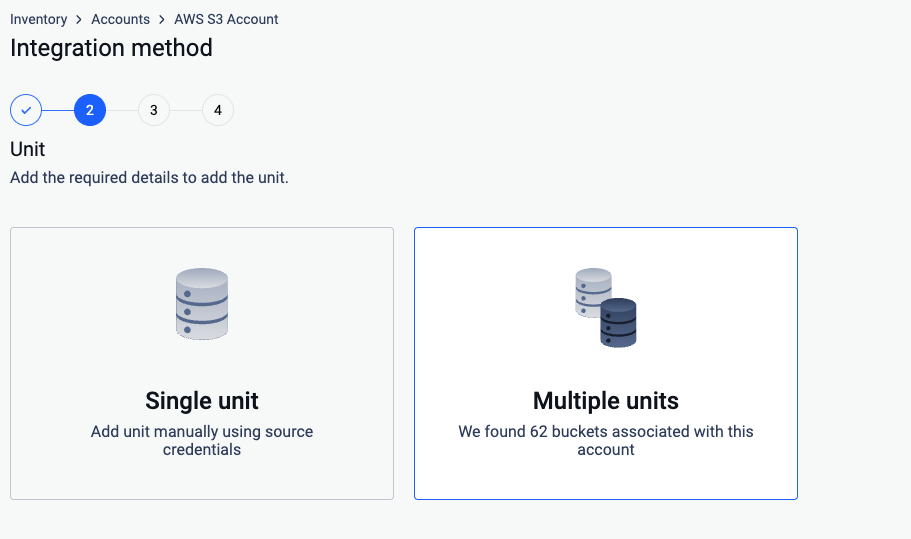
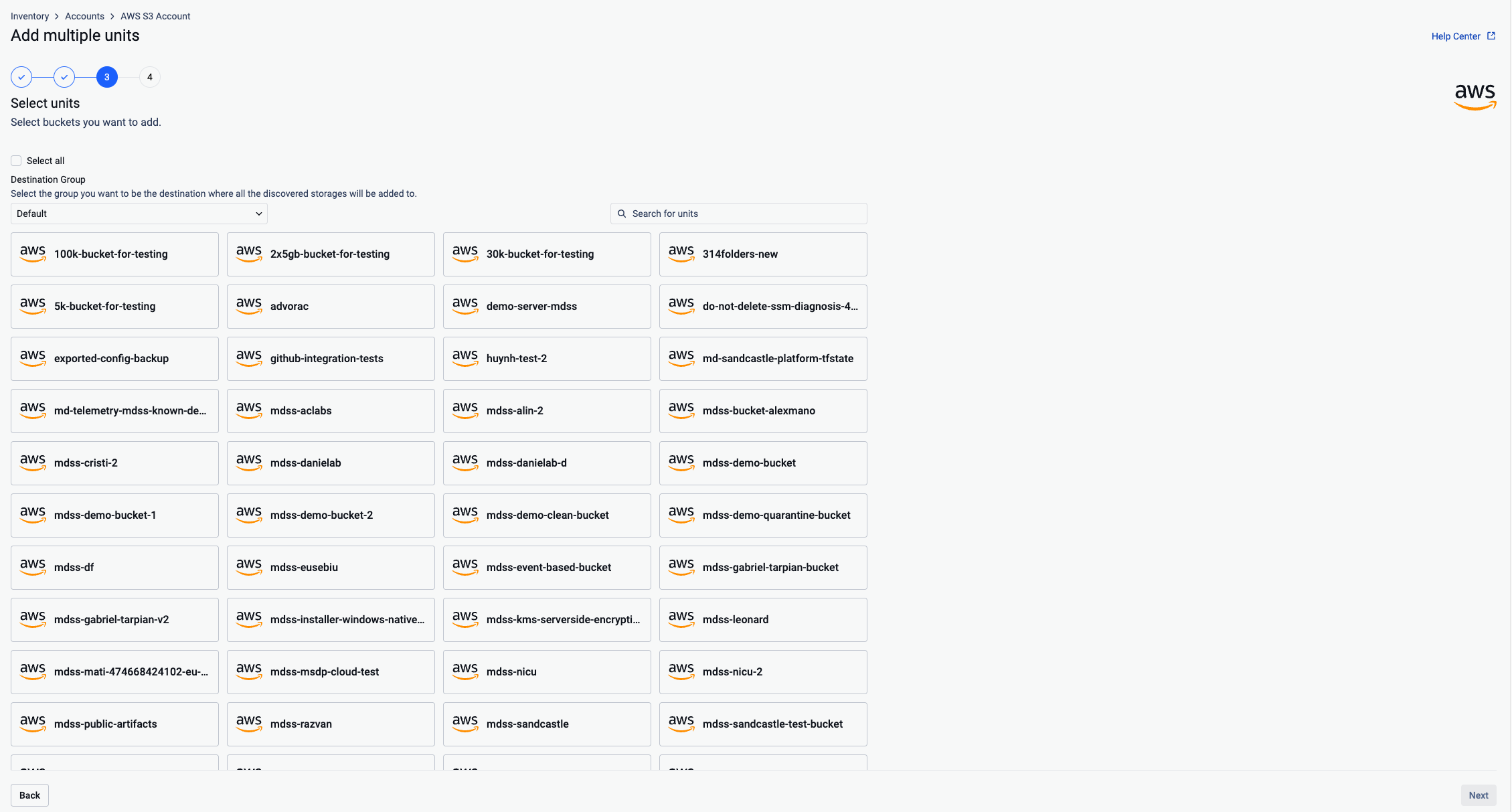
To add only specific storage units, leave Autodiscovery disabled, click Add unit on the Summary step, and choose:
Single unit to add one storage unit with full configuration control
Multiple units to select which of the discovered storage units to add
Method 2: Enabling Autodiscovery for an Existing Account
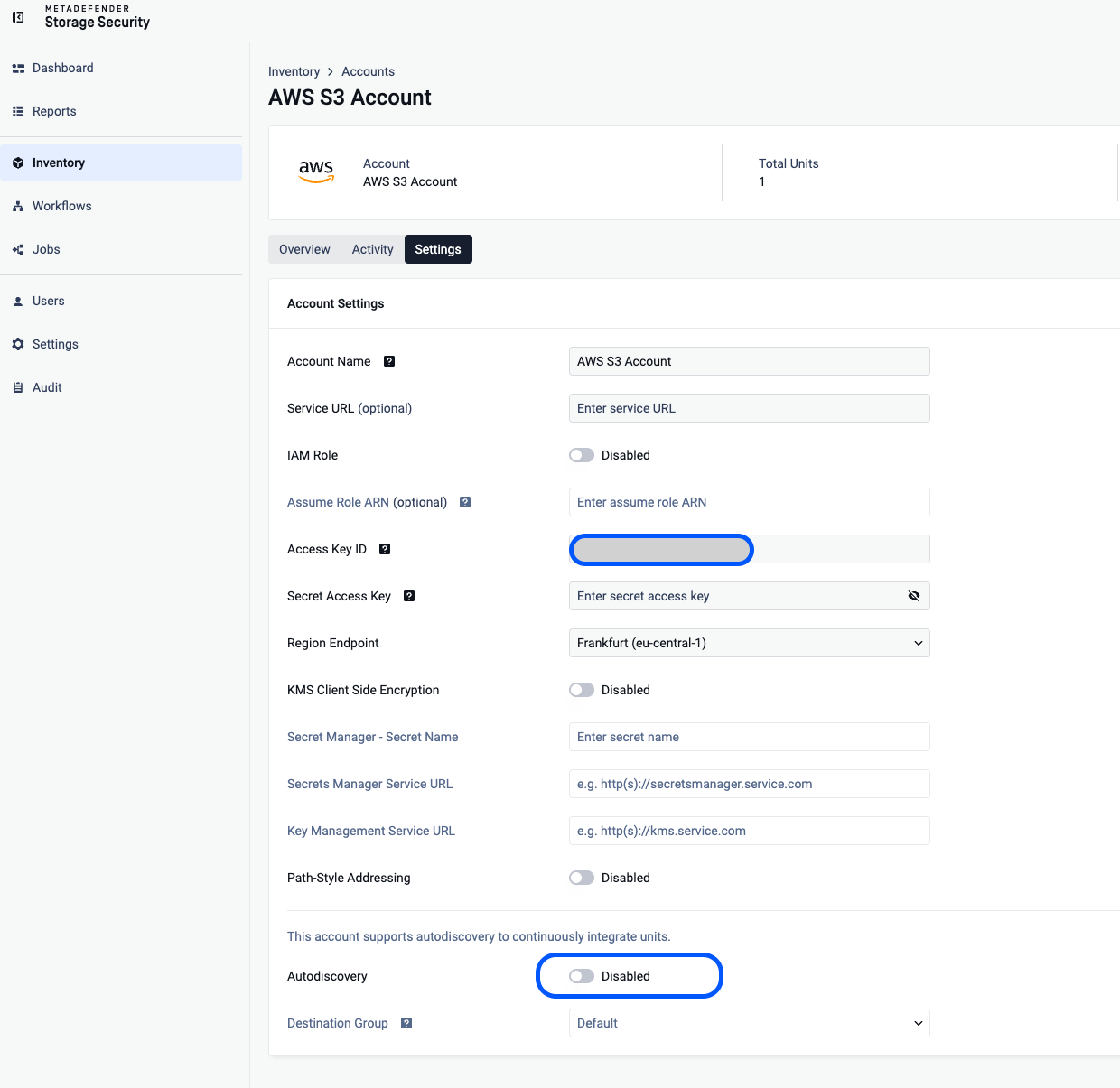
Navigate to Inventory > Accounts and open the account (or select Account Settings from the account's three-dot menu)
Open the Settings tab
Turn the Autodiscovery switch on or off and select the Destination Group
Input the secret key or credentials file and complete the process by clicking Update
Common Issues
No storage units discovered
Verify the credentials have sufficient permissions
Check that the selected region is correct
Confirm that the account contains storage units of the supported type
Autodiscovery not working periodically
Verify the account's Autodiscovery setting is enabled
Check system logs (e.g., Audit page) for any authentication or connection errors
Storages not appearing in Inventory
If the storage units were added with Add unit > Multiple units, the Summary step lists the storage units that weren't added successfully, including the error why each wasn't added.
When storage units are autodiscovered, they will all be set up in the system sharing the same account and group details provided during the autodiscovery configuration.
For autodiscovery to successfully identify your storage units, the credentials used must possess the necessary permissions to list all accessible storage units.