This guide provides step-by-step instructions for enabling Autodiscovery for Amazon S3 storage in MetaDefender Storage Security.
Autodiscovery automatically detects and adds S3 buckets as storage units, saving time and reducing configuration errors.
The same steps apply to the S3 Compatible, Wasabi, Oracle S3-Compatible, Cubbit and Scality RING storage types. Select that provider instead of Amazon S3 in Method 1, and provide the endpoint and credentials described on its "Add a … Storage" page.
Prerequisites
Before enabling Autodiscovery, ensure you have:
Valid AWS access key ID and secret access key with sufficient permissions
Permissions as stated in Add An Amazon S3 Storage
Method 1: Enable Autodiscovery When Adding an Account
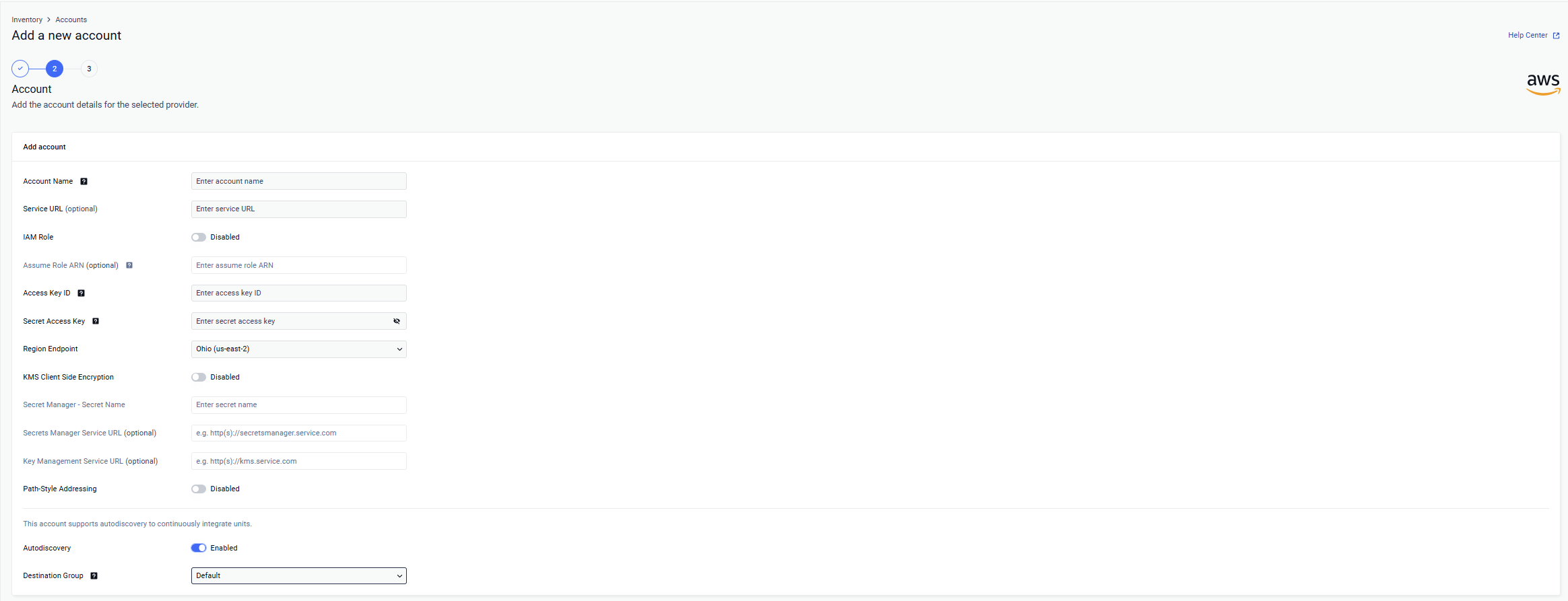
Navigate to Inventory › Accounts and click Add account
Select the Amazon S3 provider
Fill out the form with valid Amazon S3 credentials
Turn on the Autodiscovery switch and select the Destination Group where the discovered buckets will be added
Only the storages from the selected region endpoint will be discovered.
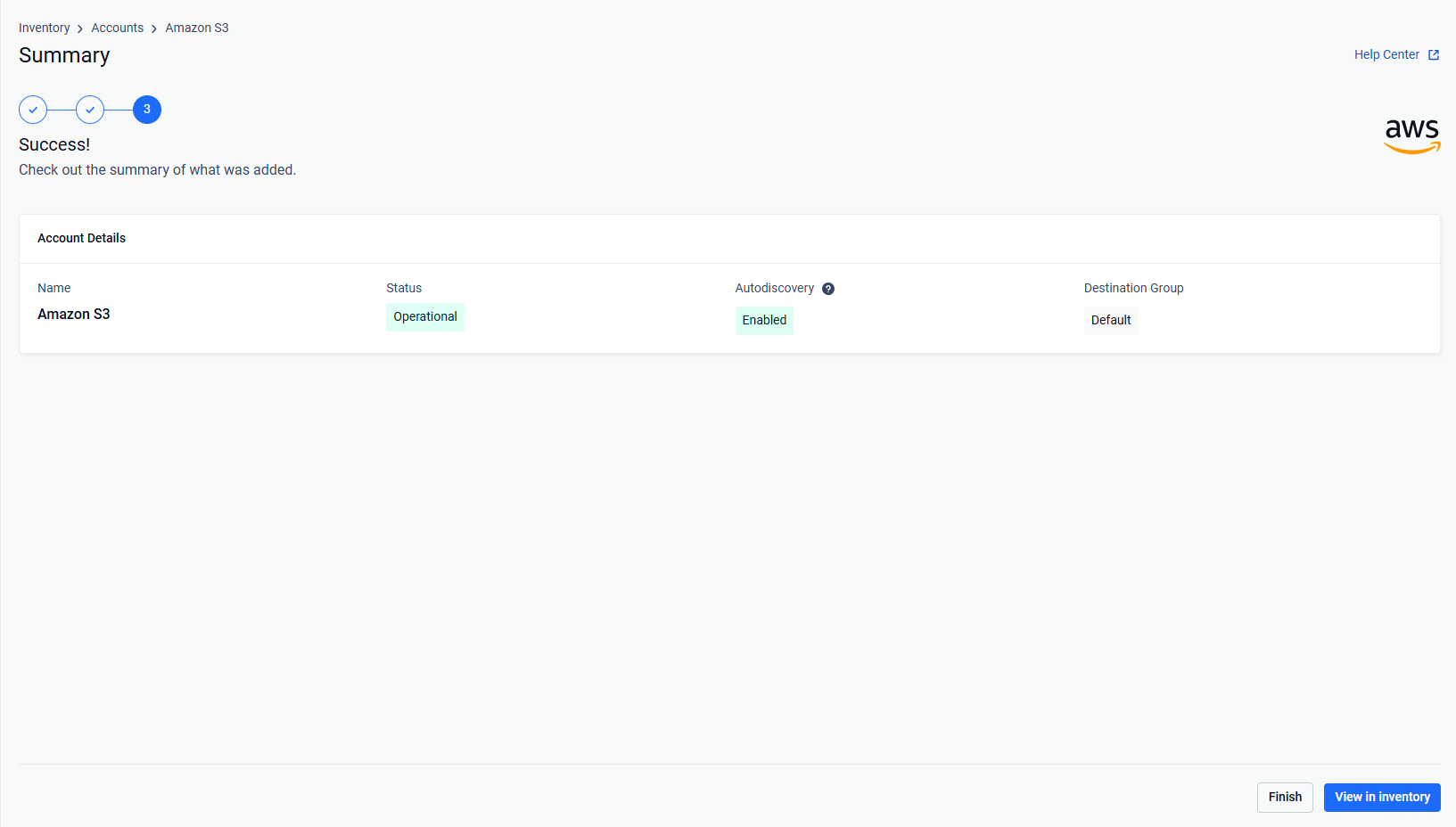
Continue to the Summary step. Autodiscovery starts in the background and the discovered buckets are added as storage units to the destination group. Click View in inventory to open the account, or Finish
To learn more, please consult the Autodiscovery documentation.
To add only specific buckets, leave Autodiscovery disabled, click Add unit on the Summary step, and choose Single unit or Multiple units.
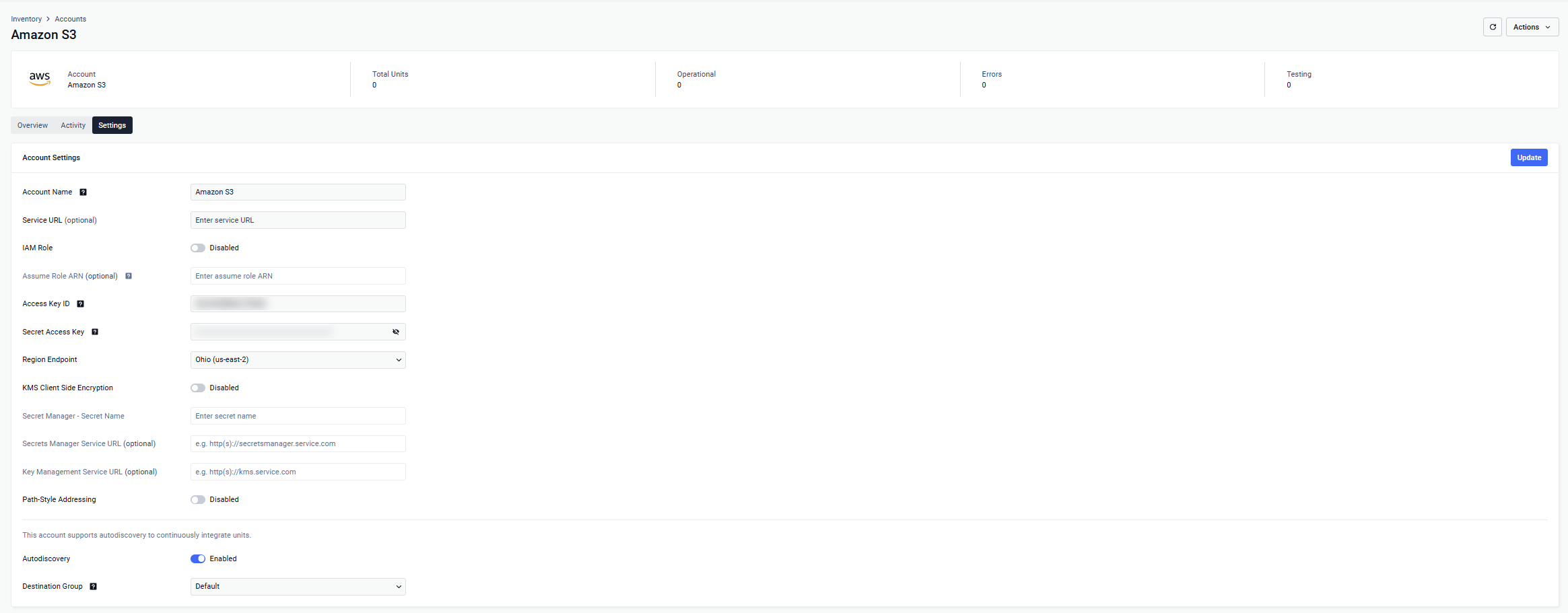
Method 2: Enable Autodiscovery for an Existing Account
Navigate to Inventory › Accounts and open the account you want to start autodiscovery for
Open the Settings tab
Turn on the Autodiscovery switch and select the Destination Group
Enter the Secret Access Key
Click Update