
Hosts with SMB file shares can be integrated with MetaDefender Managed File Transfer™ for various use cases, such as file transfer automation. To learn more, visit the Introduction to File Transfer Automation section.
To manage SMB integration instances, go to "Settings" → "Integrations" → "SMB."
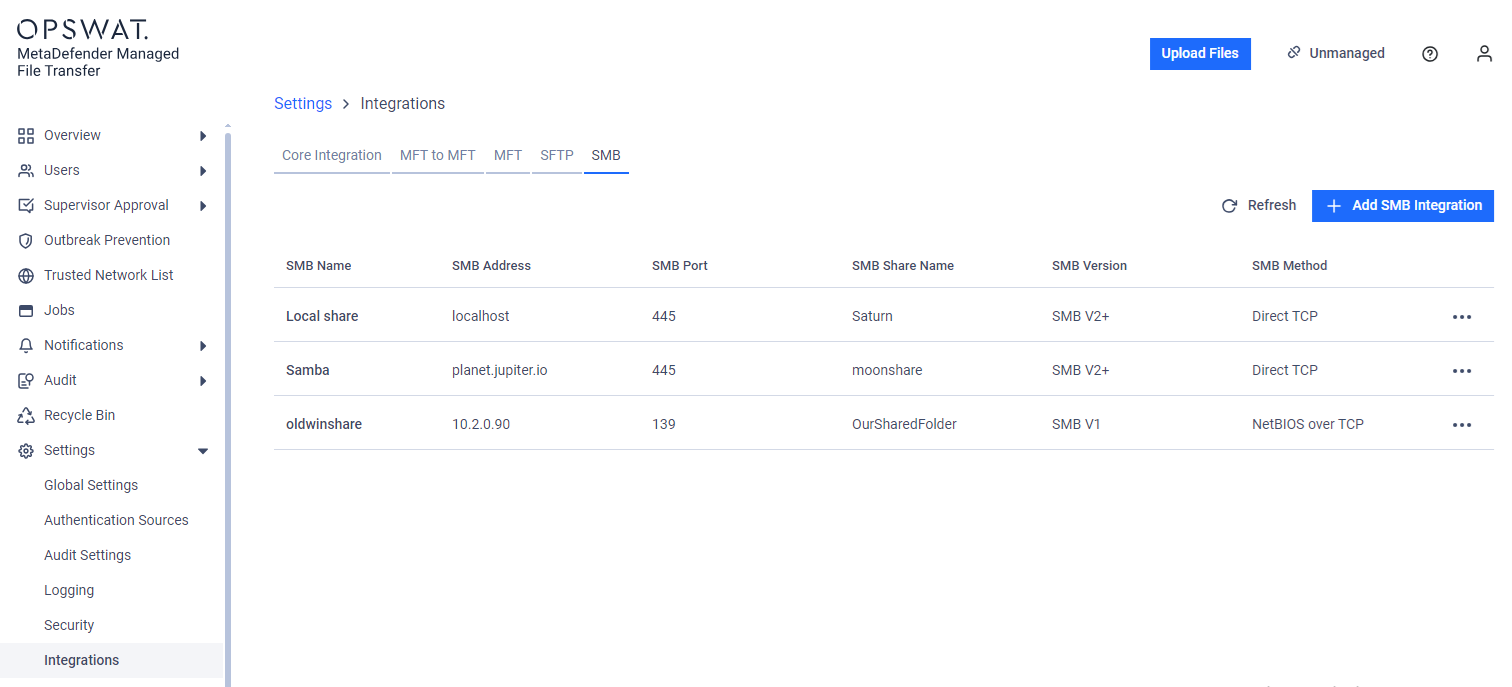
SMB integrations are globally shared, meaning every user with permissions to view them will see the same set of integrations.
Configuration
To add a new SMB Integration, click the "Add SMB Integration" button.
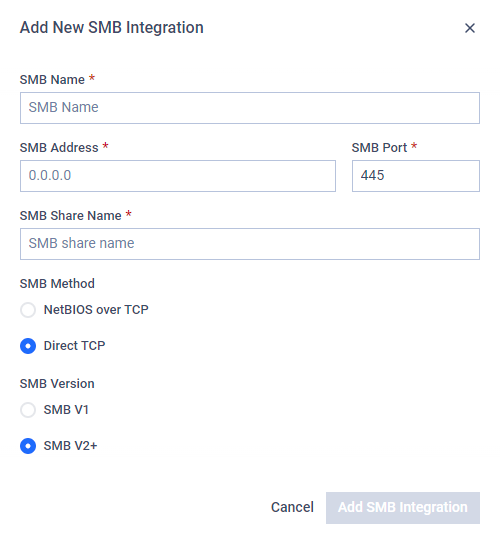
In the pop-up modal, provide the following information:
SMB Name: The display name, which can be anything. It will be used when selecting the integration instance.
SMB Address: The IP address or FQDN of the host.
SMB Port: The port on the host to connect using SMB protocol.
SMB Share Name: The name of the file share on the host.
SMB Version: Use SMB V1 for shares supporting only SMB 1.0, and SMB V2+ for newer versions (up to 3.1.1)
SMB Method: The SMB file transfer method. Prefer Direct TCP if supported by the host.
Testing the Connection
Users can test connection to a configured SMB integration, which checks whether the configured port is accessible on the configured address.
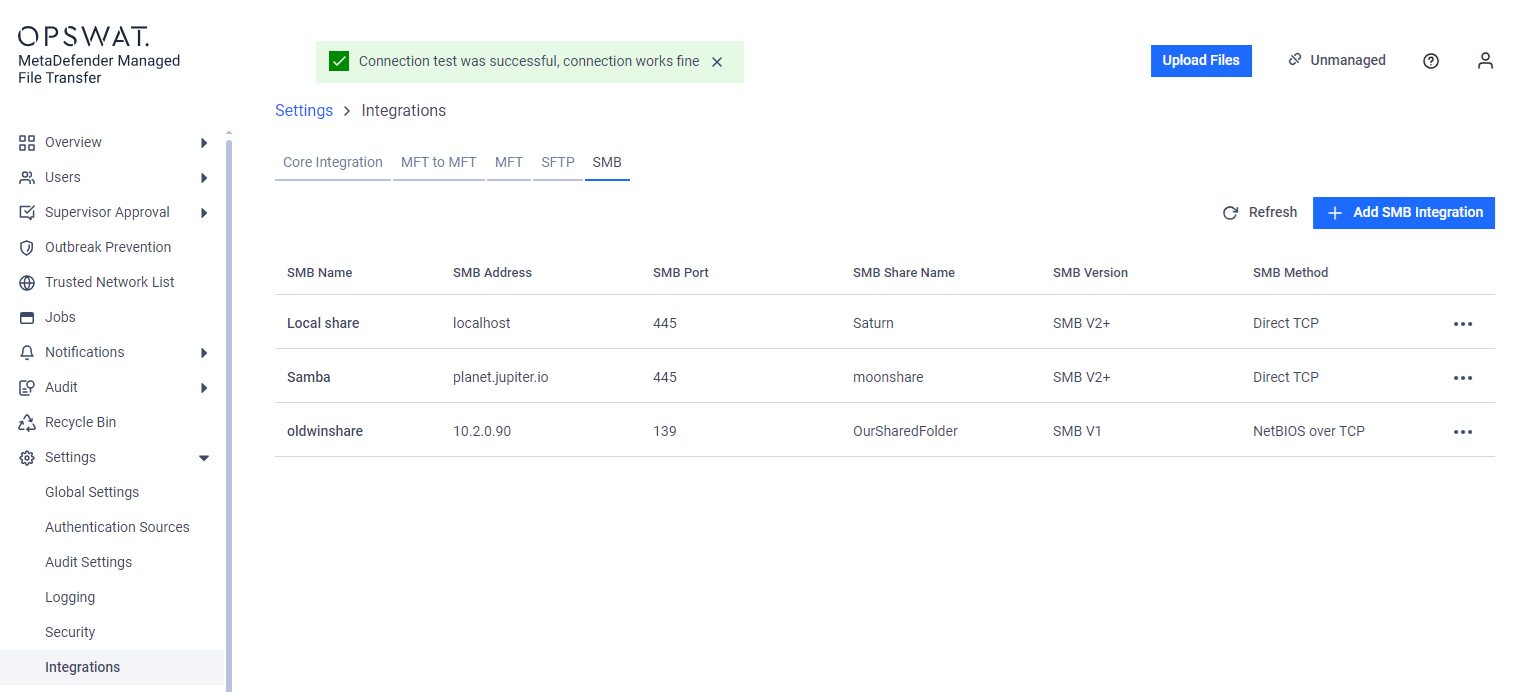
For security reasons, the "Test Connection" function only checks the address and port reachability.
Your SMB with MetaDefender® MFT is now complete. Learn how to configure Automated Jobs using the same integration here.