Creating External Users
External user accounts are for sharing files with partners or organizations on a long-term basis. External users cannot see internal users and can only share files with their creator.
Go to the "Users" menu and select "External Users." $plugin[fjwoux2te1f]
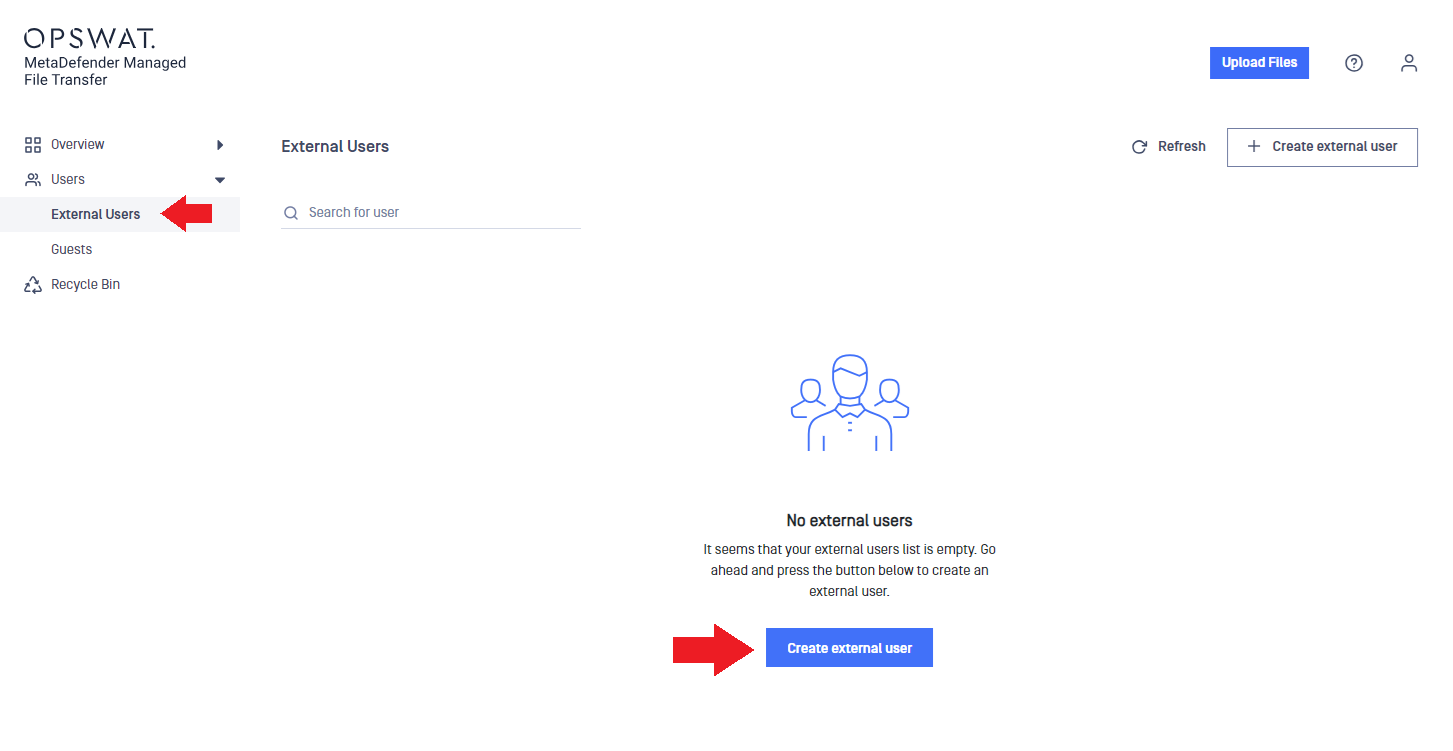
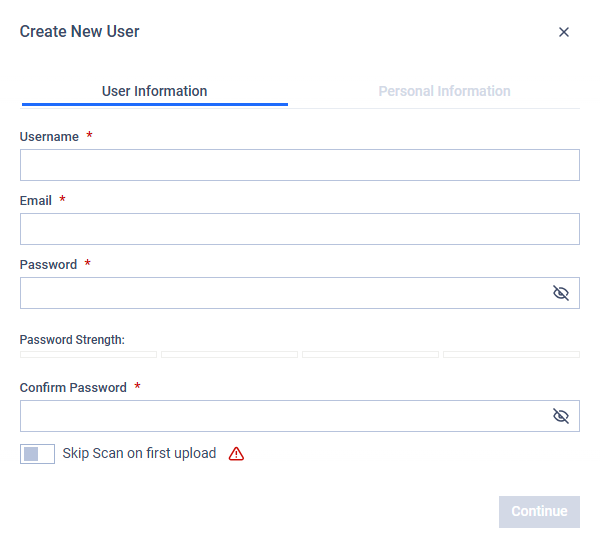
In the "Create new user" window, enter a username, email, and password.
In the "Personal Information" tab, set the "Expiration date" (may be disabled depending on settings) and enter the first name and last name.
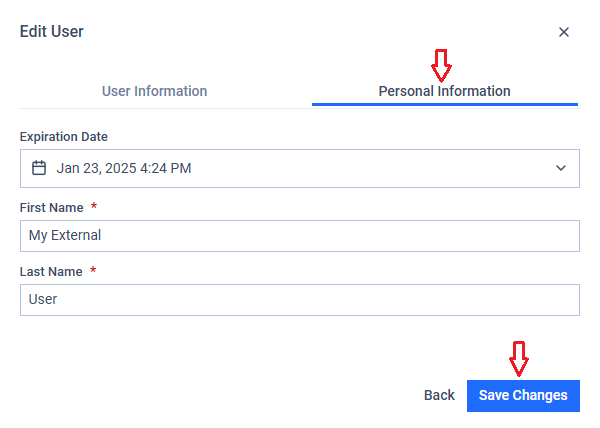
Click "Create" to finish creating the external user account.
The user will receive a welcome message with a link to MetaDefender® MFT and the credentials for signing in.
Managing External Users
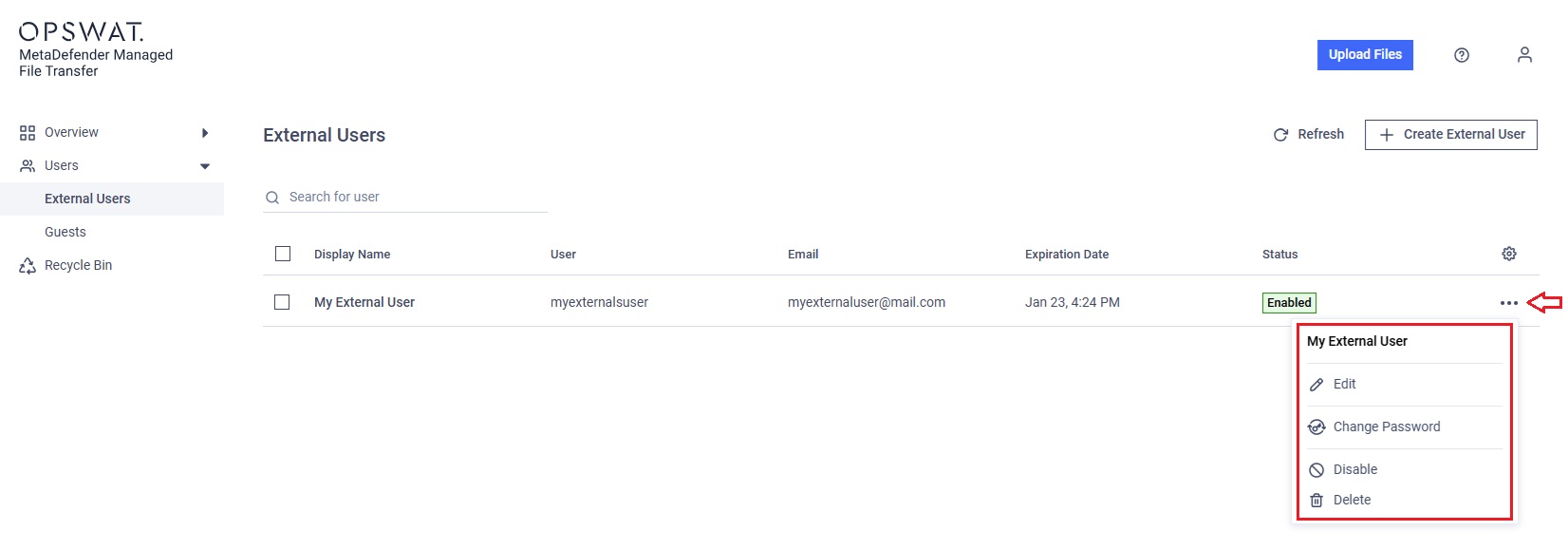
To manage external users, go to the "Users" menu and select "External Users."
The three-dot menu offers the following options:
Edit: Allows you to edit the expiration date (may be disabled depending on settings), user name, email, first name, and last name
Change password: Allows you to update the user's password
Disable/Enable: Disables the account to prevent login, or enables it again
Delete: Deletes the guest account if it is no longer needed