
The "Jobs" menu provides an overview of the jobs created by the user. Automations are listed in a table, organized in chronological order of their creation.
Displayed Data

For each job, the following details are displayed:
Job Name: The name of the job provided by the user and its type
Job Status: The current status of the job, which can be:
Active: Job is enabled and can execute
Disabled: Job is disabled
Incomplete: Job is enabled but its configuration is either invalid or incomplete
Running Status: Whether the job is currently executing or waiting for the next scheduled execution
Running: The job is currently in progress
Not Running: The job is waiting for the scheduled execution
Progress: The current state of the job execution
Progress in percentage: Displays the percentage of the current execution if the job is running
Time until execution: Displays the time until the next execution starts if the job is not running
Contextual Actions
For each job in the grid, there is a contextual menu at the end of the line, providing actions for the selected job.
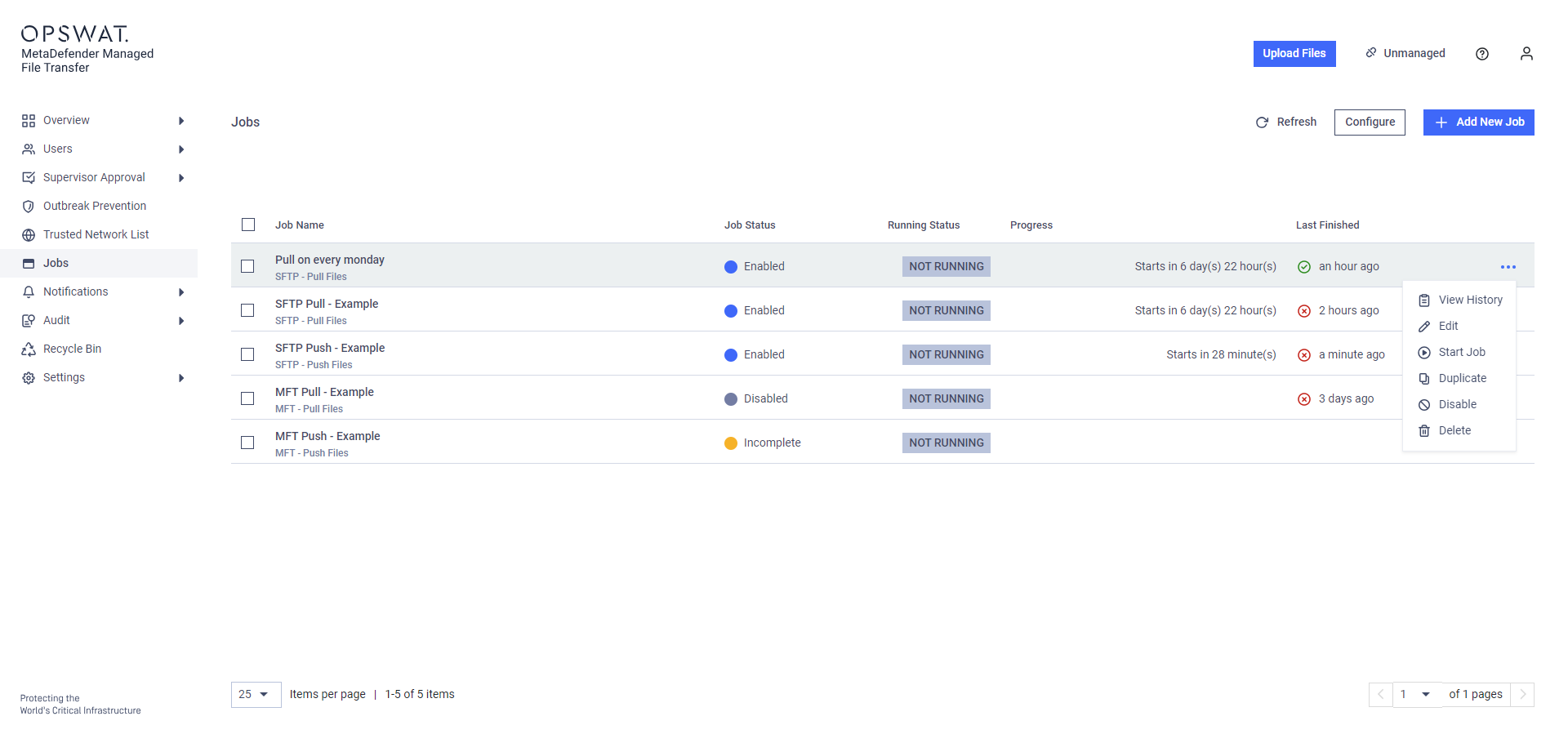
The following actions are provided:
View History: Navigate to the job's execution history
Edit Job: Modify the job's configuration
Start Job: Execute the job immediately instead of waiting for the next schedule (this does not affect the schedule)
Duplicate: Create a new job by copying the current job
Activate: Enable a disabled job
Disable: Disable an active job
Delete: Delete the job
Creating Jobs
To create a new job, click the "Add New Job" button.
Jobs are not shared between users, each user has to create their own set of jobs. An executed job is always acting as its creator.