
MetaDefender Managed File Transfer supports multiple types of storages (local, network, Amazon S3) for different purposes (temporary, sanitized, permanent). You can configure these storages by navigating to Settings → Storage page using the user interface.
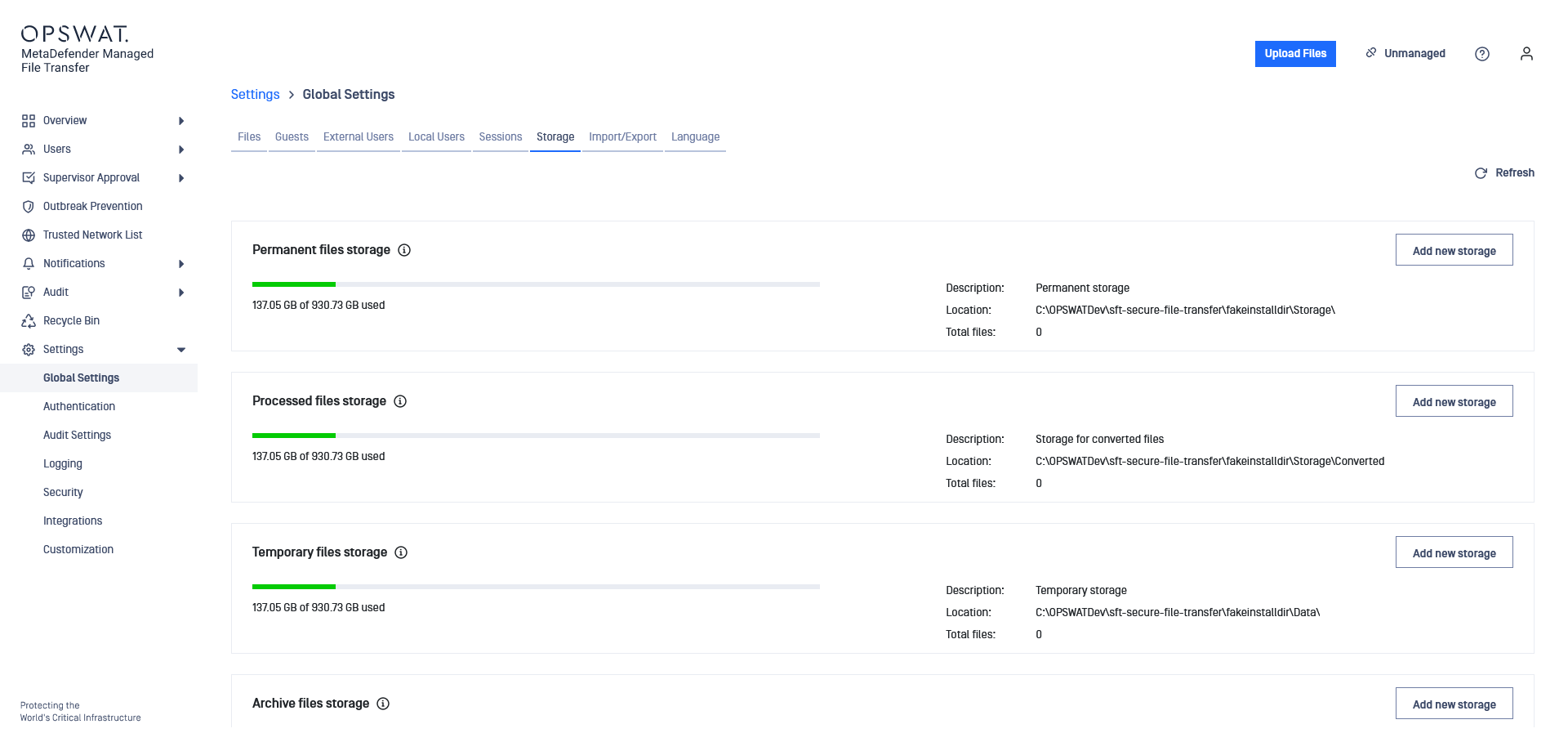
The table below describes each type of storage:
Type | Description | |
|---|---|---|
1 | Local | A storage represented by a local directory on the disk. |
2 | Network storage | A storage represented by a network location. Please note that network paths that require credentials are not supported for now. |
3 | Amazon S3 storage | A bucket or a directory inside a bucket on Amazon S3 that allows MetaDefender Managed File Transfer to save files in the cloud. |
4 | S3 Compatible Storage | A bucket or a directory inside a bucket on S3 compatible storage that allows MetaDefender Managed File Transfer to save files in the cloud. |
The table below describes each storage purpose:
Purpose | Description | |
|---|---|---|
1 | Temporary | The temporary storage is used to save files before they are processed. Files are also copied in this storage when they are scheduled to be re-processed. |
2 | Sanitized | The sanitized storage is used to save files sanitized by MetaDefender Core. |
3 | Permanent | The permanent storage is used to save files that have been fully processed and available for download. |
4 | Archive | The archive storage is used to save files which are no longer needed, but for kept for audit purposes. |
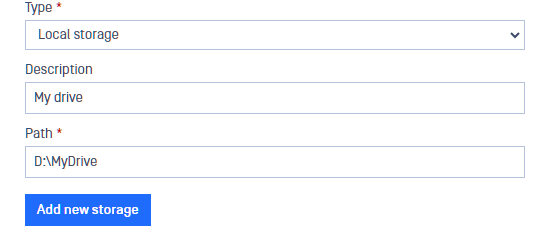
Adding a new local storage
You can add a new local storage by following these instructions:
Go to Settings → Storage
Choose for which purpose you want to add this storage (Permanent, Sanitized, Temporary) and click Edit button
Fill out the required information:
Click Update
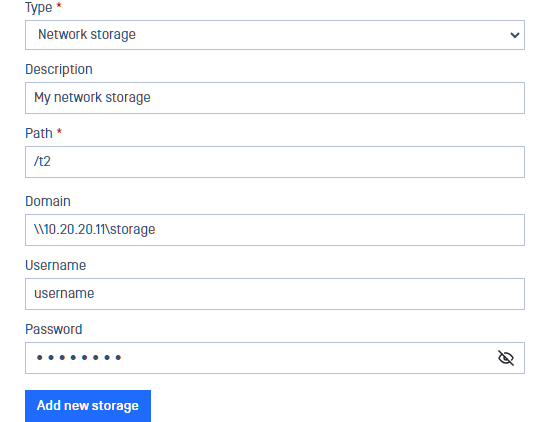
Adding a new network storage
Samba is supported from protocol version SMB2_10.
You can add a new network storage by following these instructions:
Go to Settings → Storage
Choose for which purpose you want to add this storage (Permanent, Sanitized, Temporary) and click Edit button
Fill out the required information:
Click Update
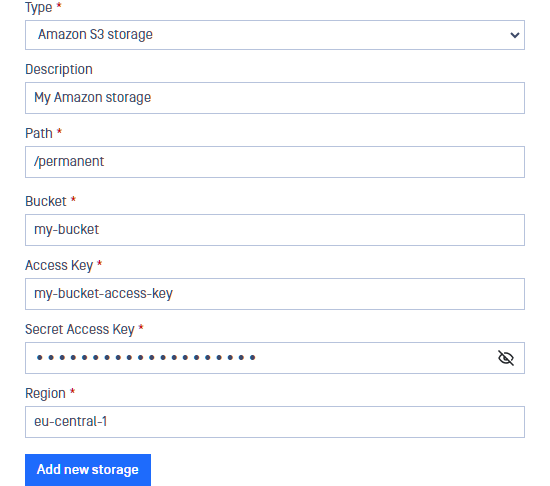
Adding a new cloud storage in Amazon S3
You can add a new cloud storage by following these instructions:
Go to Settings → Storage
Choose for which purpose you want to add this storage (Permanent, Sanitized, Temporary) and click Edit button
Fill out the required information:
Click Update
Adding S3 Compatible storage
You can add a new S3 compatible storage by following these instructions:
Go to Settings → Storage
Choose for which purpose you want to add this storage (Permanent, Sanitized, Temporary) and click Edit button
Fill out the required information (be careful, the input values are case sensitive)
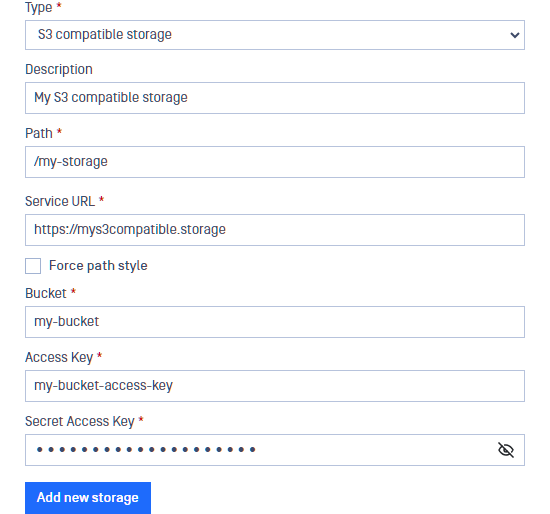
Click Update