Overview MetaDefender Managed File Transfer Release Notes
Getting Started
Deployment & Usage
Support
End-User Guide
v3.6.1
Search this version
End-User Guide
End-User Guide
Title
Message
Create new category
What is the title of your new category?
Edit page index title
What is the title of the page index?
Edit category
What is the new title of your category?
Edit link
What is the new title and URL of your link?
Tag files
Copy Markdown
Open in ChatGPT
Open in Claude
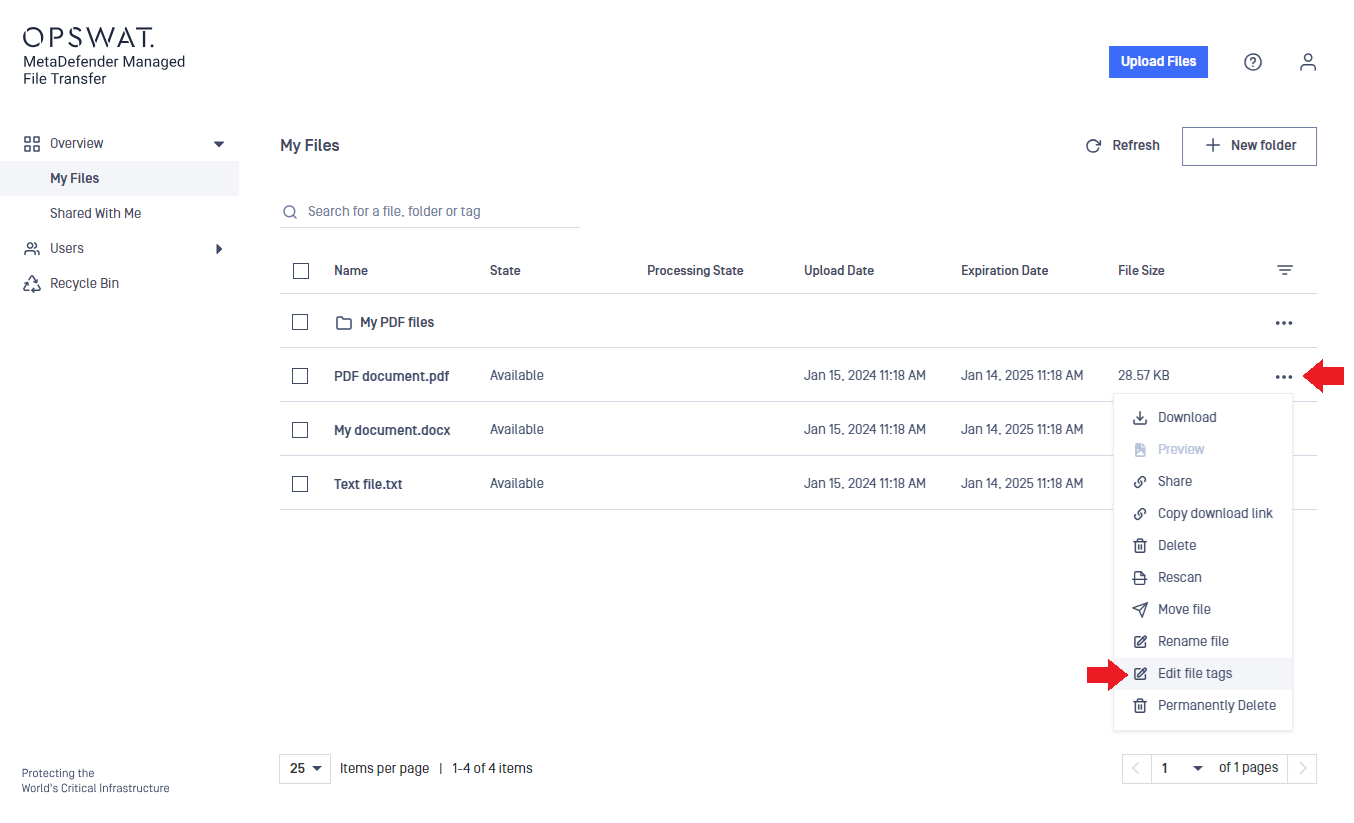
You can add tags to your files. Tags are used as keywords to find your files later more easily. To edit tags, follow the steps below:
- Click on the action menu (three dots) in the right-most column in the table.
- Select Edit file tags option from the menu.
- Enter a new tag into the text box and click on Add tag. You can remove unwanted tags as well by clicking on the x next to the tag.
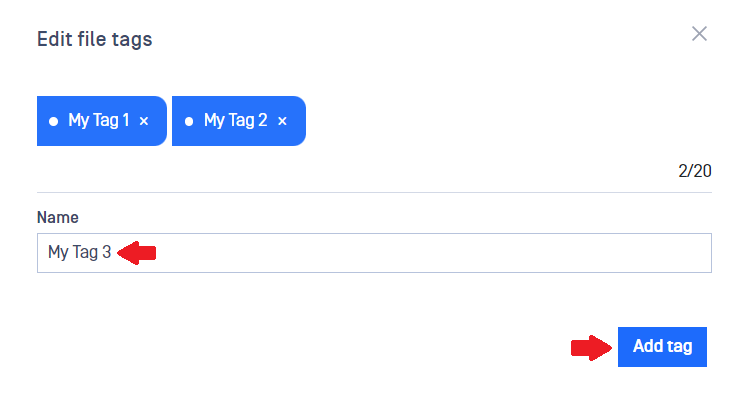
Now, you can search for files using tags.
Tag search is case insensitive, so using MyProject or myproject as a tag will yield the same in the search results.
You can assign up to 20 tags to each file. A tag cannot exceed 50 characters in length.
Type to search, ESC to discard
Last updated on
Was this page helpful?
Next to read:
SearchDiscard Changes
Do you want to discard your current changes and overwrite with the template?
Archive Synced Block
Message
Create new Template
What is this template's title?
Delete Template
Message
