
Uploading Files via REST API Using Postman
Below is a step-by-step guide to help visualize the process of uploading files to MetaDefender Managed File Transfer™ using Postman.
Initialize Group Transfer
Endpoint: GET /vault_rest/transfer
Begin by sending a request to initialize a group transfer. This step will return a group_id, which is required in the subsequent file transfer steps.
This API method is accessible to both Users and Administrators. However, only Administrators have full permission to manage the transfer process.
Administrators must include a valid Bearer token in the request headers. The token can be obtained through the authentication endpoint:
Endpoint: GET /vault_rest/authenticate (reference: Request an API key)
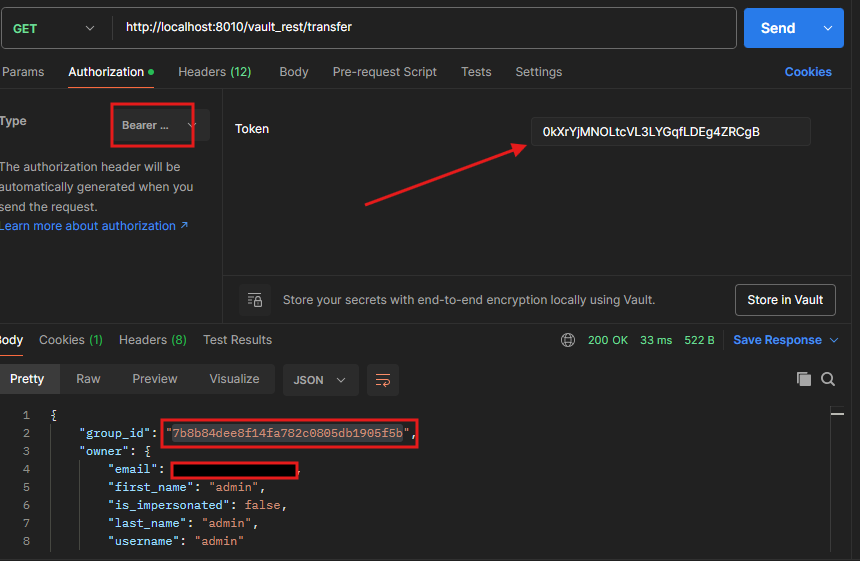
Initialize File Transfer:
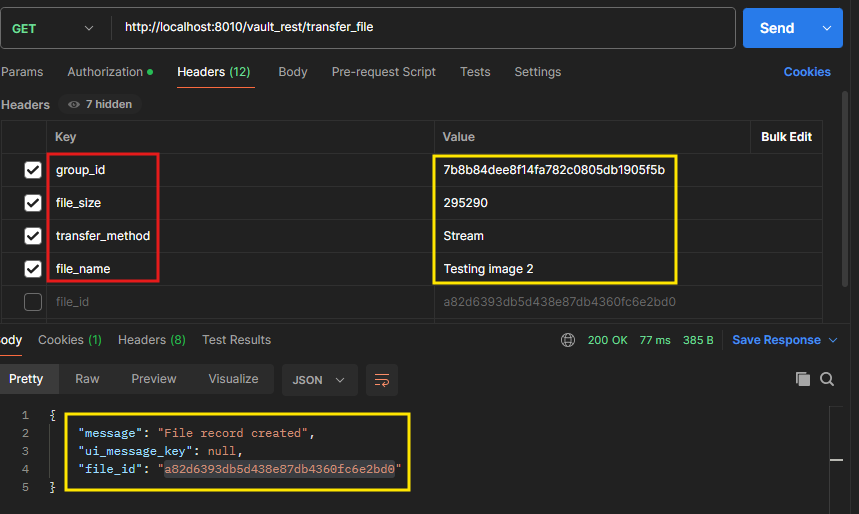
Endpoint: GET /vault_rest/transfer_file
To begin the file upload process, you must first initialize a file transfer using the group_id obtained from the previous Group Transfer Initialization step. This request will return a unique file_id which is required for the subsequent file upload.
In the request headers, be sure to include the following details:
transfer_method– Method used for transferring the file as Binary data either Stream or Chunk.group_id– The transfer group ID.file_size– Size of the file in bytes.file_name– Name of the file to be uploaded. (Example: Testing image 2.png → Testing image 2)
Ensure that the file information provided matches the actual file being uploaded. Accurate metadata is required for MetaDefender MFT to process the file correctly.
Upload File
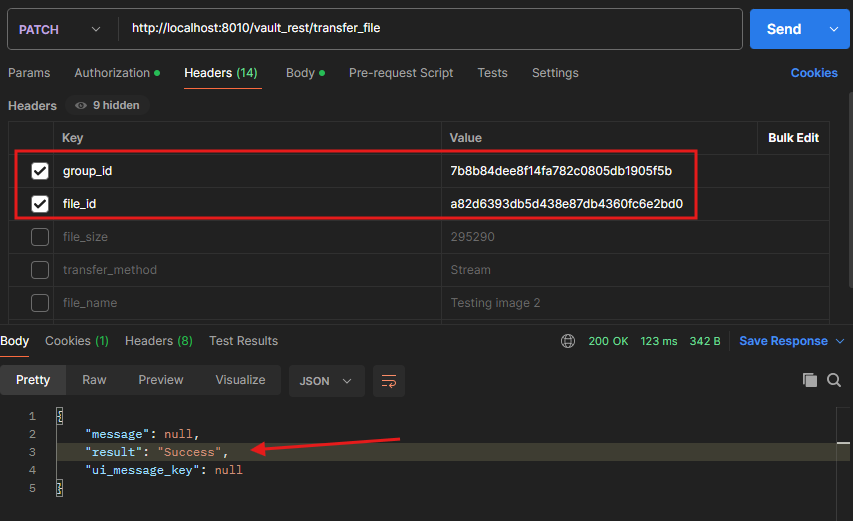
Endpoint: PATCH /vault_rest/transfer_file
In this step, you will upload the actual file content. Ensure that the file you are uploading matches the file details (e.g., file name and size) specified during the Initialize File Transfer step.
Headers:
To allow MetaDefender MFT to correctly identify the request, include the following headers:
group_id– The group transfer ID received from the Initialize Group Transfer stepfile_id– The file ID received from the Initialize File Transfer step
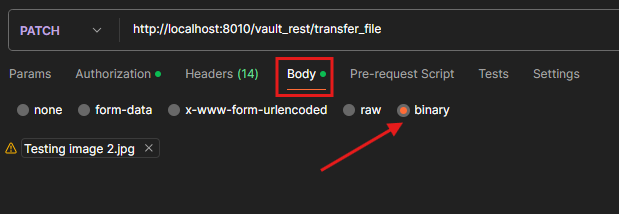
Body:
In the Body tab of Postman, select binary, and upload the file you intend to transfer.
Ensure that the uploaded file matches the metadata declared earlier, or the request may be rejected.
For larger files, this method may cause issues due to size limitations. In such cases, you should upload the file in chunks (typically 10MB per chunk). To enable chunked upload, make sure to include the chunk_offset header in your request.
Complete File Transfer
From this step onward please exclude the files from the body to send the correct API request.
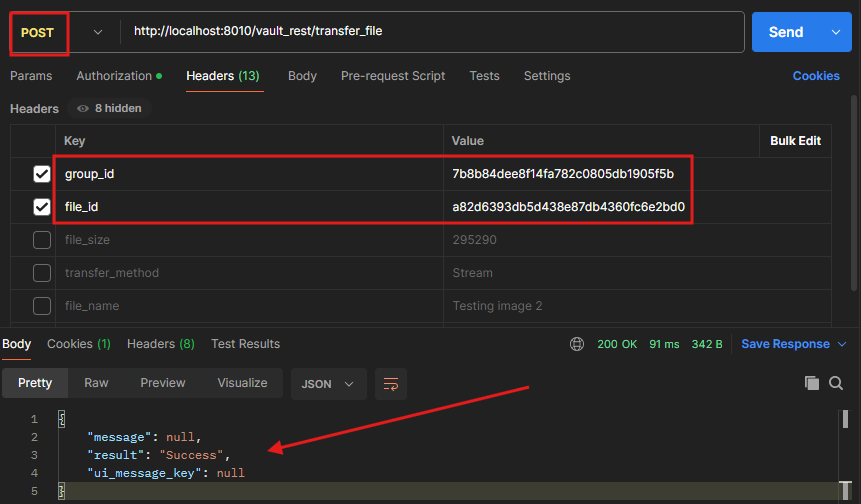
Endpoint: POST /vault_rest/transfer_file
After finishing the PATCH request, the user needs to confirm that they are finished with the file upload. They will need to confirm with the MFT with a request to close the File Upload request.
Headers
Please include the following headers for MFT to confirm the POST request.
group_id– The group transfer ID received from the Initialize Group Transfer stepfile_id– The file ID received from the Initialize File Transfer step
Complete Group Transfer
Endpoint: POST /vault_rest/transfer On the final steps to confirm that your file transfer is complete please send a final POST request for group transfer to close both file transfer and group transfer correctly.
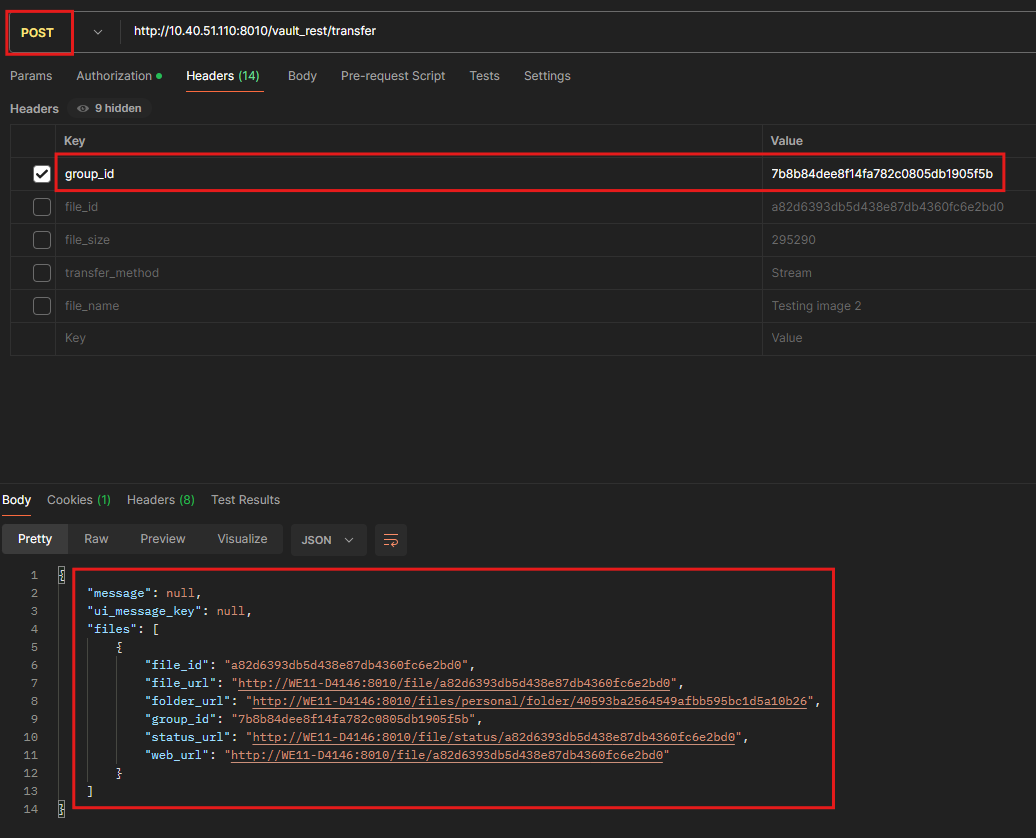
Please note that the files might get suck in processing if user didn’t call the API to complete file/group transfer.
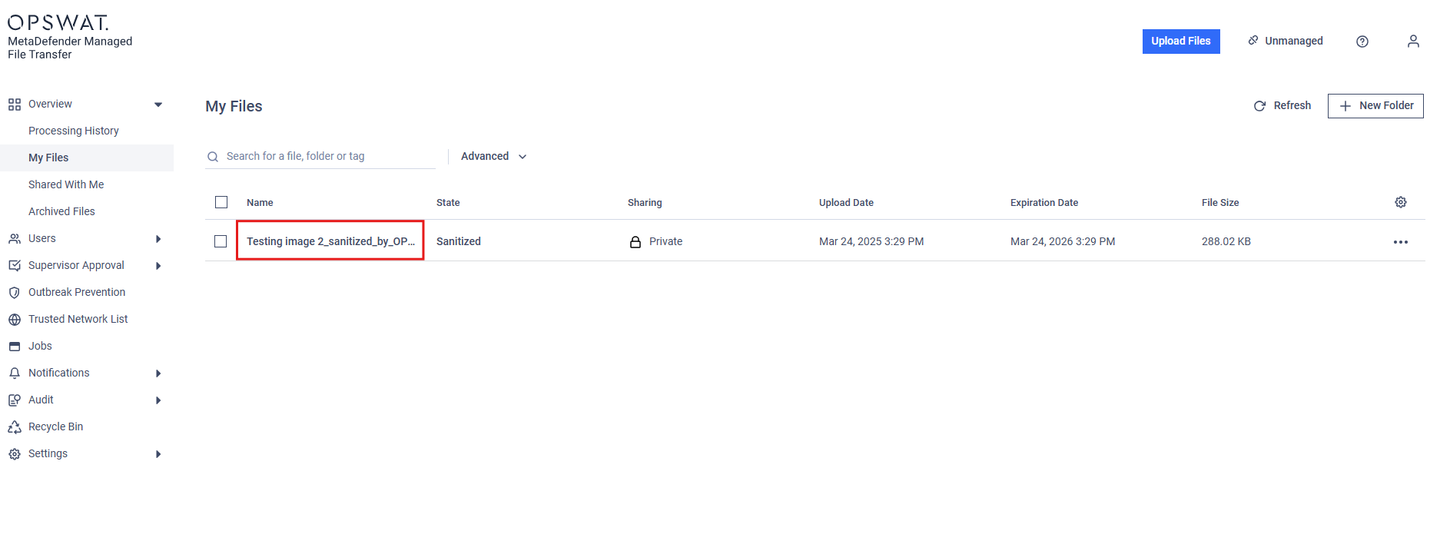
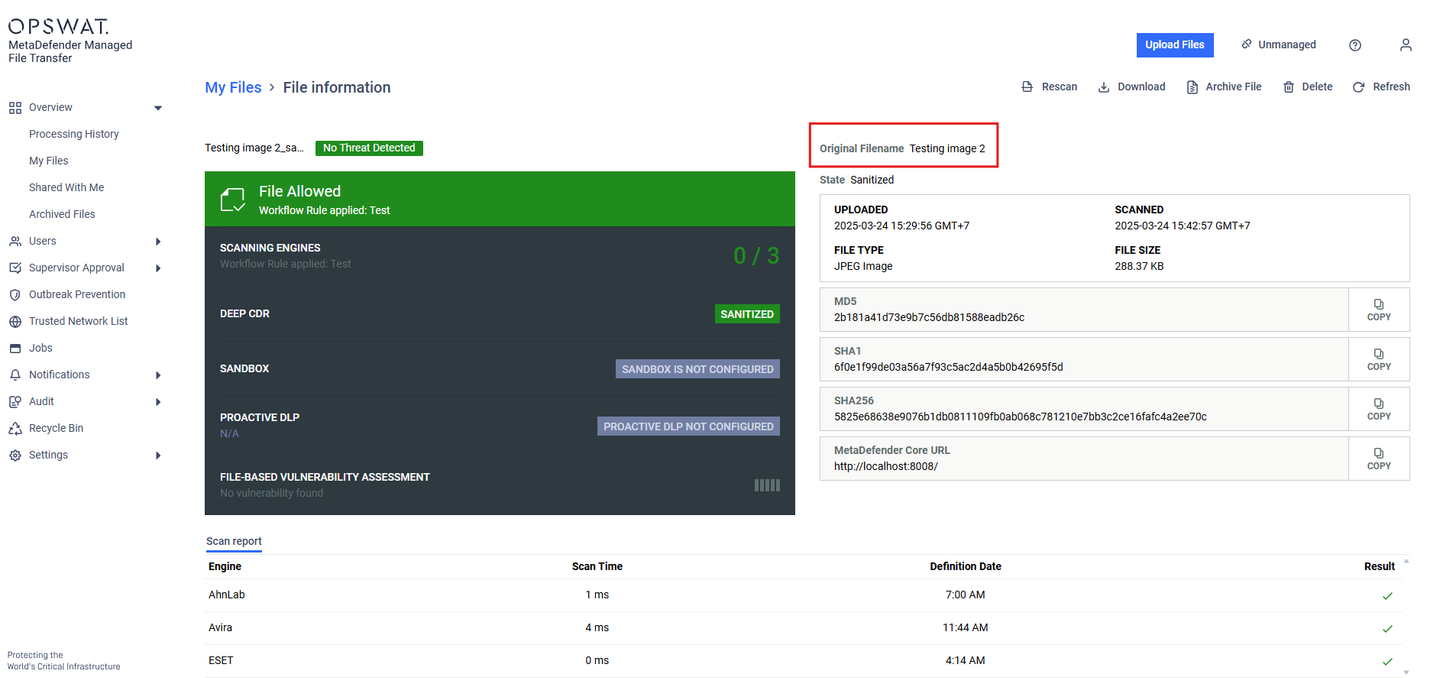
Once the post request has been completed, it can be confirmed by accessing the MFT.
If Further Assistance is required, please proceed to log a support case or chatting with our support engineer.